You can create and customize unique color schemes and apply them to different sections throughout your online store. We will guide you through the following 2 ways to customize color:
Custom color section of Theme
Metaobject Color of Shopify
This section allows you to customize color for product swatches, menu labels and product custom labels.
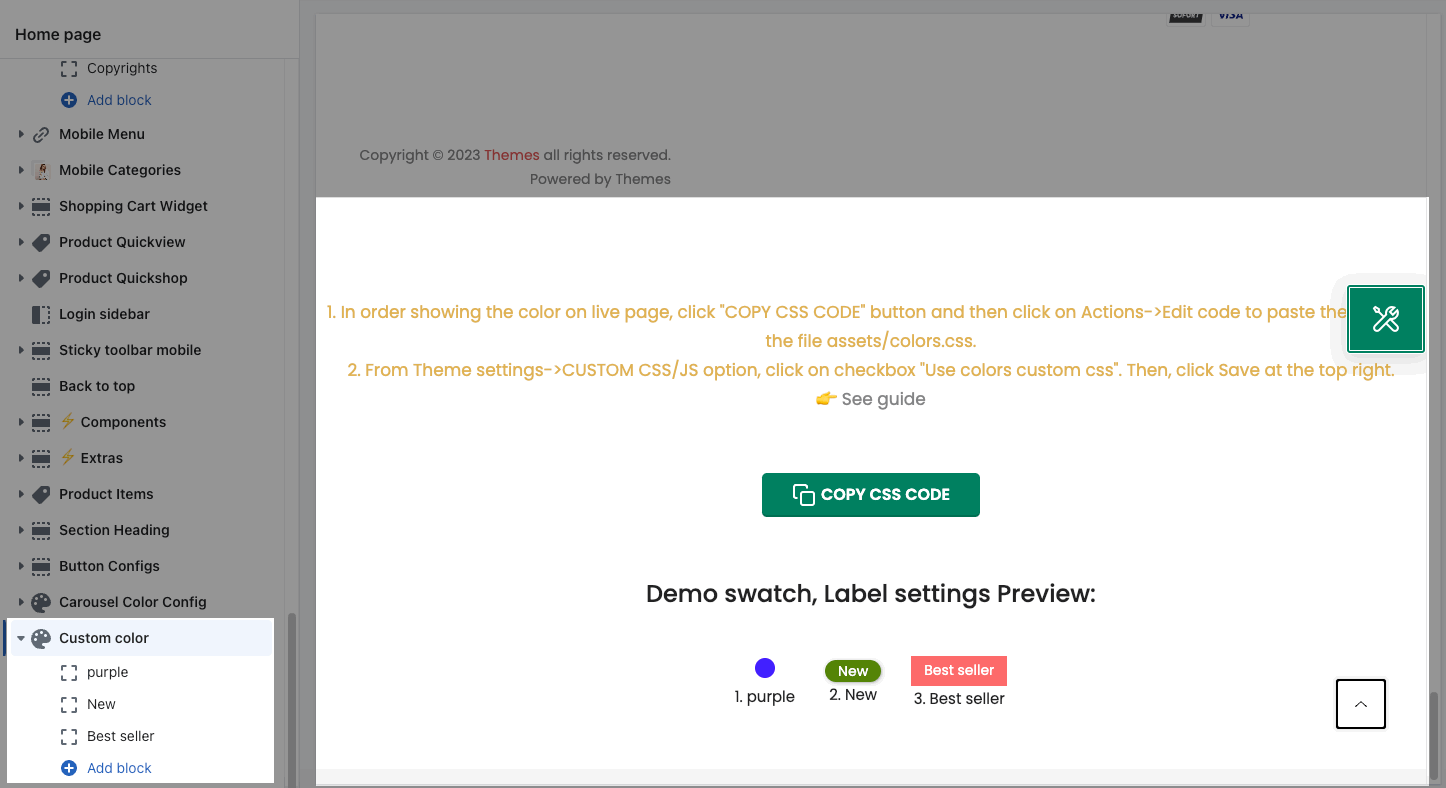
Go to the Sections Sidebar > Custom Color and configure it.
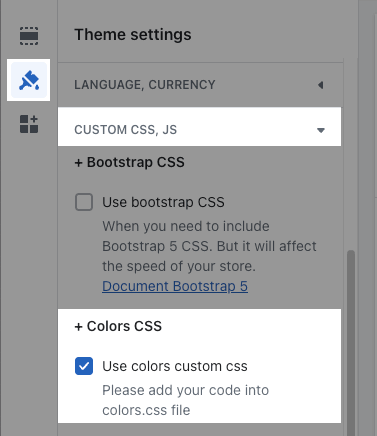
Go to Theme Settings > Custom CSS, JS > ticked on the Use colors custom CSS checkbox. You have to turn on this option to use the Custom Color section.
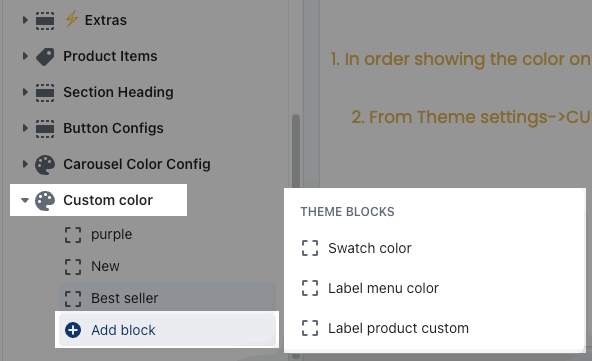
Custom color has 3 blocks: Swatch color, Label menu color, Label product custom.
Go to Custom Color > Add block > choose the block you want to config.
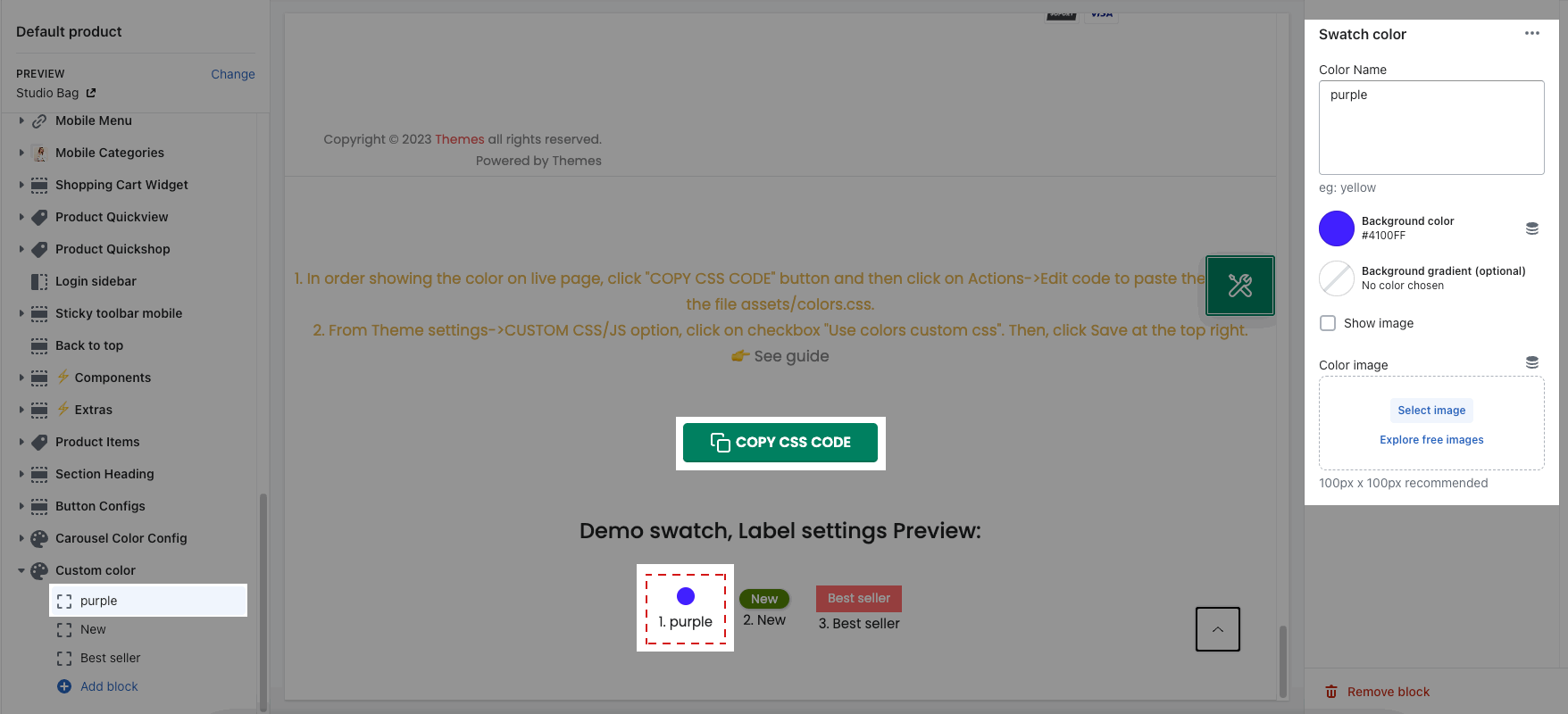
Config flexible colors like Dark Blue, Pink Clay, etc.. to show on product swatches.
You can configure Color name and background color. Tick on 'Show image' if you want to use Image Swatches.
This option will allow you to customize the Label color of the menu.
You can add the Label name and Background color for this block.
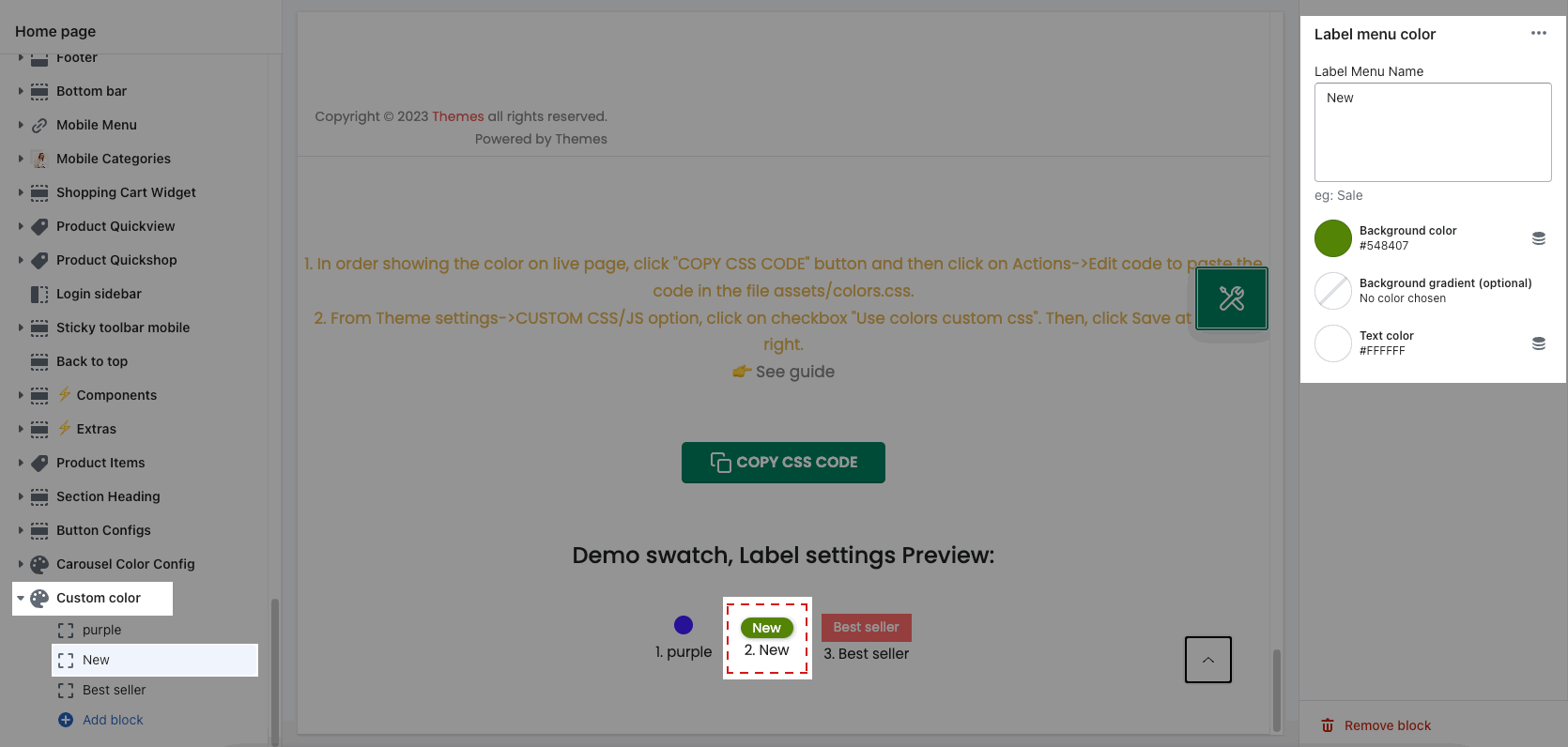
To add a label for the menu, go to Online Store > Navigation > Open the menu > add the content as this syntax: NameMenu[label_NameLabel].
For example: Women Collection[label_Sale]

You can add Label Product name and background color, text color for the label:
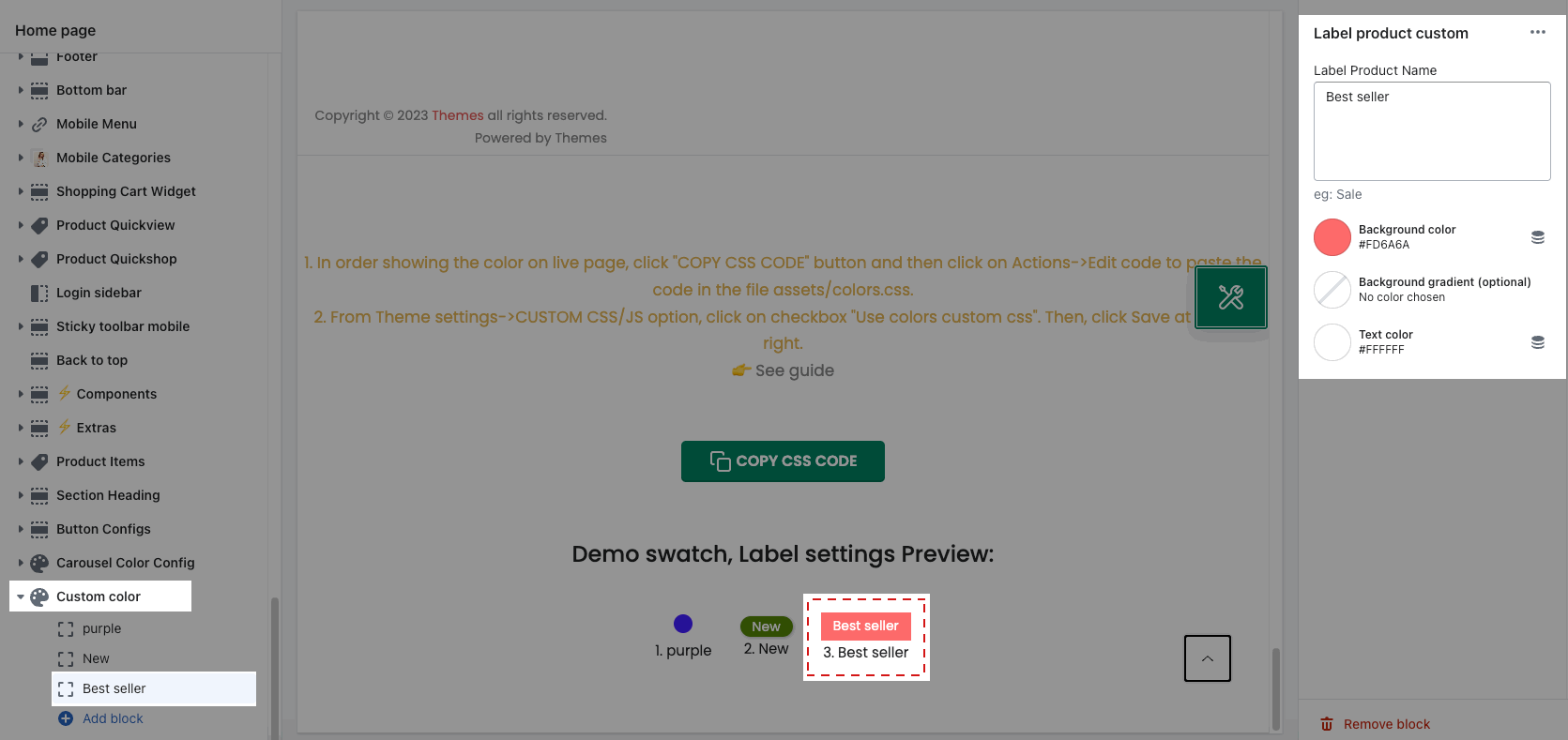
To create a custom badge for a product, please follow this guideline.
After you have done with config the color for blocks at step 1.
Click on the green button 'Copy CSS Code' > go to Edit code > Find a file named Color.CSS > remove the default code of this file > Paste the CSS code that you have copied here.
Please follow the video below:
The last one, you can go back to the product page, reload the page to see the result.

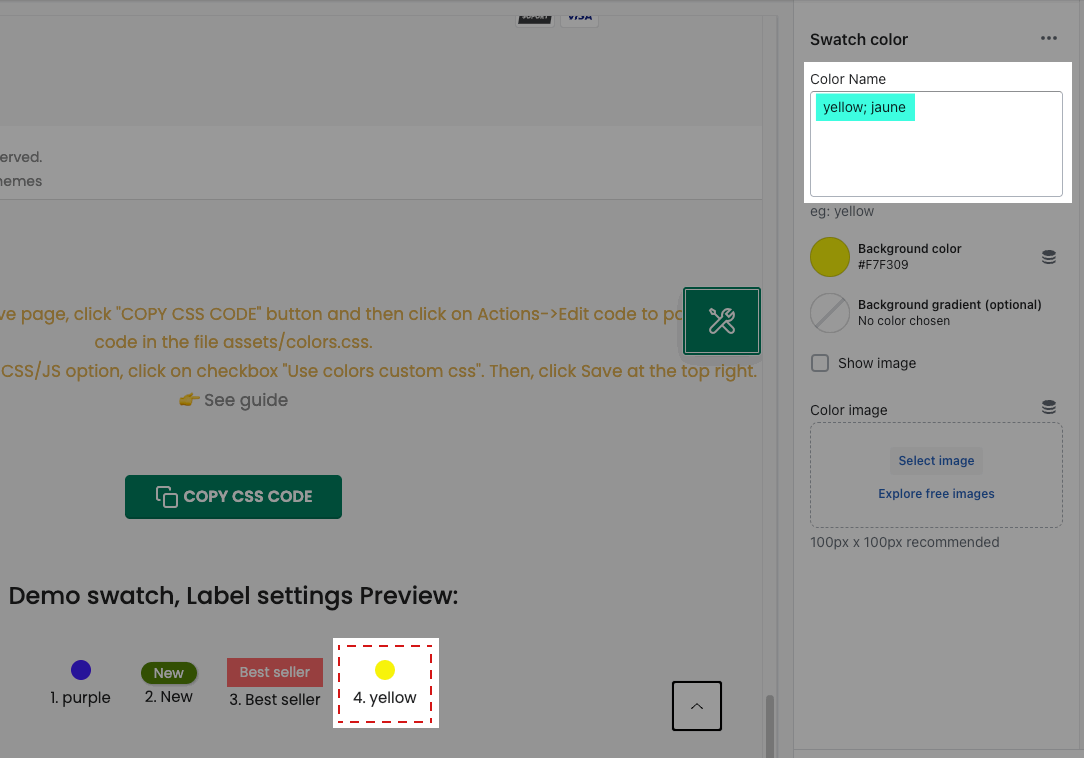
The Label name is separated by a comma ; if you want to support multilingual.
Eg: yellow; jaune
Since Kalles 2.3.1 and Unsen, Gecko, we provide a child theme called Only Config color, this theme has only one function to allow you to add more custom colors.
So to explain in a way that before the themes had only one custom color section and a maximum of 200 custom colors added, now you can add up to 25 sections and each section can add up to 200 custom colors. That means you can add up to 5000 custom colors, isn't that great?
Step 1: To start, please upload this theme to the store and DO NOT PUBLISH it.
Go to 'Only config color' theme > Customize and you will see this theme only have one section: Custom Color.
Click on ADD BLOCK > choose the block you want > fill in the name and background color.
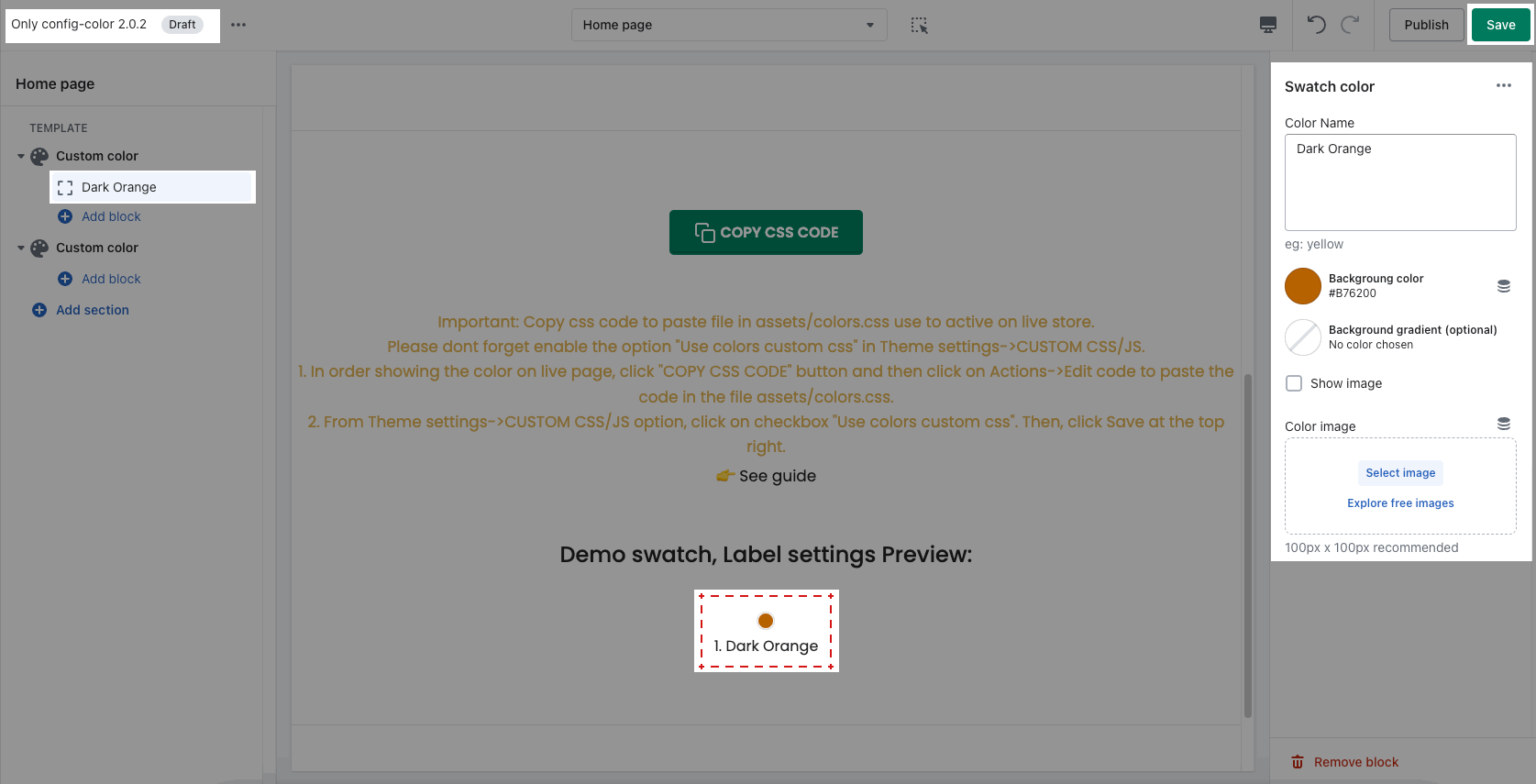
Step 2: After adding the custom colors, click on Copy CSS Code.
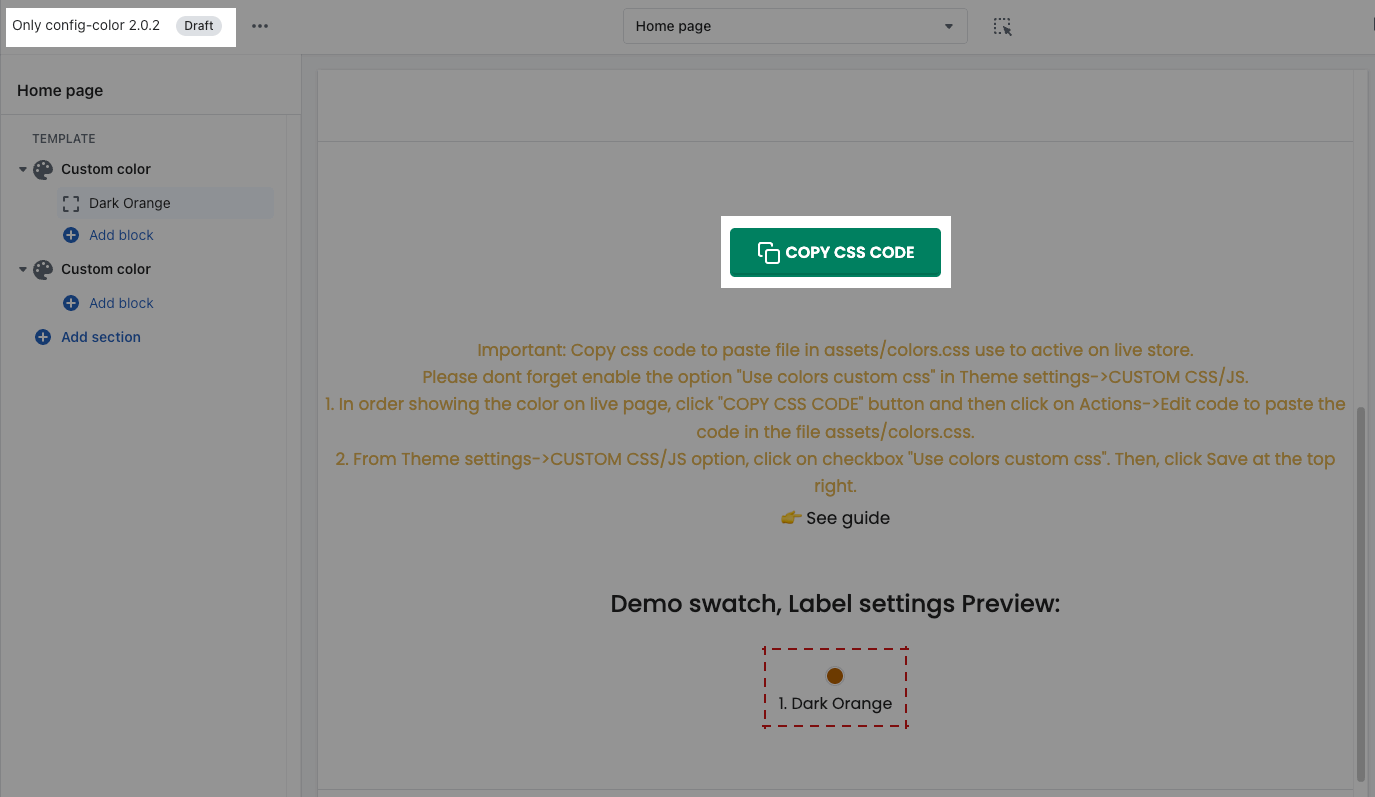
Step 3: Go to your main theme. Make sure you enabled Custom CSS Color in Theme Settings.
Step 4: Still in main theme > Edit Code > open file colors.css > paste the code here > SAVE
This means that after you add 200 Blocks in the Custom Color Section and copy - paste the custom CSS code into the colors.css file and you want to continue adding other colors just repeat this process by adding more new Custom Section Color and continue adding values, then paste the new CSS after the old CSS of the previous Section.