The Size Chart feature allows you to display sizing information directly on the product page. When enabled, the Size Chart will appear in a pop-up window, making it easy for customers to view detailed size information without leaving the product page.
To access this section please go to
Product page > Product main > Group product > Extra Link > Size Chart
Product page > Product main > Group product > Variant Picker > Size Chart

If all of your products use the same size chart, you can add a size chart image or page directly in the Theme Options.
Please see the tutorial video here:
Note: Make sure you select the correct type of Size Guide (image or page). Otherwise, it will not work.
If you have different types of products (for example: men’s clothing, women’s clothing, shoes, etc.) and each has a different size chart, you can use Metafields to add a size chart for each product.
At Shopify settings > Metafields and metaobjects > Metafield definitions > Product
and click "Add definition" to create a metafield.
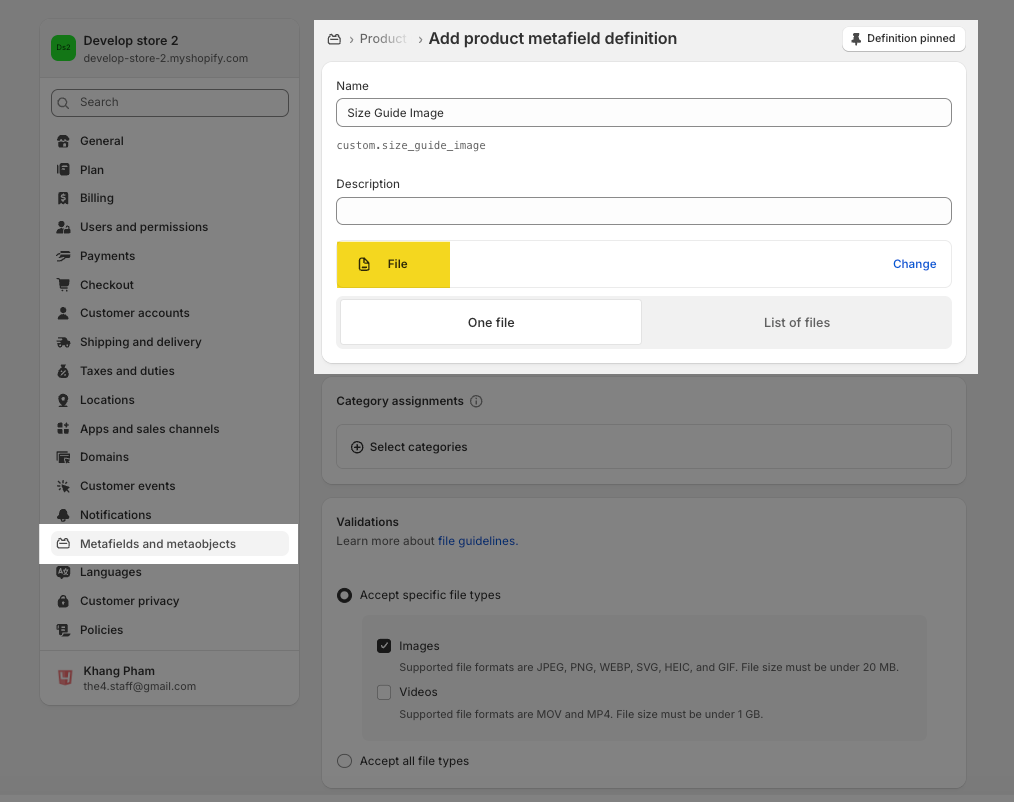
Configure the metafield with the following options:
Name: You can add any name (e.g., Size Guide Image)
Namespace and key: You can add any name (e.g., custom.size_guide_image)
Description: Add a description (optional)
Content type: Choose File (required for images)
Click Save when finished.
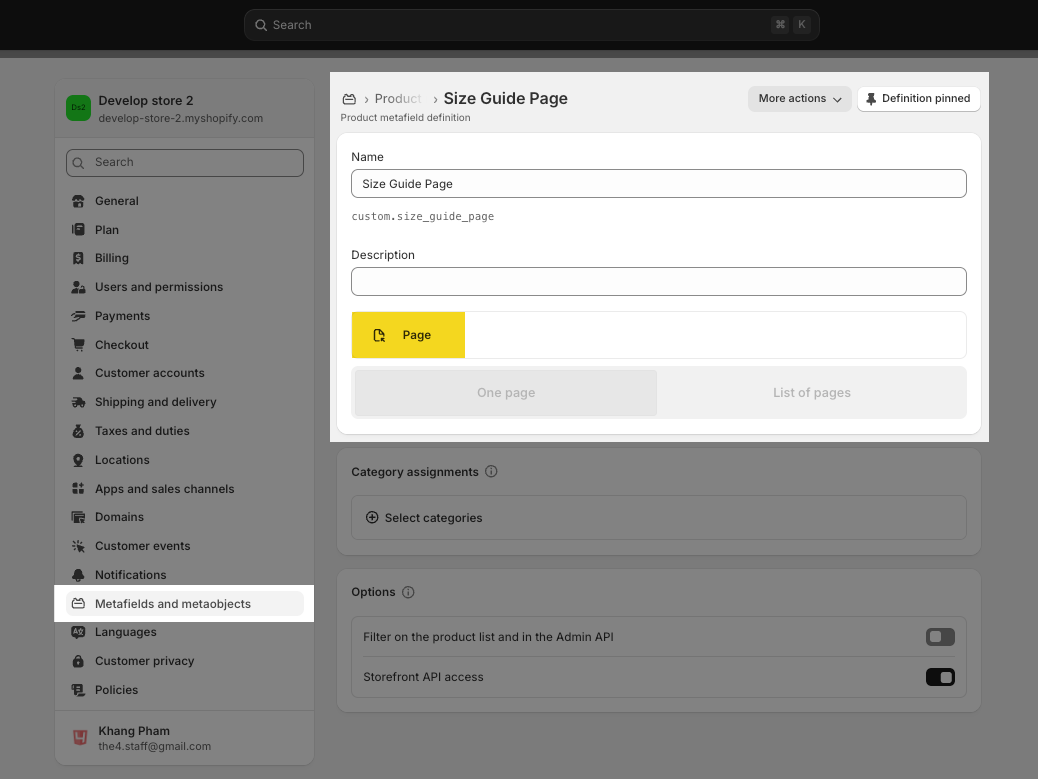
Configure the metafield with the following options:
Name: You can add any name (e.g., Size Guide Page)
Namespace and key: You can add any name (e.g., custom.size_guide_page)
Description: Add a description (optional)
Content type: Choose Page (required to link a page)
Click Save when finished.
For page content, the Size Guide is usually created using HTML code. You can follow this video if needed.
Code for create Size guide page content
<hdt-modal id="modal-1248e930-5734-45b4-a1d6-a814910fdb63" class="hdt-modal hdt-modal__size-chart hdt-product__modal hdt-hidden" effect="slide" config='{"appendToBody": true}' color-scheme="scheme-1" role="dialog" aria-modal="true" open="" open-dialog="" style="display: block; z-index: 999;" opened="">
      <h3 class="hdt-product__modal-title" slot="header">Size chart</h3>
      <div class="hdt-rte">
<div class="hdt-page-size-chart">
<h3 class="hdt-text-2xl hdt-font-semibold" style="margin-bottom: 2.5rem;">Size guide</h3>
<div class="hdt-table-res-df">
<div class="hdt-scrollable-wrapper"><table class="hdt-sizeguide_table hdt-wrapper-added">
<thead>
<tr>
<th>Size</th>
<th>US</th>
<th>Bust</th>
<th>Waist</th>
<th>Low Hip</th>
</tr>
</thead>
<tbody>
<tr>
<td>XS</td>
<td>2</td>
<td>32</td>
<td>24 - 25</td>
<td>33 - 34</td>
</tr>
<tr>
<td>S</td>
<td>4</td>
<td>34 - 35</td>
<td>26 - 27</td>
<td>35 - 26</td>
</tr>
<tr>
<td>M</td>
<td>6</td>
<td>36 - 37</td>
<td>28 - 29</td>
<td>38 - 40</td>
</tr>
<tr>
<td>L</td>
<td>8</td>
<td>38 - 29</td>
<td>30 - 31</td>
<td>42 - 44</td>
</tr>
<tr>
<td>XL</td>
<td>10</td>
<td>40 - 41</td>
<td>32 - 33</td>
<td>45 - 47</td>
</tr>
<tr>
<td>XXL</td>
<td>12</td>
<td>42 - 43</td>
<td>34 - 35</td>
<td>48 - 50</td>
</tr>
</tbody>
</table></div>
</div>
<div class="hdt-grid hdt-page-size-chart-content">
<div>
<h3 class="hdt-text-2xl hdt-font-semibold" style="margin-bottom: 2.5rem;">Measuring Tips</h3>
<h4 class="hdt-text-xl hdt-font-semibold">Bust</h4>
<p style="margin-bottom: 2rem;">Measure around the fullest part of your bust.</p>
<h4 class="hdt-text-xl hdt-font-semibold">Waist</h4>
<p style="margin-bottom: 2rem;">Measure around the narrowest part of your torso.</p>
<h4 class="hdt-text-xl hdt-font-semibold">Low Hip</h4>
<p style="margin-bottom: 2rem;">With your feet together measure around the fullest part of your hips/rear.</p>
</div>
<div style="margin:0 auto;"><img alt="sizechart ecomus" src="https://cdn.shopify.com/s/files/1/0332/6420/5963/files/size_chart2.jpg?v=1584502486" loading="lazy"></div>
</div>
</div>
<style><!--
    .hdt-page-size-chart .hdt-table-res-df{
      min-height: .01%;
      overflow-x: auto;
      -webkit-overflow-scrolling: touch;
      -ms-overflow-style: -ms-autohiding-scrollbar;
    }
    .hdt-page-size-chart table{
      border: 1px solid rgb(var(--color-line-border));
      border-spacing: 0;
      border-collapse: collapse;
      width: 100%;
      line-height: 1.4;
      margin-bottom: 3rem;
    }
    .hdt-page-size-chart table td{
      border: 1px solid rgb(var(--color-line-border));
      border-width: 0 1px 1px 0;
      padding:1rem;
    }
    .hdt-page-size-chart table th{
      border: 1px solid rgb(var(--color-line-border));
      padding:1rem;
      text-align: start;
      font-weight: var(--font-semibold);
    }

    .hdt-page-size-chart-content{
      gap:1rem;
    }
    @media(min-width:768px){
      .hdt-page-size-chart-content{
        grid-template-columns: 8fr 4fr;
      }
    }

--></style>
</div>
</hdt-modal>Go to Shopify Admin > Products > All Products, then open the product you want to add a Size Guide to.
If you need to add the metafield to many products at once, you can use Shopify’s Bulk Edit feature.
Please see the video tutorial here:
Go to Themes editor > Product page, then select the product you just added the Size Guide metafield to.
After this step, the Size Guide will appear on the product page.