Every time there is a new update, we will release it on Theme Forest and will send an email to our customers. Similar to Install theme, you will also follow the same steps to upload the latest theme.
Updating the theme will retain the settings and data from the old version to the new one. However, the customized code and apps are not. Some apps can work immediately when you install the new theme, but other apps might require you to add the integration code to 'theme.liquid' or another position (please ask app developers for the integrating process).
Currently, Nitro ‑ AI Store & Upsells is compatible with Ecomus, Kalles 4, Kalles 5, Gecko 6, Unsen and Ocolus. If you are using other themes such as Elessi, please update theme by Edit code - go to section 2 of this document.
Nitro ‑ AI Store & Upsells is a powerful support app for The4 themes, designed to help you save time updating your theme. It features a simple checkbox selection for updating JSON files in the Templates and translate files.
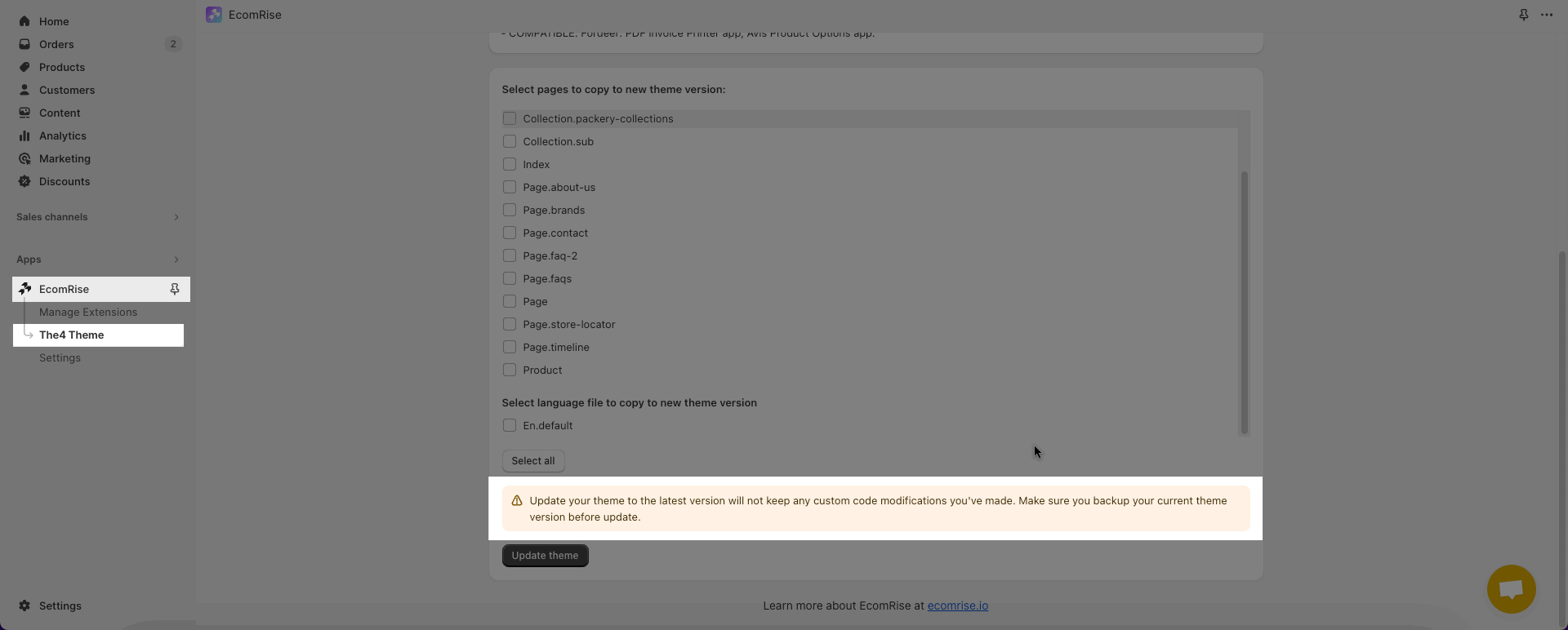
Note: Update your theme to the latest version will not keep any custom code modifications you've made in the Liquid or Js file. Make sure you backup your current theme version before update.
Please carefully read the note and consider that updating the theme will require reintegration of apps and coding knowledge to transfer any customized code to the new theme manually.
Here are some steps to easily update your theme:
Step 1: Install app Nitro ‑ AI Store & Upsells
Step 2: From Nitro ‑ AI Store & Upsells dashboard > Click on Settings > Select Theme Working "Choose a theme to work on" > Then Save
Step 3: Access The4 Theme > Choose Update Theme > Explore
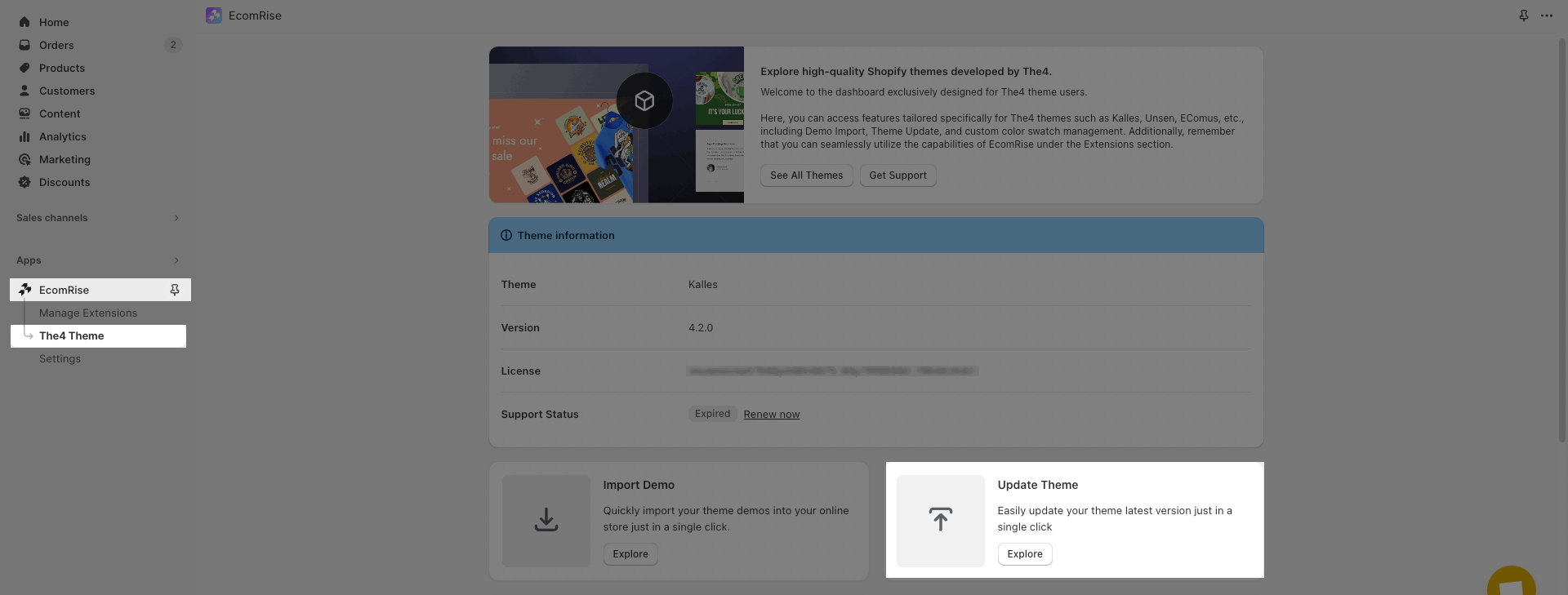
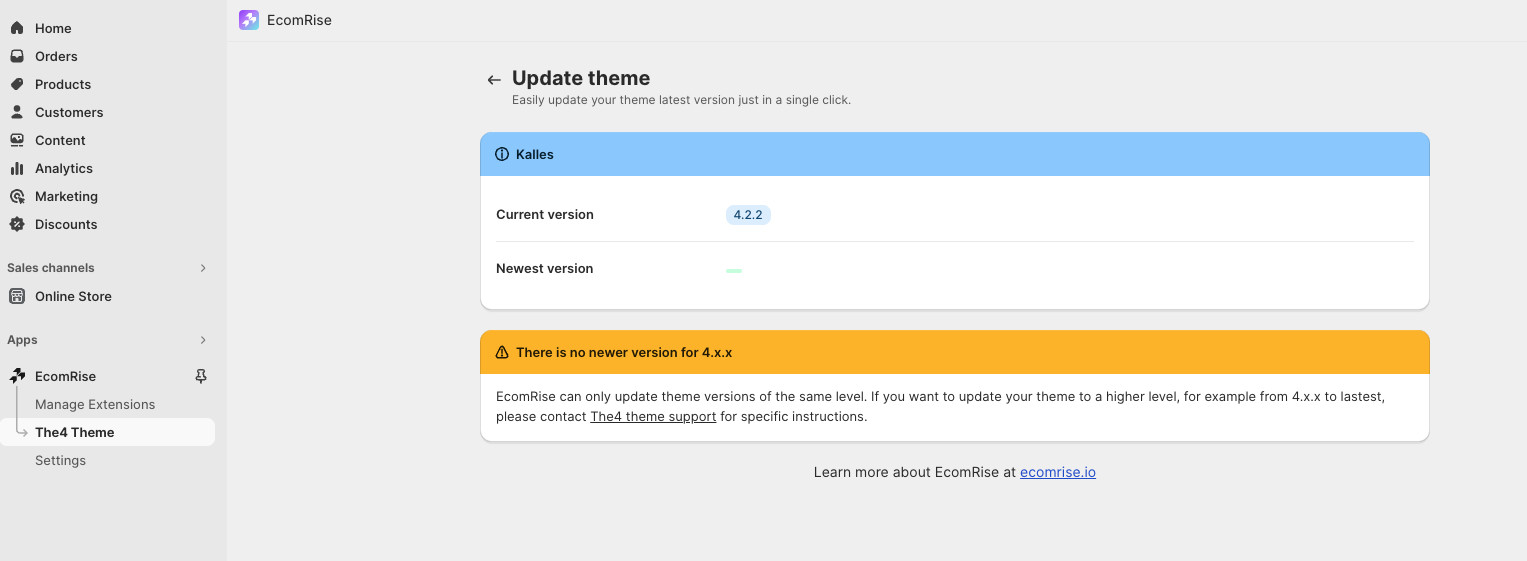
In the Update theme Dashboard, you will see these informations:
For example with Kalles theme, if your version is the latest it will blank Newest theme.
If it released the latest version, it will show Current version and Newest version; Changelogs.
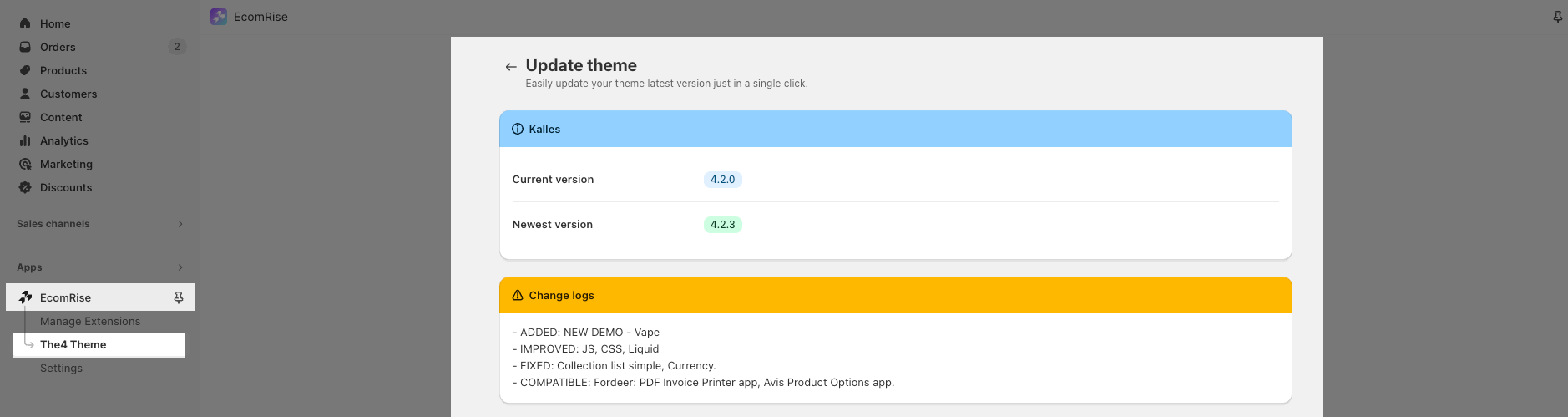
Below the Changelogs, it will show many Template > Json files and Translate file have changing in the current theme. You will tick on checkbox file want to update or you can tick on Select all.
Step 4: When you tick on Select All > Click Update theme button and wait for the processing complete.
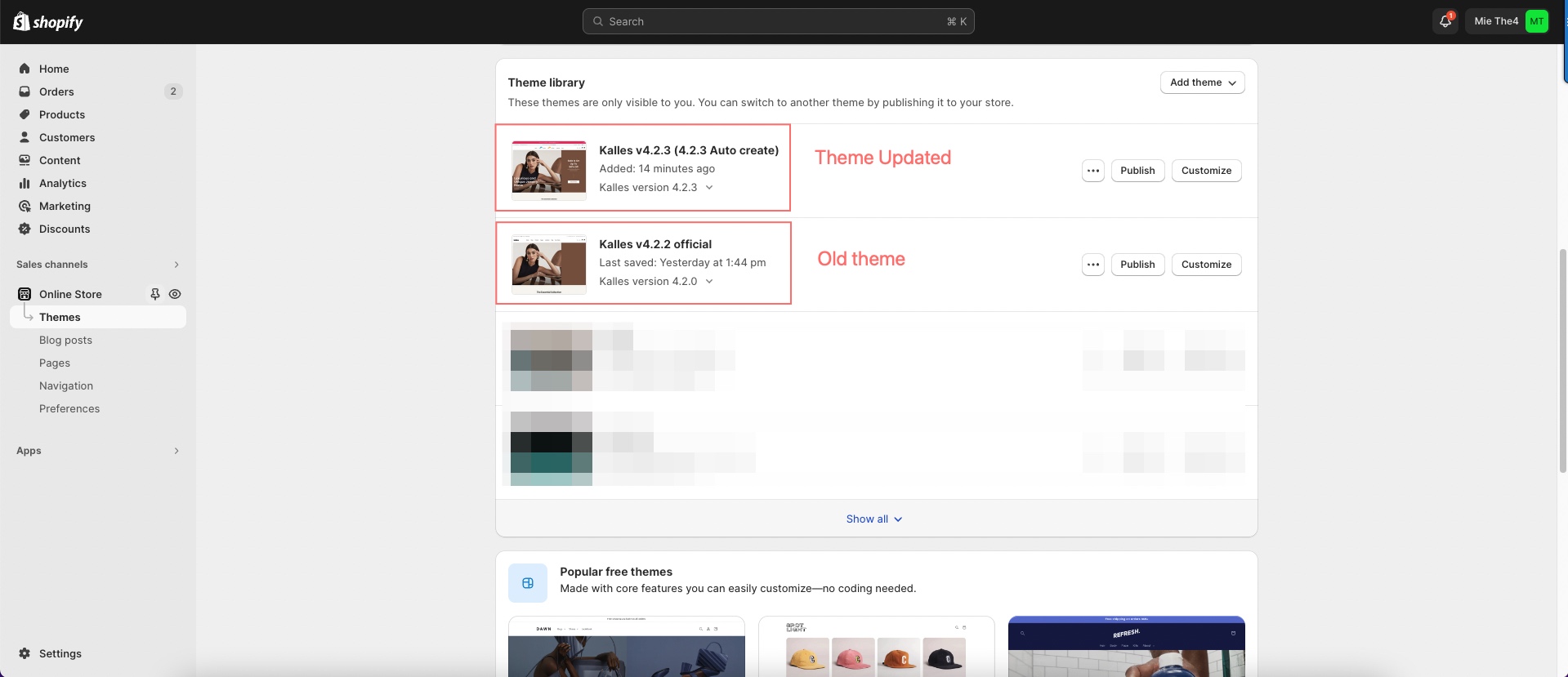
This process will take approximately 3-4 minutes, and we will not interfere with your current theme. We will update to a new theme in Online Store > Themes.
Firstly, go to ThemeForest to download the latest version of the theme: https://themeforest.net/downloads. Then you must extract the download package and follow this guide to install the new theme to your store.
Please follow the steps below to move the theme configuration:
Step 1: Open the old theme. Click Theme actions -> Edit code -> Open settings_data.json file -> Copy the entire code on this file.
Then paste it into the same file of the new theme.
Step 2: Move index.json file. You can do the same as you did with settings_data.json file.
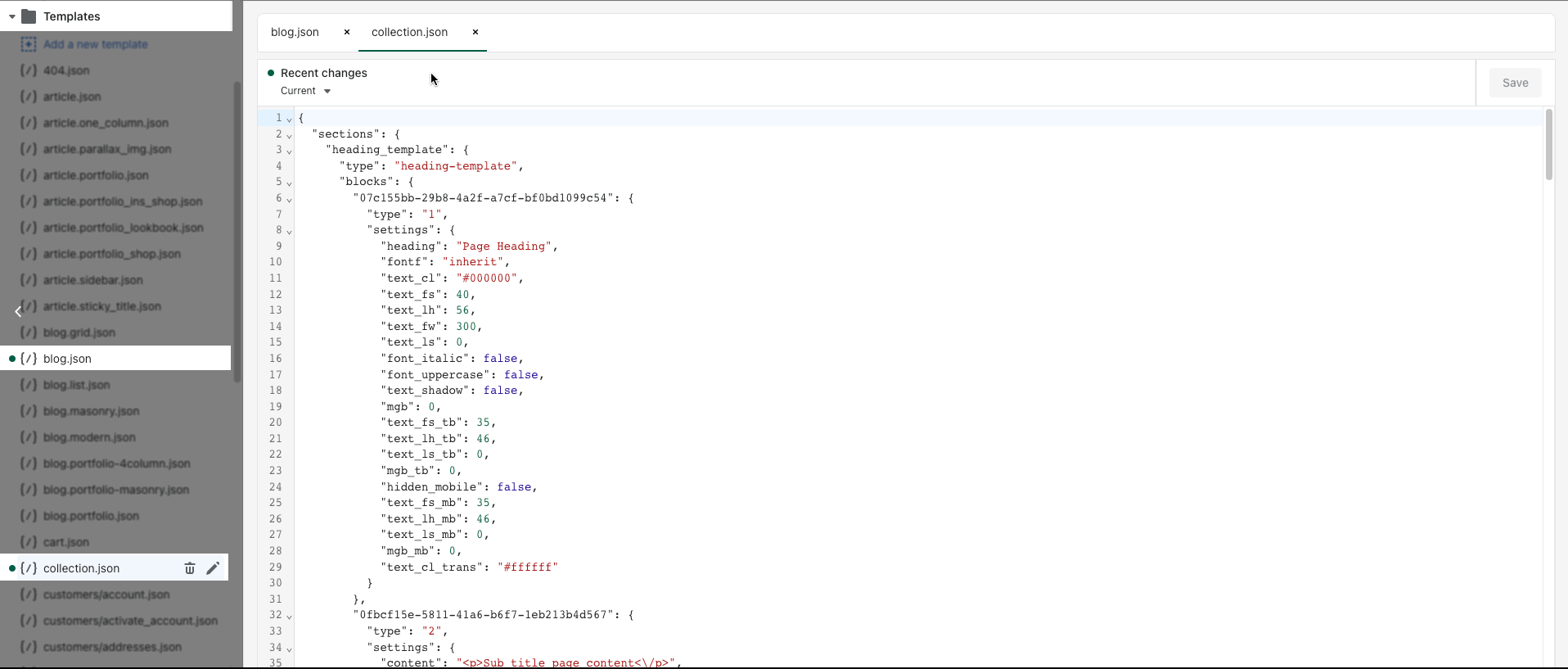
Step 3: You also need to copy all the .json files in Templates folder. These are changed files and you will paste them to the new theme.
This step will move the settings and data of other pages: product, collection, blog, etc... to the new theme.
If your store Multilingual Languages and you configured the translation files. You can copy it to the new store, please follow the steps below.
Step 1: Open the old theme version. Click Edit code -> Open the Locales folder. Opening the language file you are using and copy the translation file.
Step 2: Open Edit code -> Locales Folder and then Add a new locale with the language you copied it. You will paste it into the locale file.
If you have some extra templates like: product template, collection template, etc... (NOT the 'Default template') that you created in the old theme before.
For example, if you have a custom product template, please follow steps:
From the old version > find the template file and open it
From the new version > go to Edit code > 'Templates' folder > create a new template with the same type and file name as your old template. (Choose JSON type)
Copy template code from the old version to the new one > SAVE
You can follow the video below, it is an example of 'Product template'. But it will be similar to other templates too.