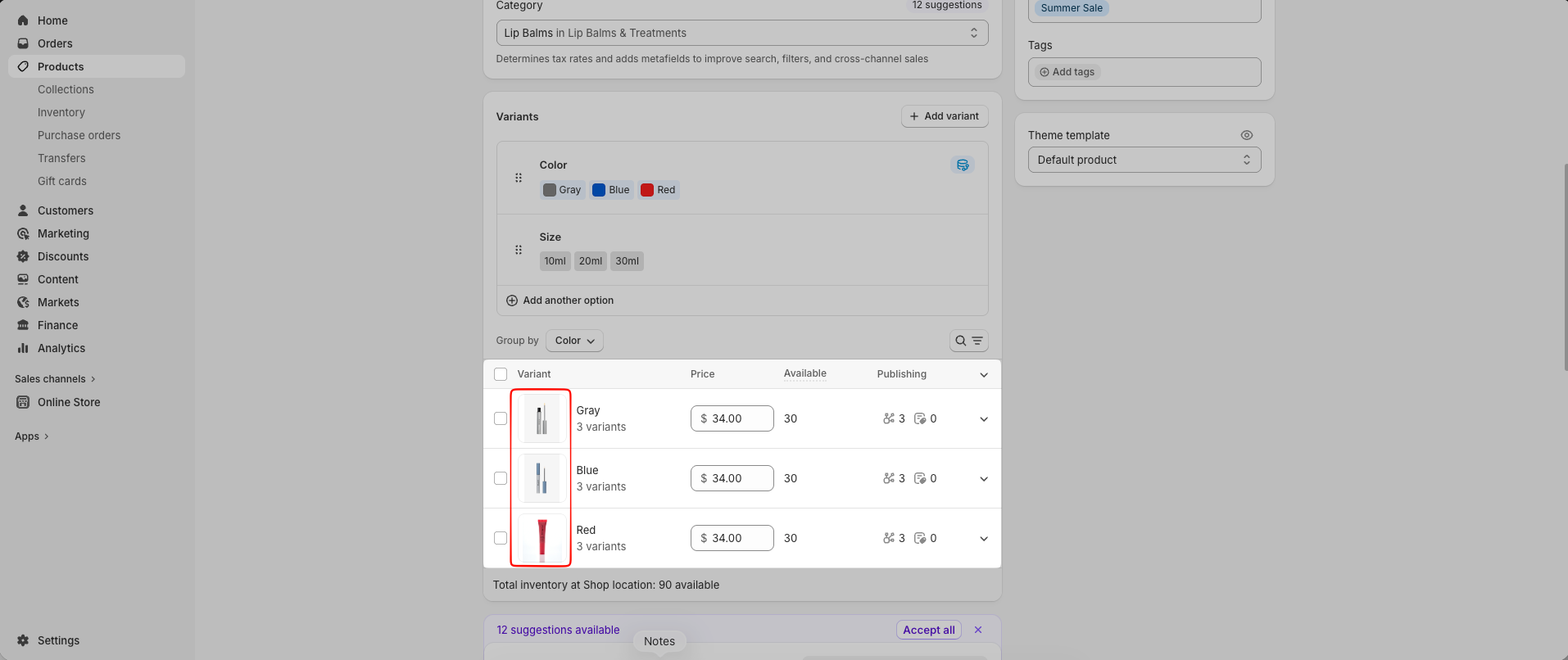
By default, variant options such as colors may appear as plain text or just gray circle. If you would like to display them as color swatches or image swatches, please follow the instructions in this document.
Step 1: You need to assign a category to the product.
That category must include a color metafield so the product can inherit that color metafield.
Step 2: Connect your Color variant with Shopify Colors
In Step 1, you already assigned a Shopify category that includes color metafield. Because of that, you can now connect your product color variants with the Shopify color system.
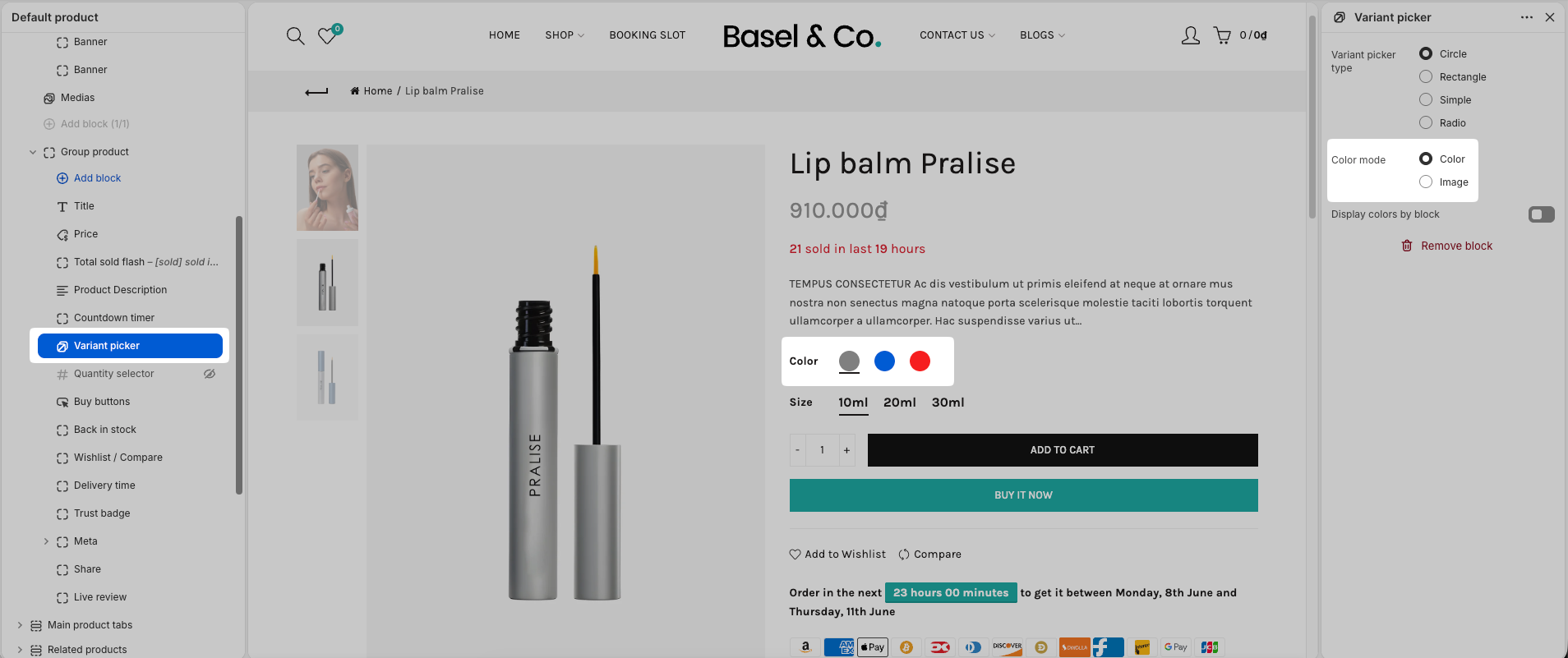
Step 3: Choose Color Mode
In the Theme Editor, set the Color Mode to Color.
After that, your color variants will be displayed as color swatches.
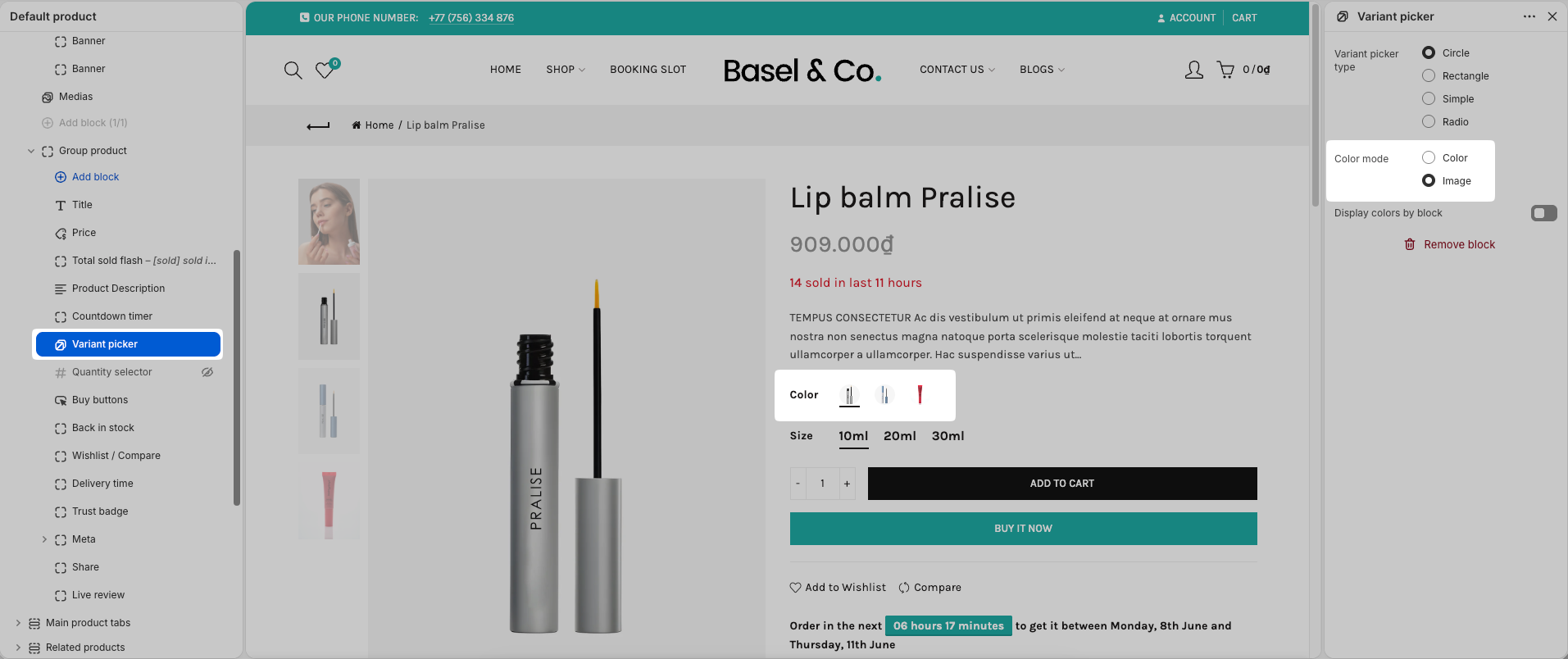
Step 1: Please add an image to each variant in your Shopify admin.
Step 2: In the theme editor, set the Color mode to Image.