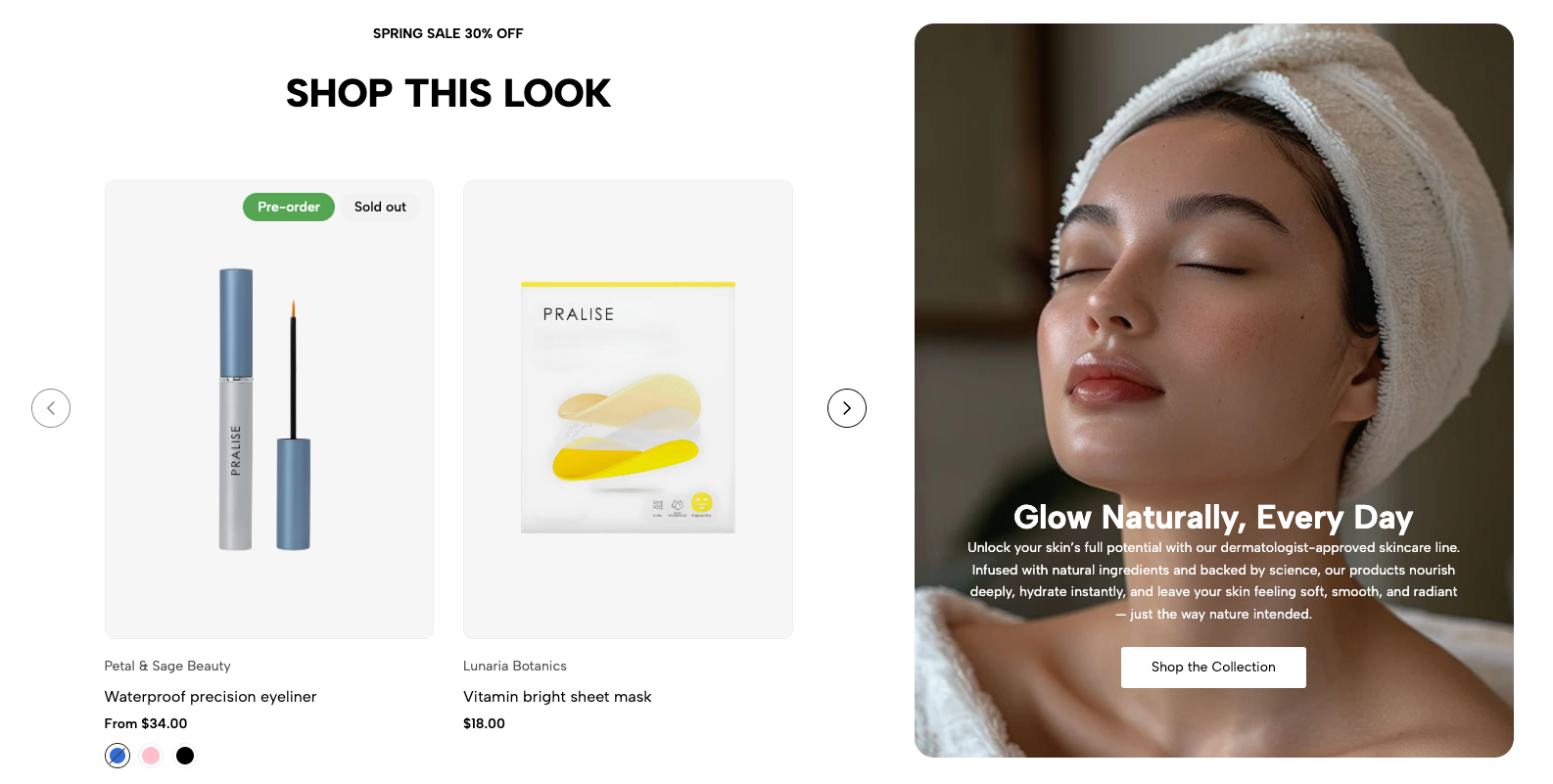
Displays a product carousel alongside a promotional banner. Suitable for featured collections, seasonal campaigns, and “shop the look” layouts.
Homepage
Collection landing page
Promotional landing page
Shopify Admin → Online Store → Themes → Customize → Add section → Banner product carousel
Section heading: Adds introductory text and heading.
Product carousel: Displays products from a collection or selected product list.
Banner item: Displays an image or video with optional content blocks.
Setting | Description |
|---|---|
Video height | Sets the banner media height on desktop. |
Fixed height | Applies a custom fixed height. |
Mobile video height | Sets the media height on mobile. |
Mobile fixed height | Applies a custom mobile height. |
Color scheme | Controls the section colors. |
Section padding | Adjusts spacing above and below the section. |
Rate padding (mobile) | Controls responsive media height on mobile. |
Setting | Description |
|---|---|
Text alignment | Aligns the heading content. |
Spacing between items | Sets spacing between heading blocks. |
Margin bottom | Sets the space below the heading. |
Setting | Description |
|---|---|
Display color by block | Uses a separate color scheme for the product block. |
Select collection | Displays products from a selected collection. |
Products list | Manually selects products and overrides the collection. |
Pagination type | Enables carousel pagination. |
Setting | Description |
|---|---|
Banner URL | Makes the banner clickable. |
Image hover effect | Applies an effect when hovering over the image. |
Item effect when hover | Applies an effect to the full banner item. |
Rounded | Controls the banner corner style. |
Content position | Positions banner content on desktop and mobile. |
Text alignment | Aligns banner content on desktop and mobile. |
Select either:
Image: Upload a banner image.
Video: Add video content.
The banner also supports additional blocks such as Heading, Text, Paragraph, Button, Video button, and Spacer.
Use product images with consistent proportions.
Upload media that matches the selected banner height.
Keep the heading and promotional message short.
Check desktop and mobile content positions separately.
Avoid combining multiple strong hover effects.
Issue | Solution |
|---|---|
Products are not showing | Select a collection or product list. |
Selected collection is ignored | Remove the manually selected product list. |
Banner is cropped | Use “Adapt to video” or adjust the fixed height. |
Mobile banner looks incorrect | Adjust mobile height and content position. |
Banner is not clickable | Add a valid Banner URL. |