Shipping Protection is an optional product feature that allows customers to add extra protection to their order during checkout. This service helps cover potential post-purchase risks.
In this document, we will guide you through how Shipping Protection works and provide step-by-step instructions on how to configure it properly in your store.
Note: This feature is only available in Ecomus version 2.2.4 or later.
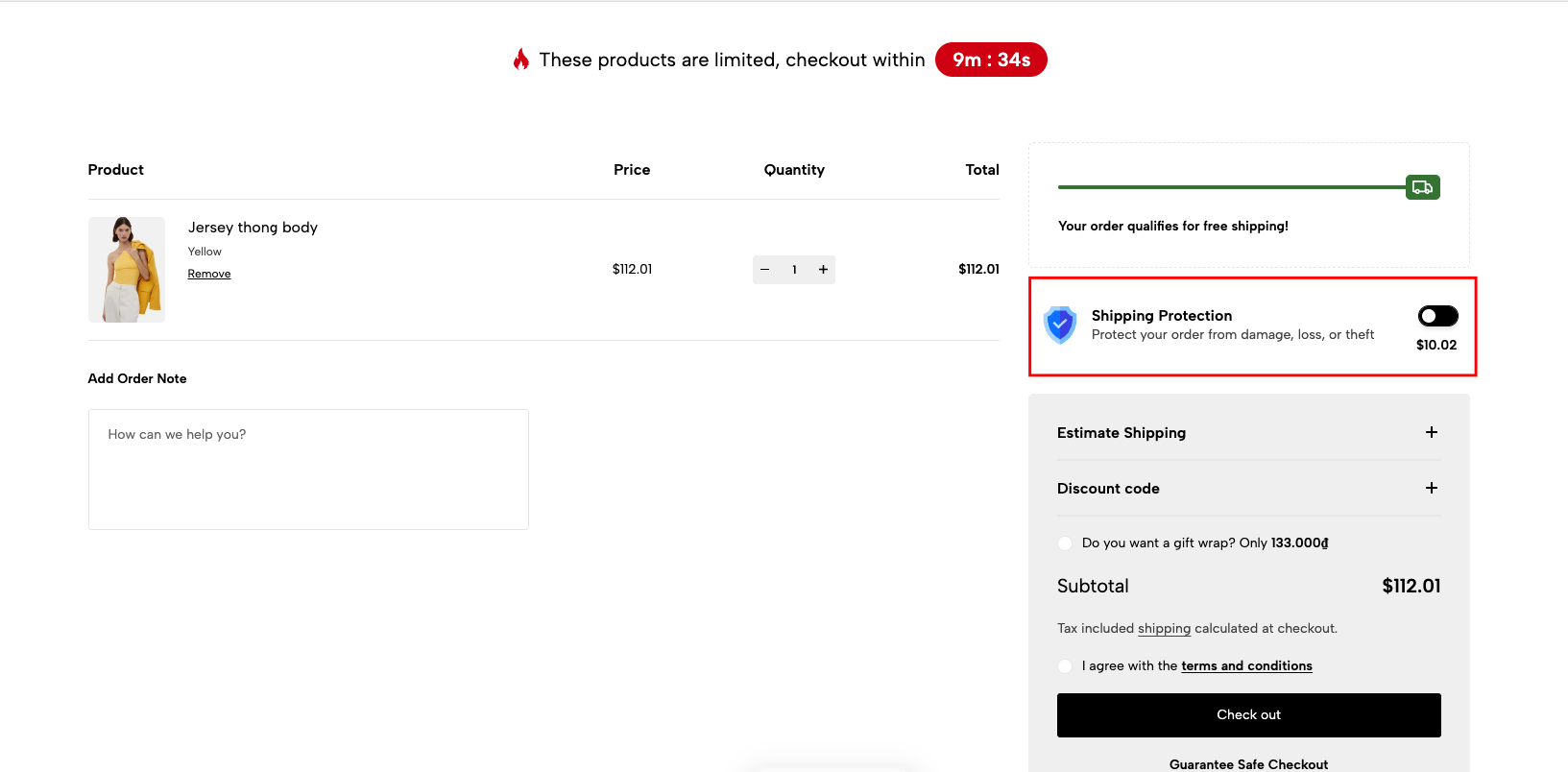
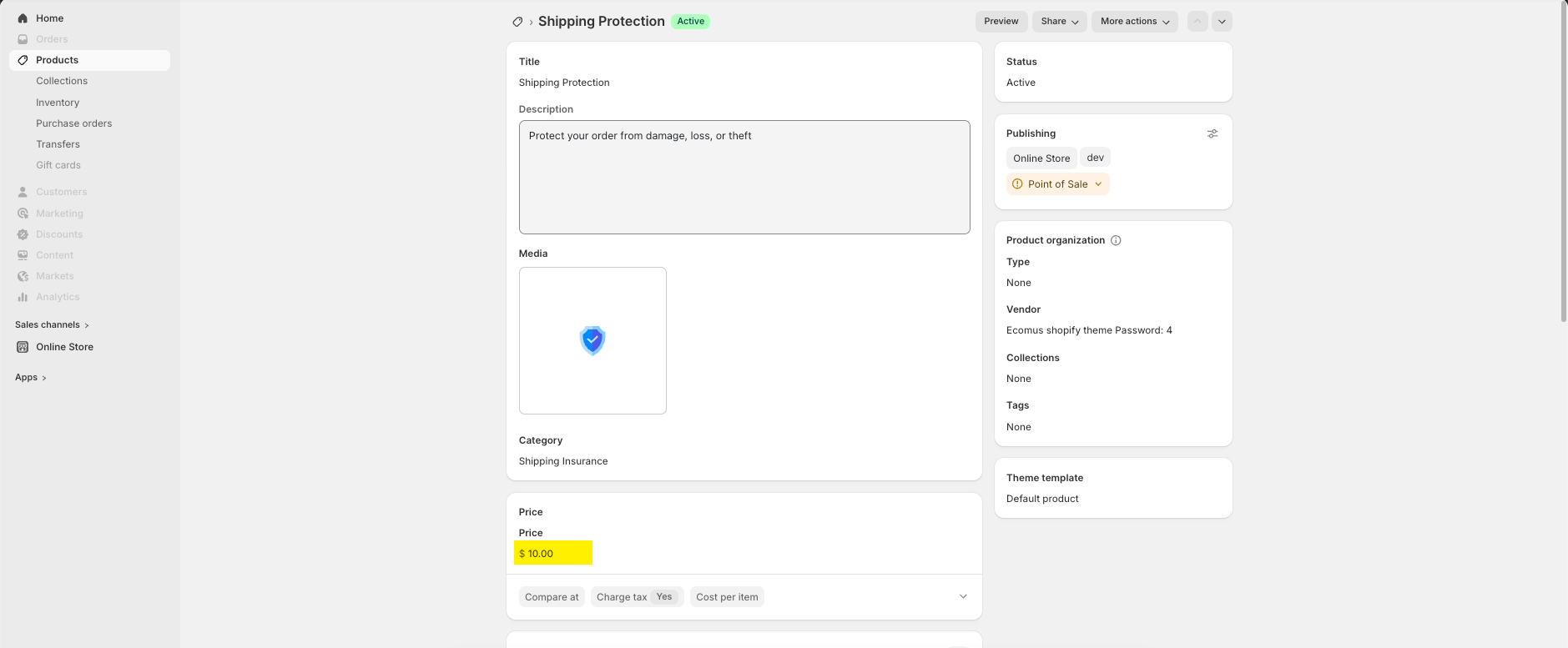
You need to create a dedicated product to represent the Shipping Protection service.
The price of this product will be used as the Shipping Protection fee displayed to customers.
Important notes:
Do not create any variants for this product
Do not add quantity
Do not set a compare-at price
If you do not want customers to find and purchase this product directly from your storefront, you should hide it from search results.
Create a metafield for the Shipping Protection product with the following structure:
Name: SEO Hidden
Namespace and key: seo.hidden
Type: Integer
Optional:
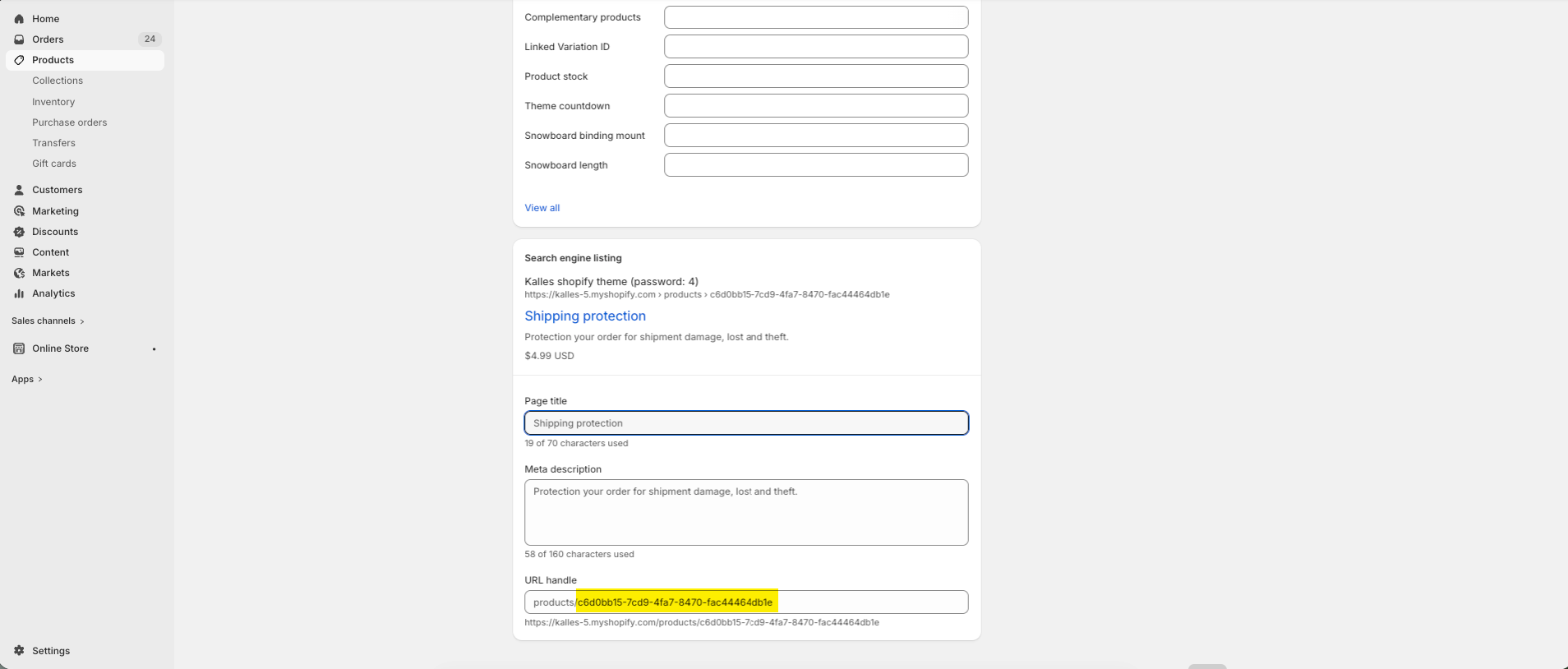
To further restrict access, you can change the product’s URL handle to a UUID v7. This helps prevent customers from accessing the product by guessing the URL.
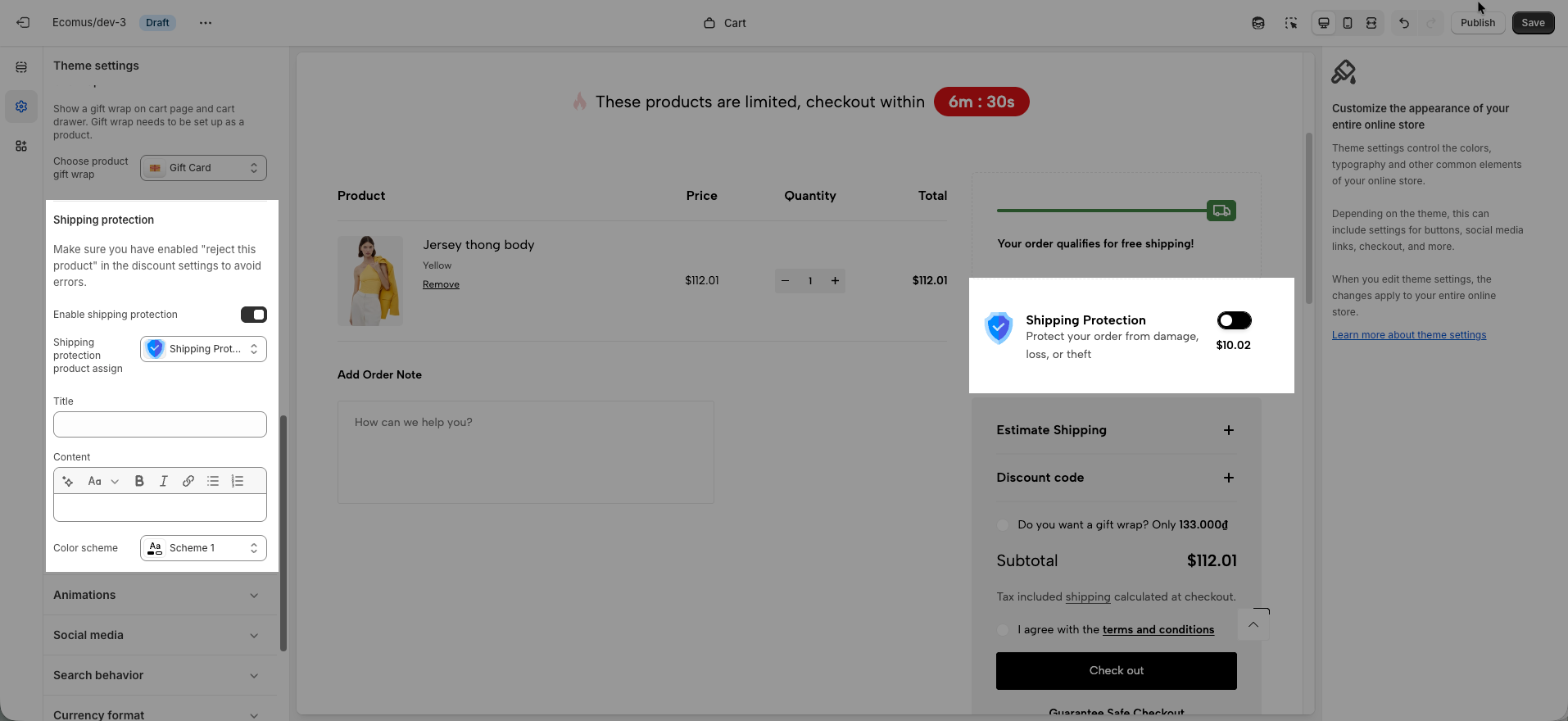
Go to Theme settings → Cart → Enable shipping protection → Assign product (Shipping protection)
When Title & Content are left empty, the system will automatically use the product name and product description of the Shipping protection product.
Content can be edited using the rich text editor.
Pasting raw HTML is not recommended to avoid layout issues.
To ensure the Shipping Protection fee is not affected by discounts, you must exclude this product from all discount rules.
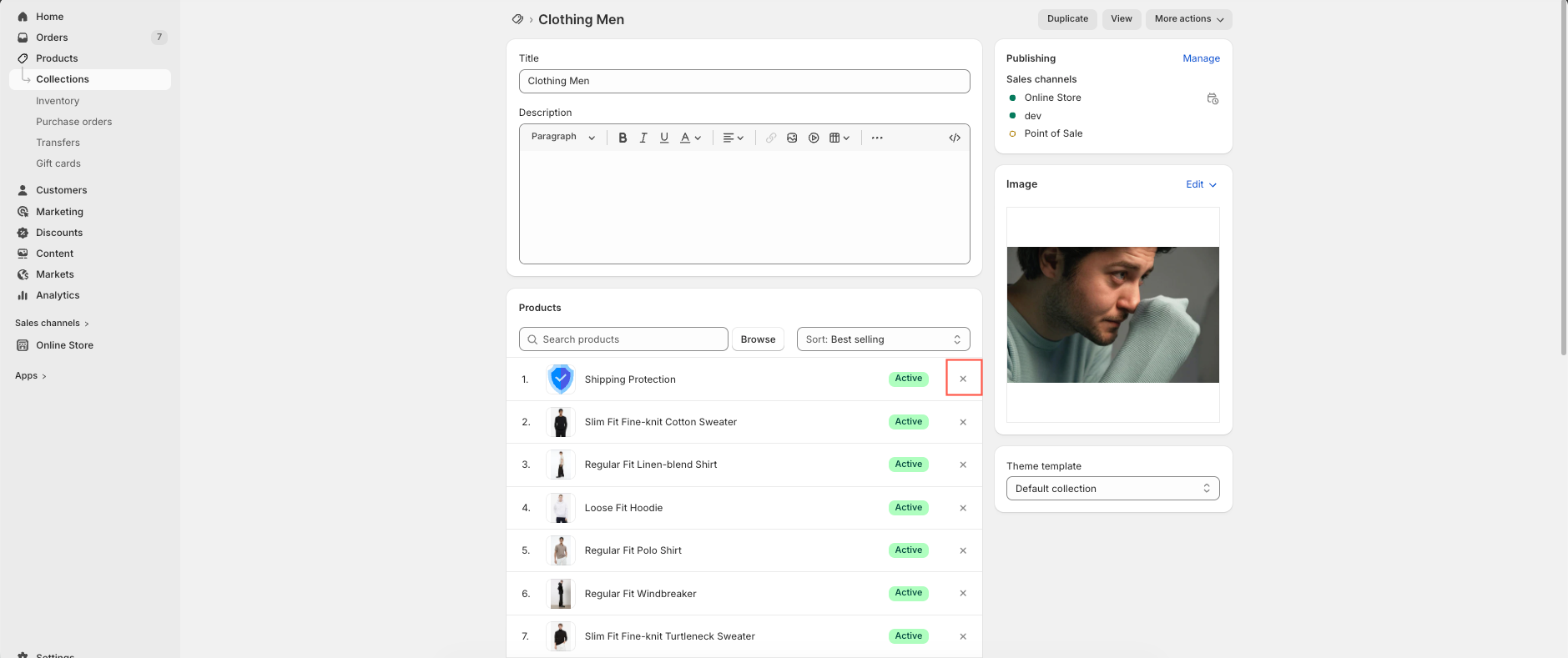
If your discounts are based on Collections, remove the Shipping Protection product from those collections:
Manual collection: Remove the Shipping Protection product from the collection
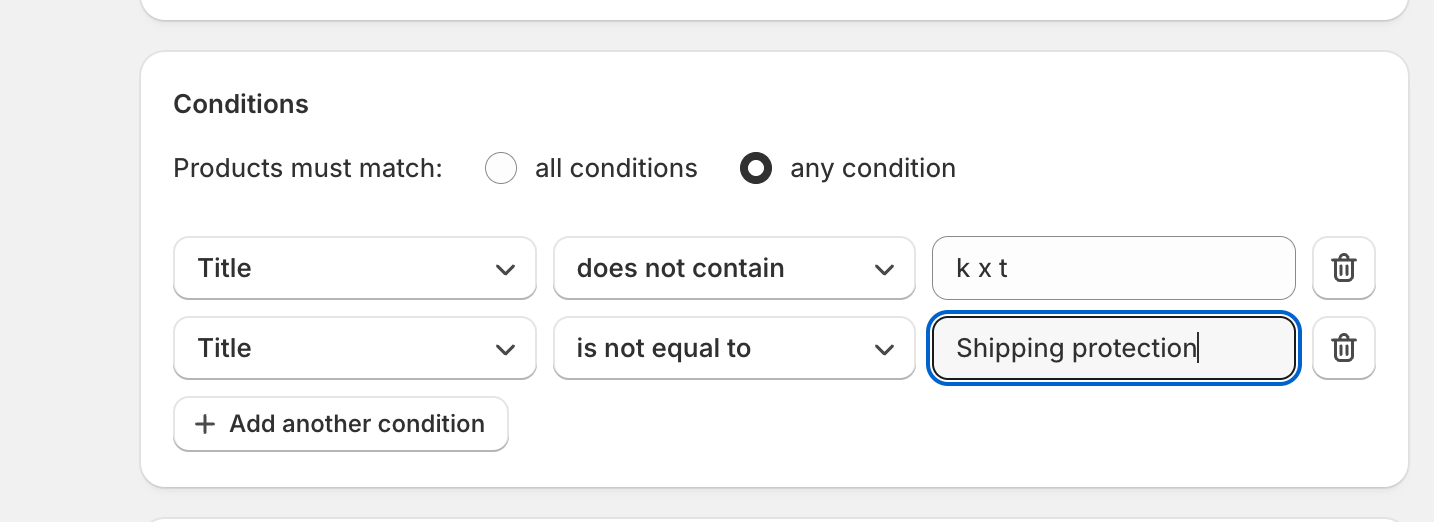
Smart collection: Add the following condition:
Product title → is not equal to → [Shipping Protection product name]
When creating discounts, use “Amount off products” instead of “Amount off order” so the Shipping Protection product can be excluded correctly.
Colors will be applied based on the color scheme you select in Theme settings → Cart → Shipping protection.
Title: Text
Content: Secondary text
Price: Product price
Toggle:
Background color: Solid button background
Background color hover: Solid button label
Circle color: Solid button label
Circle color hover: Outline button
Border color: Solid border color
Shadow: Overlay 10%