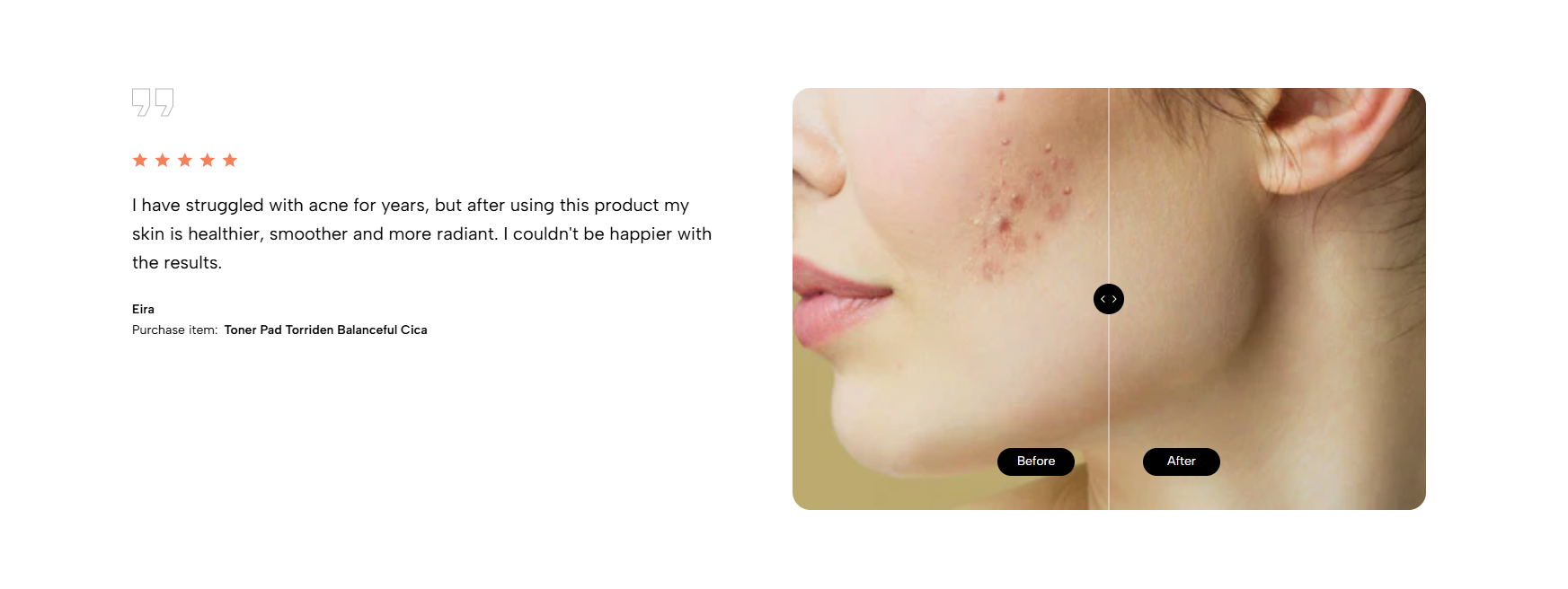
Combines customer testimonials with an interactive before-and-after image comparison. Suitable for showing product results, transformations, or service outcomes alongside social proof.
Homepage
Product page
Landing page
Beauty, fashion, fitness, or service results
Product transformation showcase
Shopify Admin → Online Store → Themes → Customize → Add section → Testimonials before after
Testimonial item: Adds customer feedback, author, product, and rating.
Before/ After image
Setting | Description |
|---|---|
Heading | Adds a title for the testimonial. |
Text | Adds the customer review. |
Author | Displays the customer name. |
Product | Links the testimonial to a product. |
Rating | Sets the star rating. |
Setting | Description |
|---|---|
Content align | Aligns testimonial content. |
Use prev/next button | Displays navigation arrows between testimonials. |
Use dots | Displays pagination dots. |
Setting | Description |
|---|---|
Direction | Sets a horizontal or vertical comparison slider. |
Before after first | Changes which image appears first. |
Before image | Uploads the original image. |
After image | Uploads the result image. |
Image ratio | Sets the comparison image ratio. |
Full image | Displays the full image without cropping. |
Before image text | Sets the label for the before image. |
After image text | Sets the label for the after image. |
Initial cursor position | Sets the starting divider position. |
Initial drag position | Sets the initial comparison position. |
Setting | Description |
|---|---|
Color scheme | Controls section colors. |
Star rating | Sets the star color. |
Enable section full width | Expands the section across the browser width. |
Section padding | Adjusts spacing above and below the section. |
Custom CSS | Adds custom styles to this section only. |
Use before and after images with the same dimensions and angle.
Keep testimonial text short and specific.
Use authentic customer names and ratings.
Set the initial divider near the center.
Check image labels and slider direction on mobile.
Issue | Solution |
|---|---|
Comparison slider is not visible | Upload both before and after images. |
Images do not align | Use images with the same dimensions and composition. |
Testimonial is not showing | Add and enable at least one testimonial item. |
Navigation is missing | Enable arrows or dots. |
Image appears cropped | Adjust the image ratio or disable Full image. |