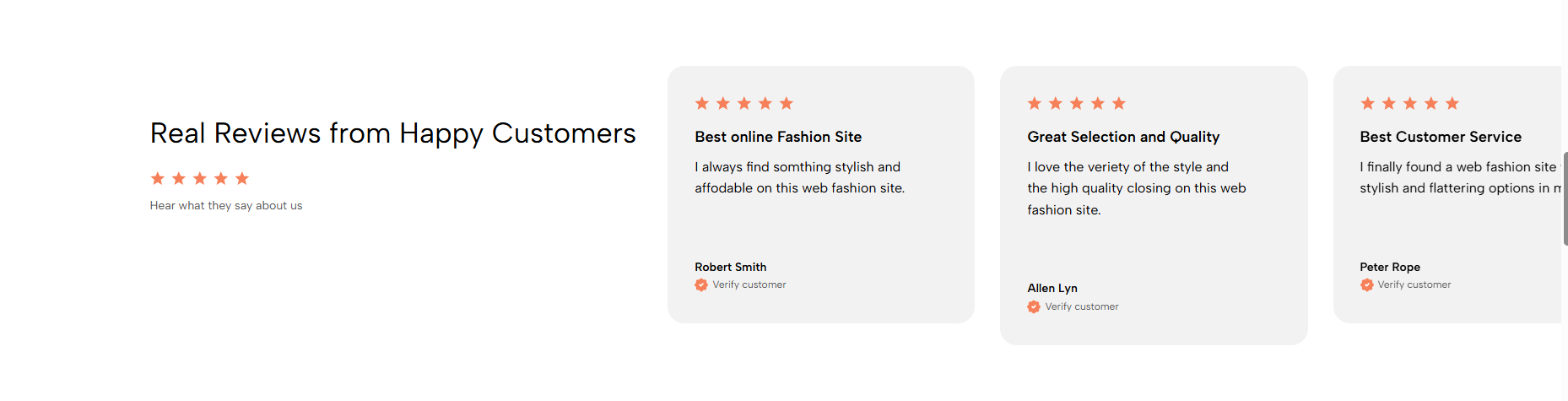
Displays customer reviews with ratings and reviewer details to build trust and reinforce product or service credibility.
Homepage
Product page
Landing page
About page
Brand credibility section
Shopify Admin → Online Store → Themes → Customize → Add section → Testimonials 2
Testimonial item: Adds a testimonial title, review, author, verification badge, and rating.
Setting | Description |
|---|---|
Heading | Adds the main section title. |
Alignment | Aligns the heading left or center. |
Heading tag | Sets the HTML heading tag for SEO and accessibility. |
Heading font size | Controls the heading size. |
Description | Adds supporting text below the heading. |
Description size | Controls the supporting text size. |
Show rating | Displays the overall section rating. |
Rating | Selects the rating style. |
Image | Adds an image to the heading area. |
Setting | Description |
|---|---|
Content align | Aligns testimonial content left or center. |
Use prev/next button | Displays slider navigation arrows. |
Navigation design | Selects the arrow style. |
Use dots | Displays pagination dots. |
Setting | Description |
|---|---|
Heading | Adds a short testimonial title. |
Text | Adds the customer review. |
Author | Displays the reviewer’s name. |
Enable verify | Displays a verified-customer badge. |
Rating | Displays a rating from one to five stars. |
Setting | Description |
|---|---|
Color scheme | Controls the section colors. |
Background image | Adds an image behind the testimonial content. |
Star rating | Sets the star color. |
Section padding | Adjusts spacing above and below the section. |
Rate padding (mobile) | Controls responsive spacing on mobile. |
Custom CSS | Adds custom styles to this section only. |
Use authentic and specific reviews.
Keep testimonial titles and text concise.
Add reviewer names and verification badges where appropriate.
Use consistent rating styles across all items.
Enable arrows or dots when several testimonials are added.
Ensure the background image does not reduce text readability.
Issue | Solution |
|---|---|
Testimonials are not showing | Add and enable at least one Testimonial item. |
Verification badge is missing | Enable Verify in the testimonial item. |
Rating is not visible | Enable the section or item rating and select a value. |
Slider navigation is missing | Enable arrows or dots. |
Text is difficult to read | Adjust the color scheme or background image. |
Testimonials have uneven heights | Keep review lengths similar. |