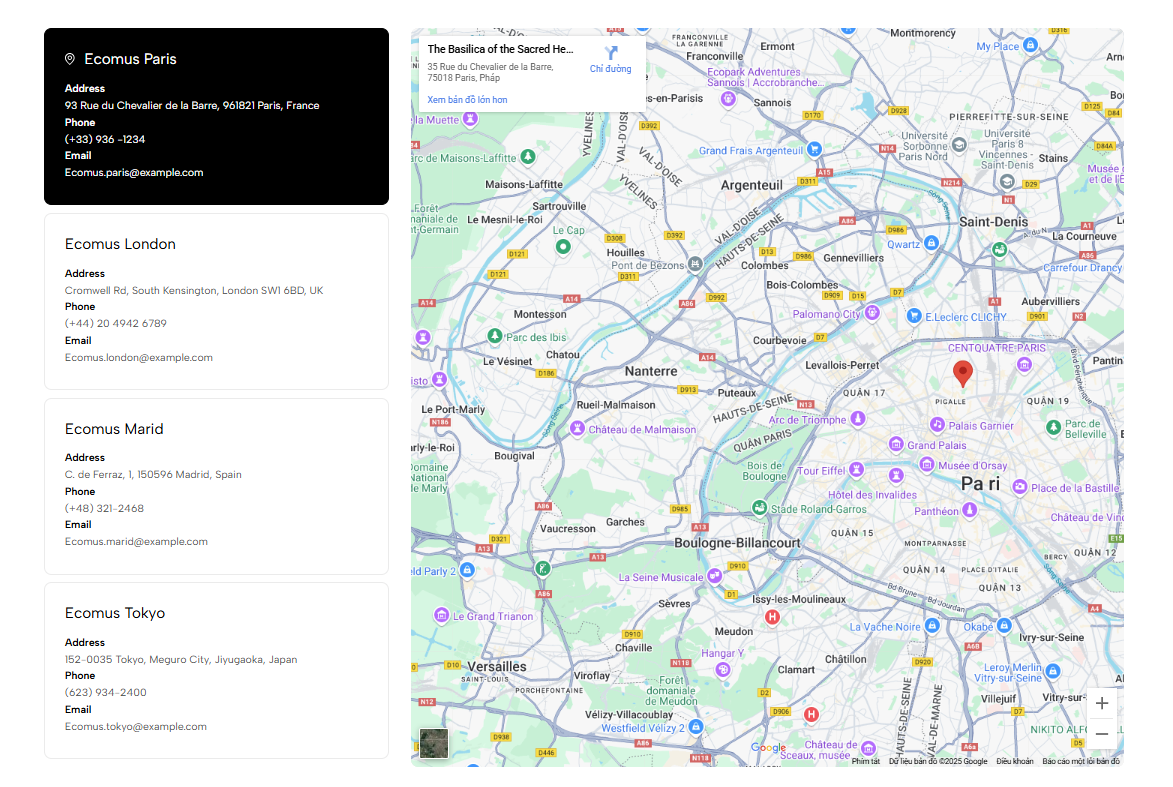
Displays store information with an embedded map, helping customers find physical stores or nearby retailers.
Contact page
Store locator page
About page
Retailer or stockist page
Homepage
Shopify Admin → Online Store → Themes → Customize → Add section → Store locator
Store item: Adds store details and an embedded map.
Setting | Description |
|---|---|
Store name | Displays the store or retailer name. |
Address content | Adds the full store address. |
Phone | Displays a contact phone number. |
Displays a contact email address. | |
Map | Embeds a map using iframe code. |
To add a map:
Google Maps → Search address → Share → Embed a map → Copy HTML → Paste into Map
Setting | Description |
|---|---|
Enable section full width | Expands the section across the browser width. |
Color scheme | Controls the section colors. |
Top padding | Adjusts spacing above the section. |
Bottom padding | Adjusts spacing below the section. |
Rate padding (mobile) | Controls responsive spacing on mobile. |
Custom CSS | Adds custom styles to this section only. |
Use a complete and accurate address.
Include phone and email details when available.
Test the embedded map before publishing.
Use one Store item for each location.
Keep store information formatted consistently.
Check the map layout on mobile devices.
Issue | Solution |
|---|---|
Map is not showing | Make sure valid iframe embed code is pasted into the Map field. |
Map link opens instead of displaying | Use Embed a map code, not the regular Google Maps URL. |
Store information is incomplete | Add the store name, address, and contact details. |
Map displays the wrong location | Search for the correct address and generate new embed code. |
Mobile layout is too wide | Disable full width or adjust the iframe width and section padding. |