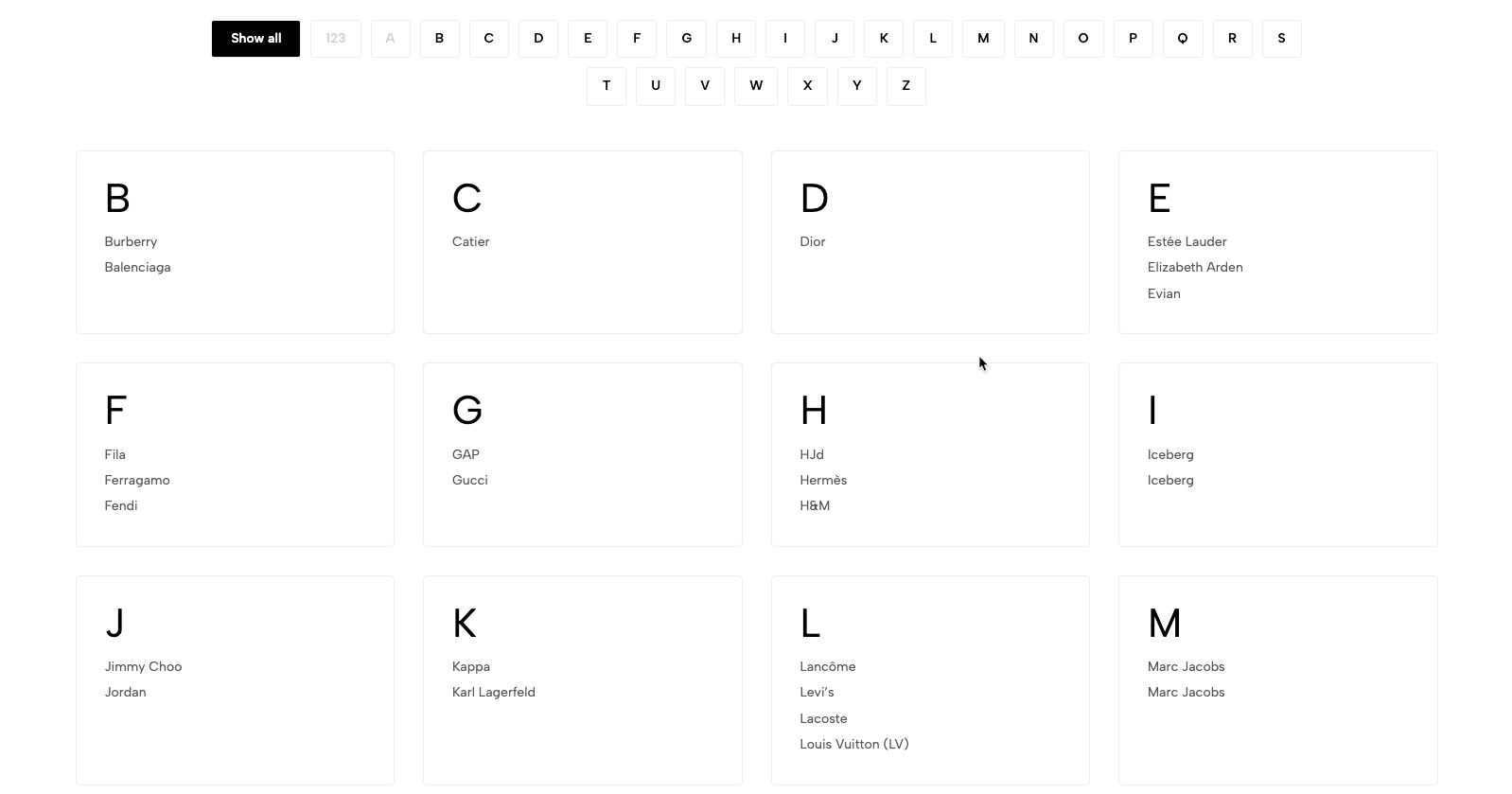
Displays brands in a searchable or filterable page, allowing customers to browse products by vendor, brand name, or logo.
Brand directory
Shop-by-brand page
Vendor listing
Brand collection navigation
Shopify Admin → Online Store → Themes → Customize → Pages → Brands → Page Brands
The Brands page template may only be available in the published theme.
The section supports two sources:
Shop vendor: Uses vendor names from store products.
Metafield: Uses custom brand entries created with metaobjects.
Use Metafield when you need custom logos, links, images, or assigned collections.
Go to:
Shopify Admin → Settings → Custom data → Metaobjects → Add definition
Create a definition named Vendor with these fields:
Field | Type | Purpose |
|---|---|---|
Name | Single line text | Brand name |
Image | File | Brand logo or image |
Link | URL | Custom brand URL |
Collection | Collection | Associated collection |
Go to:
Shopify Admin → Content → Metaobjects → Vendor → Add entry
Enter the brand name, image, link, and collection, then save the entry.
Go to:
Shopify Admin → Settings → Custom data → Pages → Add definition
Use:
Name: Vendor
Namespace and key: theme.vendor
Type: Metaobject reference
Reference: Vendor
Create or open the Brands page, assign the Brands template, and select the required Vendor metaobject entries in the page metafield.
Setting | Description |
|---|---|
Layout brands | Selects the brand-list layout. Available for the Metafield source. |
Source brands | Selects Shop vendor or Metafield. |
Name tabs brands | Displays alphabetical or numerical filter tabs. |
Image brands | Displays brand logos instead of text-only names. |
Color scheme | Controls section colors. |
Enable section full width | Expands the section across the browser width. |
Section padding | Adjusts spacing above and below the section. |
Rate padding (mobile) | Controls responsive spacing on mobile. |
Custom CSS | Adds custom styles to this section only. |
Use consistent logo dimensions and transparent backgrounds.
Keep brand names consistent with product vendor names.
Use alphabetical tabs when displaying many brands.
Assign each brand to the correct collection or link.
Use the Metafield source for greater control over brand content.
Issue | Solution |
|---|---|
Brands are not showing | Select the correct brand source and add the required data. |
Brand layout options are unavailable | Change Source brands to Metafield. |
Brand image is missing | Add an image to the Vendor metaobject entry and enable Image brands. |
Brand opens the wrong page | Check the Link or assigned Collection field. |
Page metafield is missing | Create the page metafield using |
Brands template is unavailable | Publish the theme or create the page template in the published theme. |