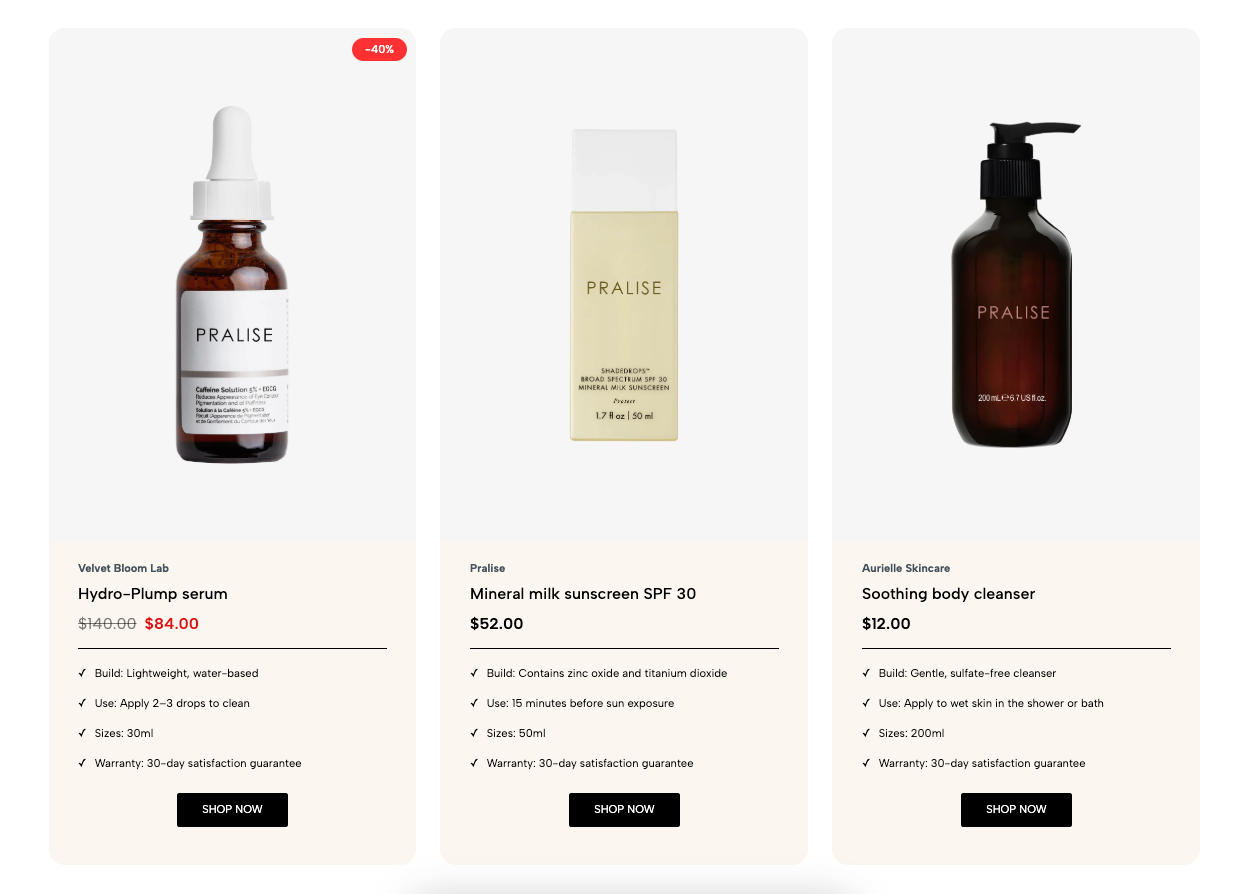
Displays multiple products or service packages in a pricing-table layout, helping customers compare options and choose the most suitable offer.
Service packages
Subscription plans
Product bundles
Membership options
Product comparison sections
Shopify Admin → Online Store → Themes → Customize → Add section → Price tables
Price table item: Adds a product or package.
Section heading: Adds a title and supporting text.
Content blocks: Adds Text, Button, and Spacer blocks inside each pricing item.
Setting | Description |
|---|---|
Color scheme | Controls the colors of the pricing item. |
Product | Selects the product or package to display. |
Show vendor | Displays the product vendor. |
Image ratio | Sets the product-image proportion. |
Full image | Displays the complete image without cropping. |
Content position | Aligns the pricing content in the default or centered layout. |
Label background | Sets the background color for labels such as Popular or Sale. |
Setting | Description |
|---|---|
Text alignment | Aligns the heading left, center, or right. |
Spacing between items | Adjusts spacing between heading blocks. |
Margin bottom | Sets the space below the heading. |
The heading supports Heading and Text blocks with responsive typography, color, and mobile visibility settings.
Block | Description |
|---|---|
Text | Adds package details or feature information. |
Button | Adds a linked call-to-action. |
Spacer | Controls spacing between content elements. |
Setting | Description |
|---|---|
Items per row | Sets the number of pricing items on desktop, tablet, and mobile. |
Use prev/next button | Displays slider navigation arrows. |
Use dots | Displays pagination dots. |
Setting | Description |
|---|---|
Enable section full width | Expands the section across the browser width. |
Color scheme | Controls the overall section colors. |
Section padding | Adjusts spacing above and below the section. |
Rate padding (mobile) | Controls responsive spacing on mobile. |
Custom CSS | Adds styles to this section only. |
Product cards may also use global Theme settings for:
Wishlist
Product badges
Quick add and quick view
Product comparison
Product ratings
Vendor links
Currency codes
These options should be configured under Theme settings.
Keep package names and features easy to compare.
Use consistent content length across pricing items.
Highlight only one recommended package.
Use clear button labels such as Choose plan or Buy now.
Show fewer items per row on mobile.
Use consistent product-image ratios.
Issue | Solution |
|---|---|
Pricing item is not showing | Select a product in the Price table item. |
Product image looks cropped | Use Adapt to image or enable Full image. |
Slider navigation is missing | Enable arrows or dots and add enough items. |
Pricing cards have uneven heights | Keep content length and spacing consistent. |
Product rating is missing | Install and configure a supported rating app. |
Label is difficult to read | Adjust the label background and text contrast. |