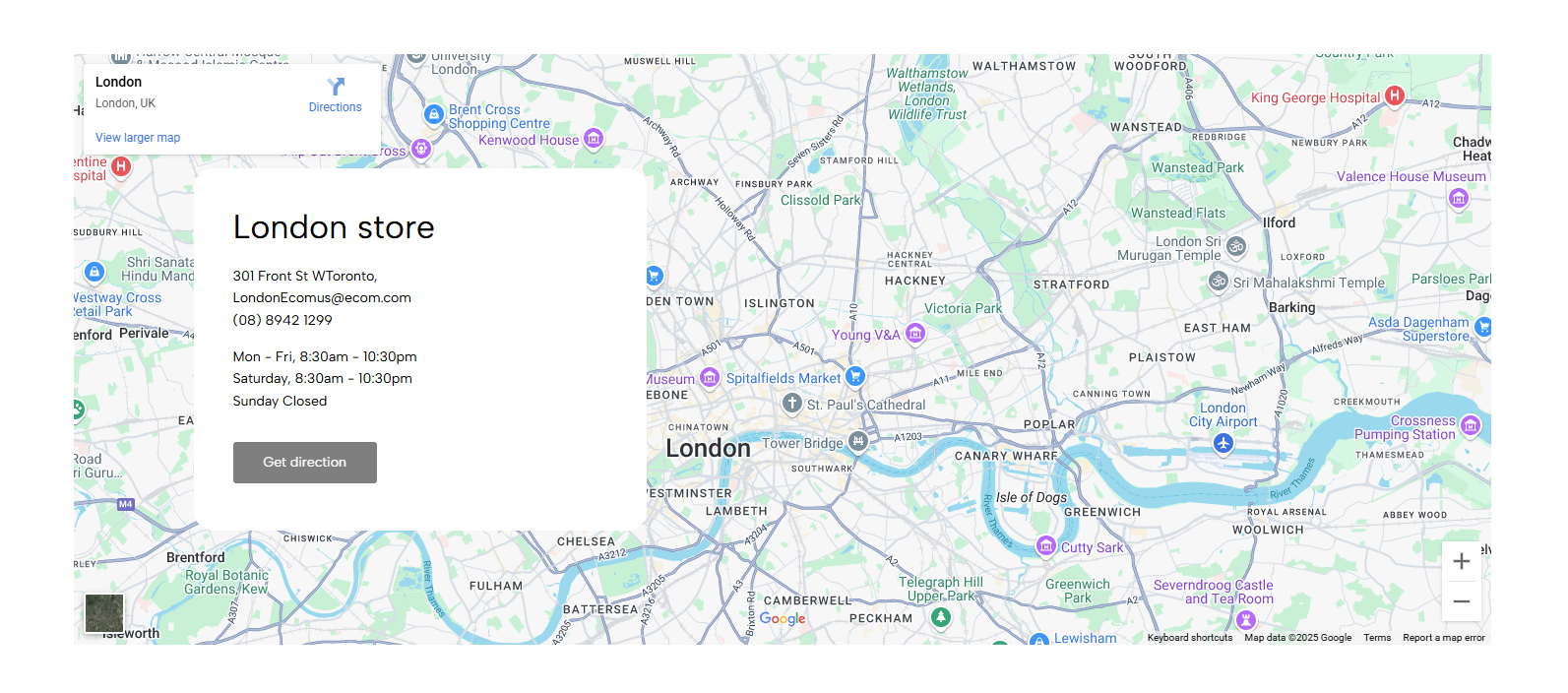
Displays an embedded map or custom location image with supporting text and buttons, helping customers find a physical store.
Contact page
Store locator page
Homepage
About page
Retail location section
Shopify Admin → Online Store → Themes → Customize → Add section → Map pin info
Heading: Adds the main title.
Text: Adds address or supporting information.
Button: Adds a directions or contact link.
Spacer: Adjusts spacing between content blocks.
Setting | Description |
|---|---|
Full width | Expands the section across the browser width. |
Color | Controls the section colors. |
Use map | Displays an embedded map. |
Source map | Adds Google Maps iframe embed code. |
Filter grayscale source map | Displays the map in grayscale. |
Image | Displays a custom image when Use map is disabled. |
Custom height | Sets the section height on desktop, tablet, and mobile. |
To add a Google map:
Google Maps → Search location → Share → Embed a map → Copy HTML → Paste into Source map
Block | Description |
|---|---|
Heading | Adds responsive heading text. |
Text | Adds an address or store description. |
Spacer | Controls spacing by device. |
Button | Adds a linked call-to-action such as Get directions. |
Setting | Description |
|---|---|
Top padding | Adjusts spacing above the section. |
Bottom padding | Adjusts spacing below the section. |
Rate padding (mobile) | Controls responsive spacing on mobile. |
Custom CSS | Adds custom styles to this section only. |
Use valid Google Maps embed code, not a normal map URL.
Add a clear address and directions button.
Use a custom image only when an interactive map is unnecessary.
Check the section height on all devices.
Use grayscale only when it matches the store design.
Issue | Solution |
|---|---|
Map is not showing | Enable Use map and paste valid iframe code into Source map. |
Image is not showing | Disable Use map before adding a custom image. |
Map opens as a link | Use Google Maps embed code instead of a regular URL. |
Section is too tall or too short | Adjust Custom height for each device. |
Button does not work | Add a valid link in the Button block. |
Mobile layout looks incorrect | Review mobile height, font size, and spacing. |