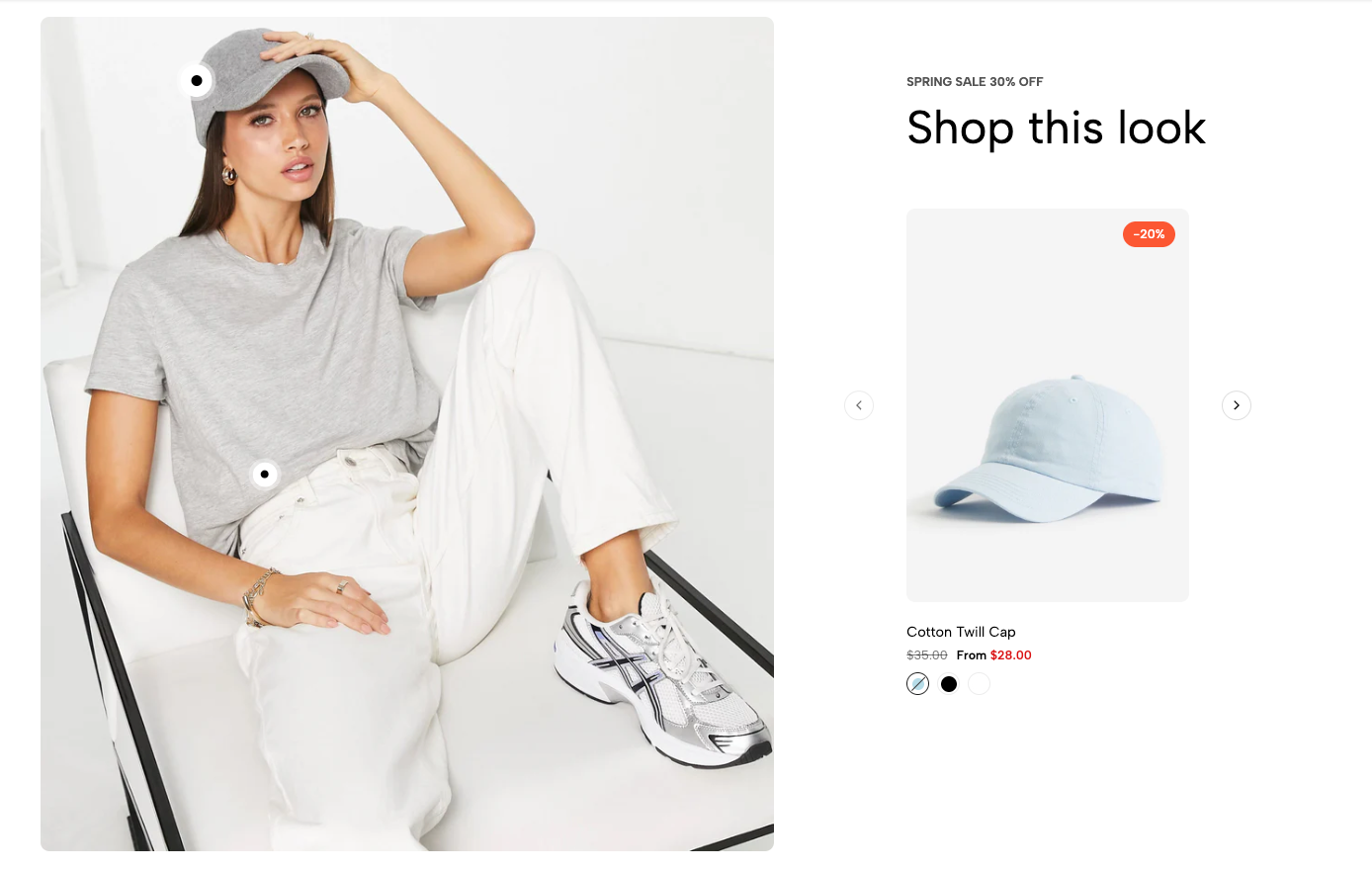
Displays products within a lifestyle image using interactive hotspots. Customers can explore the featured products without leaving the lookbook section.
Homepage
Lookbook page
Product page
Shop-the-look section
Fashion, furniture, or lifestyle collections
Shopify Admin → Online Store → Themes → Customize → Add section → Lookbook product
Pin product: Links a product to a specific position on the lookbook image.
Setting | Description |
|---|---|
Product | Selects the product linked to the hotspot. |
Position left | Controls the horizontal pin position. |
Position top | Controls the vertical pin position. |
Setting | Description |
|---|---|
Image | Uploads the main lookbook image. |
Label | Adds supporting text above the heading. |
Heading | Adds the main section title. |
Product design | Selects the product-card style. |
Image ratio | Controls the product-image proportions. |
Setting | Description |
|---|---|
Use prev/next button | Displays navigation arrows for browsing featured products. |
Enable section full width | Expands the section across the browser width. |
Color scheme | Controls the section colors. |
Section padding | Adjusts spacing above and below the section. |
Custom CSS | Adds styles to this section only. |
Product cards may also follow global Theme settings for:
Wishlist and comparison
Quick add and quick view
Product badges
Ratings
Product titles and prices
Color and size swatches
Secondary images
Configure these options under Theme settings instead of repeating them in the section documentation.
Use a clear lifestyle image with visible products.
Place each pin close to the correct product.
Avoid placing pins too close together.
Select available products with complete images and variants.
Check pin positions on desktop and mobile.
Keep the number of linked products manageable.
Issue | Solution |
|---|---|
Product pin is not showing | Select a product in the Pin product block. |
Pin appears in the wrong position | Adjust Position left and Position top. |
Pins overlap | Increase the distance between pin positions. |
Product details are missing | Check the selected product and Product design setting. |
Product rating is missing | Install and configure a supported rating app. |
Mobile layout looks incorrect | Review pin positions, image ratio, and section spacing. |