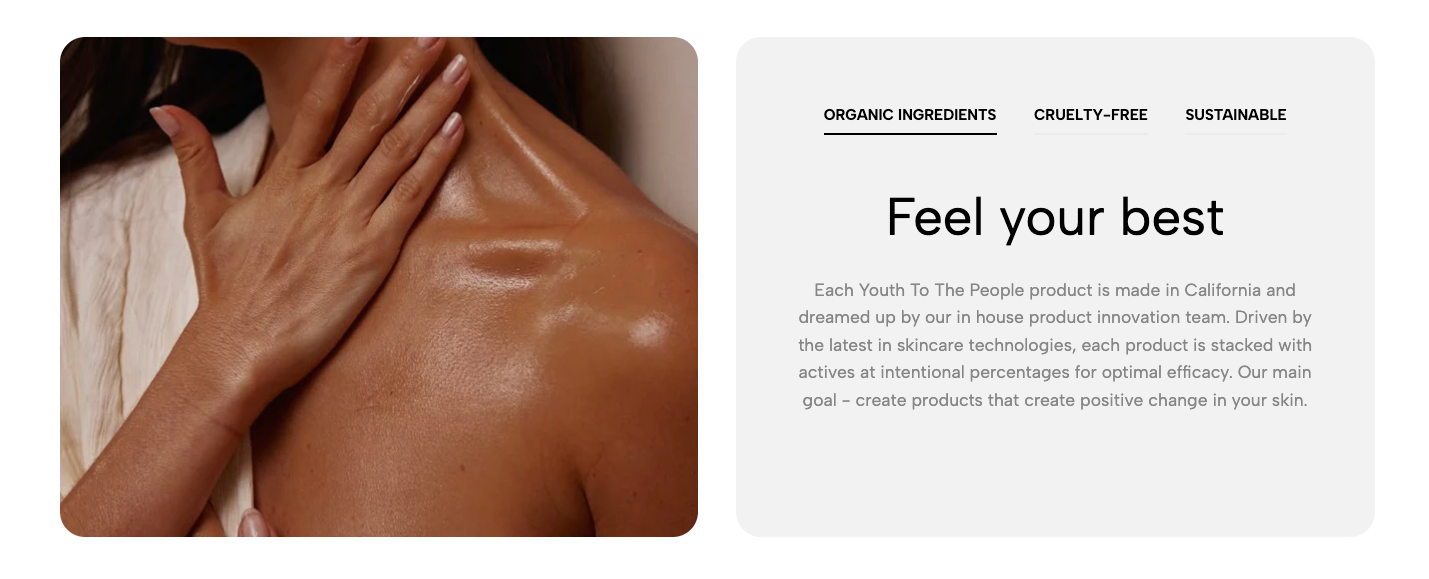
Displays an image alongside tabbed content, allowing customers to explore related information without leaving the section.
Homepage
Product page
Landing page
Product features
Brand story or step-by-step content
Shopify Admin → Online Store → Themes → Customize → Add section → Image with tabs content
Tab item: Adds a tab with a heading, text, and optional button.
Setting | Description |
|---|---|
Tab title | Sets the tab label. |
Heading | Adds the main tab heading. |
Content text | Adds supporting content. |
Text alignment | Aligns the tab content left, center, or right. |
Button label | Sets the button text. |
Button link | Sets the button destination. |
Open in new tab | Opens the link in another browser tab. |
Button style | Selects Solid, Outline, or Link style. |
Button icon | Adds an optional icon. |
Setting | Description |
|---|---|
Heading | Adds the main section title. |
Alignment | Aligns the heading. |
Heading tag | Sets the HTML heading tag for SEO and accessibility. |
Heading font size | Controls the heading size. |
Subheading | Adds supporting text. |
Subheading size | Controls the supporting text size. |
Heading reverse | Swaps the heading and subheading positions. |
Heading spacing | Adjusts spacing between the heading elements and content. |
Setting | Description |
|---|---|
Main image | Uploads the featured image. |
Image position | Places the image on the left or right on desktop. |
Image ratio | Selects Adapt to image, Full screen height, or Custom height. |
Custom height | Sets the desktop image height. |
Tablet image height | Sets the image height on tablet. |
Mobile image height | Sets the image height on mobile. |
Image position does not apply on mobile.
Setting | Description |
|---|---|
Enable section full width | Expands the section across the browser width. |
Color scheme | Controls the section colors. |
Section padding | Adjusts spacing above and below the section. |
Rate padding (mobile) | Controls responsive spacing on mobile. |
Custom CSS | Adds styles to this section only. |
Use short and clear tab titles.
Keep content length consistent between tabs.
Use one clear call-to-action per tab.
Choose an image that supports all tab content.
Check image height and tab readability on mobile.
Avoid adding too many tabs.
Issue | Solution |
|---|---|
Tab content is not showing | Add and enable at least one Tab item. |
Button is missing | Add both a button label and button link. |
Image position does not change on mobile | This setting only applies to desktop. |
Image looks cropped | Use Adapt to image or adjust the custom height. |
Tabs look crowded | Shorten tab titles or reduce the number of tabs. |
Heading order looks incorrect | Enable or disable Heading reverse. |