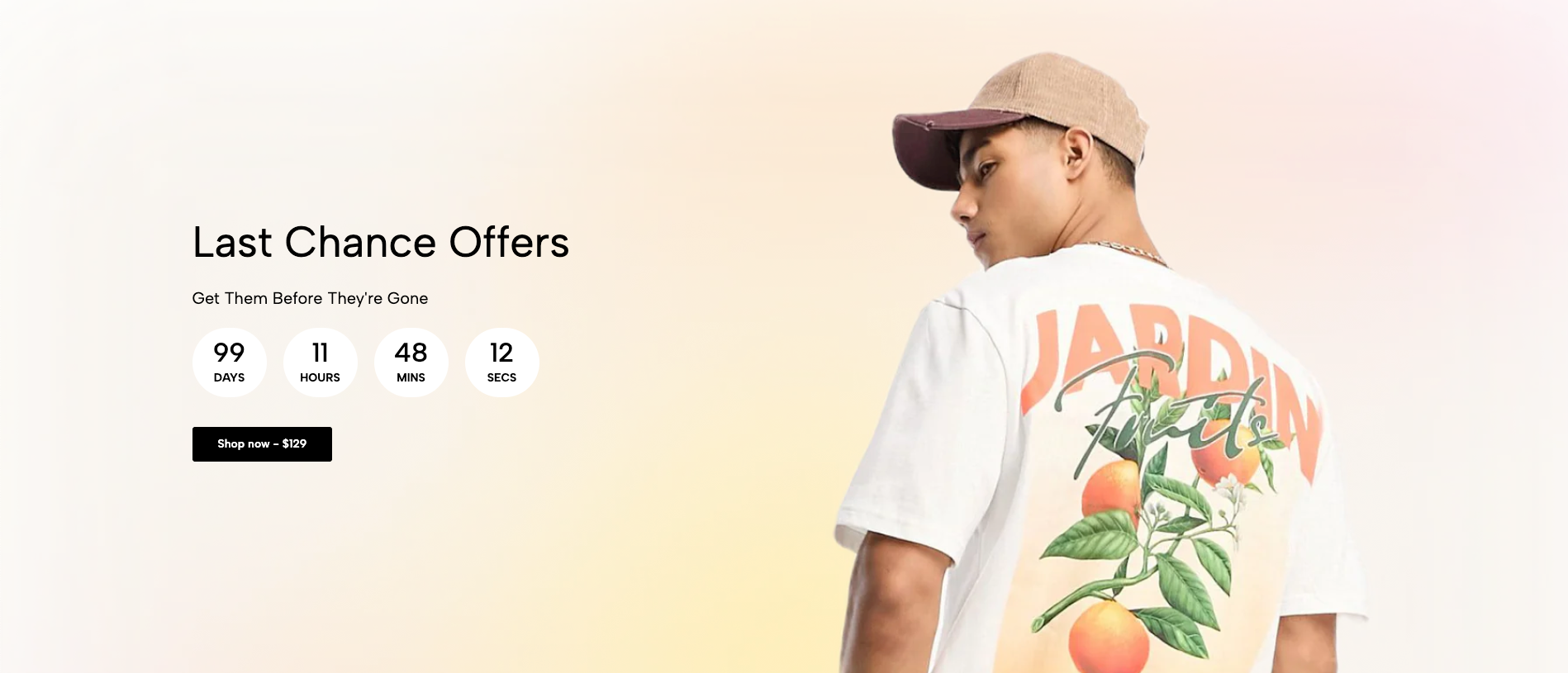
Displays a large promotional image with text, a countdown, and an optional call-to-action button. Suitable for highlighting campaigns, new arrivals, or key brand messages.
Homepage hero banner
Product launch
Seasonal promotion
Brand campaign
Limited-time offer
Shopify Admin → Online Store → Themes → Customize → Add section → Hero image
Heading: Adds the main title.
Text / Paragraph: Adds supporting content.
Button: Adds a call-to-action.
Countdown: Displays a promotional timer.
Spacer: Adjusts spacing between blocks.
Setting | Description |
|---|---|
Image | Uploads the desktop hero image. |
Mobile image | Uploads a separate image for mobile. |
Link image | Makes the entire image clickable. |
Open in new tab | Opens the image link in another browser tab. |
Image height | Selects Adapt to image, Fill screen height, or Min height. |
Min height | Sets the minimum desktop height. |
Mobile image height | Controls image height on mobile. |
Mobile min height | Sets the minimum mobile height. |
Image behavior | Selects None, Parallax, or Ambient movement. |
Enable overlay | Adds an overlay above the image. |
Enable background content | Adds a background behind the content. |
Parallax behavior may resize or crop the image.
Setting | Description |
|---|---|
Content position | Places content at the top, center, or bottom on desktop and mobile. |
Content alignment | Aligns content left, center, or right on desktop and mobile. |
Block | Description |
|---|---|
Heading / Text | Adds responsive text with custom size, color, weight, and visibility. |
Paragraph | Adds longer content with custom typography. |
Button | Adds a linked call-to-action with optional icon. |
Spacer | Controls spacing on desktop, tablet, and mobile. |
Setting | Description |
|---|---|
End date and time | Sets the countdown year, month, day, hour, and minute. |
Style | Selects Solid or Outline. |
Rounded full | Applies fully rounded timer boxes. |
Animate number type | Selects the number animation. |
Prepend number 0 | Adds a leading zero to single-digit values. |
Hide timer on complete | Hides the timer when it reaches zero. |
Timer complete message | Displays a message after the countdown ends. |
The countdown displays a maximum of 99 days.
Setting | Description |
|---|---|
Top padding | Adjusts spacing above the section. |
Bottom padding | Adjusts spacing below the section. |
Rate padding (mobile) | Controls responsive spacing on mobile. |
Custom CSS | Adds custom styles to this section only. |
Use a high-quality image with a clear focal point.
Upload a separate mobile image when the desktop image crops poorly.
Keep the heading and message short.
Use an overlay or content background to improve readability.
Add only one primary call-to-action.
Use countdowns only for genuine limited-time campaigns.
Issue | Solution |
|---|---|
Image is cropped | Use Adapt to image or adjust Min height. |
Mobile image looks incorrect | Upload a separate Mobile image. |
Text is difficult to read | Enable overlay or background content. |
Image link does not work | Add a valid Link image URL. |
Countdown shows the wrong time | Check the configured date and time. |
Countdown remains after completion | Enable Hide timer on complete or add a completion message. |