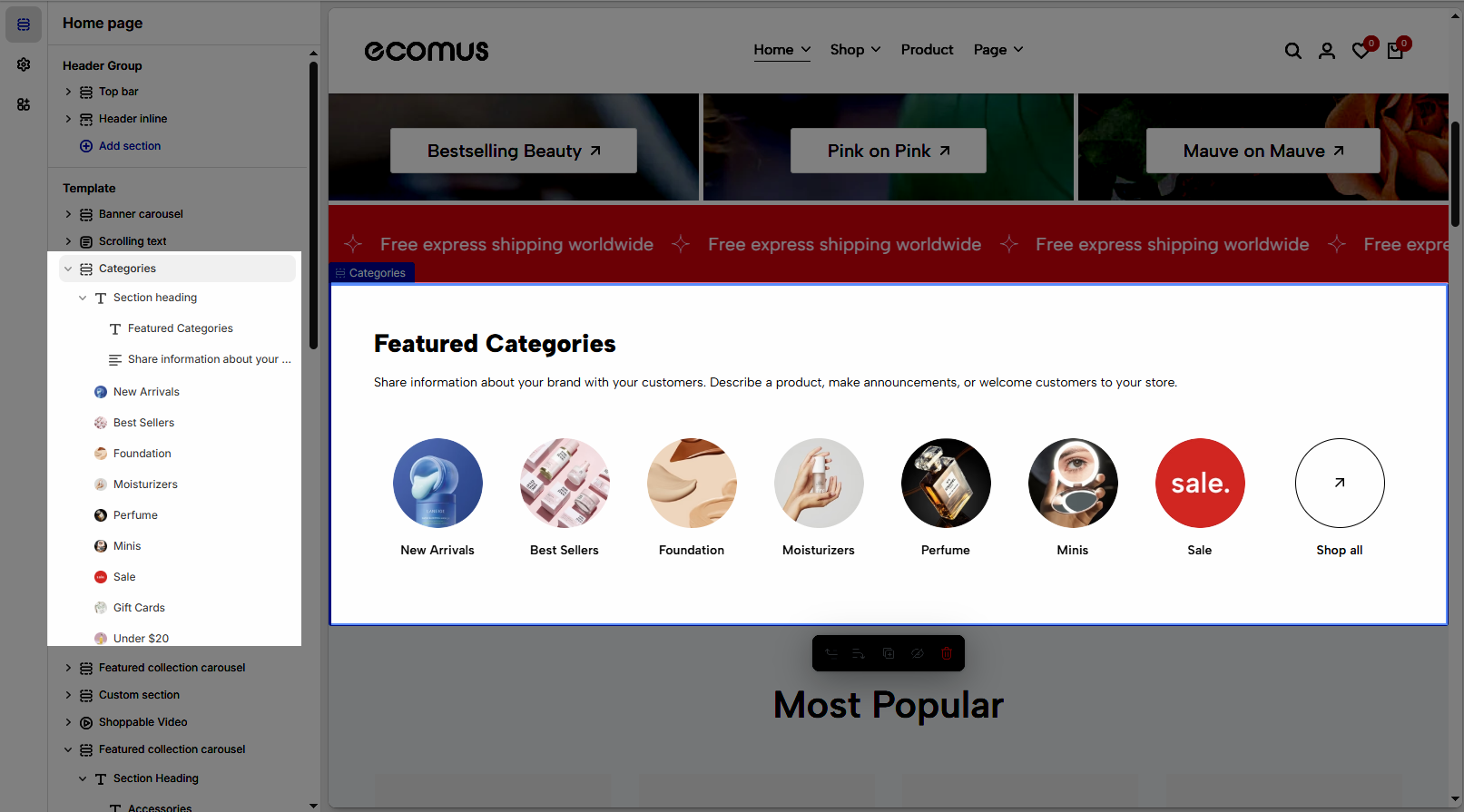
Displays selected product collections as category items, helping customers quickly browse and discover different product groups.
Homepage
Collection landing page
Shop-by-category section
Featured categories
Seasonal navigation
Shopify Admin → Online Store → Themes → Customize → Add section → Categories
Category item: Adds a collection with an optional custom image, title, and link.
Section heading: Adds a heading and supporting text above the categories.
Setting | Description |
|---|---|
Collection | Selects the collection to display. This setting is required. |
Collection image | Adds a custom image. Leave blank to use the collection image. |
Collection title | Adds a custom title. Leave blank to use the collection name. |
Collection link | Overrides the default collection URL. |
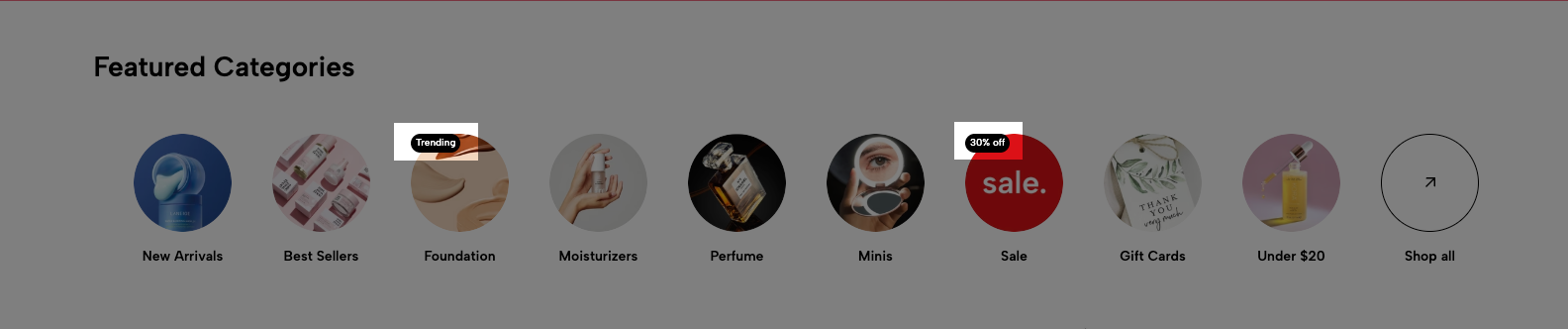
To display a custom label for a collection:
Go to Settings → Custom data → Collections → Add definition.
Use:
Name: Label
Namespace and key: theme.label
Type: Single line text
Open the collection and enter the label value.
Setting | Description |
|---|---|
Text alignment | Aligns the heading left, center, or right. |
Spacing between items | Adjusts spacing between heading blocks. |
Margin bottom | Sets the space below the heading. |
The heading supports Heading and Text blocks with responsive size, color, visibility, font weight, and letter-spacing settings.
Setting | Description |
|---|---|
Title item | Sets the button text. The button is hidden when left blank. |
Link | Sets the button destination. |
Setting | Description |
|---|---|
Color scheme | Controls the section colors. |
Spacing between items | Adjusts gaps between category items. |
Section padding | Controls spacing above and below the section. |
Rate padding (mobile) | Controls responsive spacing on mobile. |
Custom CSS | Adds styles to this section only. |
Select a collection for every Category item.
Use clear and consistent category images.
Keep category titles short.
Use custom links only when the item should open a different page.
Add labels only for useful messages such as New or Sale.
Check spacing and image display on mobile.
Issue | Solution |
|---|---|
Category is not showing | Select a collection in the Category item. |
Collection image is missing | Upload a custom image or add an image to the collection. |
Category opens the wrong page | Remove or correct the custom Collection link. |
Collection label is missing | Create the |
Static button is not showing | Add text to Title item. |
Mobile layout looks crowded | Reduce spacing or the number of category items. |