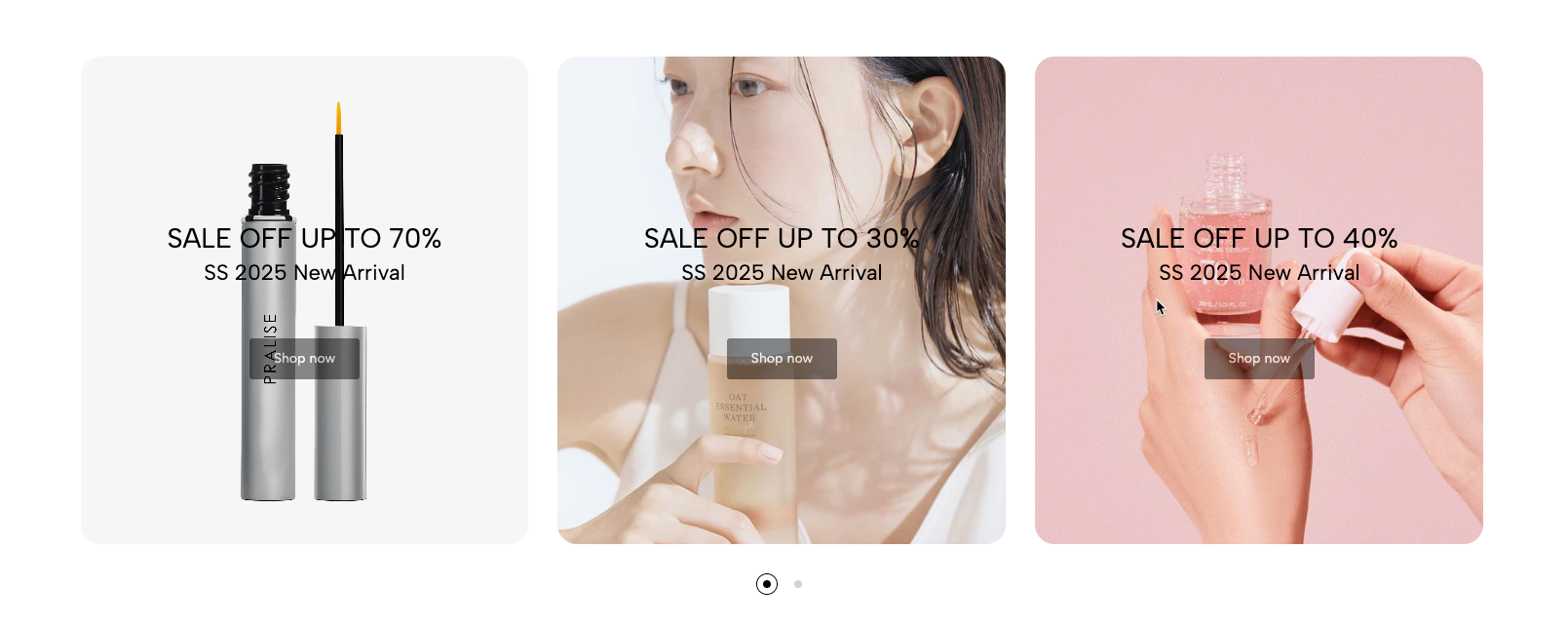
Displays promotional banners, images, or videos in a carousel. Suitable for campaigns, featured content, product promotions, and visual storytelling.
Homepage
Landing page
Seasonal campaign
Featured products
Promotional banners
Shopify Admin → Online Store → Themes → Customize → Add section → Banner carousel
Banner item: Adds a clickable banner and controls content positioning.
Media: Adds an image or video.
Heading: Adds the main banner title.
Text or Paragraph: Adds supporting content.
Button: Adds a call-to-action button.
Spacer: Adjusts spacing between content blocks.
Setting | Description |
|---|---|
Banner URL | Sets the destination when customers click the banner. |
Open in new tab | Opens the banner link in another browser tab. |
Image hover effect | Applies an effect to the banner image on hover. |
Item effect when hover | Applies an effect to the entire banner item. |
Color scheme | Controls banner content colors. |
Content position | Positions content on desktop and mobile. |
Content alignment | Aligns banner text left, center, or right. |
Some hover effects may resize or crop the image.
Setting | Description |
|---|---|
Use source | Selects Image or Video. |
Image | Uploads the desktop banner image. |
Image mobile | Uploads a separate mobile image. |
Video | Uploads a video directly. |
External link video | Adds a YouTube or Vimeo video. |
An uploaded video overrides the external video when both are set.
Block | Description |
|---|---|
Heading | Adds a responsive banner title. |
Text | Adds short supporting text. |
Paragraph | Adds longer text with custom typography. |
Button | Adds a linked call-to-action button. |
Spacer | Controls spacing on desktop, tablet, and mobile. |
Setting | Description |
|---|---|
Full width | Expands the section across the browser width. |
Boxed full width | Keeps content inside a centered container when full width is enabled. |
Items per row | Sets visible banners on desktop and tablet. |
Item height | Sets banner height by device. |
Space between items | Controls gaps between banners. |
Color scheme | Controls the section colors. |
Setting | Description |
|---|---|
Use prev/next button | Displays carousel navigation arrows. |
Navigation design | Selects Default, Outline, or Simple style. |
Navigation position | Places arrows inside, outside, or on the banner border. |
Navigation icon | Selects Chevron or Arrow icons. |
Use dots | Displays pagination dots. |
Setting | Description |
|---|---|
Section padding | Adjusts spacing above and below the section. |
Rate padding (mobile) | Controls responsive spacing on mobile. |
Custom CSS | Adds custom styles to this section only. |
Use consistent image sizes across all banners.
Upload a separate mobile image when the desktop image crops poorly.
Keep banner text short and focused on one action.
Ensure text has enough contrast with the background.
Use subtle hover effects.
Compress images and videos to improve loading speed.
Issue | Solution |
|---|---|
Banner media is not showing | Add an image, uploaded video, or supported external video link. |
External video is ignored | Remove the uploaded video because it takes priority. |
Mobile banner looks cropped | Upload a separate mobile image or adjust item height. |
Navigation arrows are missing | Enable prev/next buttons and add enough banner items. |
Banner link does not work | Add a valid Banner URL. |
Text is difficult to read | Adjust the color scheme, text color, or content position. |