The "Main Product Tabs" section is a dynamic UI component designed to organize and present diverse product-related information within a tabbed interface on the product detail page.

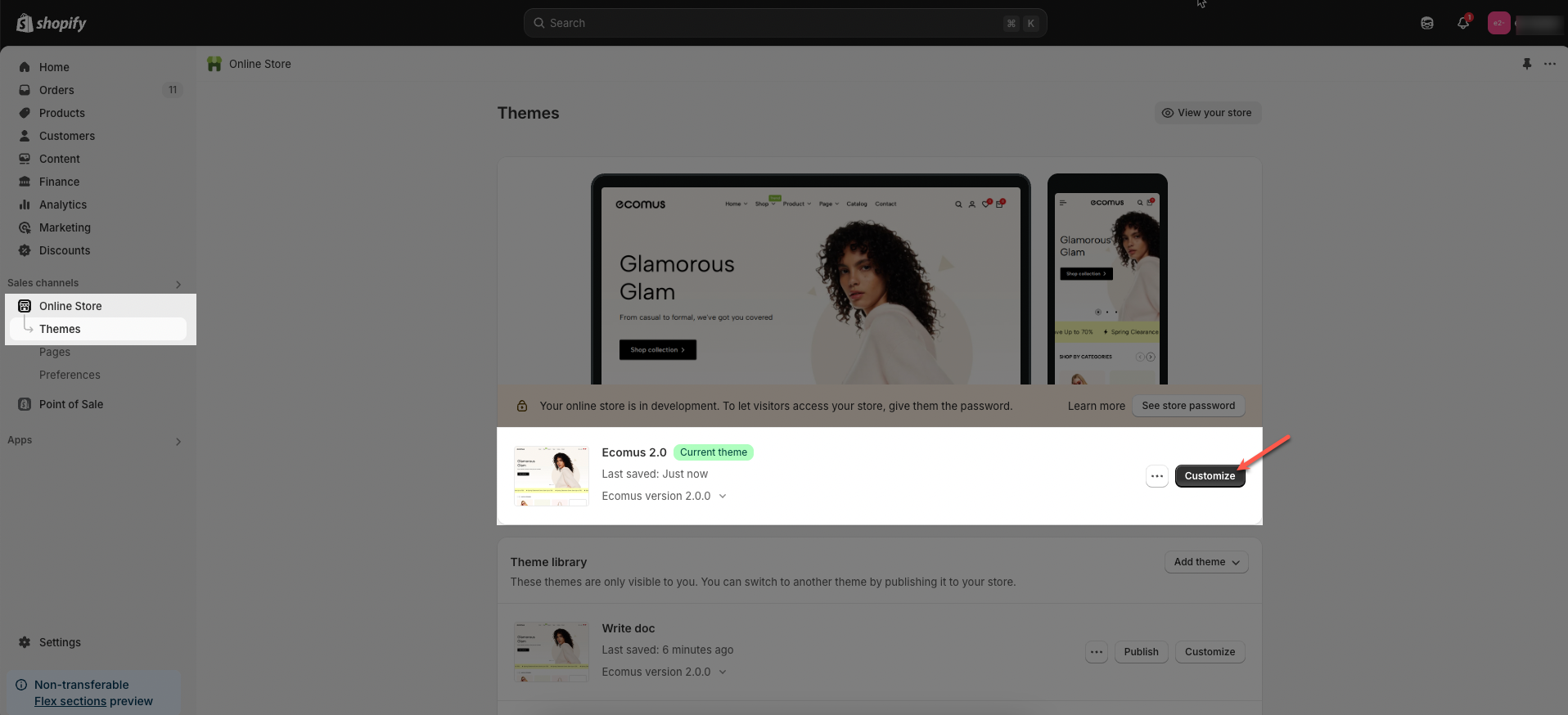
Step 01: From Shopify Admin, click on Online Store > Select Themes > In the Current theme section, click the Customize button.
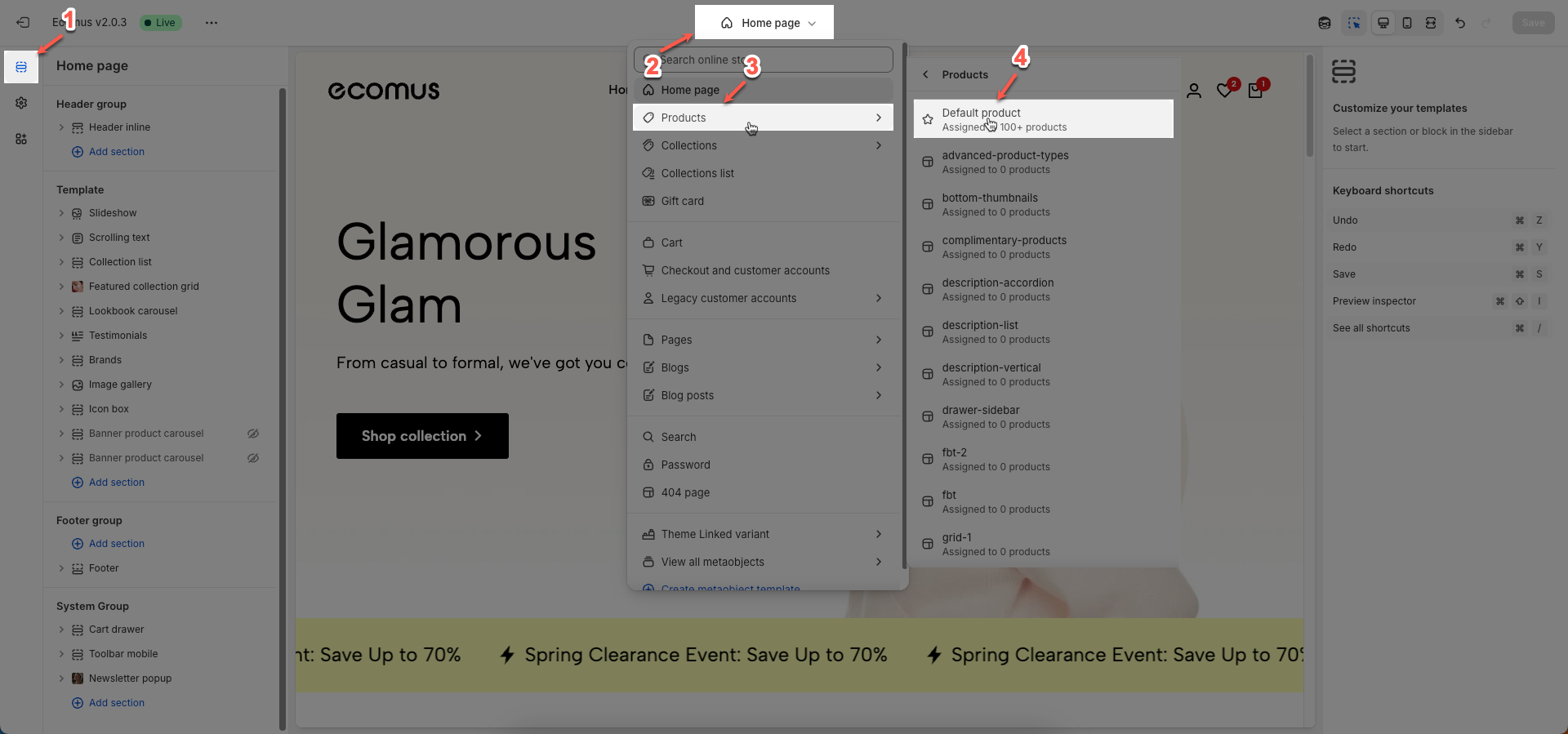
Step 02: In the theme editor (Customize), click to open dropdown pages in the topbar > select Products > select Default product
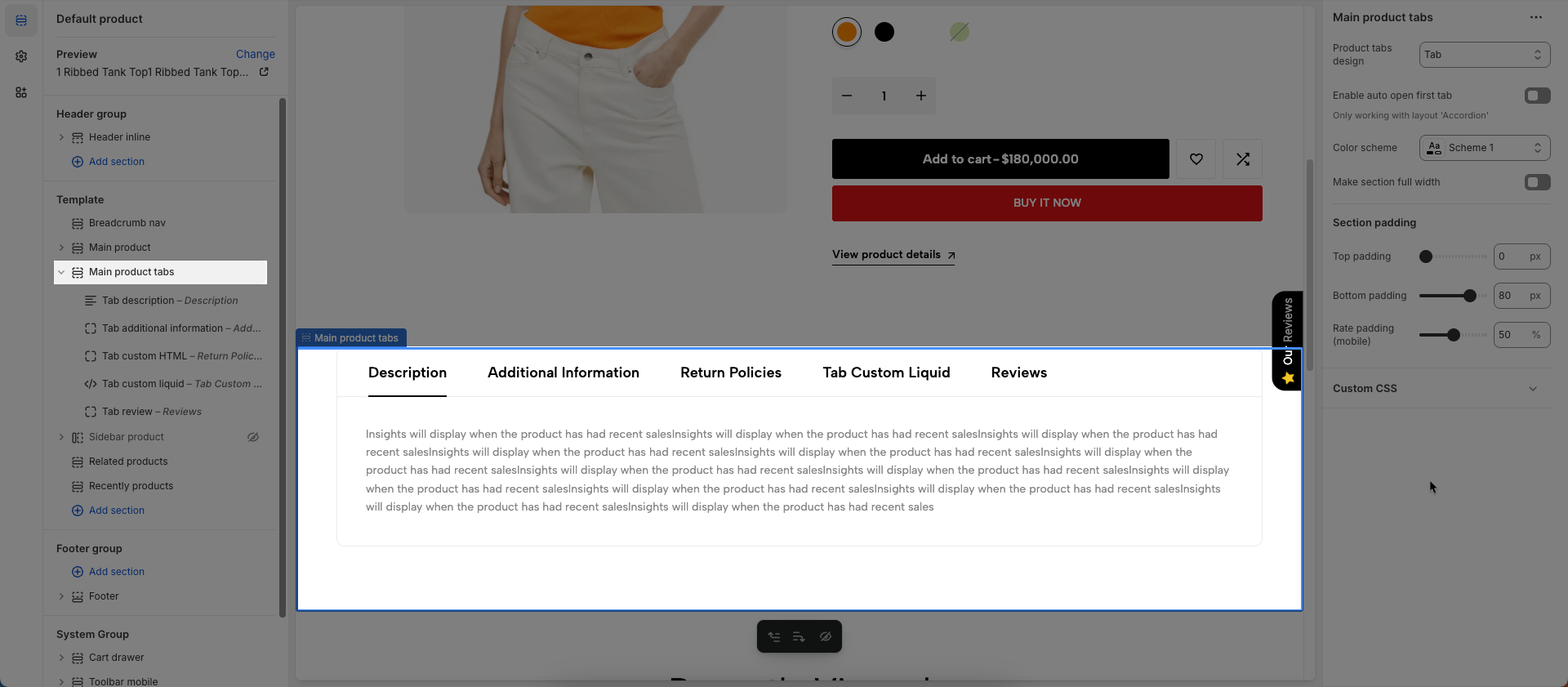
Step 03: In the Sections tab, scroll and find Main product tabs in Template
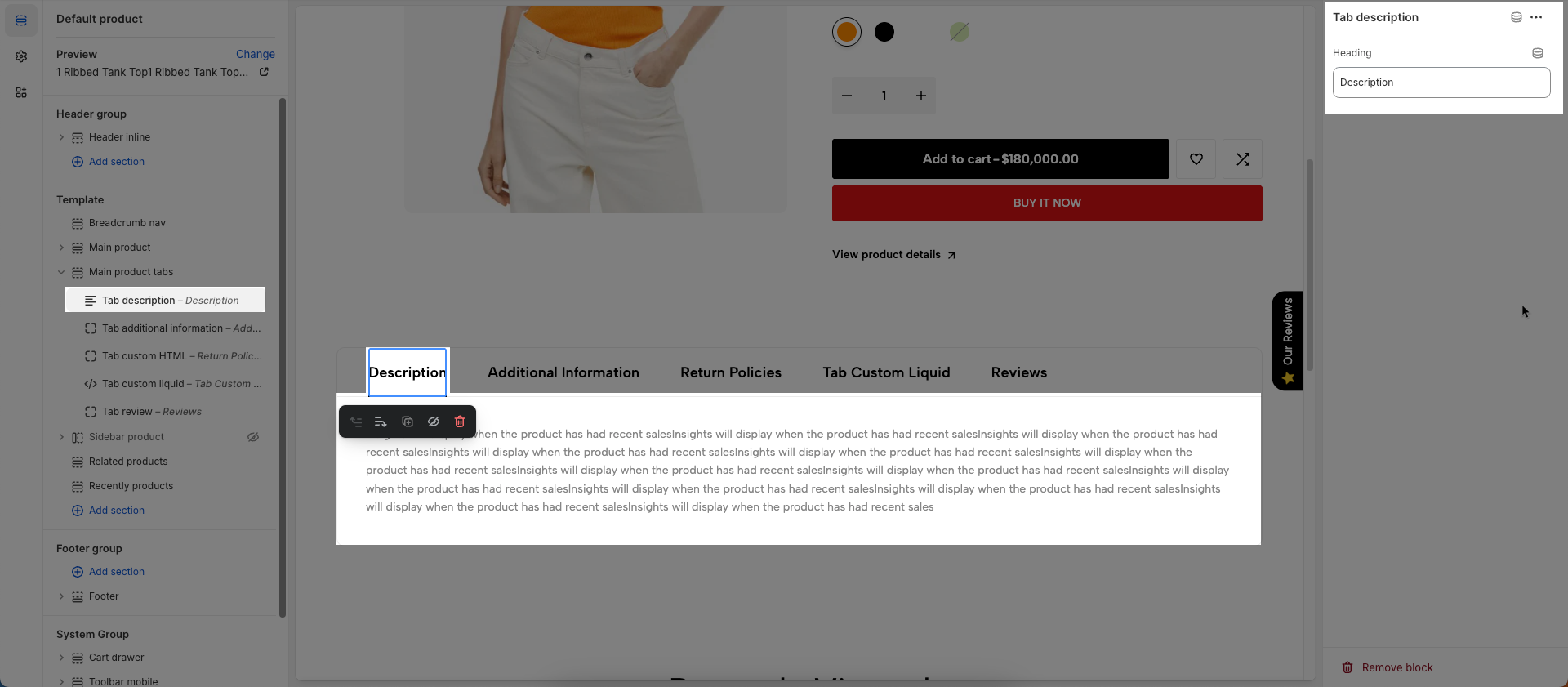
To add Tab description block to the Main product tabs, click the Add block button (plus icon ➕) under the Main product tabs.
Heading: Enter heading you want to display
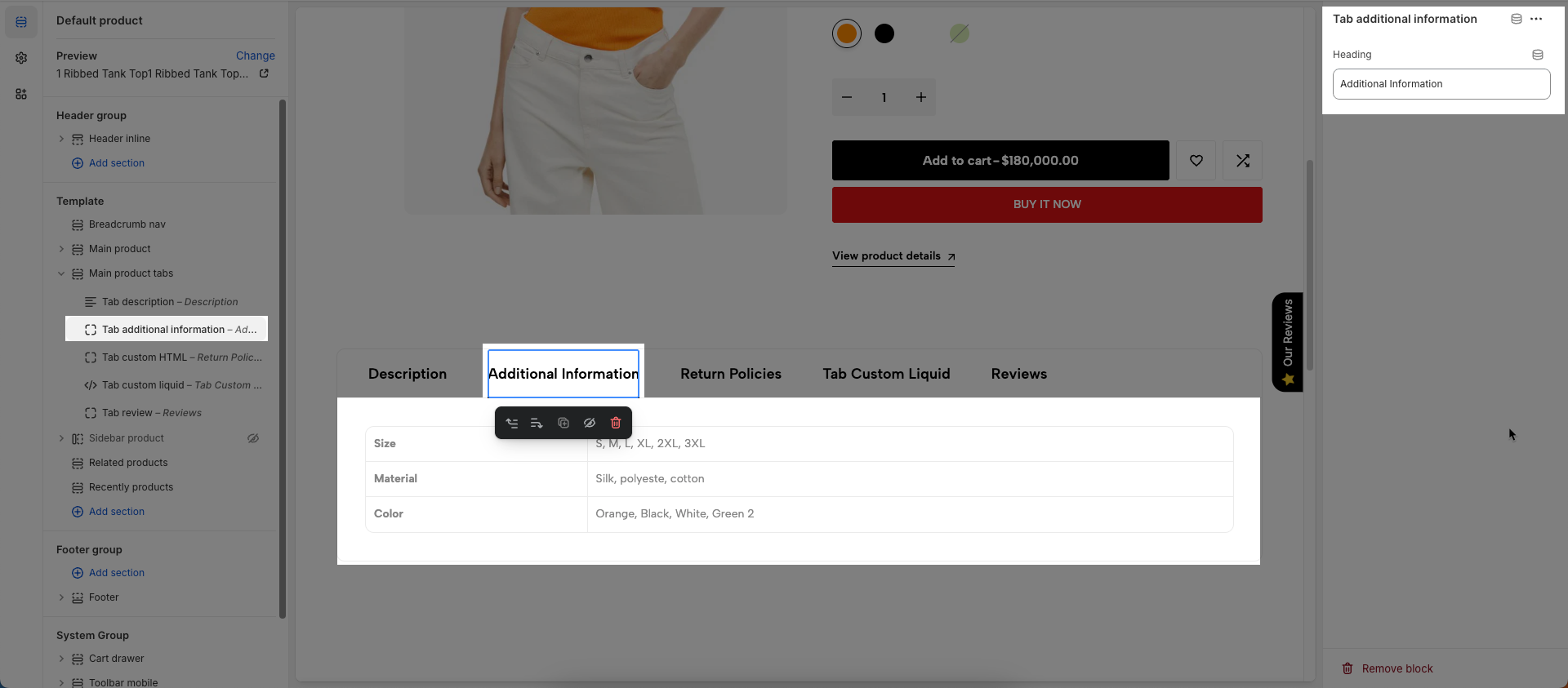
To add Tab additional information block to the Main product tabs, click the Add block button (plus icon ➕) under the Main product tabs.
Heading: Enter heading you want to display
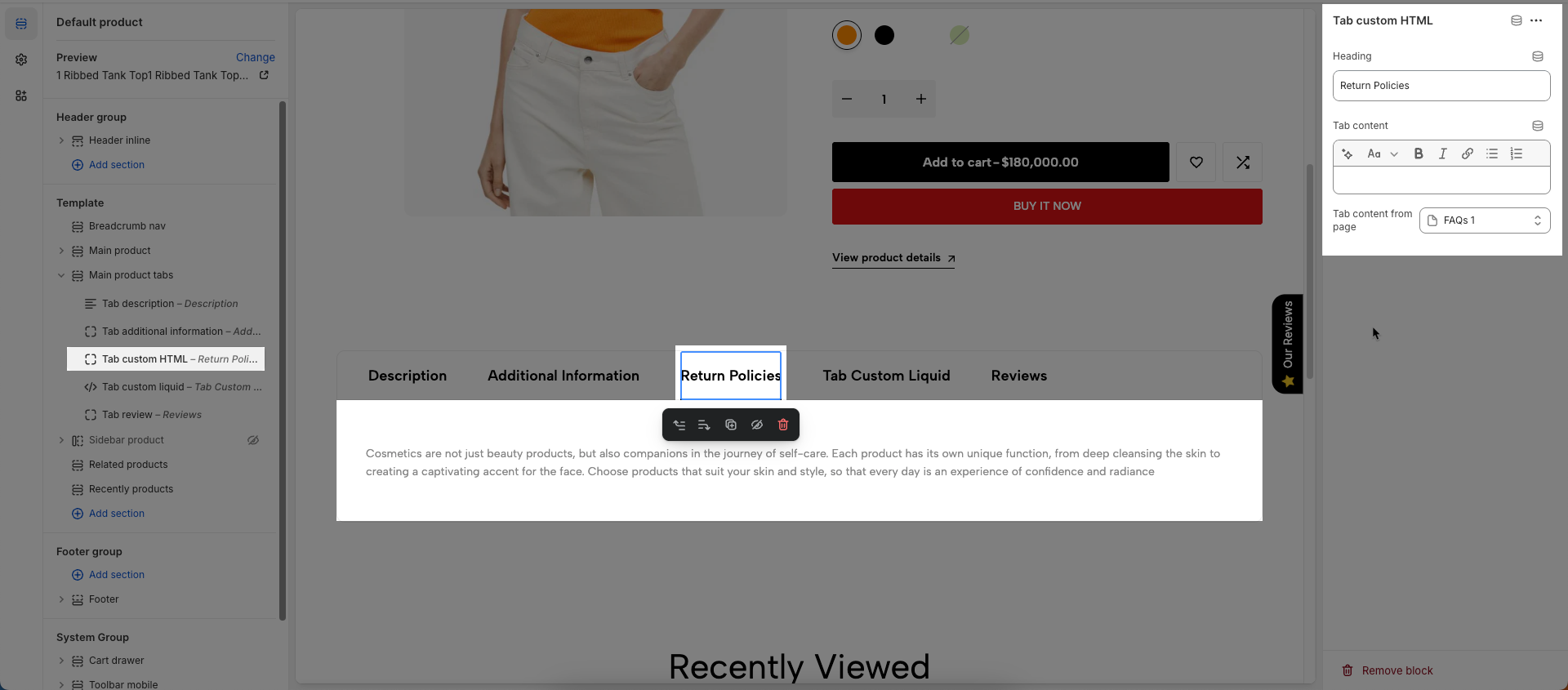
To add Tab custom HTML block to the Main product tabs, click the Add block button (plus icon ➕) under the Main product tabs.
Heading: Enter heading you want to display
Tab content: Enter the main content that will appear when this tab is selected. This can include text, images, videos, or any other HTML elements.
Page: Select an existing Shopify page to pull content from. If a page is selected, the tab's content will be automatically populated from that page's content
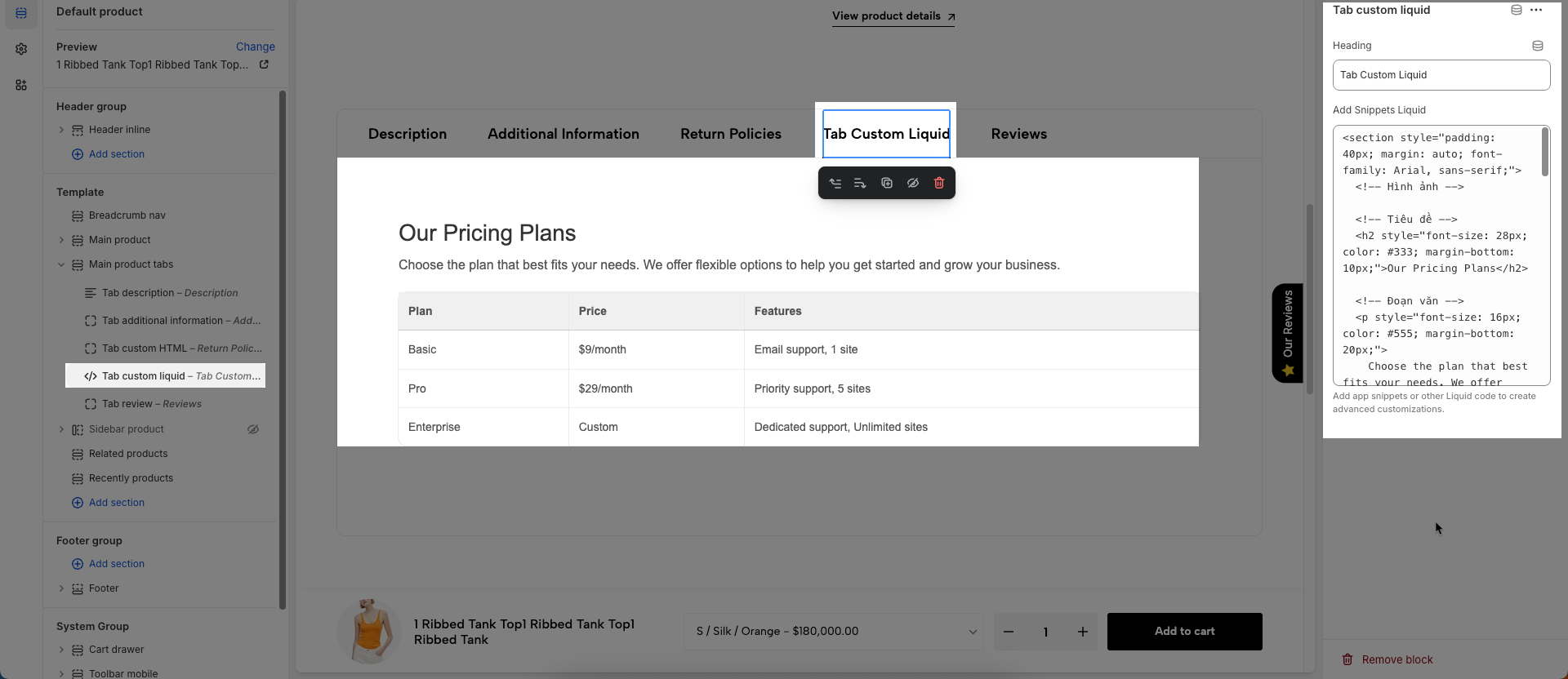
To add Tab custom liquid block to the Main product tabs, click the Add block button (plus icon ➕) under the Main product tabs.
Heading: Enter heading you want to display
Add Snippets Liquid: Add app snippets or other Liquid code to create advanced customizations.
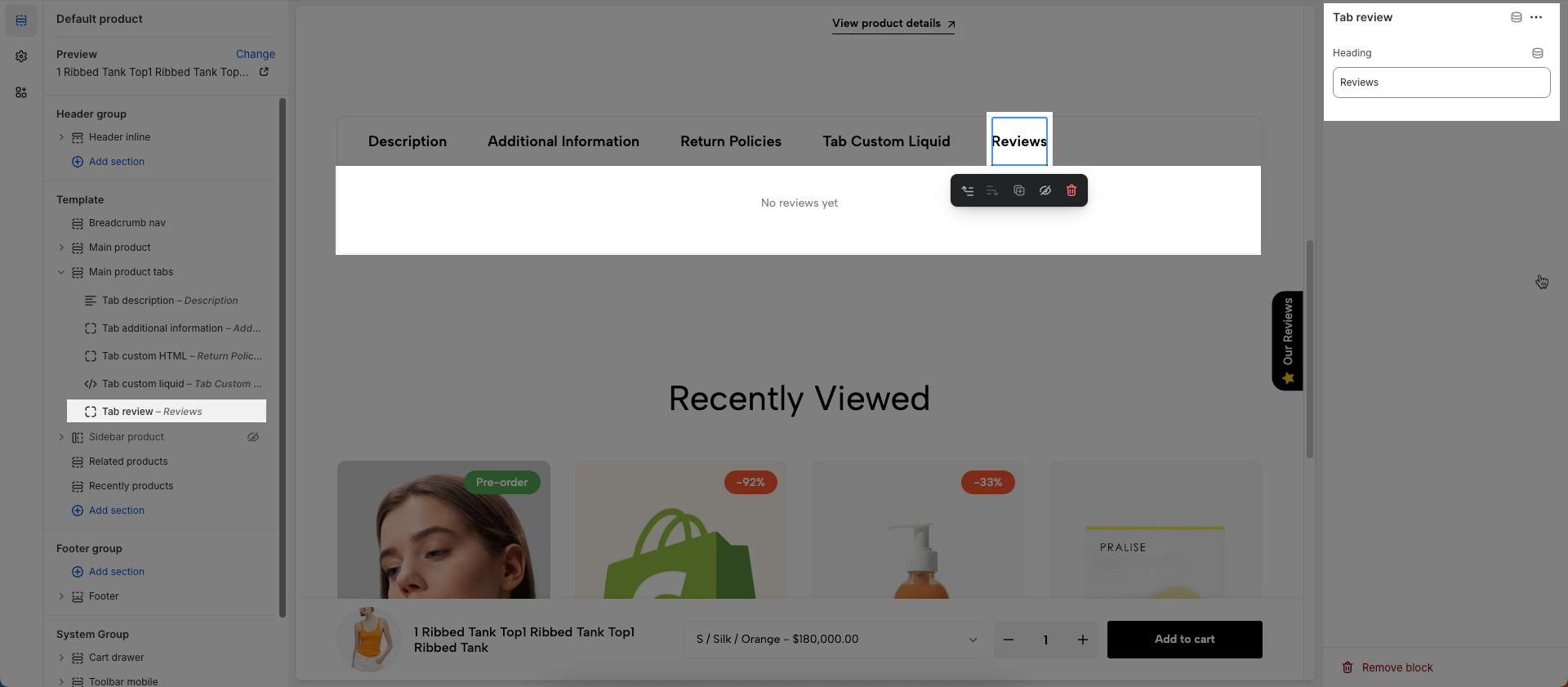
To add Tab review block to the Main product tabs, click the Add block button (plus icon ➕) under the Main product tabs.
Heading: Enter heading you want to display