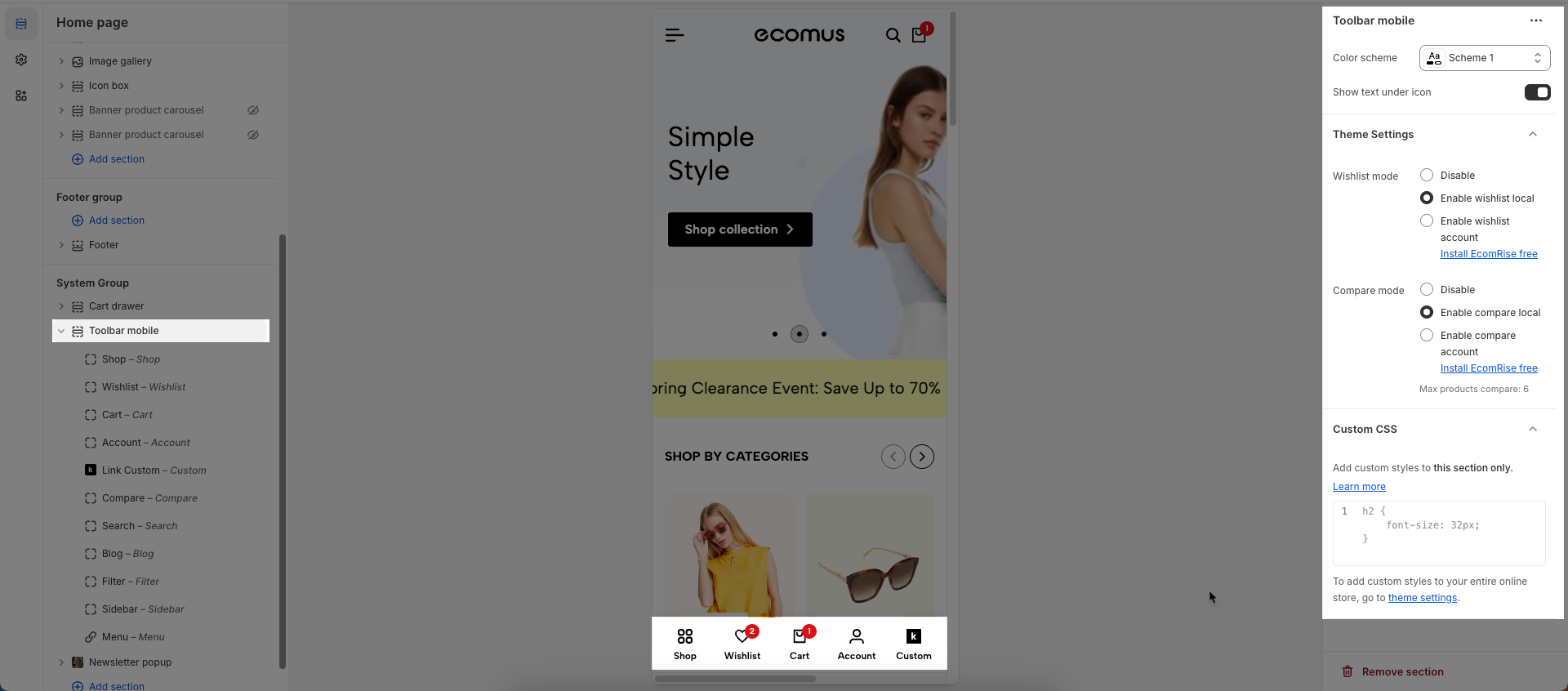
The Mobile Toolbar is an important user interface (UI) component that provides quick navigation and access
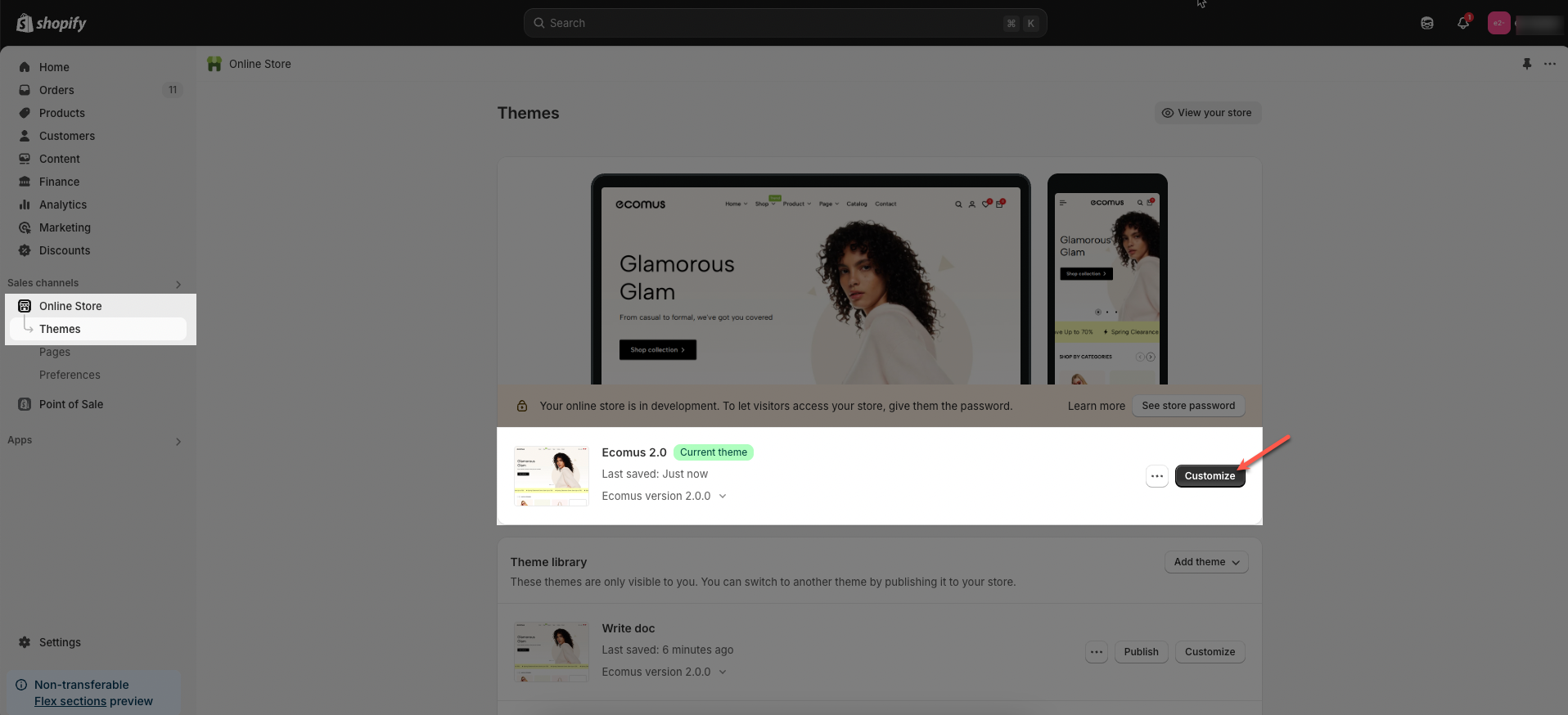
Step 01: From Shopify Admin, click on Online Store > Select Themes > In the Current theme section, click the Customize button.
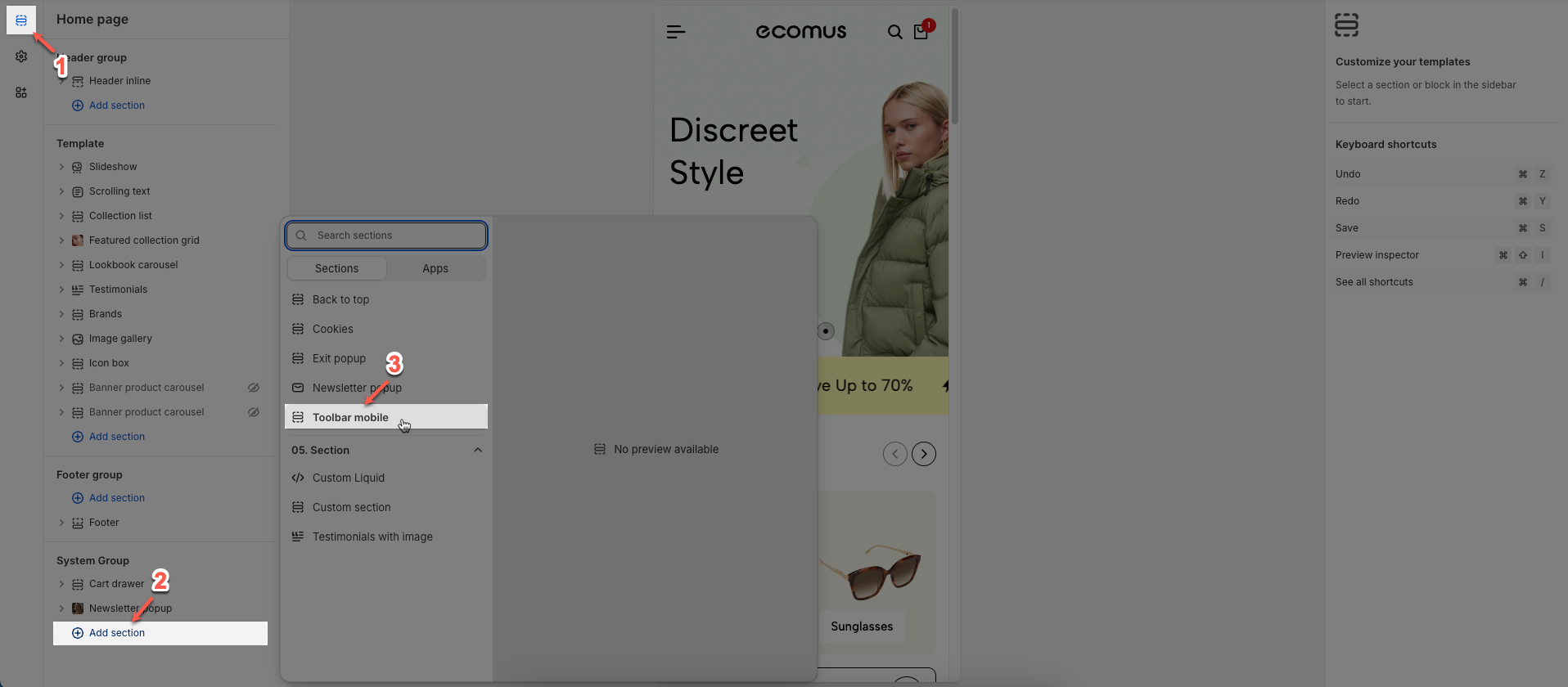
Step 02: In the theme editor (Customize) > Click the Section button > In the Sections tab, scroll through the list or use the search bar to find and select the System Group > click Add section button > add Toolbar mobile
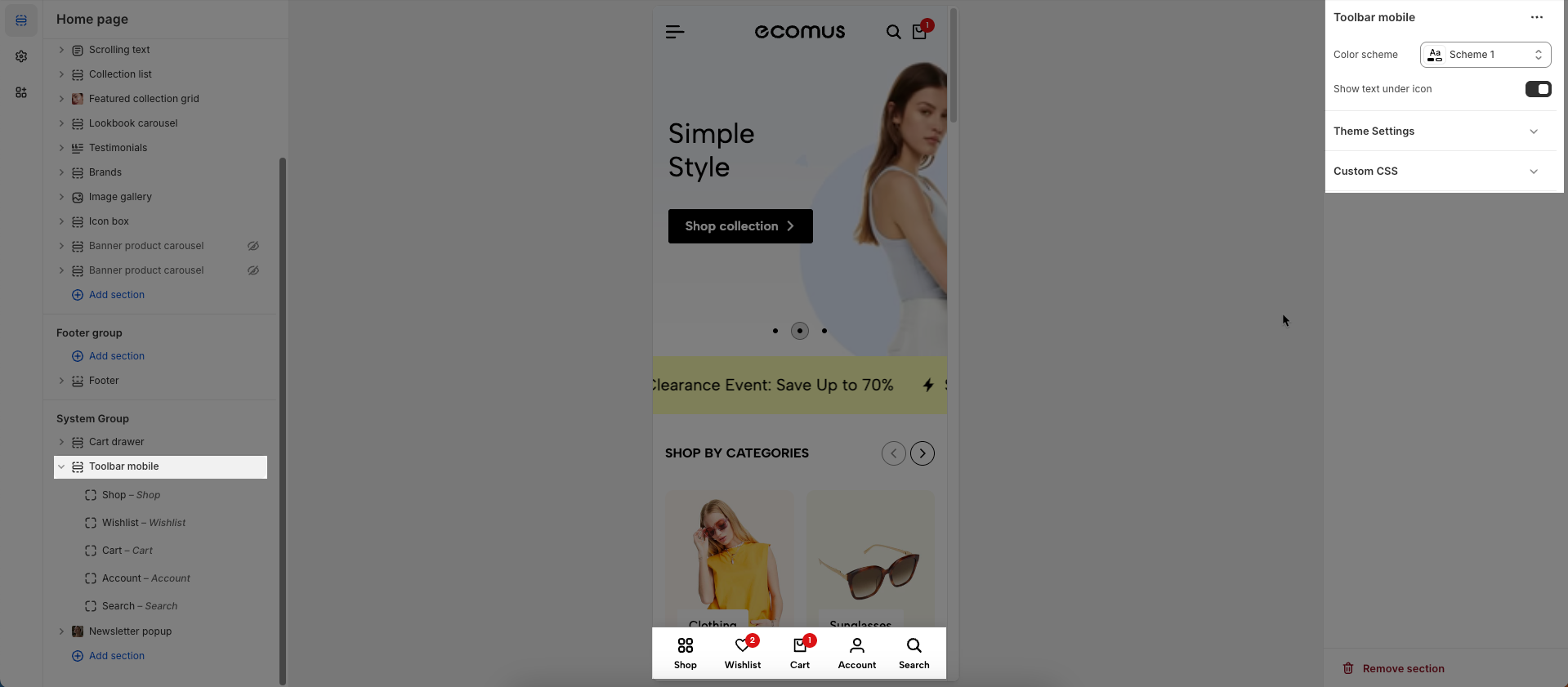
There are 12 blocks: Shop, Wishlist, Cart, Account, Search, Home, Compare, Blog, Filter, Sidebar, Menu, Link custom.
To add a Shop block to the Toolbar mobile, click the Add block button (plus icon ➕) under the Toolbar mobile.
After adding the Shop block, you can adjust its settings using the sidebar—located on the right or left side of your screen, depending on your device
Title: Enter the main title for this section.
Select collection list: Select the list of product collections to display.
Add menu categories: Add menu categories to display within this section.
Link (optional): Enter the optional link (URL) for this section.
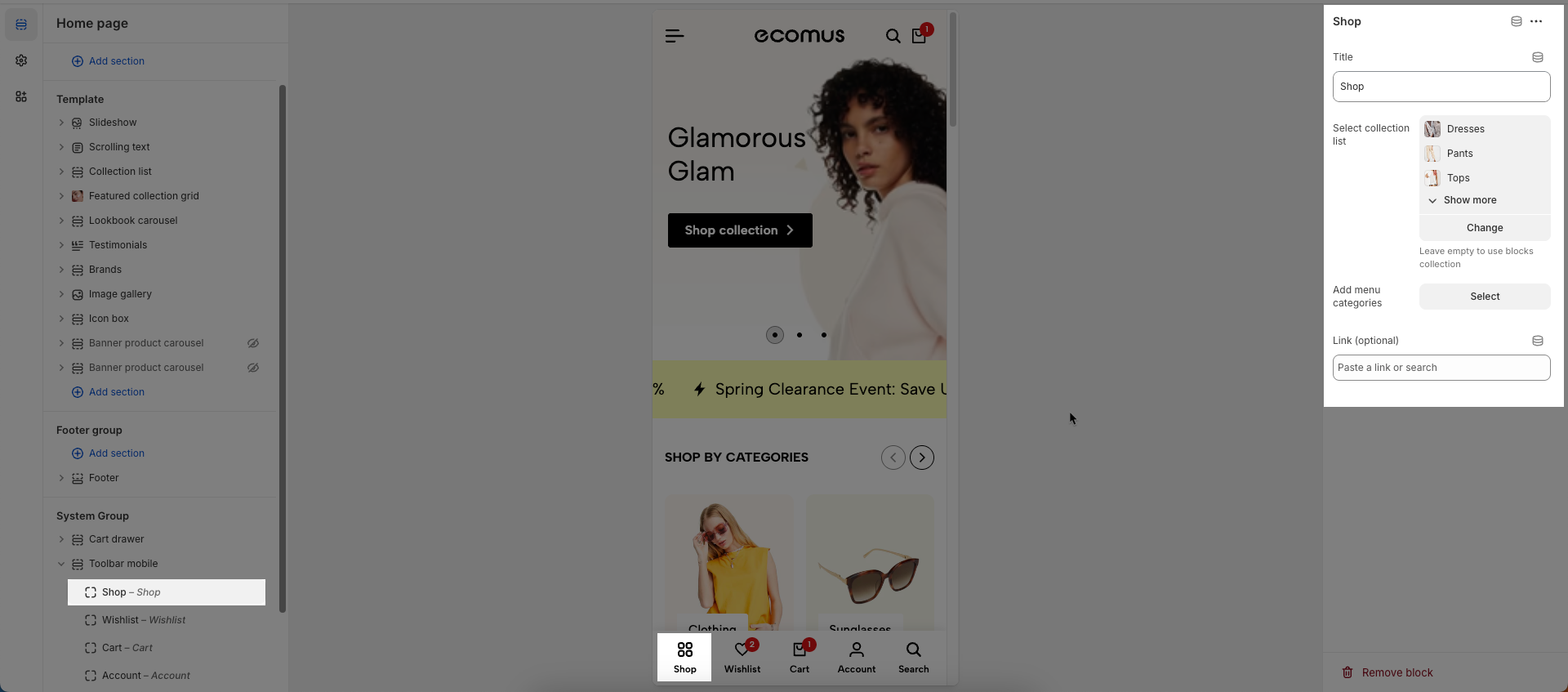
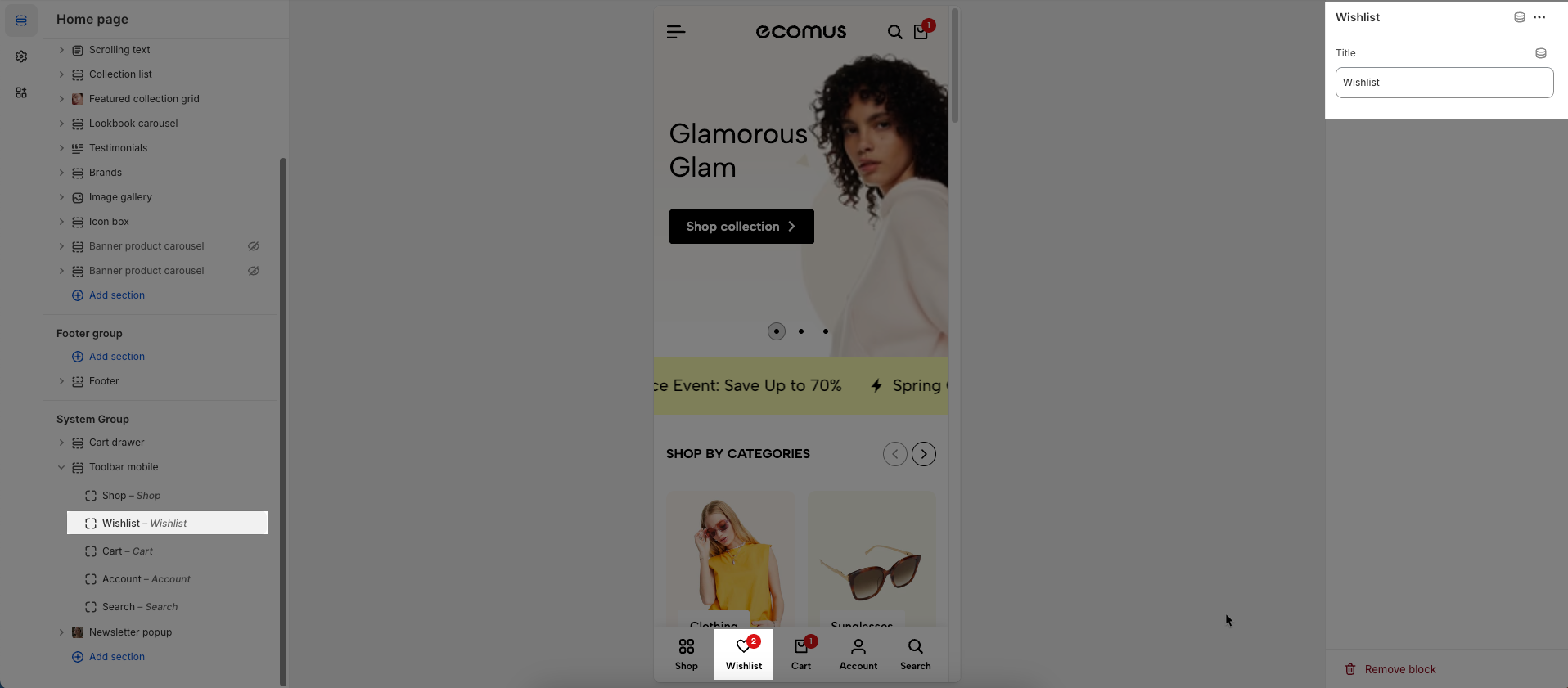
To add a Wishlist block to the Toolbar mobile, click the Add block button (plus icon ➕) under the Toolbar mobile.
After adding the Wishlist block, you can adjust its settings using the sidebar—located on the right or left side of your screen, depending on your device
Title: Enter text you want to display
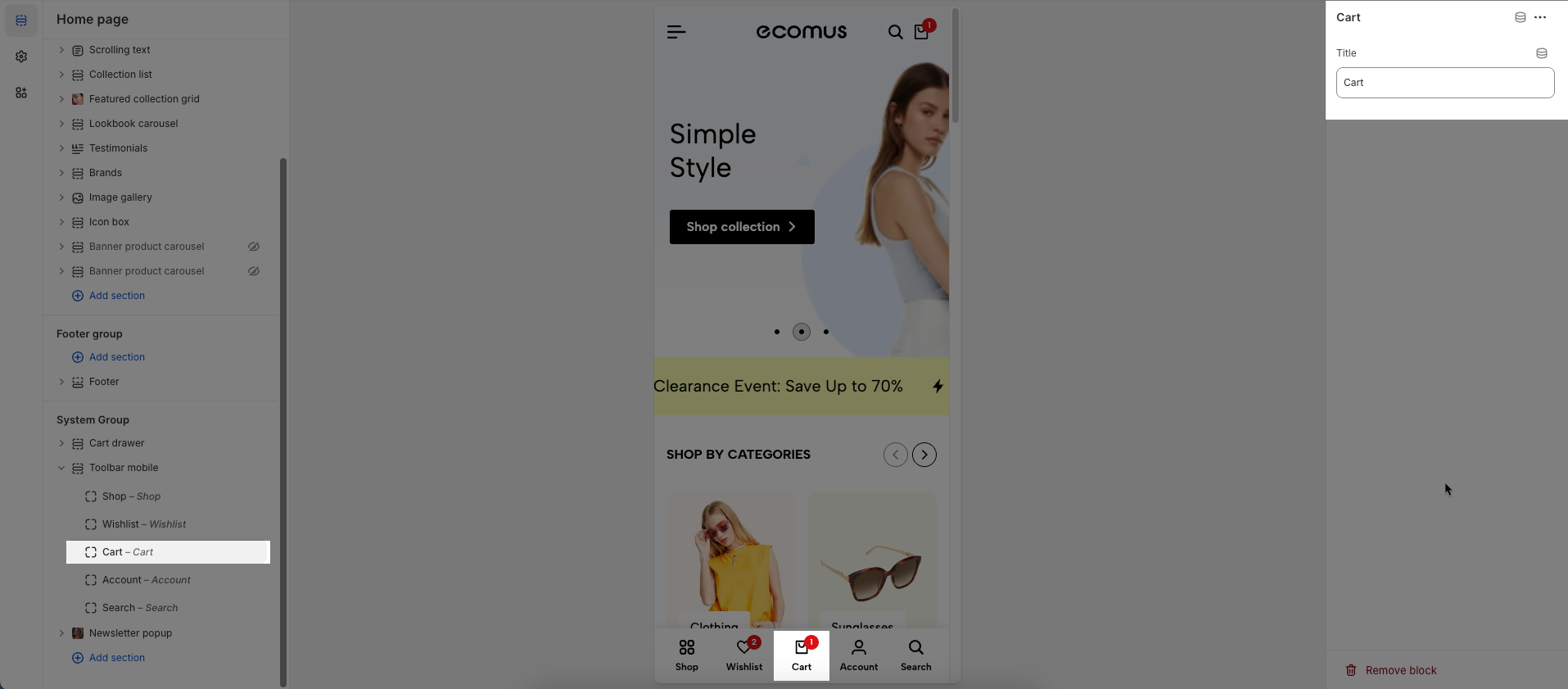
To add a Cart block to the Toolbar mobile, click the Add block button (plus icon ➕) under the Toolbar mobile.
After adding the Cart block, you can adjust its settings using the sidebar—located on the right or left side of your screen, depending on your device
Title: Enter text you want to display
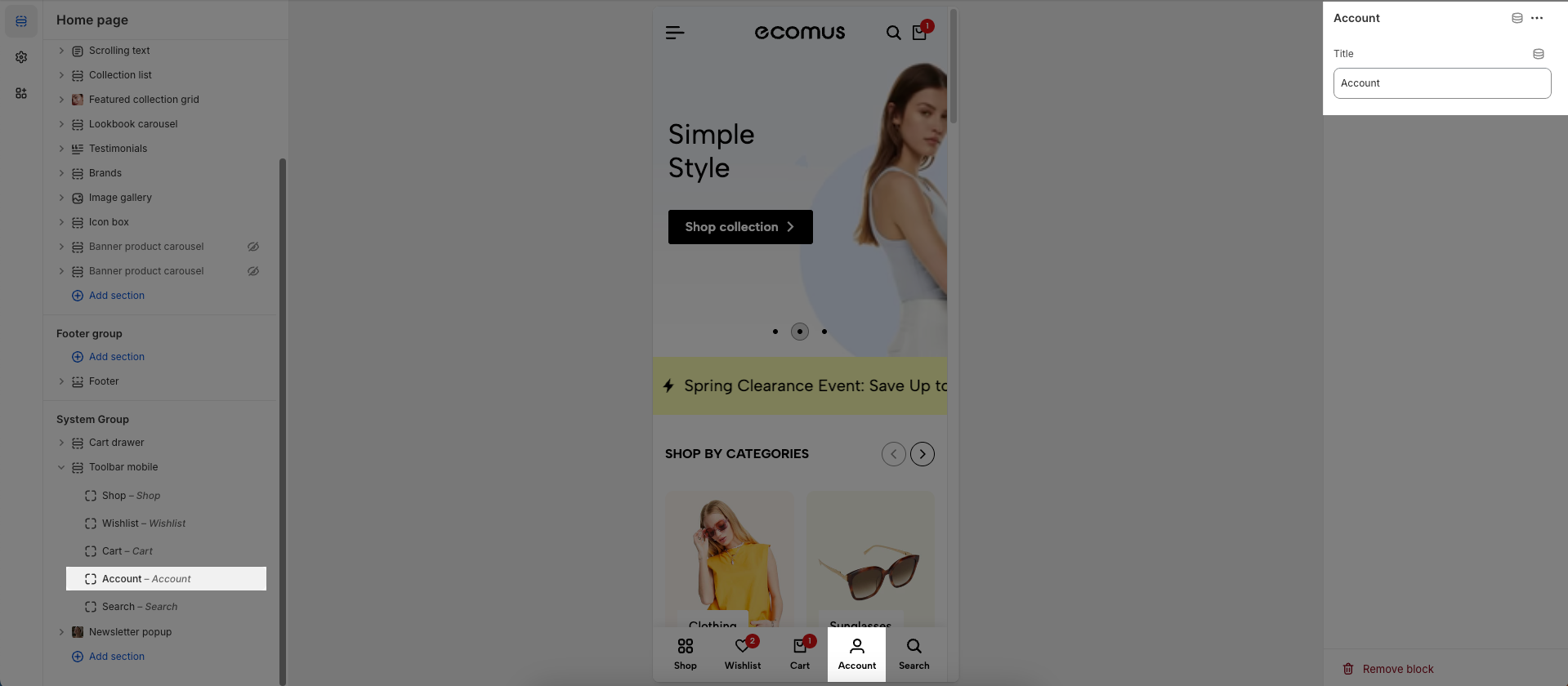
To add an Account block to the Toolbar mobile, click the Add block button (plus icon ➕) under the Toolbar mobile.
After adding the Account block, you can adjust its settings using the sidebar—located on the right or left side of your screen, depending on your device
Title: Enter text you want to display
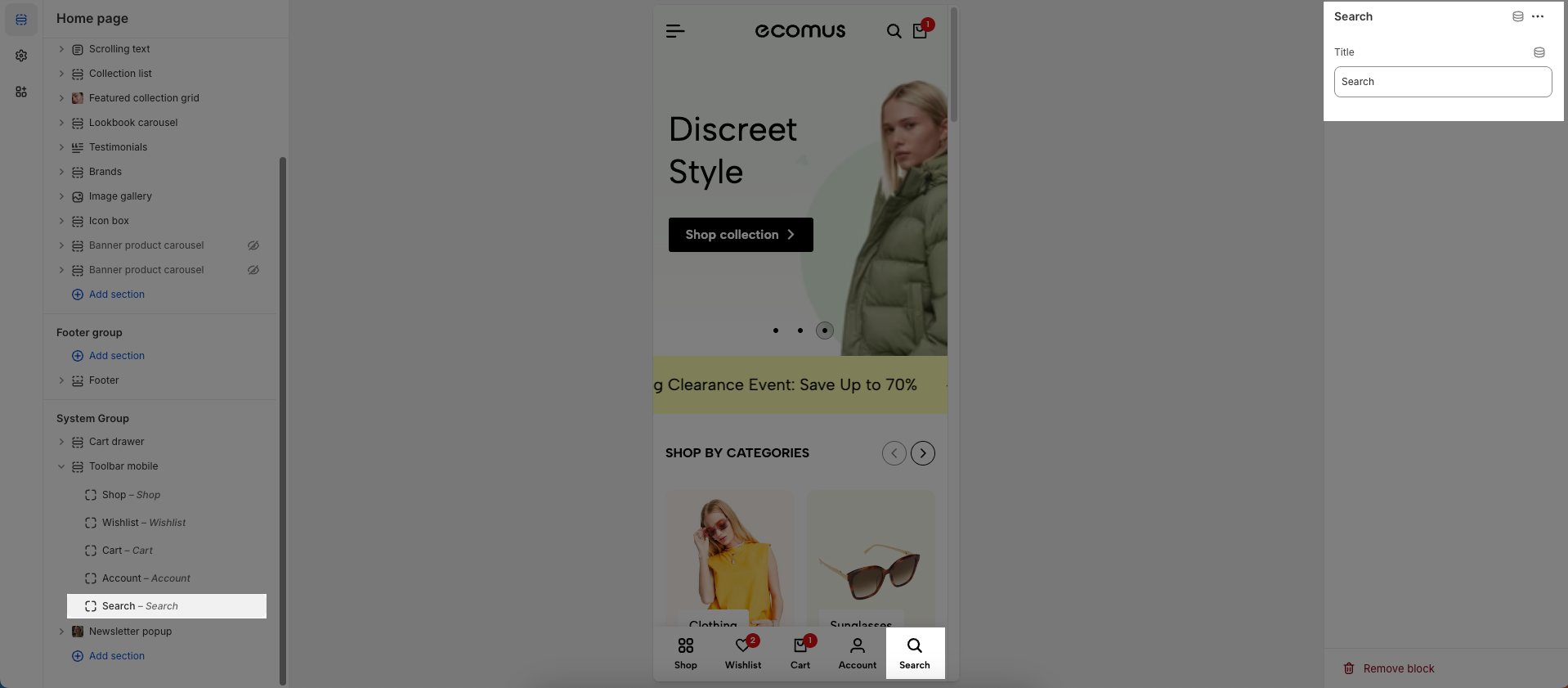
To add a Search block to the Toolbar mobile, click the Add block button (plus icon ➕) under the Toolbar mobile.
After adding the Search block, you can adjust its settings using the sidebar—located on the right or left side of your screen, depending on your device
Title: Enter text you want to display
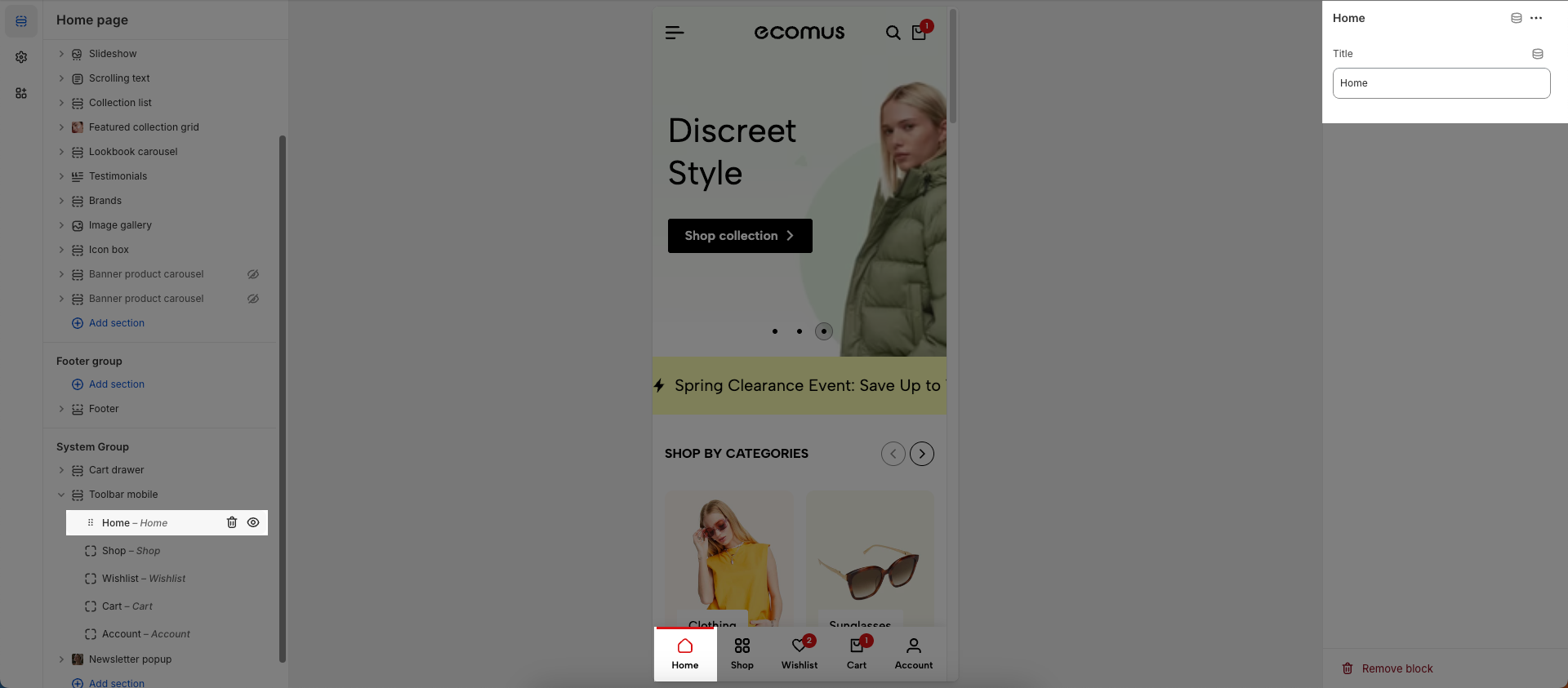
To add a Home block to the Toolbar mobile, click the Add block button (plus icon ➕) under the Toolbar mobile.
After adding the Home block, you can adjust its settings using the sidebar—located on the right or left side of your screen, depending on your device
Title: Enter text you want to display
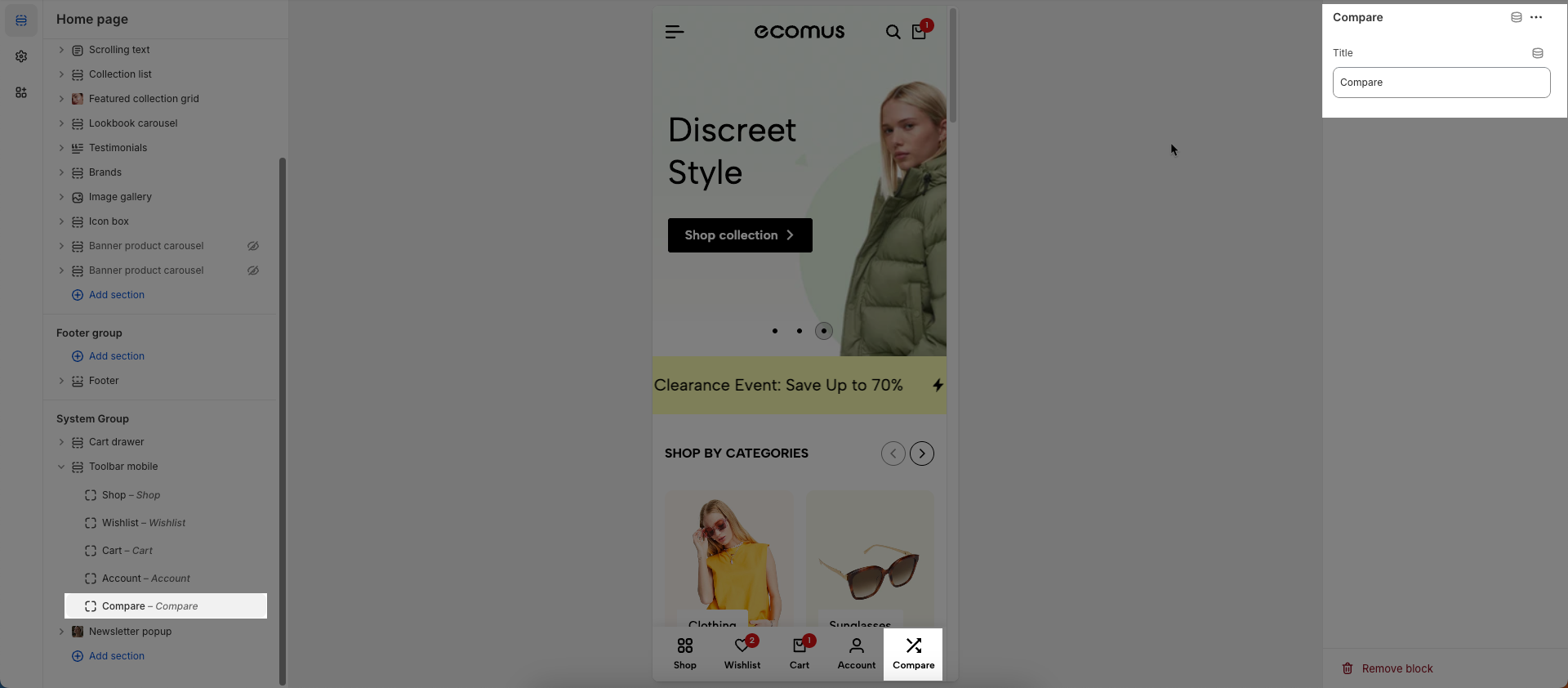
To add a Compare block to the Toolbar mobile, click the Add block button (plus icon ➕) under the Toolbar mobile.
After adding the Compare block, you can adjust its settings using the sidebar—located on the right or left side of your screen, depending on your device
Title: Enter text you want to display
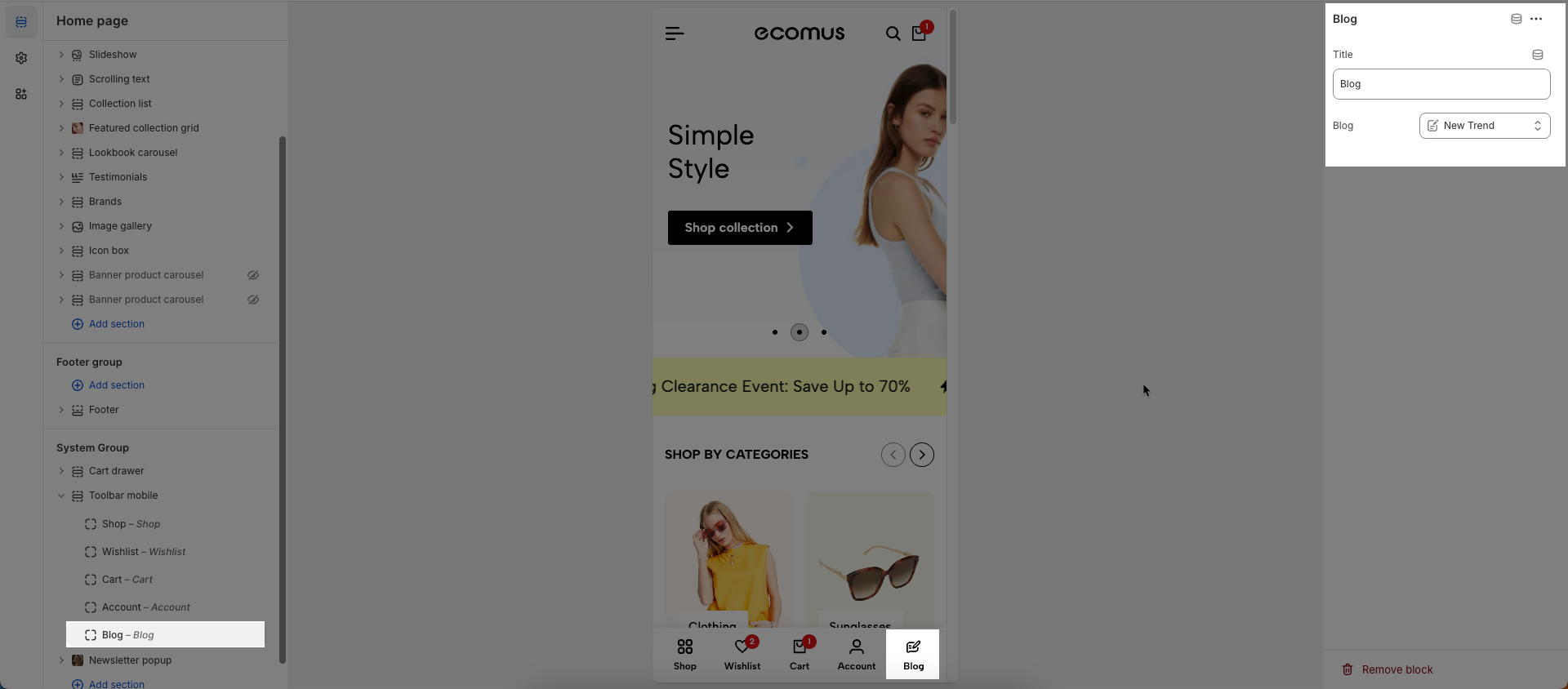
To add a Blog block to the Toolbar mobile, click the Add block button (plus icon ➕) under the Toolbar mobile.
After adding the Blog block, you can adjust its settings using the sidebar—located on the right or left side of your screen, depending on your device
Title: Enter text you want to display
Blog: select a blog you want to link to
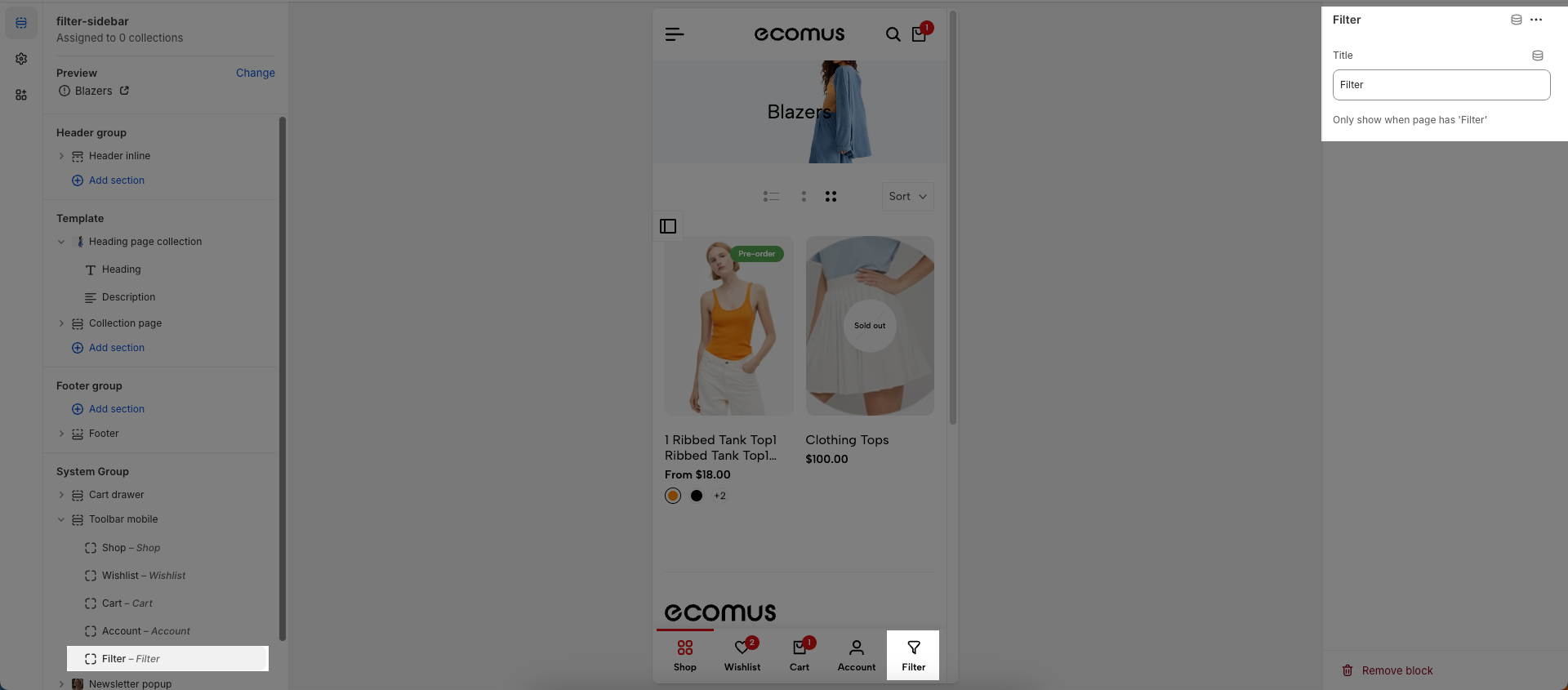
To add a Filter block to the Toolbar mobile, click the Add block button (plus icon ➕) under the Toolbar mobile.
After adding the Filter block, you can adjust its settings using the sidebar—located on the right or left side of your screen, depending on your device
Title: Enter text you want to display
Only show when page has 'Filter'
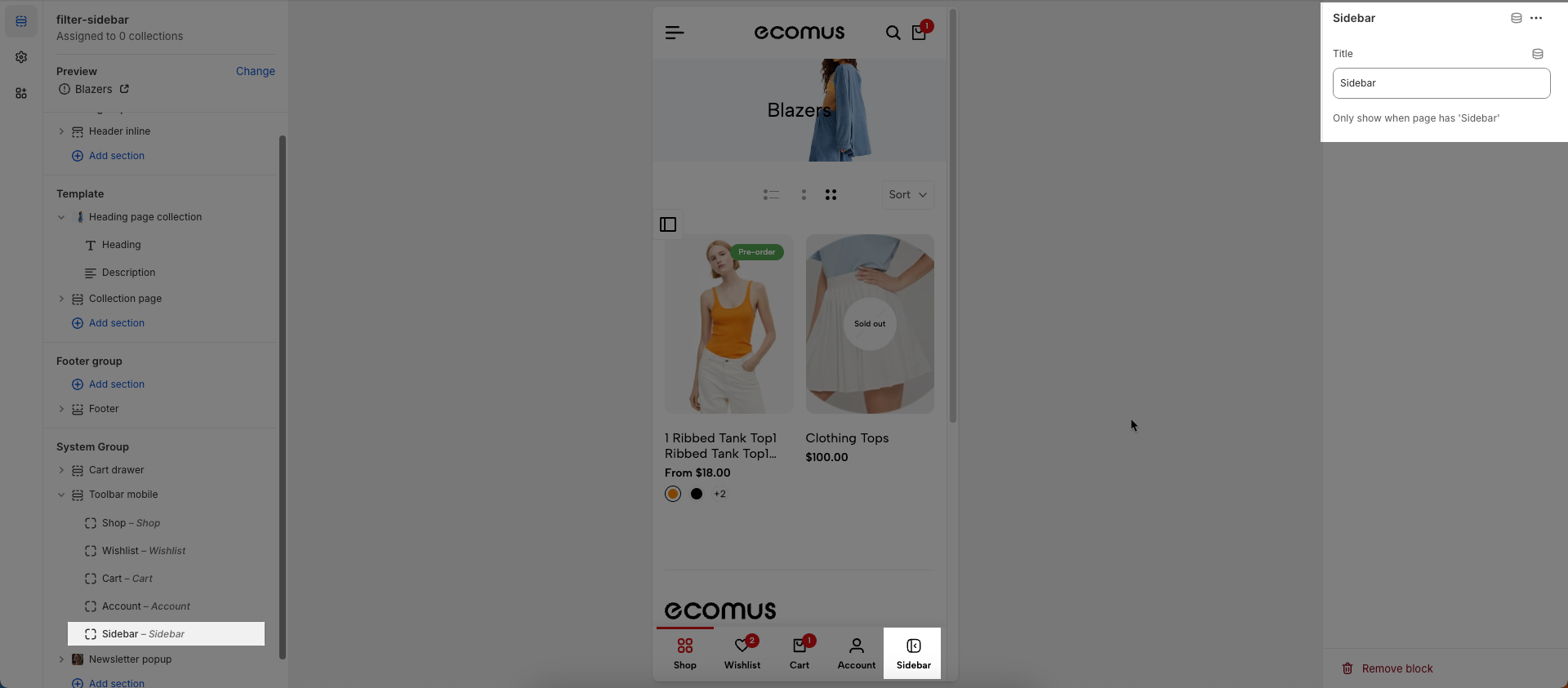
To add a Sidebar block to the Toolbar mobile, click the Add block button (plus icon ➕) under the Toolbar mobile.
After adding the Sidebar block, you can adjust its settings using the sidebar—located on the right or left side of your screen, depending on your device
Title: Enter text you want to display
Only show when page has 'Sidebar'
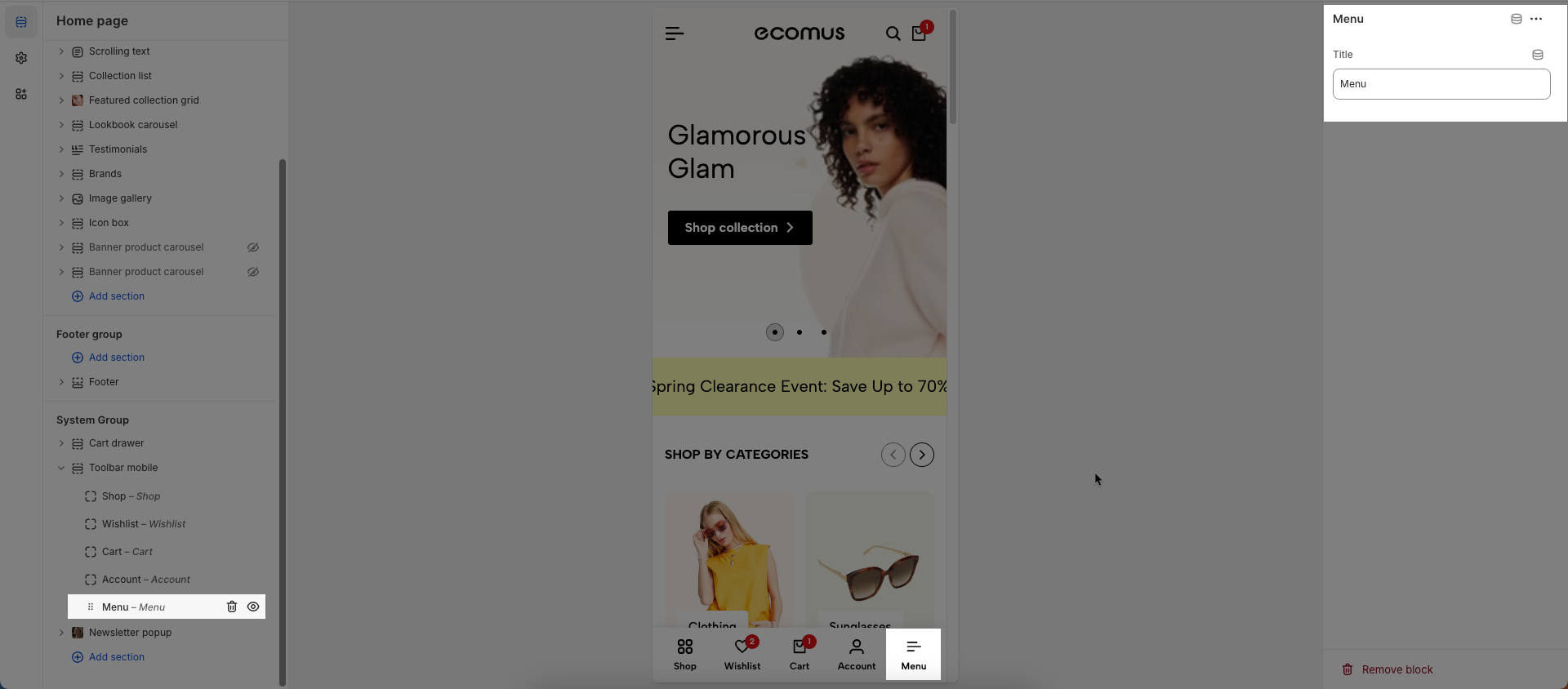
To add a Menu block to the Toolbar mobile, click the Add block button (plus icon ➕) under the Toolbar mobile.
After adding the Menu block, you can adjust its settings using the sidebar—located on the right or left side of your screen, depending on your device
Title: Enter text you want to display
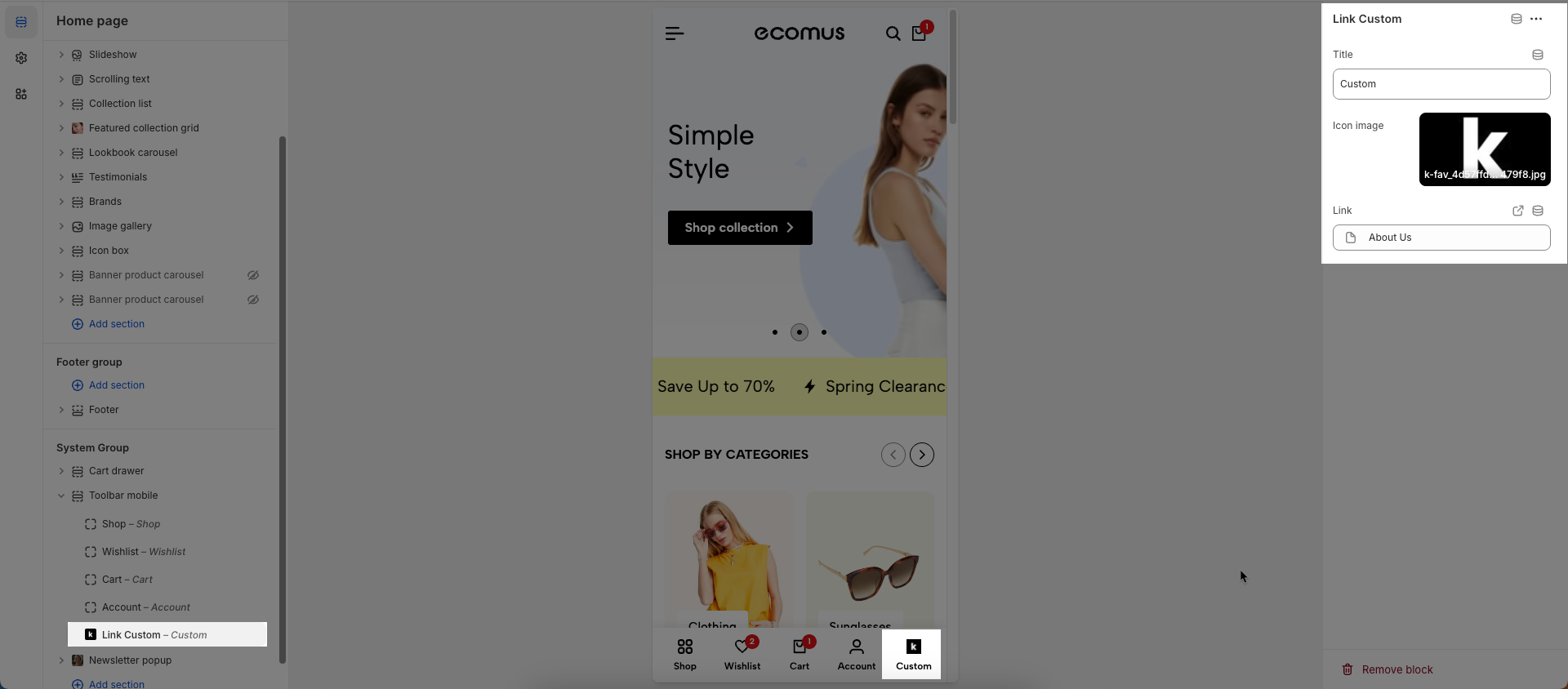
To add a Custom link block to the Toolbar mobile, click the Add block button (plus icon ➕) under the Toolbar mobile.
After adding the Custom link block, you can adjust its settings using the sidebar—located on the right or left side of your screen, depending on your device
Title: Enter text you want to display
Icon image: Upload or select the icon image to display.
Link: Enter the link (URL) for this element.
Color scheme: Select the color scheme to be applied to this section or component
Show text under icon: Check to display a descriptive text label directly beneath the icon.
Wishlist mode: Enables or disables the wishlist feature, providing users with a function to save favorite products.
You can Disable, Enable wishlist local, Enable wishlist account Install EcomRise free, Enable Growave wishlist
Compare mode: Enables or disables the product comparison mode, allowing customers to compare products side-by-side for informed purchasing decisions.
You can Disable, Enable compare local, Enable compare account
Max products compare: 6
Allows users to customize by adding CSS rules, beyond the limitations of default settings. This allows for fine-tuning the design to every detail, to suit specific needs.
Add custom styles to this section only.
To add custom styles to your entire online store, go to theme settings.