This section allows you to configure the Cart drawer (sidebar) for your store. You can add some blocks that you wanna show on the Shopping Cart Widget option and configure the settings follow what you want.
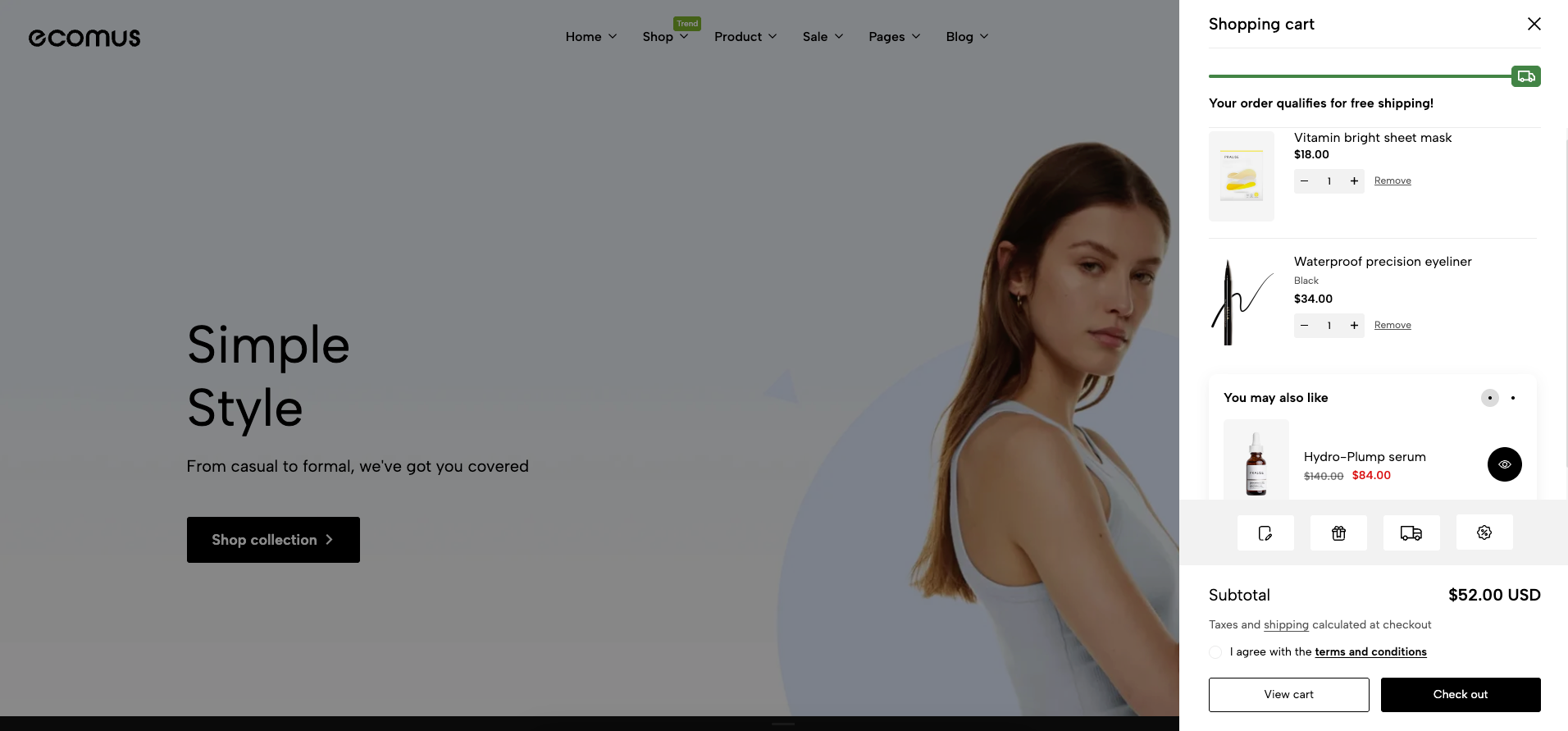
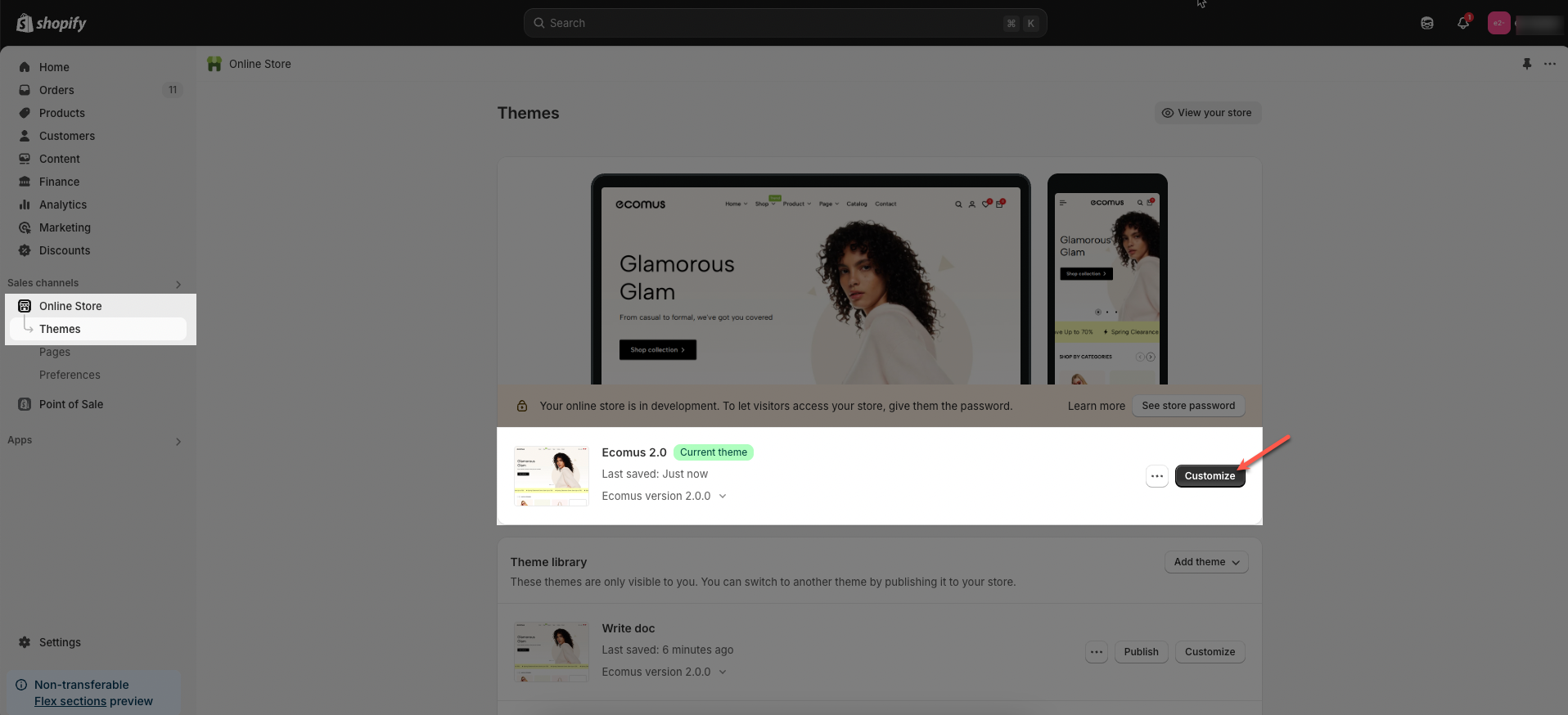
Step 01: From Shopify Admin, click on Online Store > Select Themes > In the Current theme section, click the Customize button.
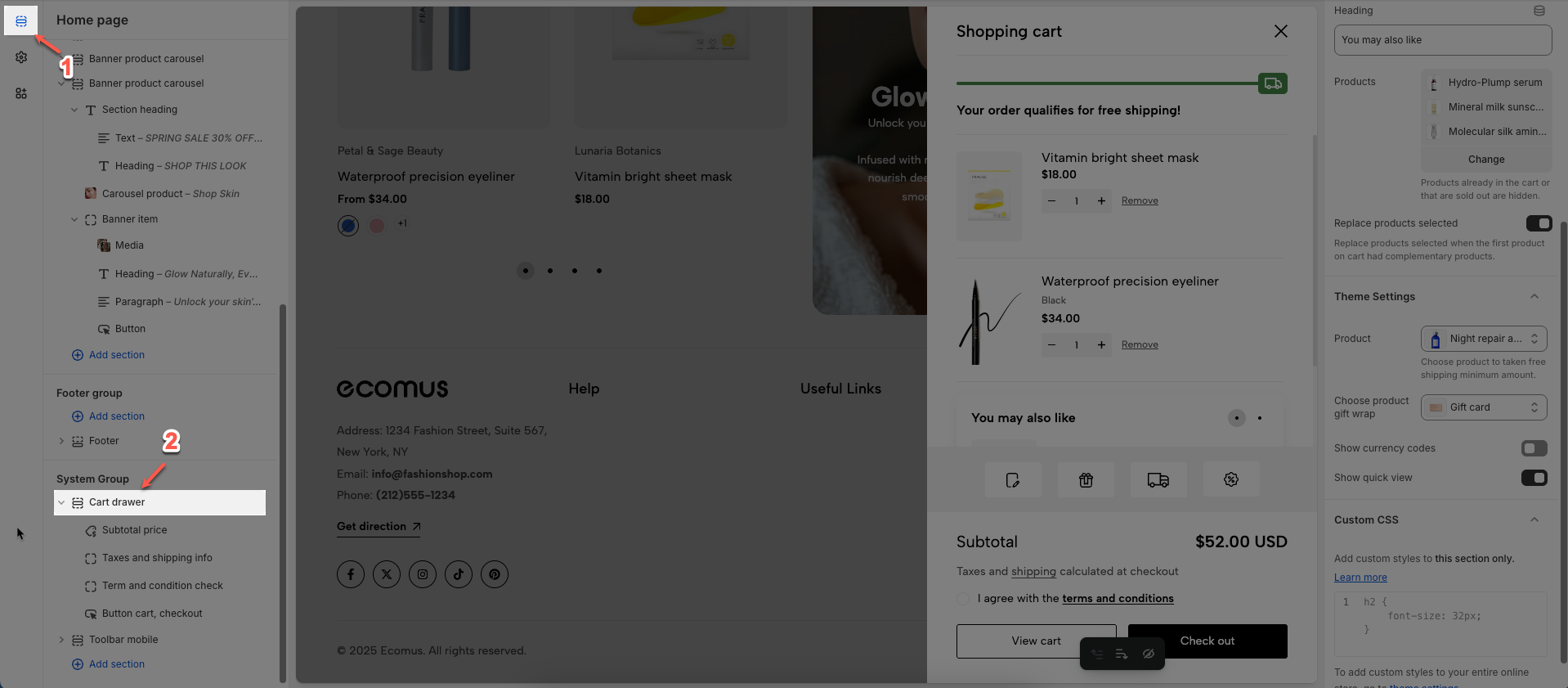
Step 02: In the theme editor (Customize) > Click the Add section button > In the Sections tab, scroll through the list or use the search bar to find and select the System Group > find Cart drawer
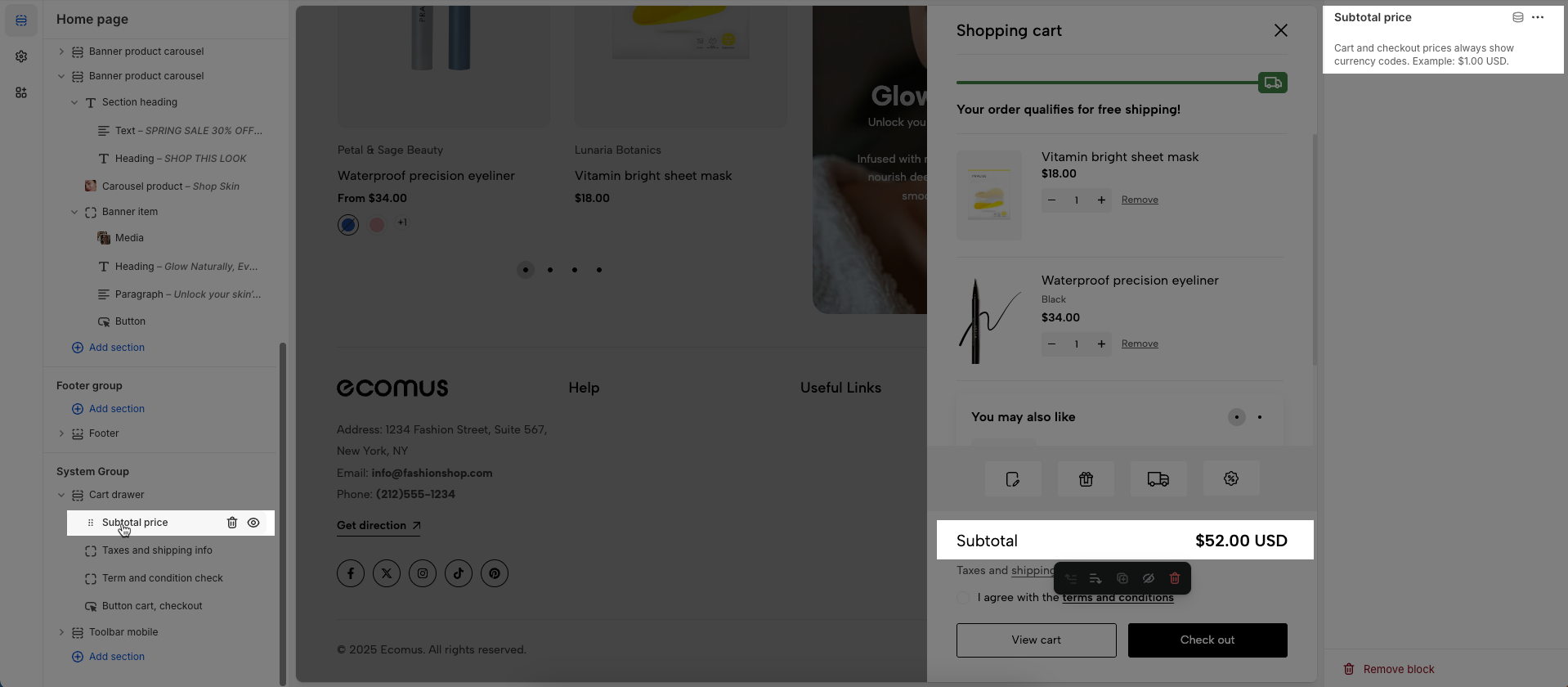
The Shopping Cart Widget option has a total of 7 blocks, you can use those blocks to build the Shopping Cart Widget following what you want.
Cart and checkout prices always show currency codes. Example: $1.00 USD.
You can edit this text and link on Edit default theme content.
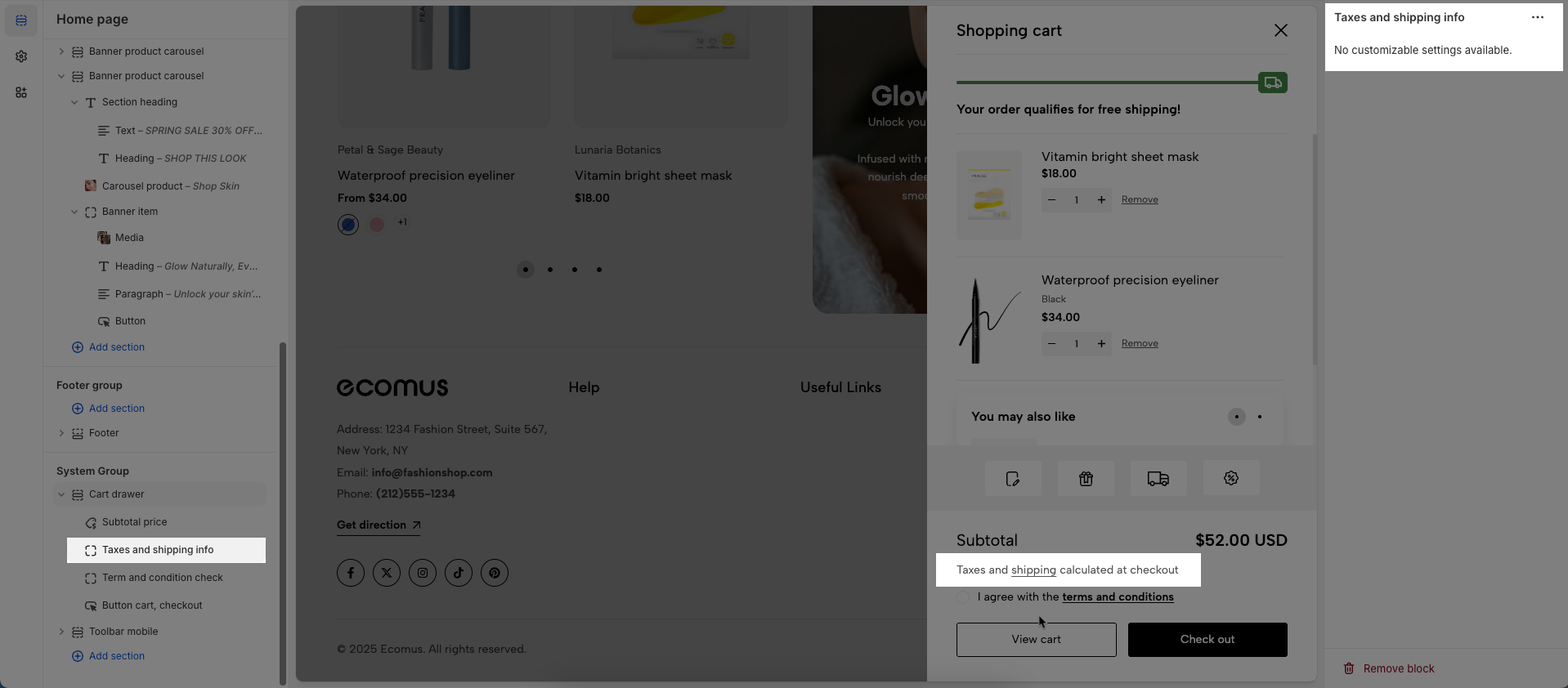
You can add an I agree with the terms and conditions checkbox to your cart page that customers must check before continuing to the checkout. If a customer doesn't check the checkbox before clicking the checkout button, an alert pop up will prevent them from continuing.
Content: Enter the main content (text, image, video, etc.) to be displayed within this section.
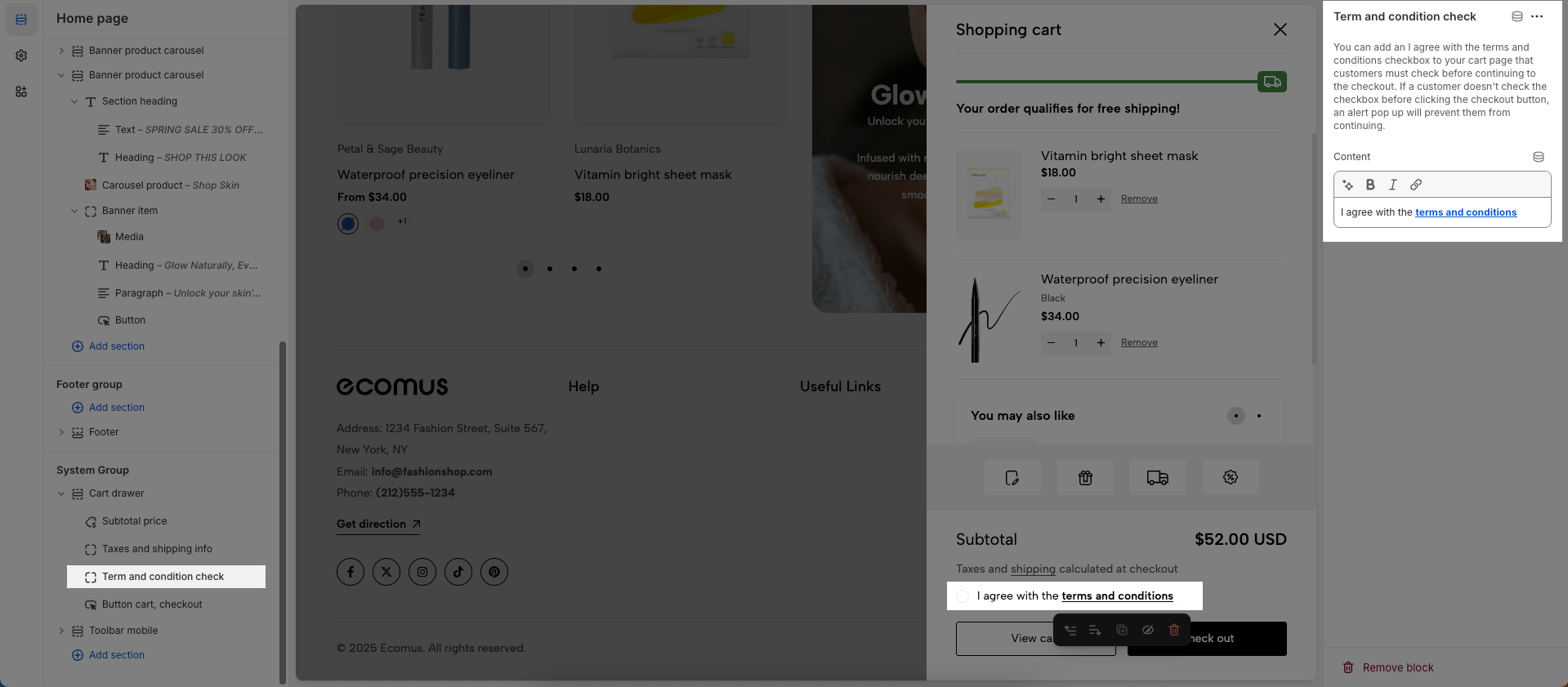
View cart/Check out button options
Enable button: Check to enable and display the "Add to Cart" and "Check out" buttons.
Button style: Select the design style for the button
Button font weight: Set the boldness or weight of the font on the button
Button icon: Select the icon to be displayed alongside the button's text
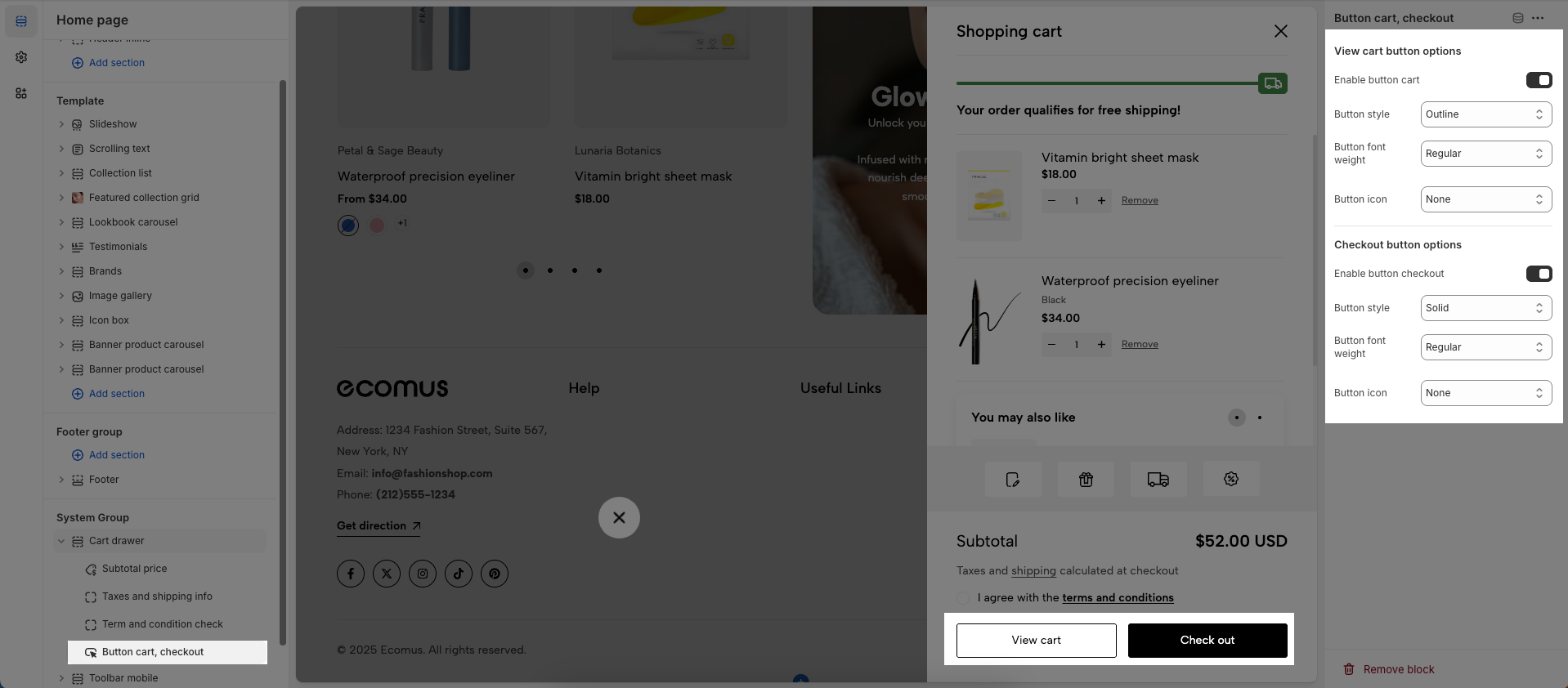
No customizable settings available.
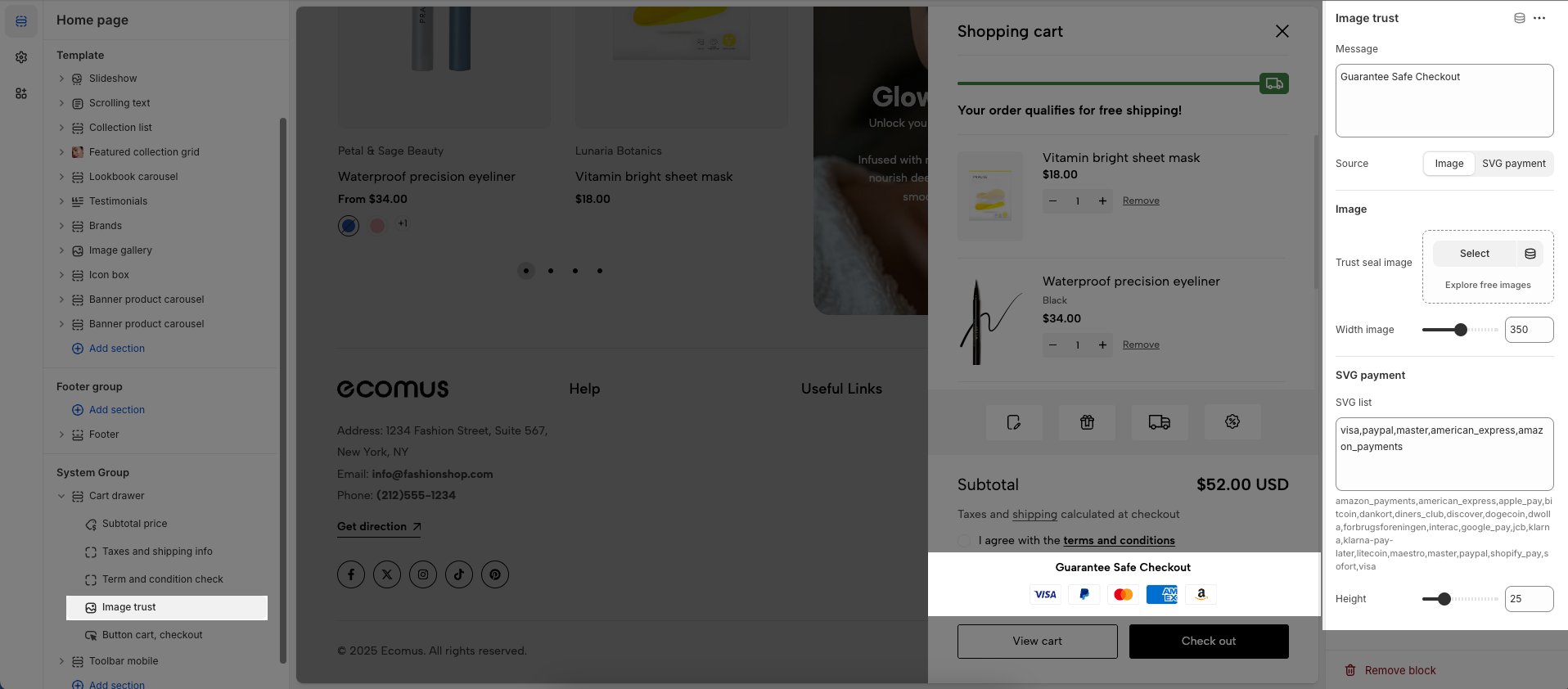
Message: Enter the message or text content to be displayed.
Source (image, SVG payment): Select the type of source for the image or icon
Image
Trust seal image: Upload or select the image for the trust seal or verification badge.
Width image: Set the width of the image (in pixels, percentages, or other units).
SVG payment
SVG list: Select a list of SVG icons from the available library to display.
Height: Set the height of the element (in pixels, percentages, or other units).
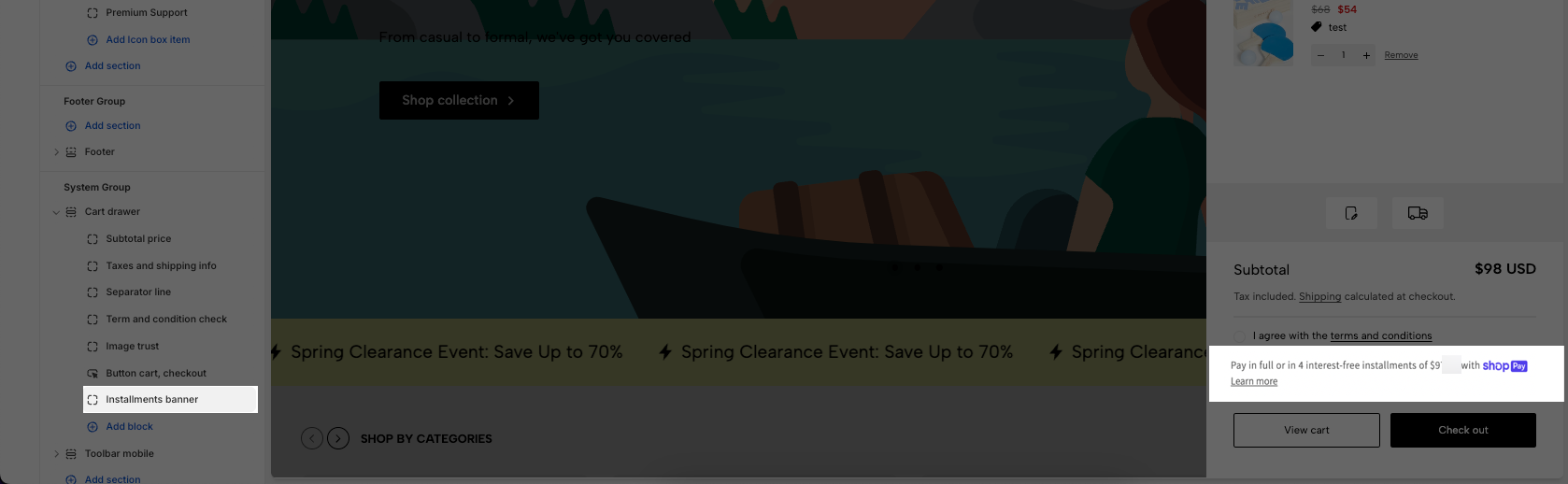
To display installments banner, your store needs to support Shop Pay Installments. Learn more.
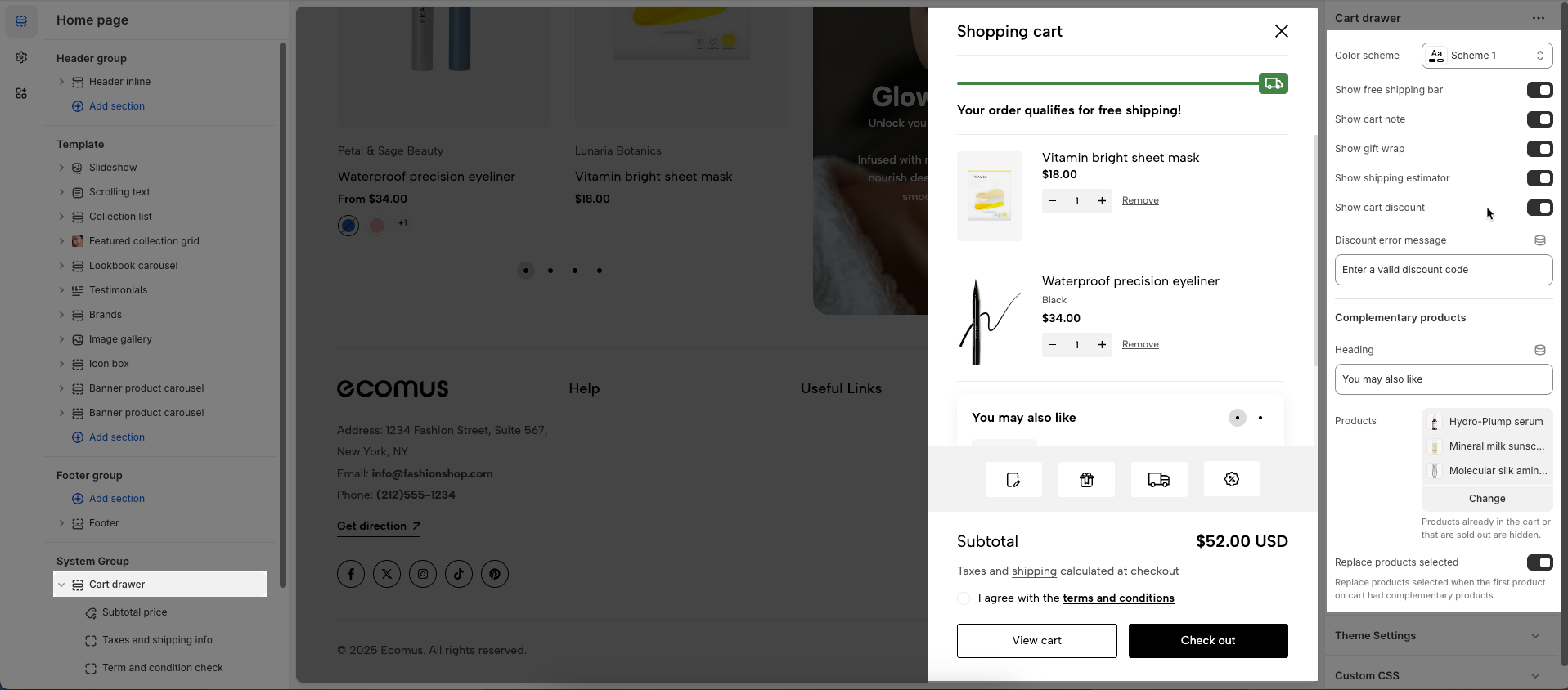
Color scheme: Select the color scheme to be applied to this section or component.
Show free shipping bar: Check to display the free shipping progress bar.
Show cart note: Check to display the cart note field on the cart page, allowing customers to add special messages or instructions for their order.
Show gift wrap: Check to display the gift wrap option for the order on the cart page.
Show shipping estimator: Check to display the shipping cost estimator tool on the cart page.
Show cart discount: Check to display applied discount information on the cart page.
Discount error message: Enter the error message to display when a discount code is invalid or cannot be applied.
Complementary products
Heading: Enter the heading for the complementary products section
Products: Select the source for products in this section
Replace products selected: Replace products selected when the first product on cart had complementary products.
Product: Choose product to taken free shipping minimum amount.
Choose product gift wrap: Select the specific product in your store that will be used as the gift wrap option. When customers select gift wrap, this product will be added to their cart.
Show currency codes: Check to display currency codes (e.g., USD, EUR, VND) next to monetary values.
Show quick view: Check to display the "Quick View" button on product listings, allowing customers to view product details in a pop-up without leaving the current page.
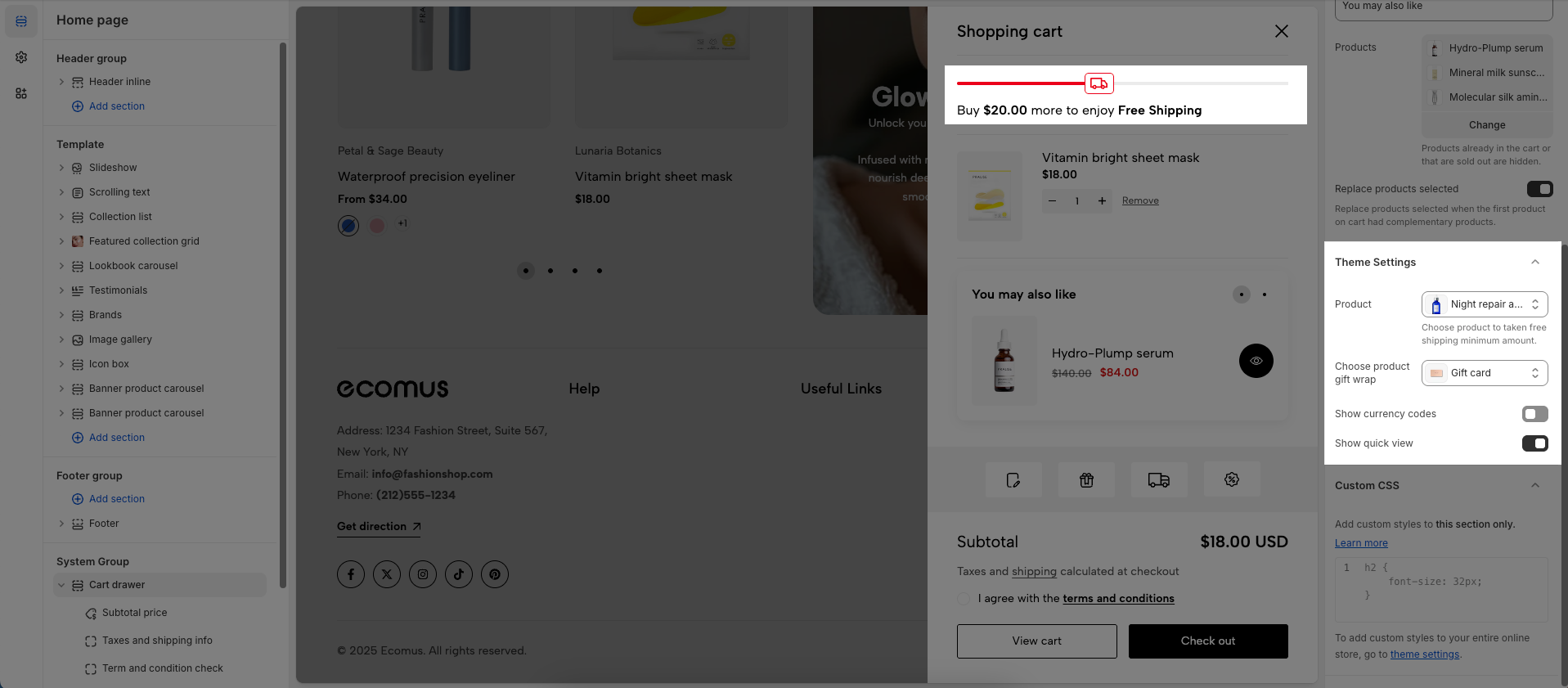
Allows users to customize by adding CSS rules, beyond the limitations of default settings. This allows for fine-tuning the design to every detail, to suit specific needs.
Add custom styles to this section only.
To add custom styles to your entire online store, go to theme settings.