In Products settings, you can config product badges, wishlist, compare, and other settings related to the product.
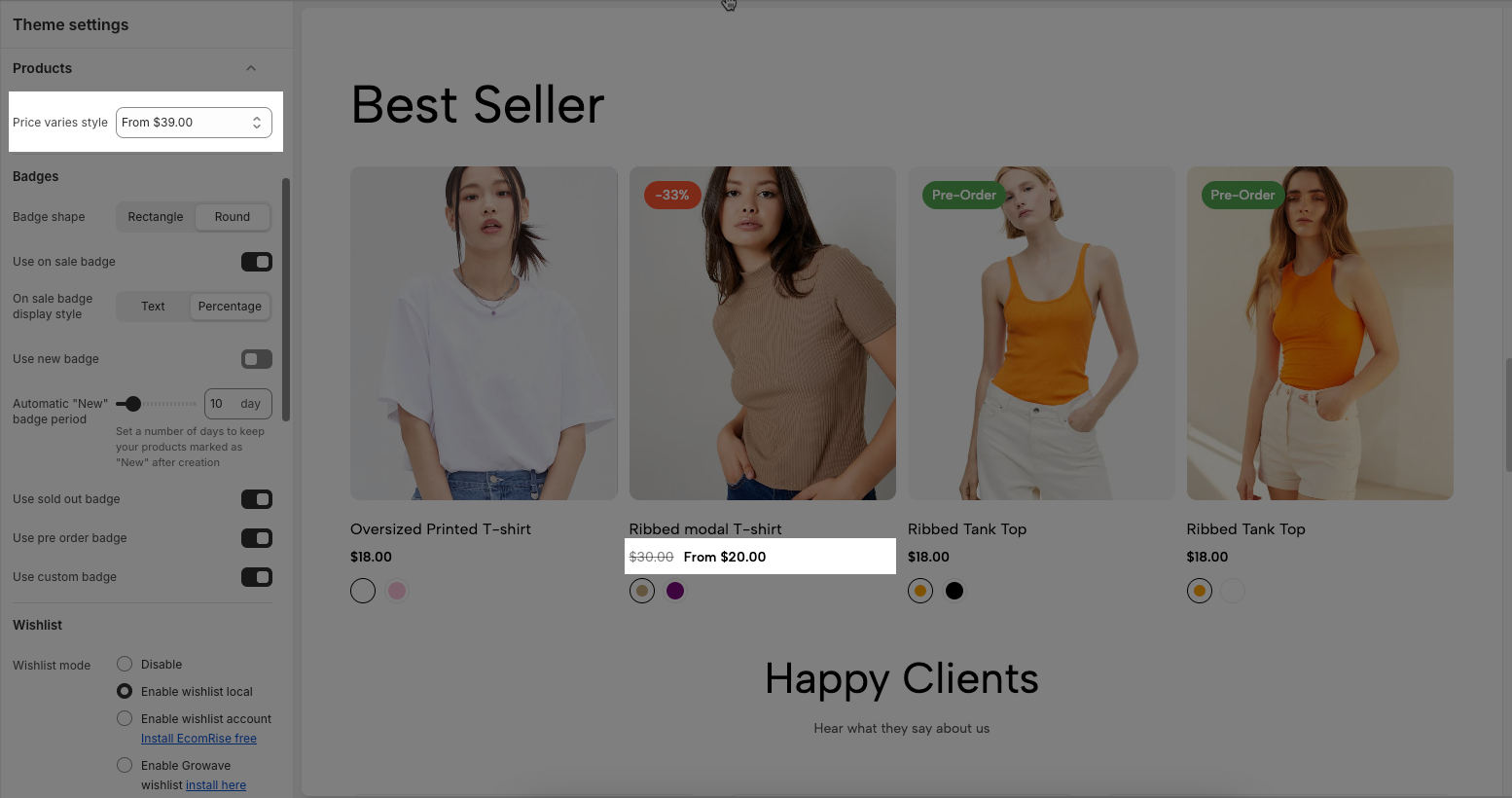
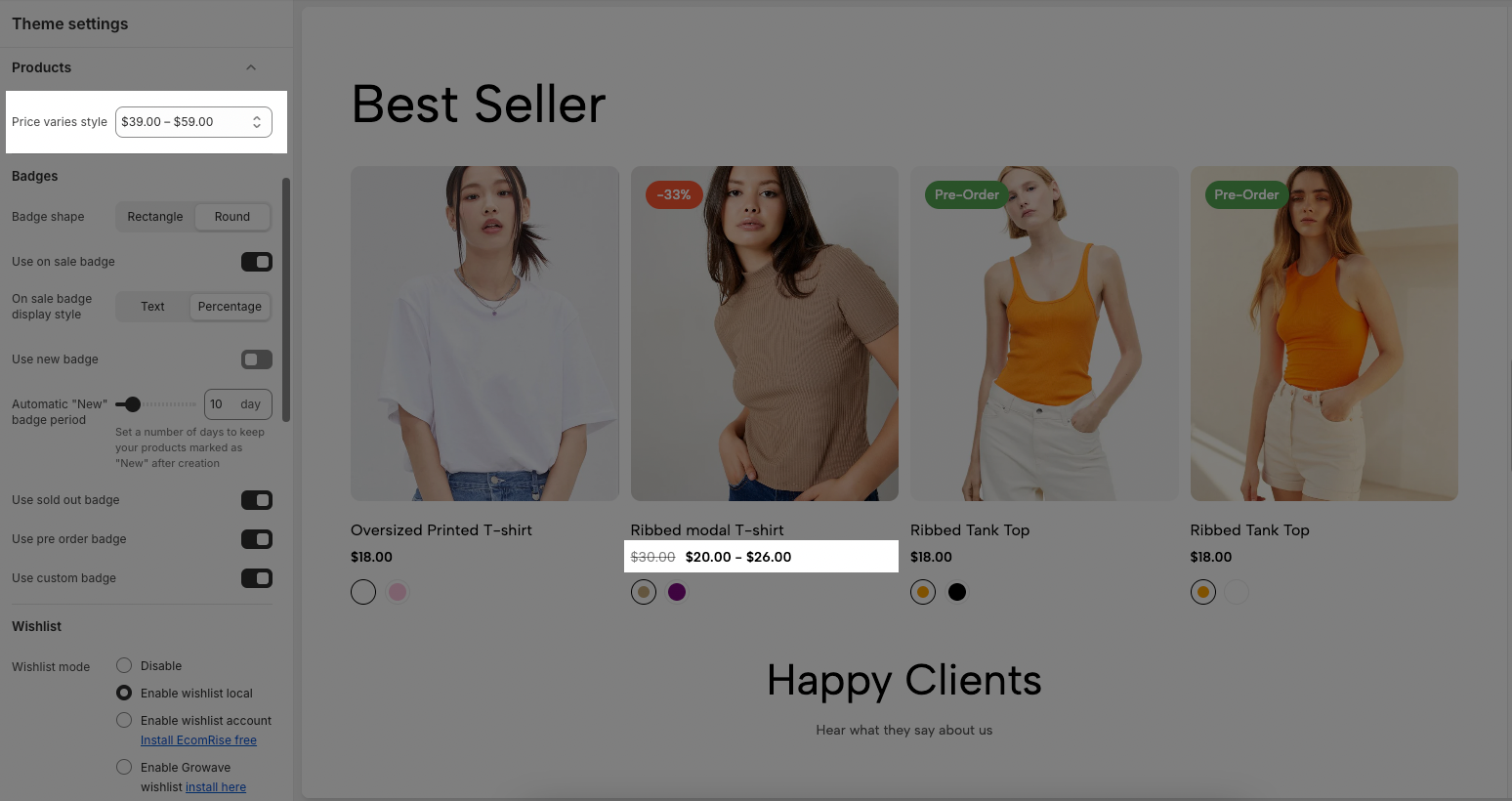
There are two styles of price variant in the theme, you can look over this image:
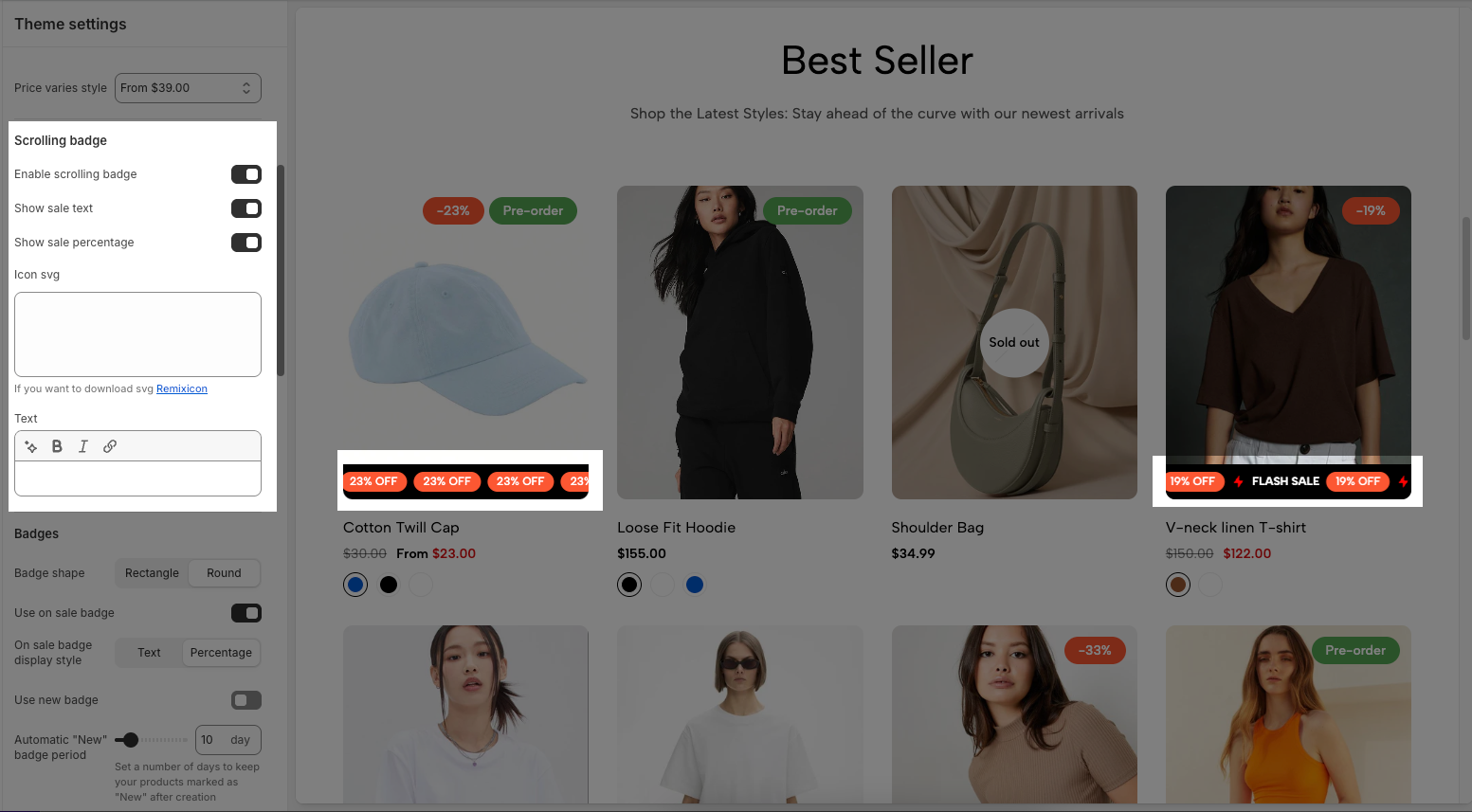
To config the scrolling badge, please check this document
There are many types of badges in the theme, you can look over this video:
To config badge colors, please check this document
There are two shapes for you, including Rectangular and Rounded.
Rectangle: Standard square/rectangle shape.
Round: Fully rounded or circular shape for a softer look.
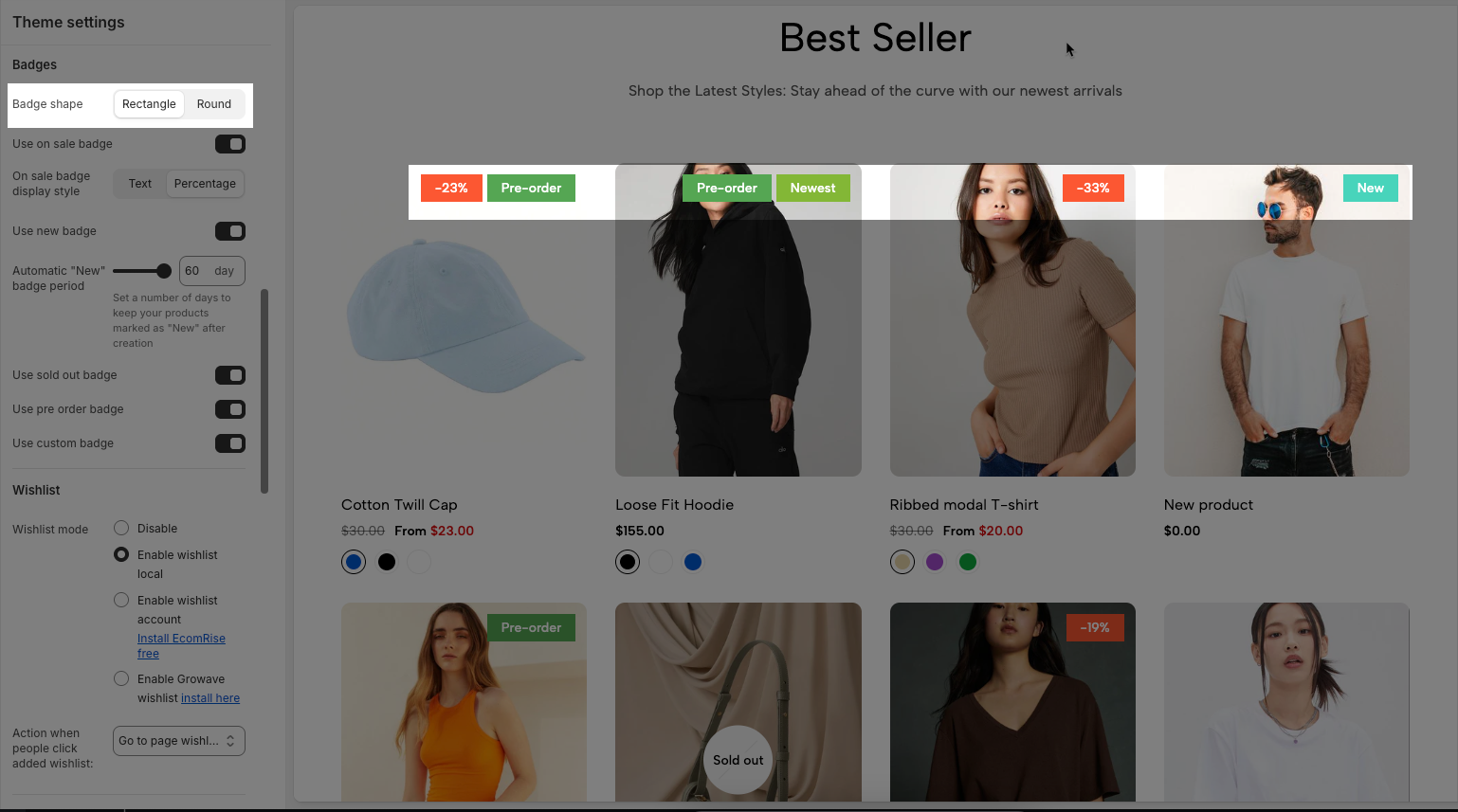
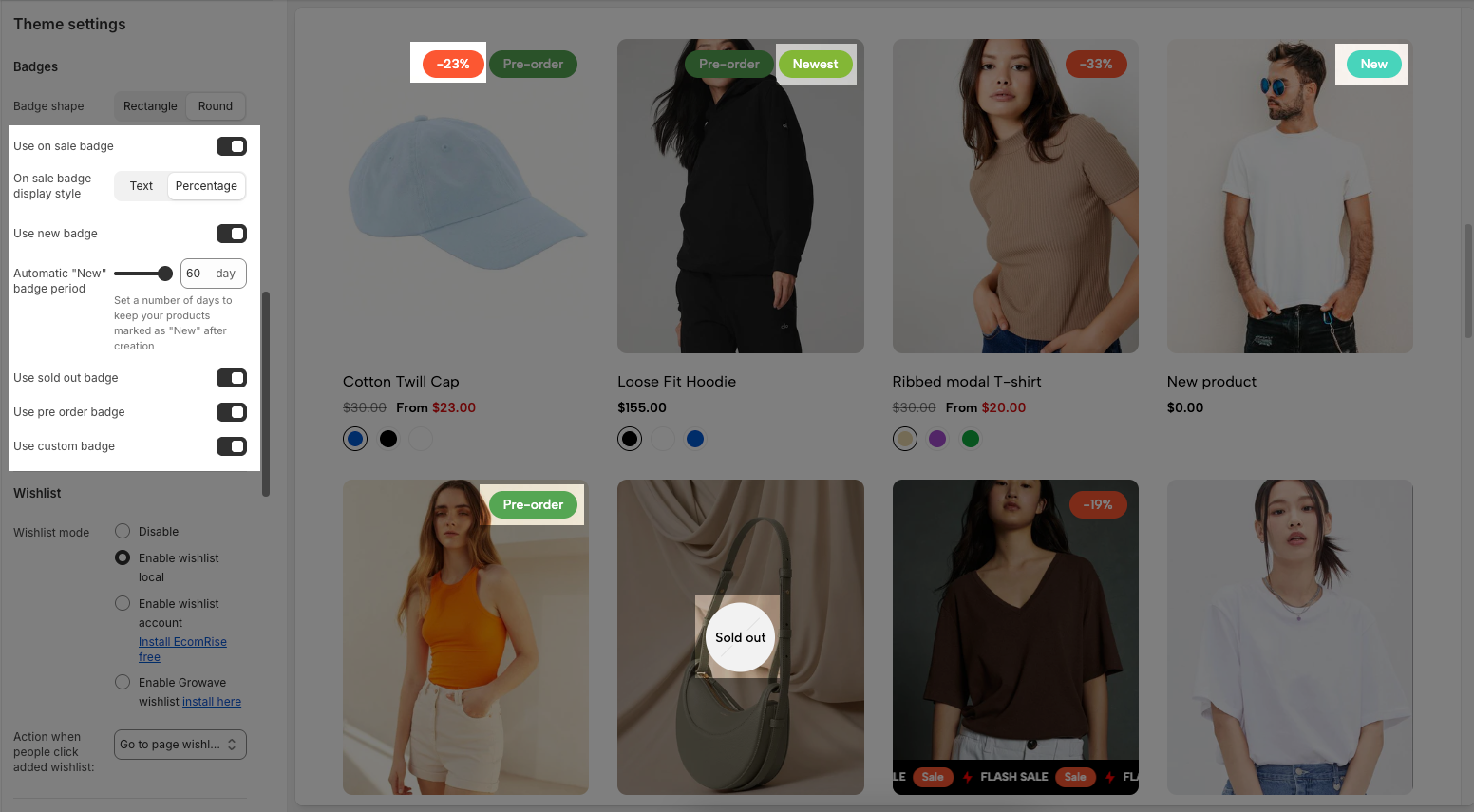
Use on sale badge: When enabled, a badge will appear on products that are currently discounted.
On sale badge display style: Choose how the on-sale badge displays, you can choose between text or percentage.
Use new badge: Adds a “New” label to recently added products.
Automatic "New" badge period: Set how long a product is marked as “New” after it's created (in days).
Use sold-out badge: Displays a badge on products that are out of stock.
Use pre-order badge: Adds a “Pre Order” label to products available for pre-purchase.
To set up pre-order products, you tick on 'Track quantity' and 'Continue selling when out of stock' of the product.

You can add your custom badges to each product.
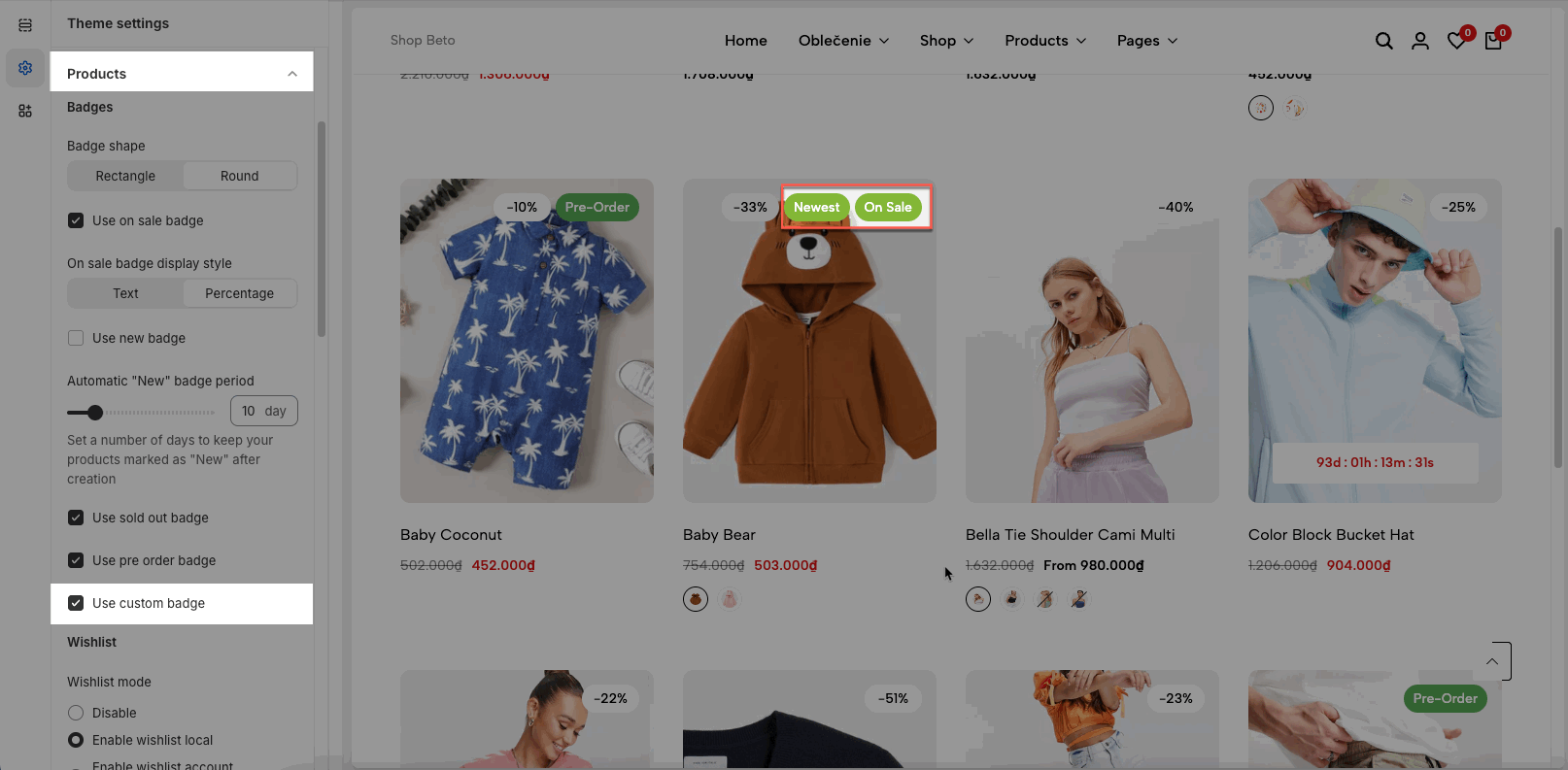
To set up custom badges, go to Settings > Custom data > Products > create a metafield with the following options:
Name: Custom Badges
Namespace and key: theme.custom_badges
Select Content Type: Text > Single line text > List of values (you can add up to 5 badges for one product)
You can follow this video:
Wishlist allows customers to create a list of products that they are interested in but don’t want to buy yet. They remain active in their account, and with one click can then be placed in the cart. This is a powerful tool for user engagement.
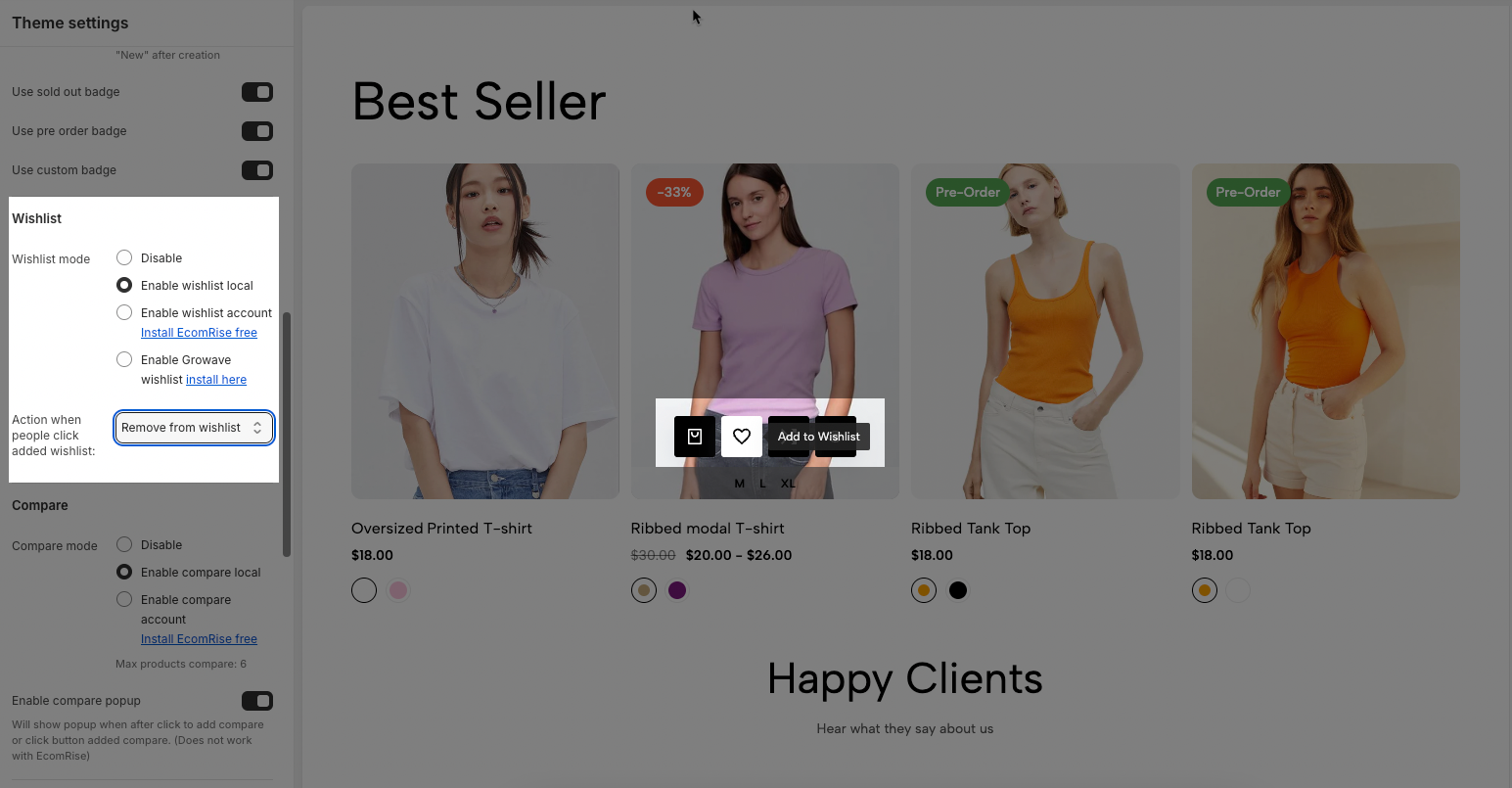
4.1. Wishlist mode
Here you can configure your Wishlist mode with these options below:
Disable: You can choose this option if you don't want to use wishlist. Then all wishlist buttons at the header, product page, product grid, etc... will be hidden.
Enable Wishlist local: Its a built-in theme so you just need to choose this option without doing anything. The Wishlist will work on your store.
Enable wishlist account (Install EcomRise free)
Enable Growave wishlist install here
4.2. Action when people click added wishlist: There are two choices for you, including Go to the page wishlist or Removing it from the wishlist after clicking.
Compare allows customers to create a list of products that they are compare products each orther about color, size, price, ... .You can enable comparison for a maximum of six products in this section.
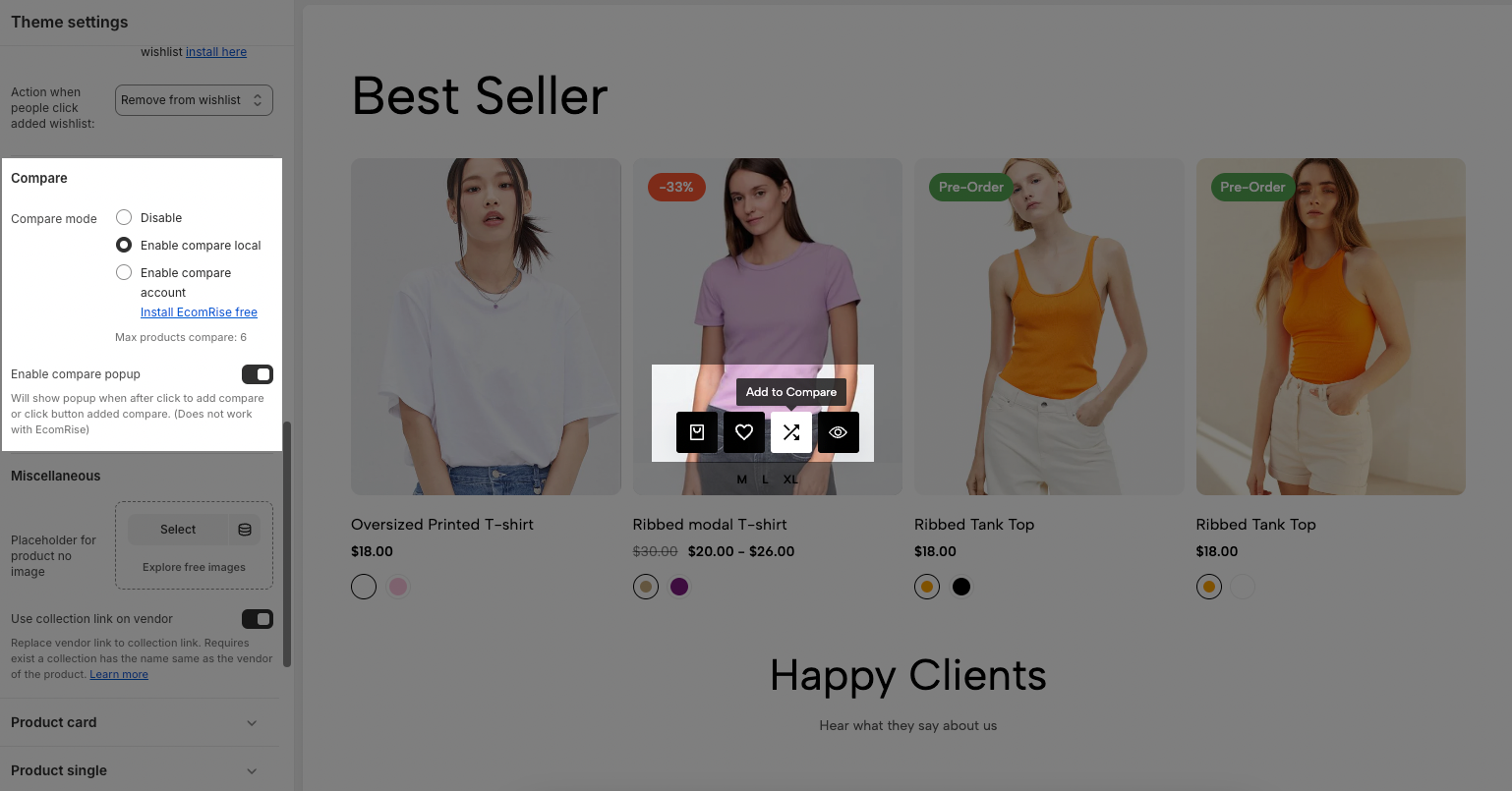
5.1. Compare mode
Here you can configure your Compare mode with these options below:
Disable: You can choose this option if you don't want to use compare. Then all compare buttons at the header, product page, product grid, etc... will be hidden.
Enable Compare local: Its a built-in theme so you just need to choose this option without doing anything. The Compare will work on your store.
Enable compare account (Install EcomRise free)
5.2. Enable compare popup
Will show popup when after click to add compare or click button added compare. (Does not work with EcomRise)
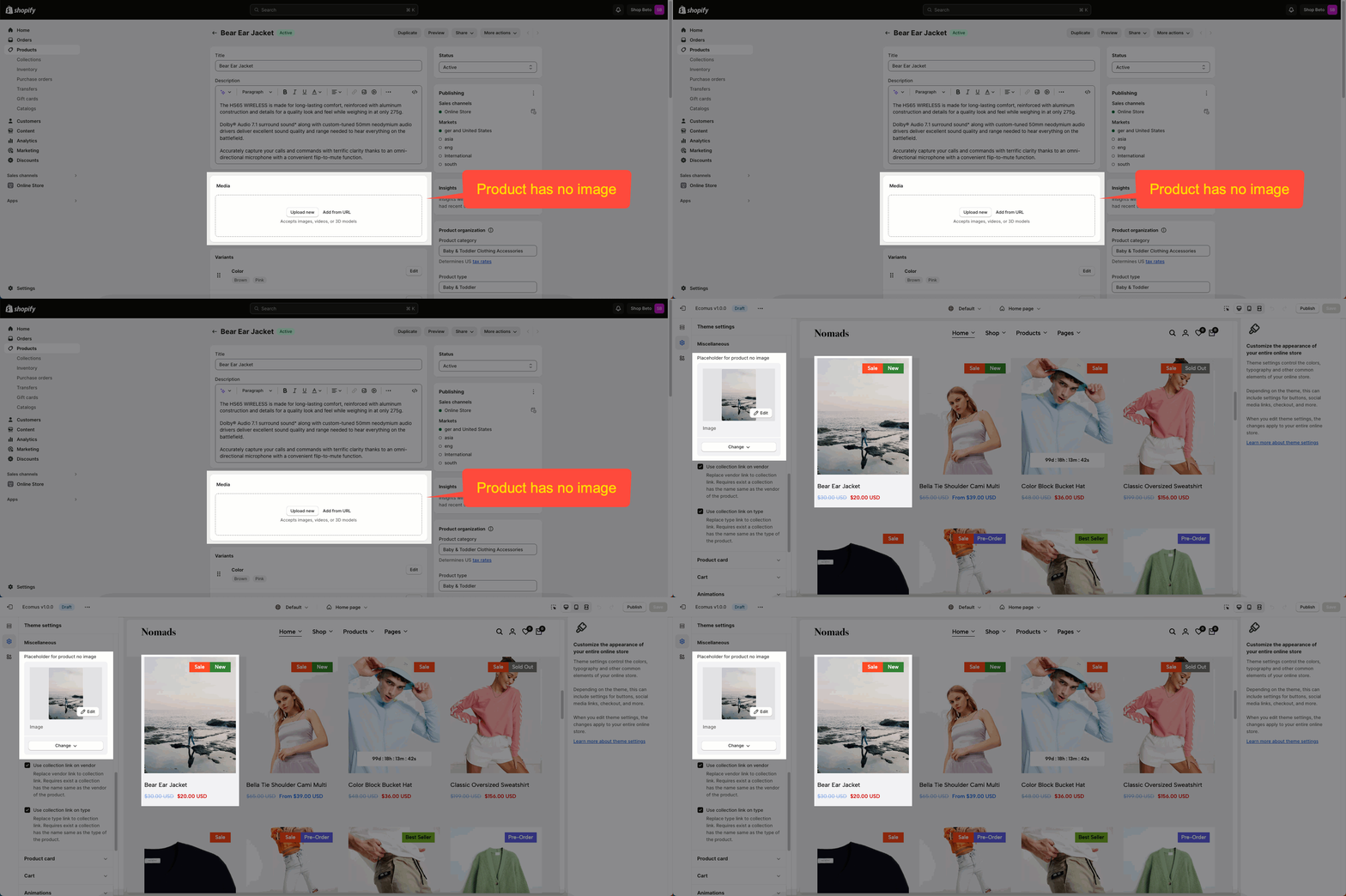
Placeholder for product no image: you can set the Placeholder Image for products that have not been set image before.
Use collection link on vendor: please check this document