Header inline (new)
The Header inline (New) is a flexible element designed to display a title and optionally a short description inline with its own content, rather than as a separate, full-width section. Unlike the traditional Inline Header, the new version leverages theme blocks, offering greater flexibility and customization options for building diverse and dynamic menus.
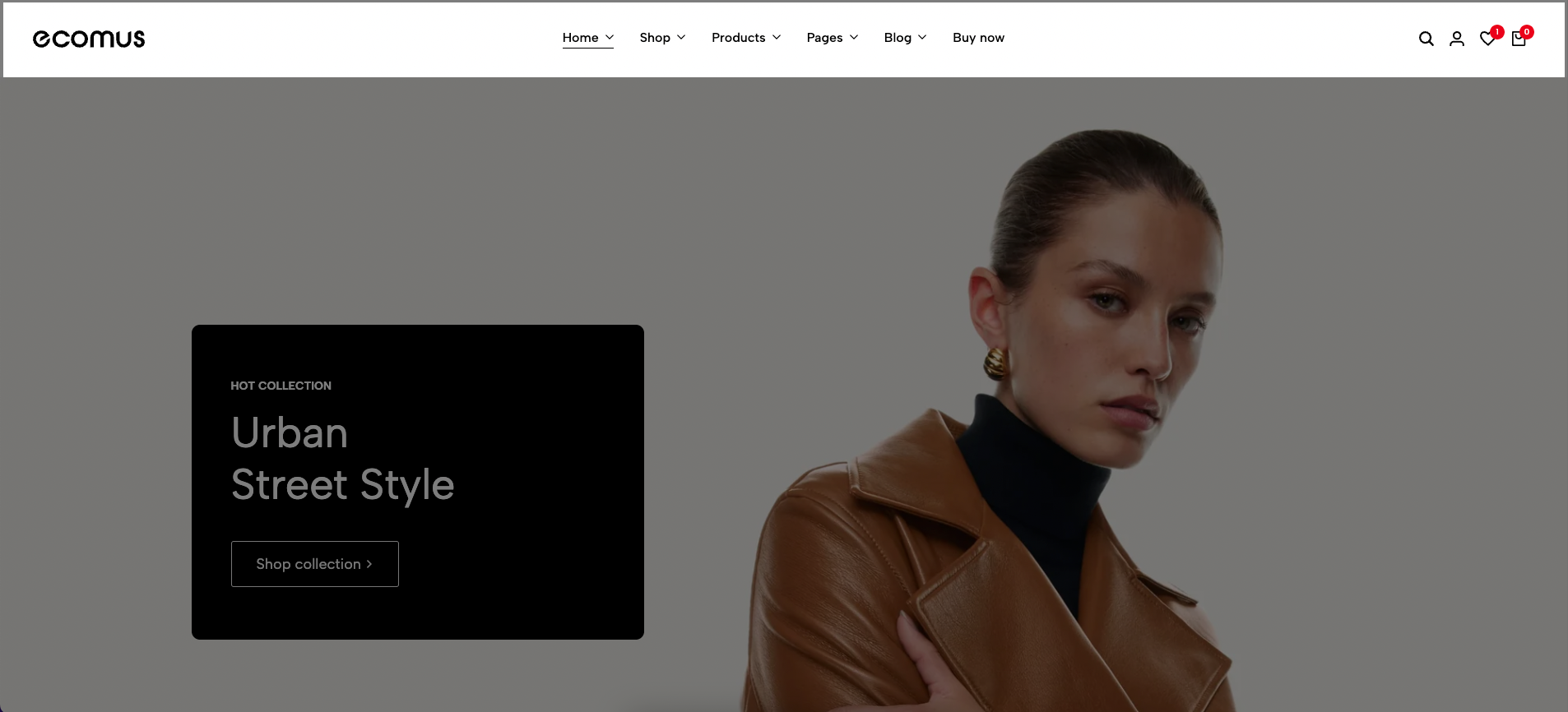
The following guide will help you understand its structure and how to customize the Header inline (New) effectively.
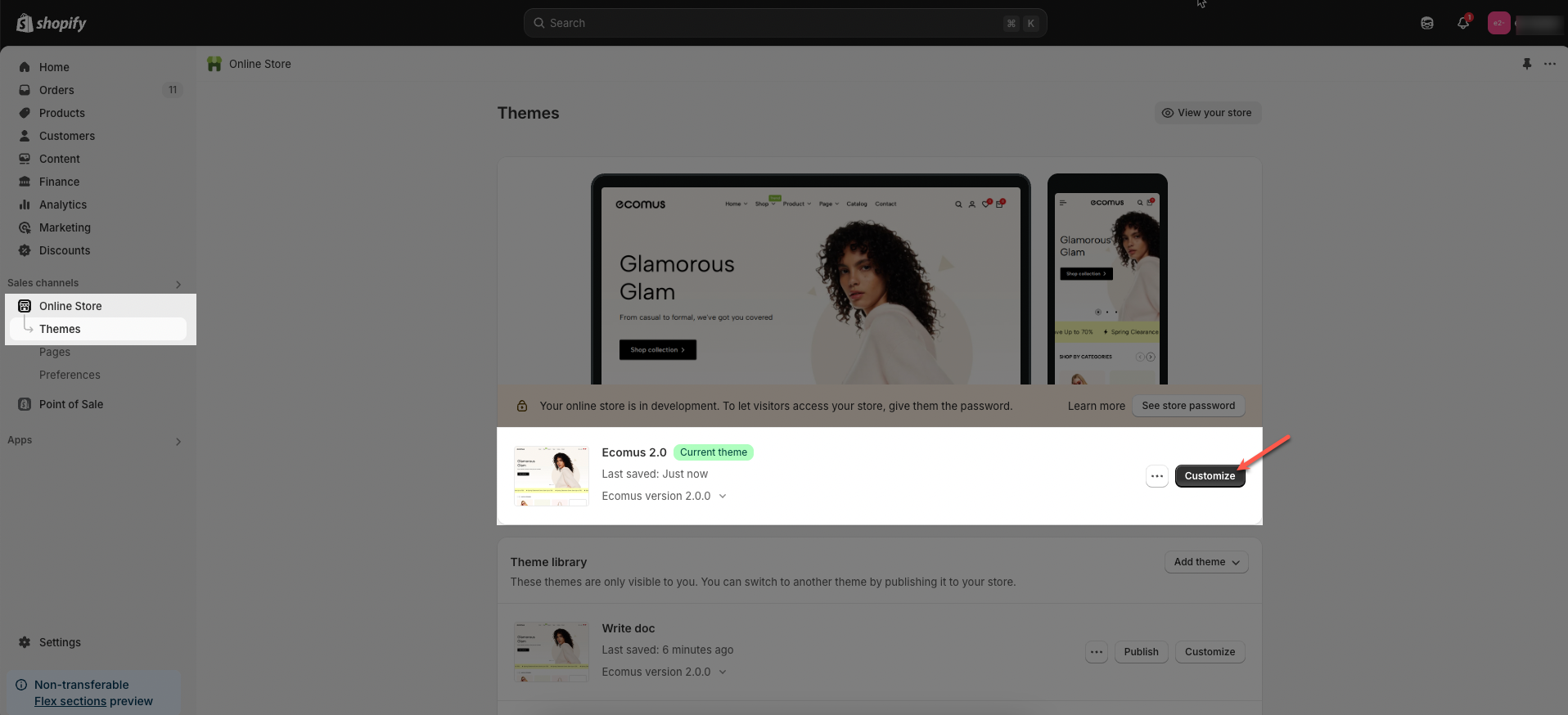
Step 01: From Shopify Admin, click on Online Store > Select Themes > In the Current theme section, click the Customize button.
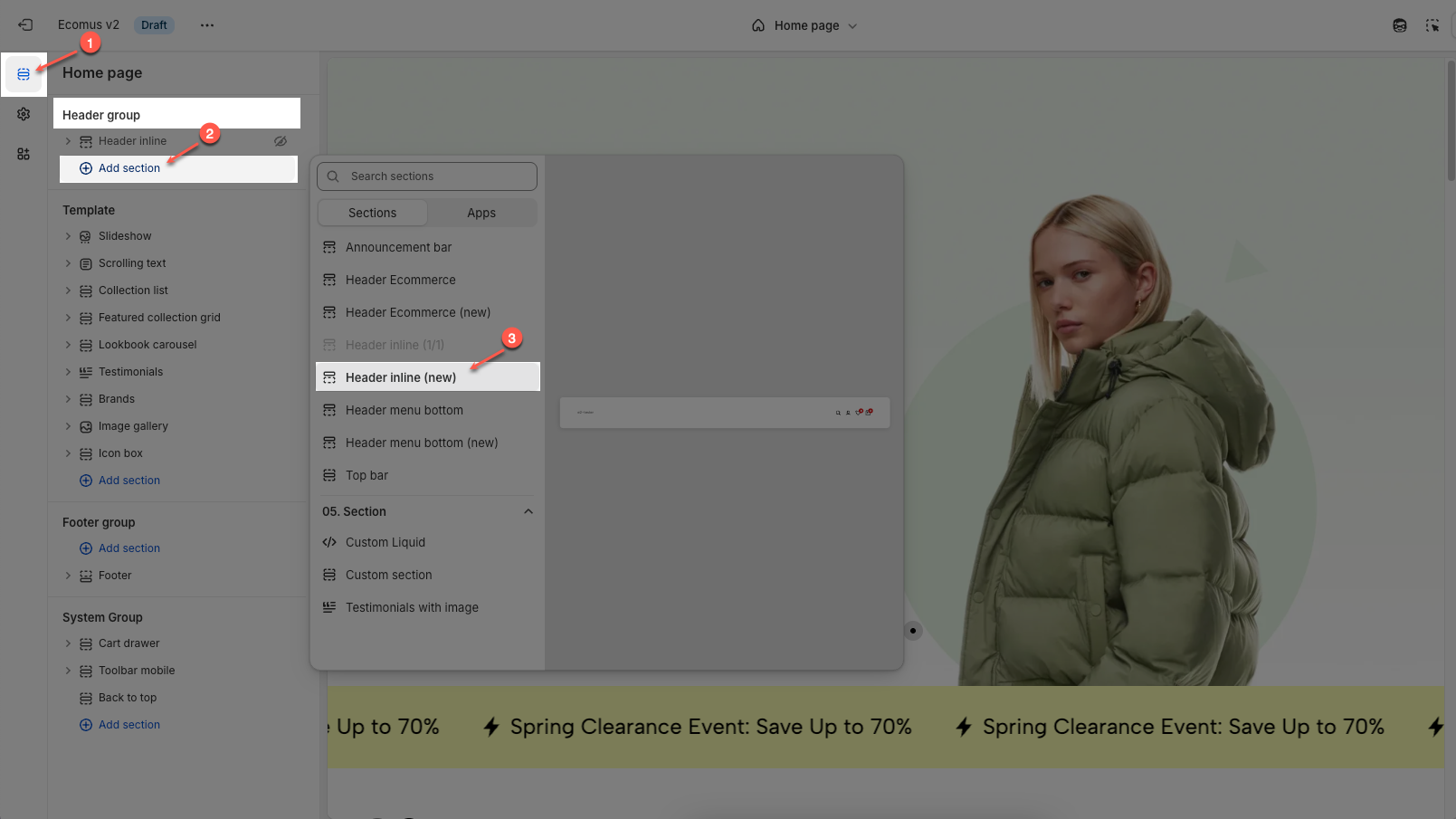
Step 02: In the theme editor (Customize), click the Sections button > In the Header group tab, click Add section botton > Scroll through the list or use the search bar to find and select the Header inline (New) section.
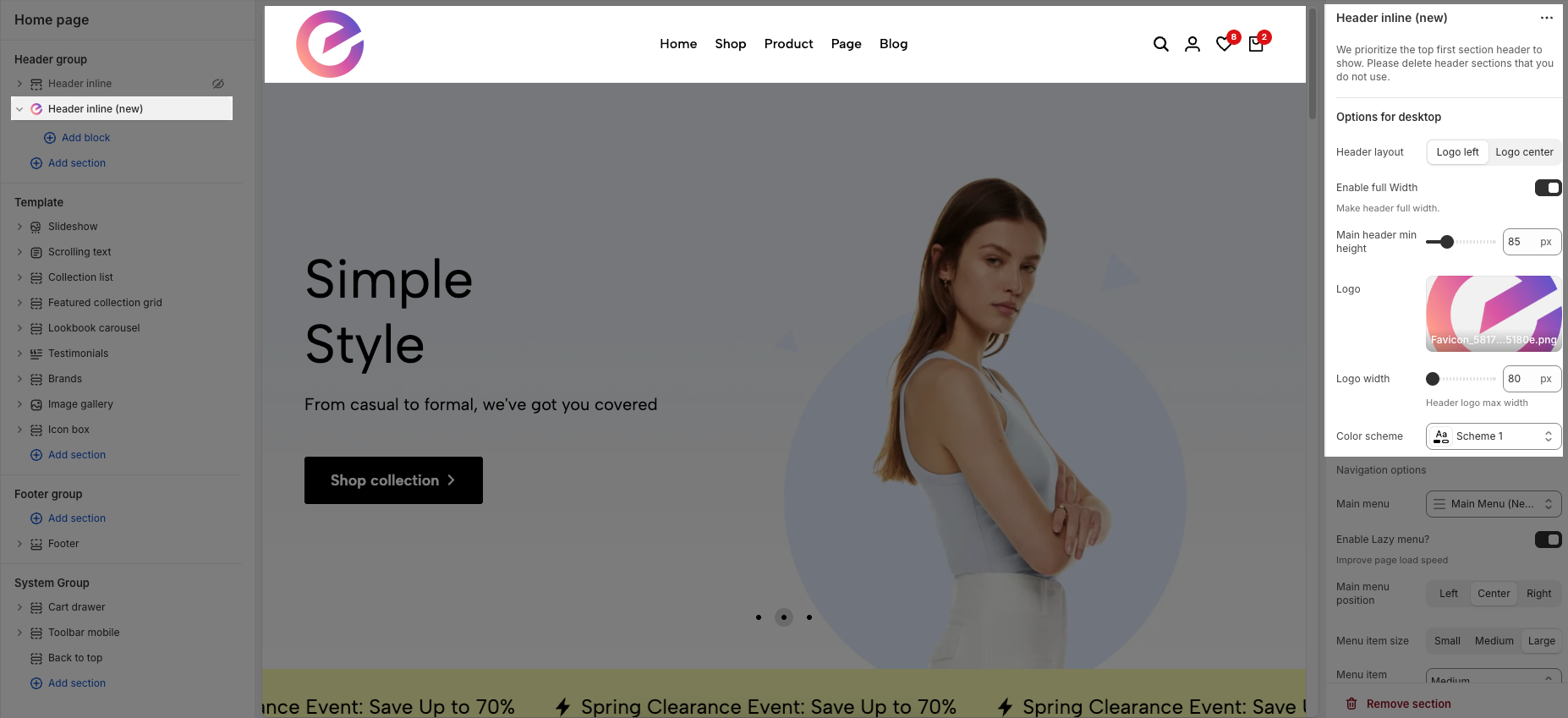
Note: Avoid using both the Inline Header and Inline Header (New) sections at the same time, as only one can be displayed. To ensure proper rendering, include just one of the two in your layout.
Follow this guide to easily create and manage a menu.
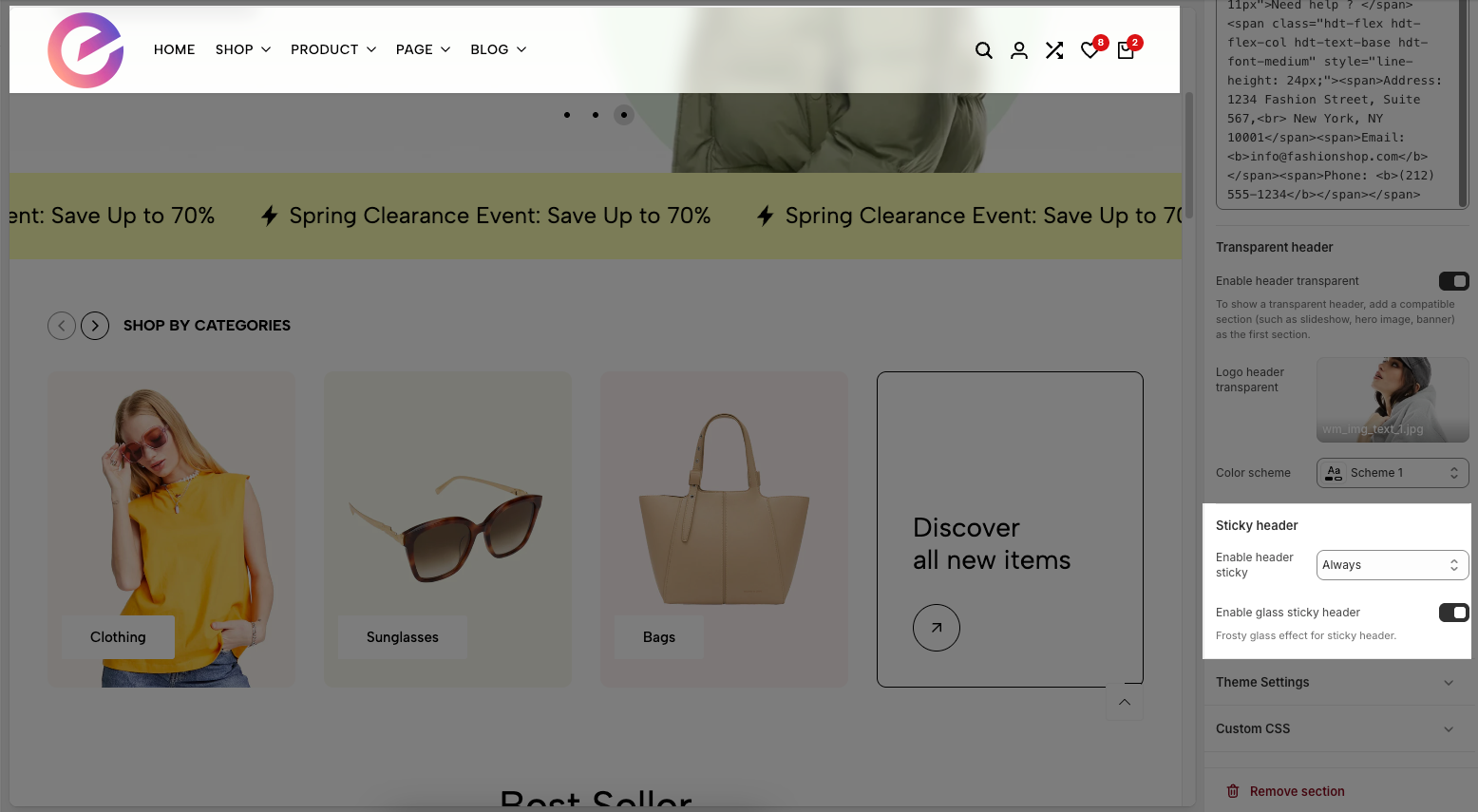
We prioritize the top first section header to show. Please delete header sections that you do not use.
2.1.1. Options for desktop
Header layout: Choose the layout for your header. Options include a logo left and logo center
Enable full Width: Check to enable full width for the header. When enabled, the header will stretch across the entire browser viewport
Main header min height: Set the minimum height of the header on desktop. This affects the vertical space the header occupies on the page.
Logo: Upload your logo image file. This is the primary visual identifier for your brand, typically appearing at the top of the page.
Logo width: Set the width of the logo (in pixels) for desktop viewing. This width will automatically adjust for mobile devices to ensure optimal display.
Colors scheme: Select the color scheme for the header. This schema will determine the header's background color and text color, ensuring color consistency across your website.
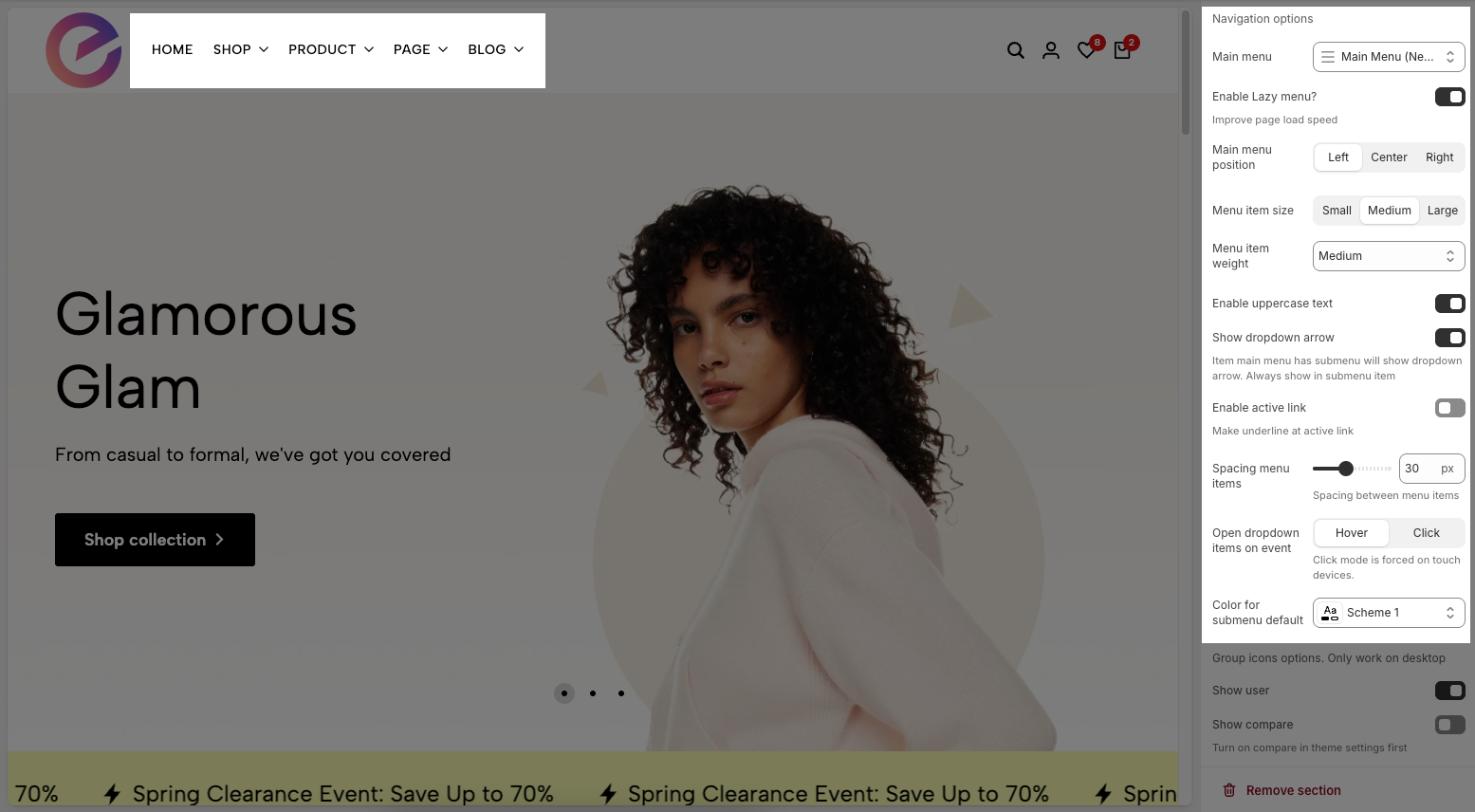
Navigation options
Main menu: Select the main navigation menu to be displayed on your website.
Enable Lazy menu?: Enable this option to lazy load the menu. This improves initial page load speed by only loading parts of the menu when they are needed
Improve page load speed
Main menu position: Select the position of the main menu within the header. Common options include center-aligned, left-aligned, or right-aligned.
Menu item size: Set the font size for the main menu items.
Menu item weight: Set the font weight for the main menu items.
Enable uppercase text: Enable this option to transform all menu item text to uppercase.
Show dropdown arrow: Display a dropdown arrow icon next to main menu items that have submenus. This arrow will always be shown on submenu items.
Item main menu has submenu will show dropdown arrow. Always show in submenu item
Spacing menu items: Set the horizontal spacing between main menu items.
Spacing between menu items
Open dropdown items on event: Select the event to open dropdown menu items (on hover or click).
Click mode is forced on touch devices.
Menu type: Select the type of menu to be used. Options include default menu (traditional dropdowns), sidebar menu (opens an off-canvas panel on click), or split menu (divides the menu into two sections).
Menu split only work with header layout 'logo center'
Color for submenu default: Select the default color for the background and text of submenus.
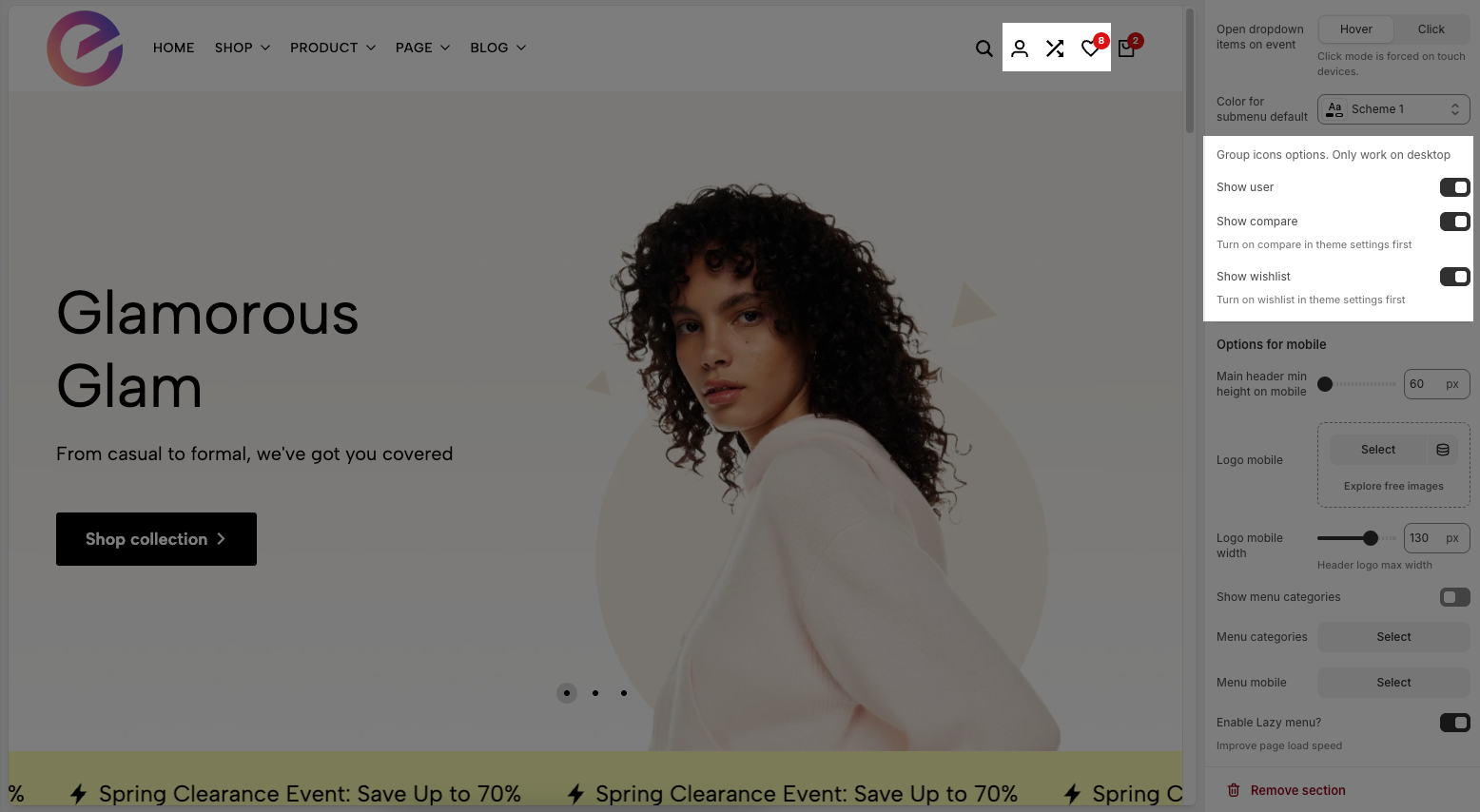
Group icons options. Only work on desktop
Show user: Check to display the customer account icon or link in the header. This link will direct to the login page or the customer's account page if they are already logged in.
Show wishlist: Check to display the wishlist icon in the header. This feature allows customers to save products for later viewing or purchase.
Turn on wishlist in theme settings first
Show compare: Check to display the compare icon in the header.
Turn on compare in theme settings first
2.1.2. Options for mobile
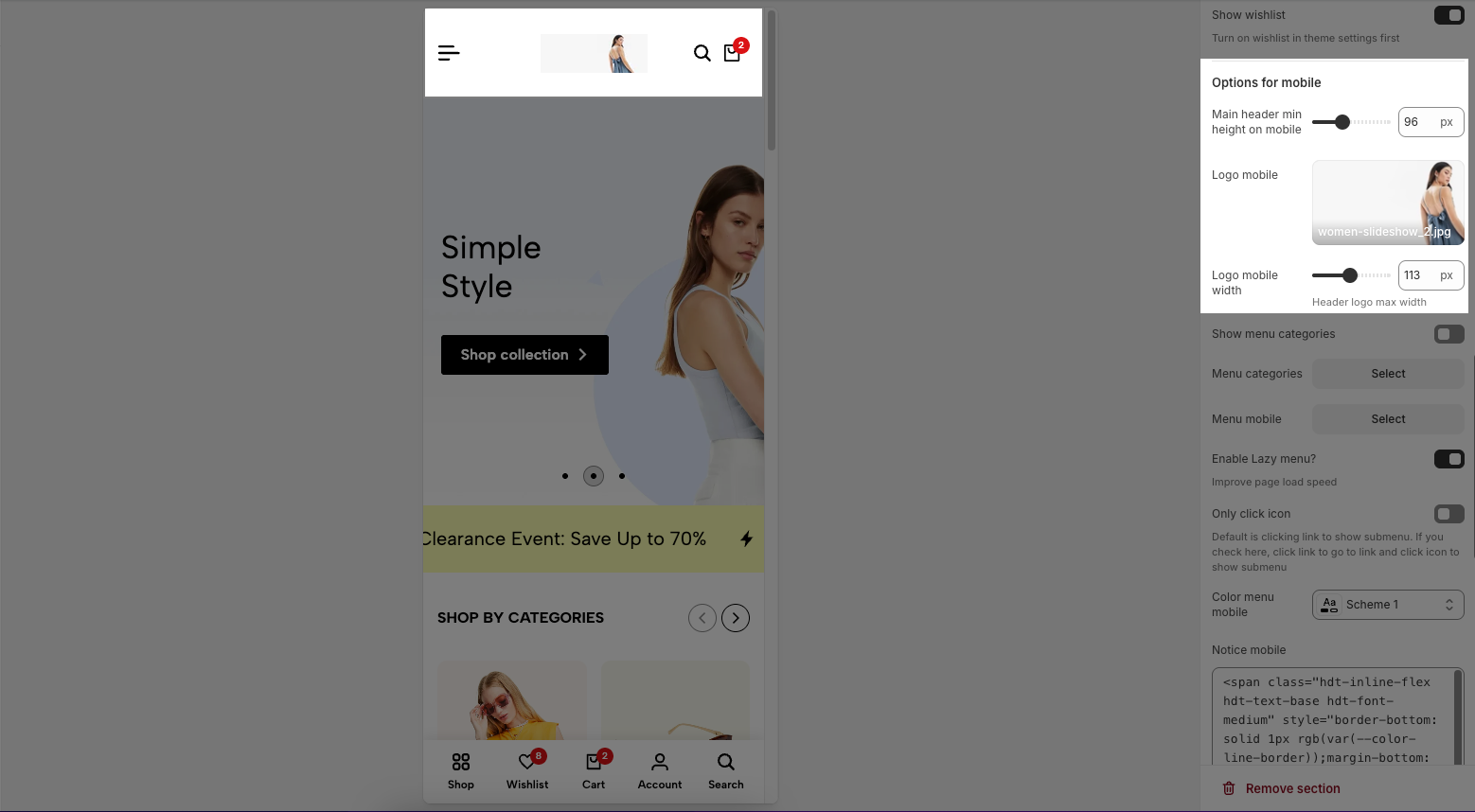
Main header min height on mobile: Set the minimum height of the header on mobile devices. This ensures the header remains clearly visible and easy to interact with on smaller screens.
Logo mobile: Upload a separate logo image file specifically for mobile devices (optional). Use a logo optimized for smaller screens or a brand icon if desired.
Menu mobile: Select the navigation menu to be displayed when users access the website from a mobile device.
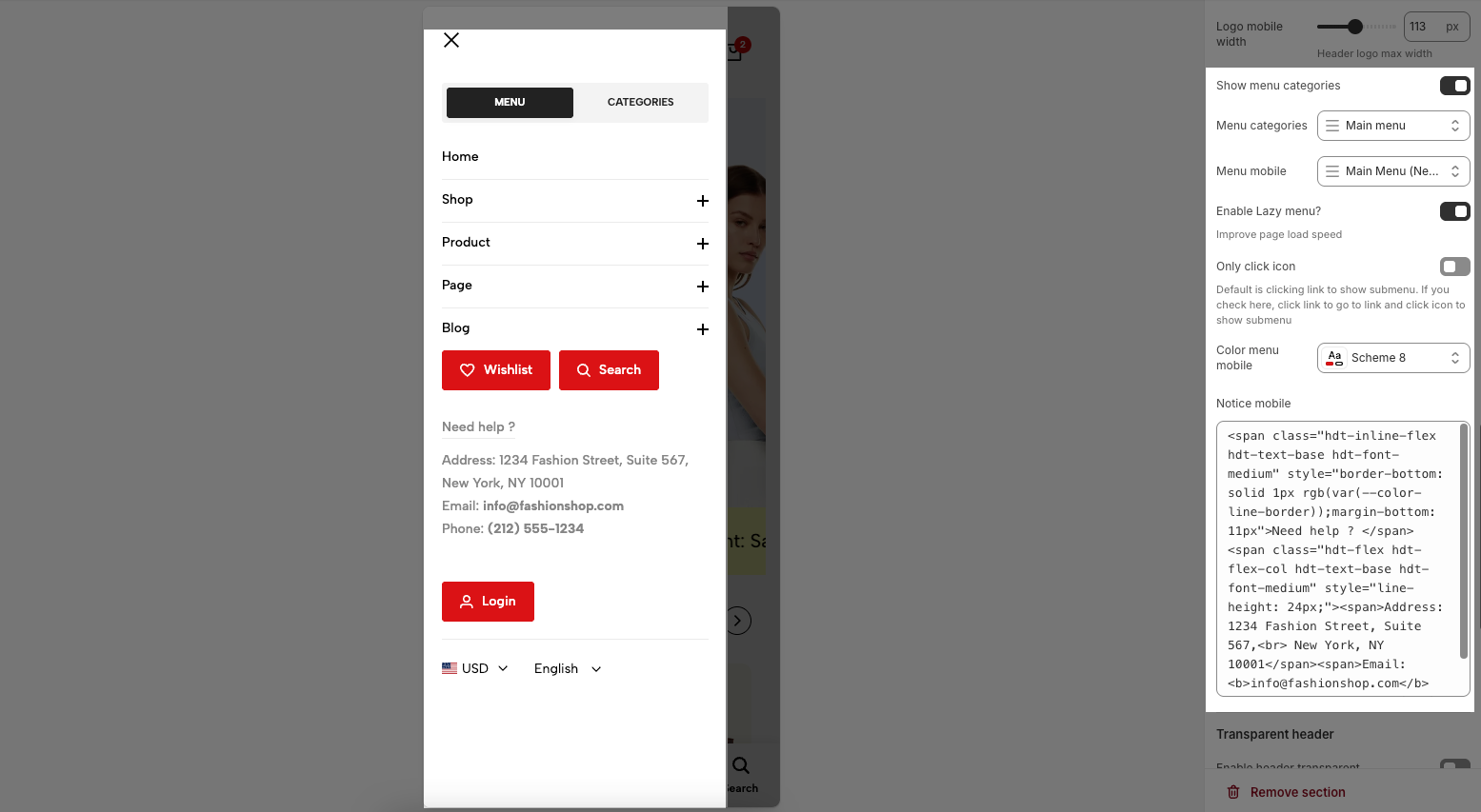
Enable menu categories: Enable this option to display product categories directly in the header
Menu categories: Select the list of collections or categories to be displayed when 'Enable header categories' is active.
Menu mobile: Select the list of collections or categories to be displayed menu for mobile
Enable Lazy menu?: Enable this option to lazy load the menu on mobile devices. This improves initial page load speed by only loading parts of the menu when they are needed
Only click icon: When enabled, only clicking the arrow icon will expand a submenu; clicking the menu item text will navigate directly to the linked page.
Color menu mobile: Select the color schema for the mobile menu when it is open. This schema will determine its background color and text color, ensuring color consistency and readability.
Notice mobile: Enter a short notification text to be displayed at the top of the mobile menu
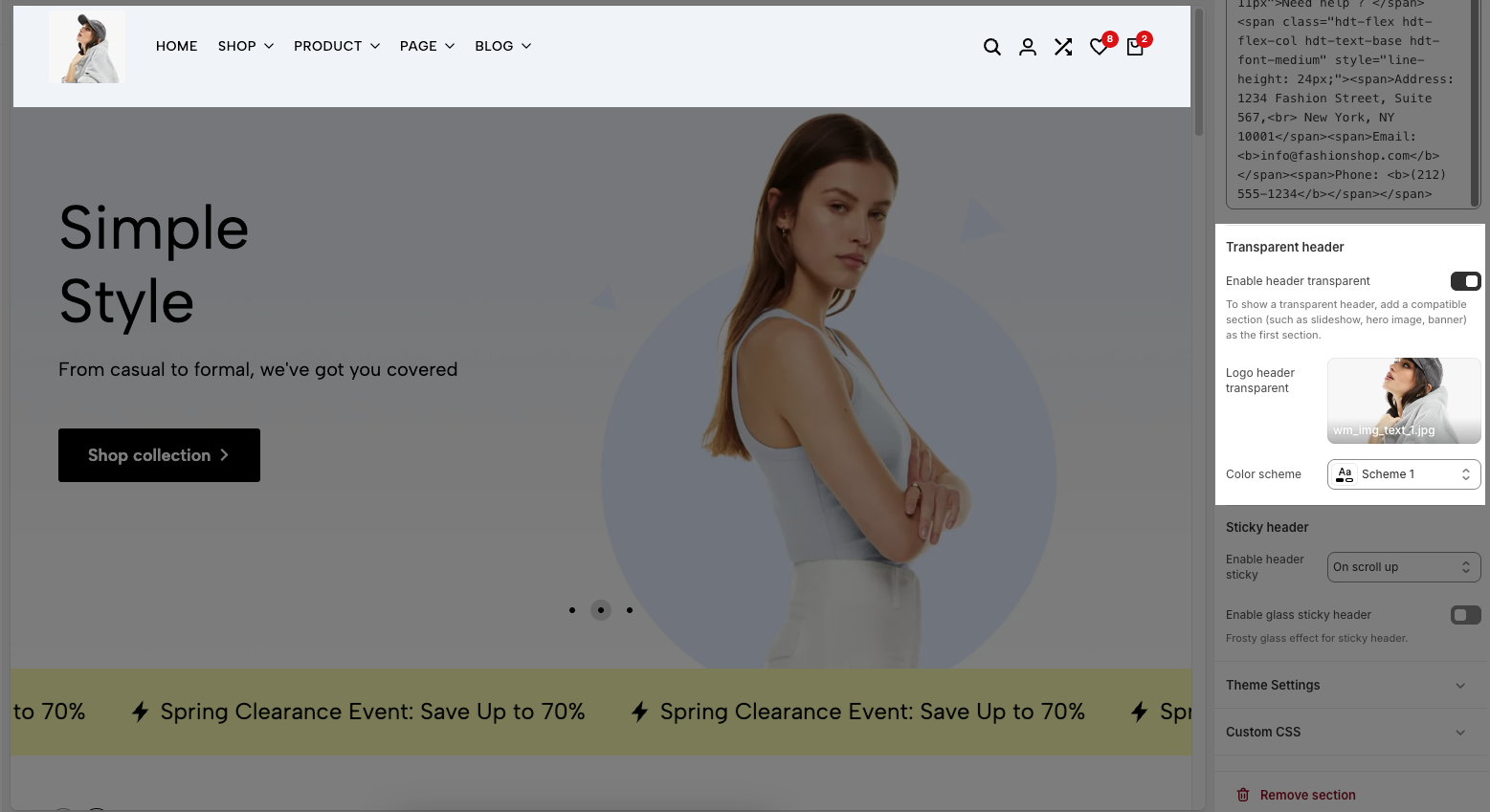
Enable header transparent: To show a transparent header, add a compatible section (such as slideshow, hero image, banner) as the first section.
Logo header transparent: Upload the logo image file that will display when the header is in transparent mode.
Colors schema: Select the color schema to be applied to this section. A color schema defines color variables such as background color, text color, button colors, and more,
2.2. Config Mega Block
To add a Mega Block to the Header inline (New) section, click the Add block button (plus icon ➕) under the Header inline (New) section.
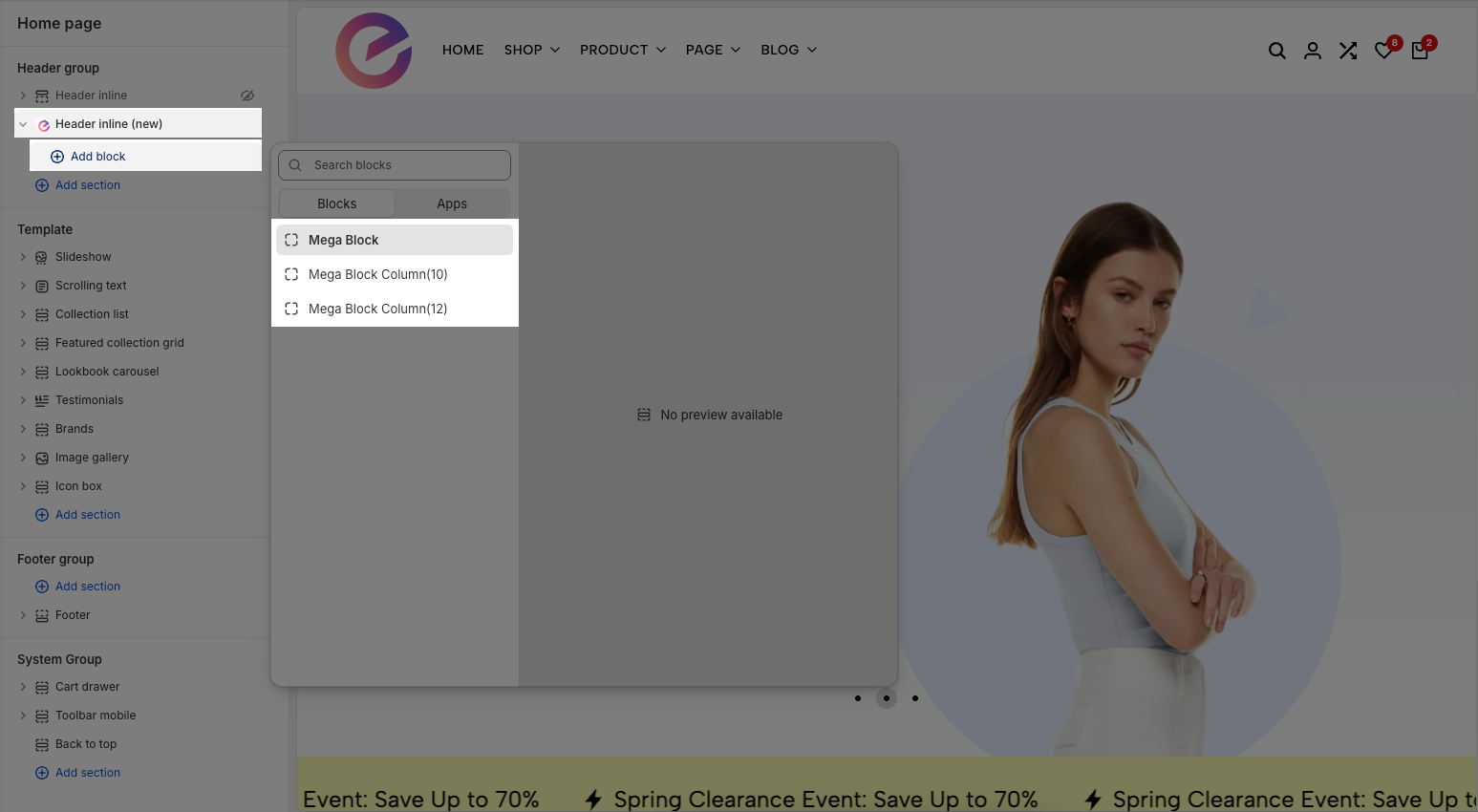
After adding the Mega Block, you can adjust its settings using the sidebar—located on the right or left side of your screen depending on your device
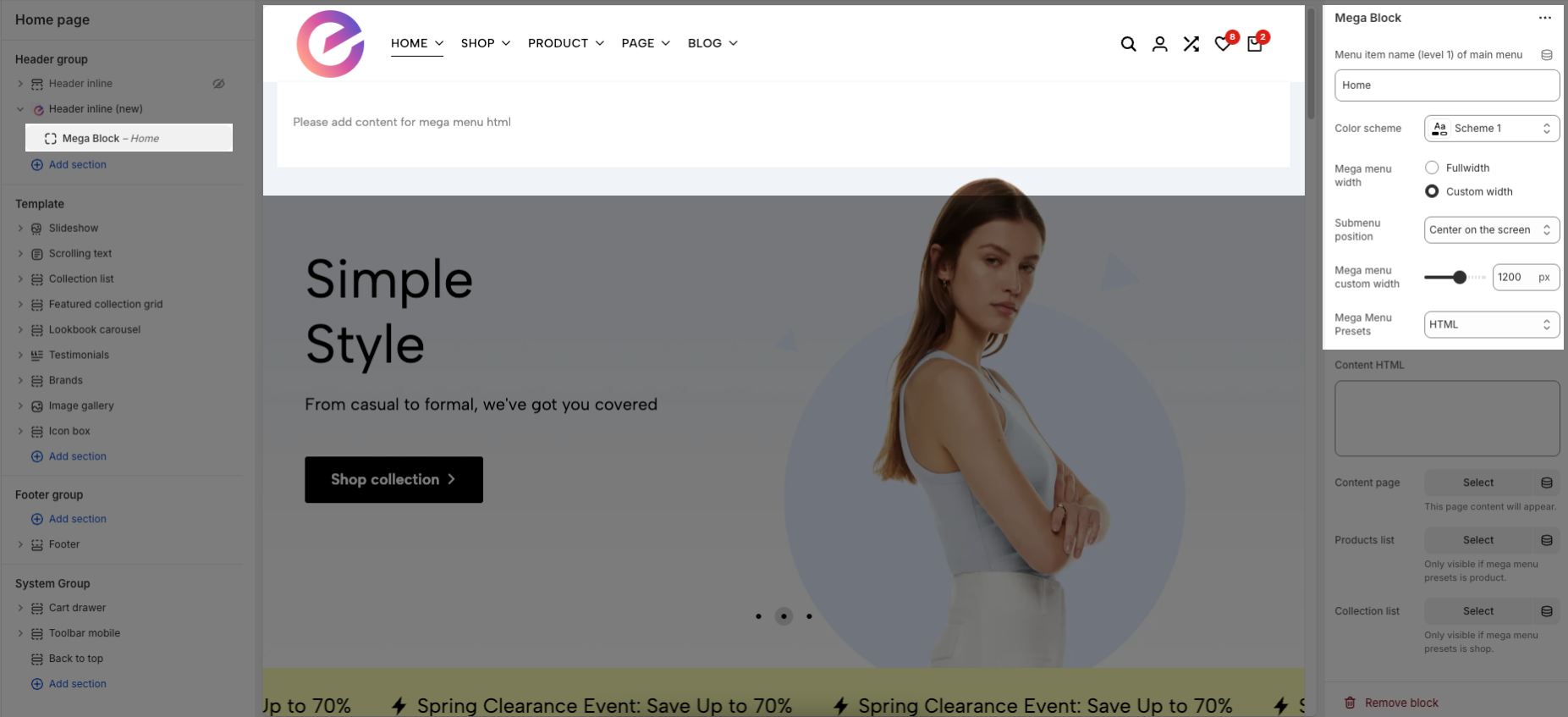
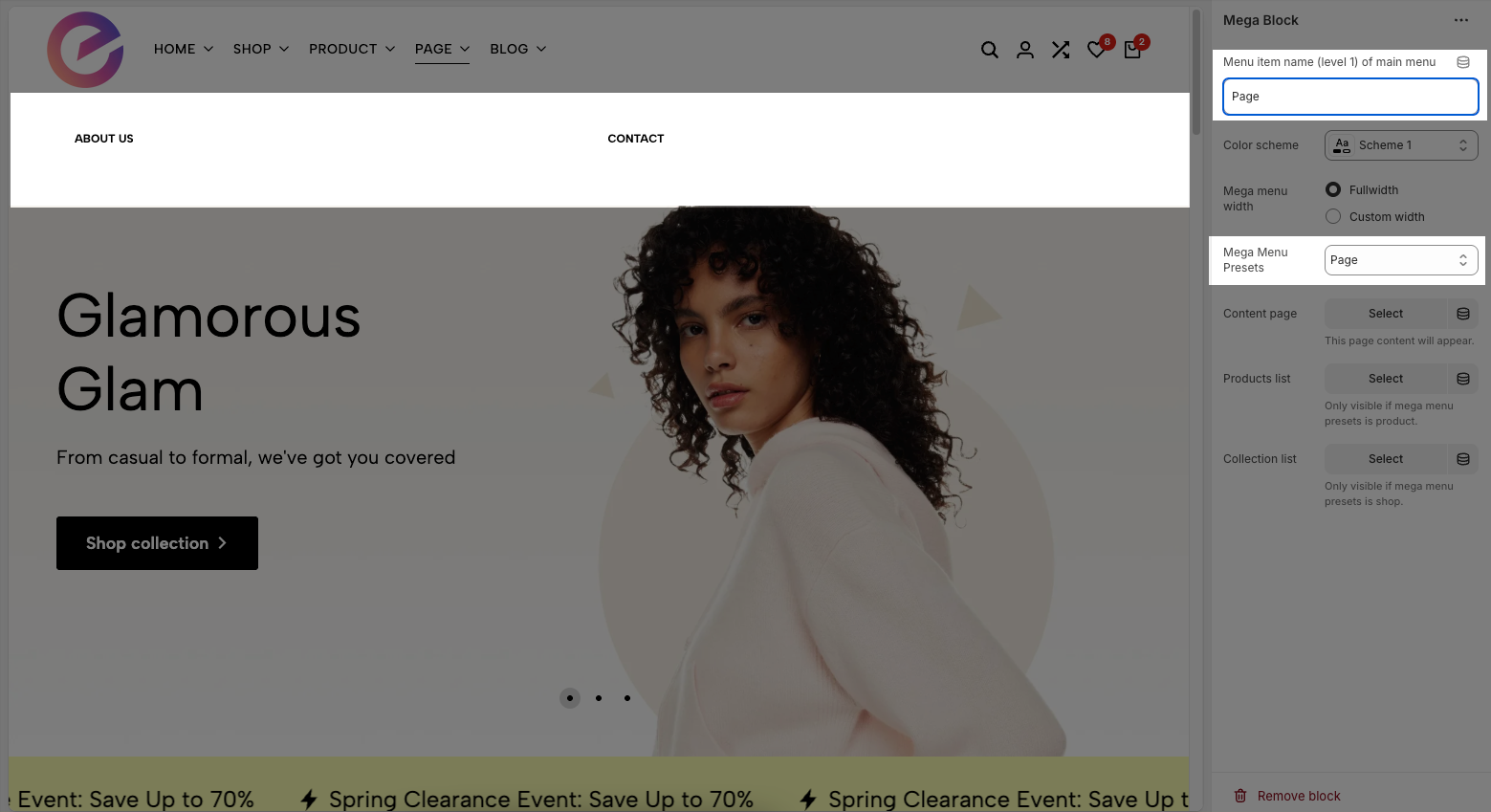
Menu item name (level 1) of main menu: Add title to connect menu item
Make sure the 'Menu item name (level 1) of main menu' is the same as 'menu title' in Navigation, including upper and lower case characters, spaces, etc...
Colors schema: Select the color schema to be applied to the background and text of the Mega Menu. A color schema defines color variables such as background color, text color, button colors, and more
Mega menu width: Select the width of the Mega Menu.
Submenu position: Select the position of the submenu (dropdown). This setting only applies when "Mega menu width" is set to "Custom width".
Mega menu custom width: Enter the custom width (in pixels) for the Mega Menu. This setting only applies when "Mega menu width" is set to "Custom width".
Mega Menu Presets: The Mega Menu Presets dropdown allows you to choose a predefined content layout for your mega menu. Each option determines the type of content that will be displayed within the menu block. Here’s what each preset means:
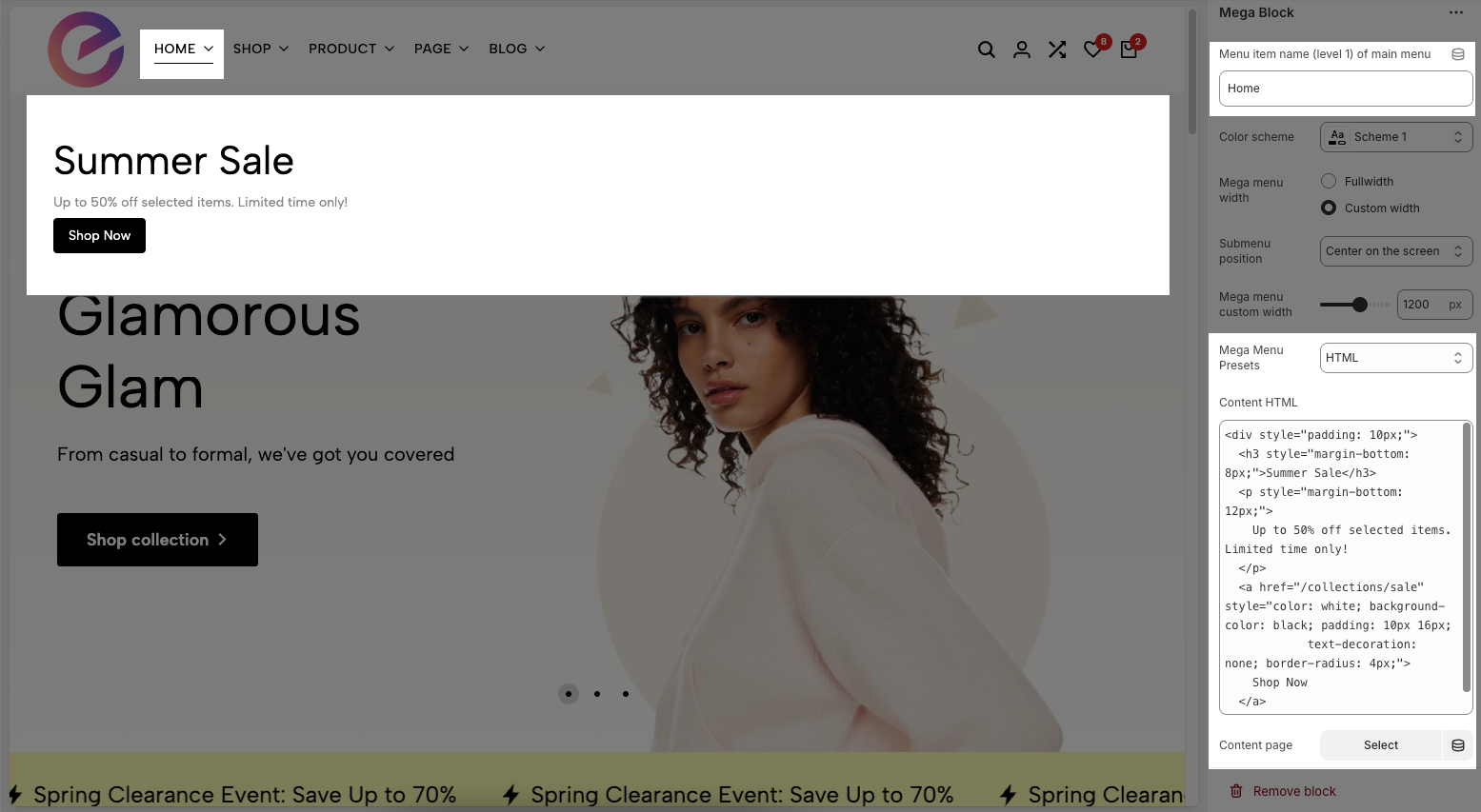
HTML
Allows you to manually insert custom HTML content into the menu.
Content HTML: Enter custom HTML content to be displayed within this Mega Menu. This allows you to add complex elements such as videos, forms, or custom code.
Content page: Select an existing Shopify page to display its content within the Mega Menu. This facilitates easy reuse of existing content.
This page content will appear.
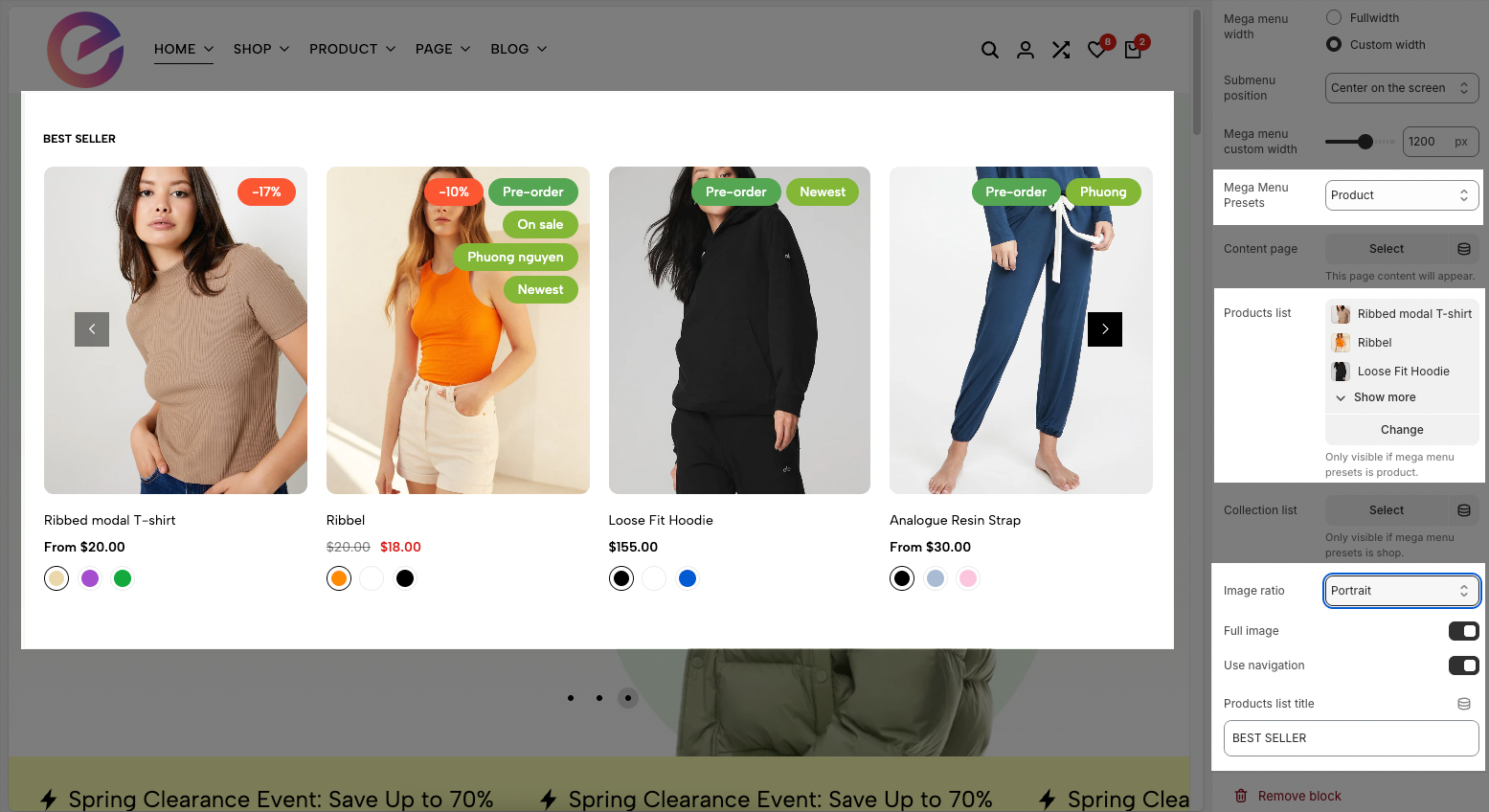
Product
Products list: Displays the selected products that will appear in the mega menu section.
Image ratio: Defines the aspect ratio for product images (e.g., Portrait, Square, Landscape).
Full image: When enabled, displays the entire product image without cropping.
Use navigation: When enabled, adds navigation arrows to browse through products in the list.
Products list title: Sets the title text displayed above the product list.
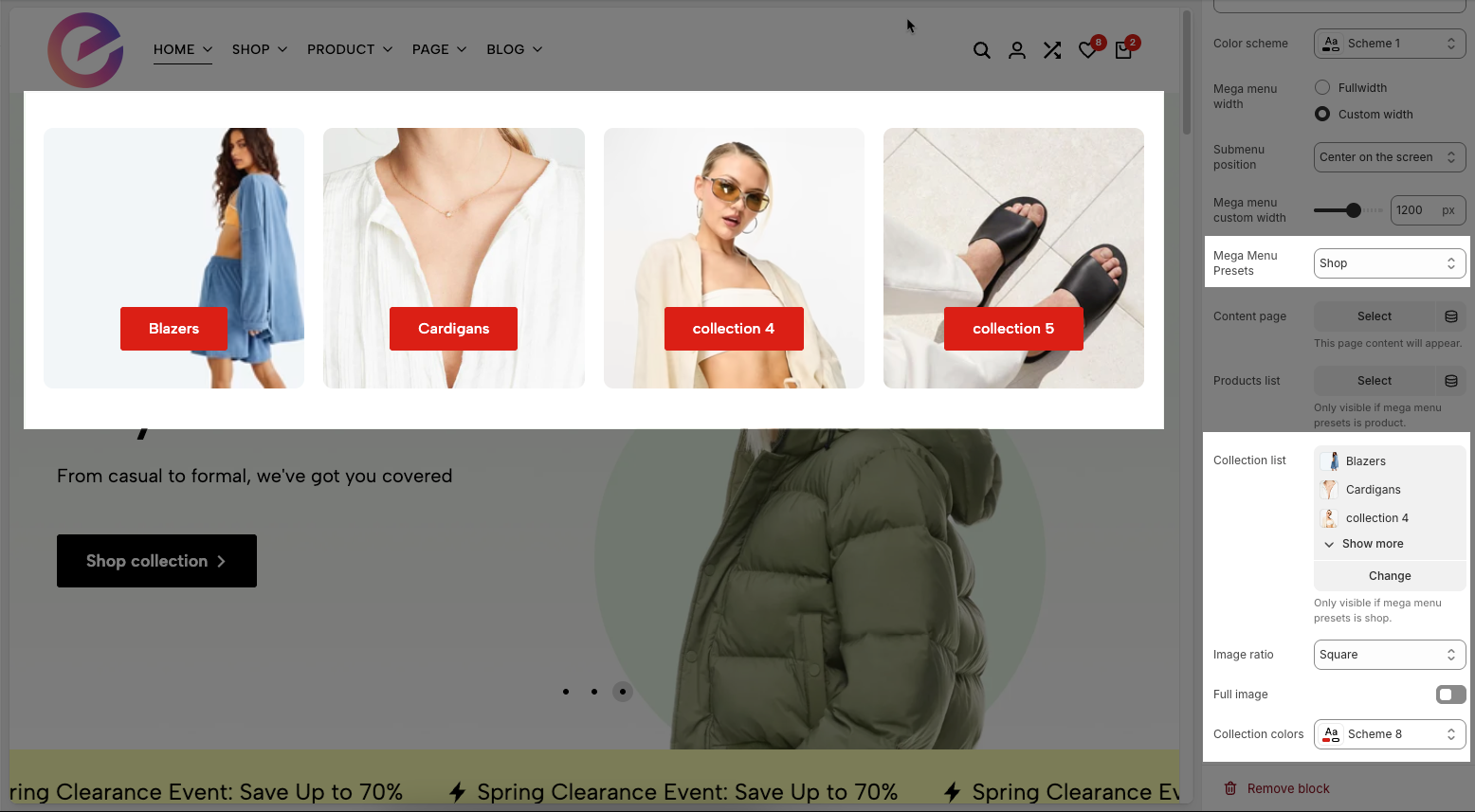
Shop
Collection list: Shows the list of collections that will appear in the mega menu.
Image ratio: Defines the shape of the images in the menu. Options include is Adapt to image, Square, Portrait, ASOS, Landscape
Full image: When turned on, images will be shown at full height or width without padding.
Collection colors: Allows you to choose a color scheme for the collection section.
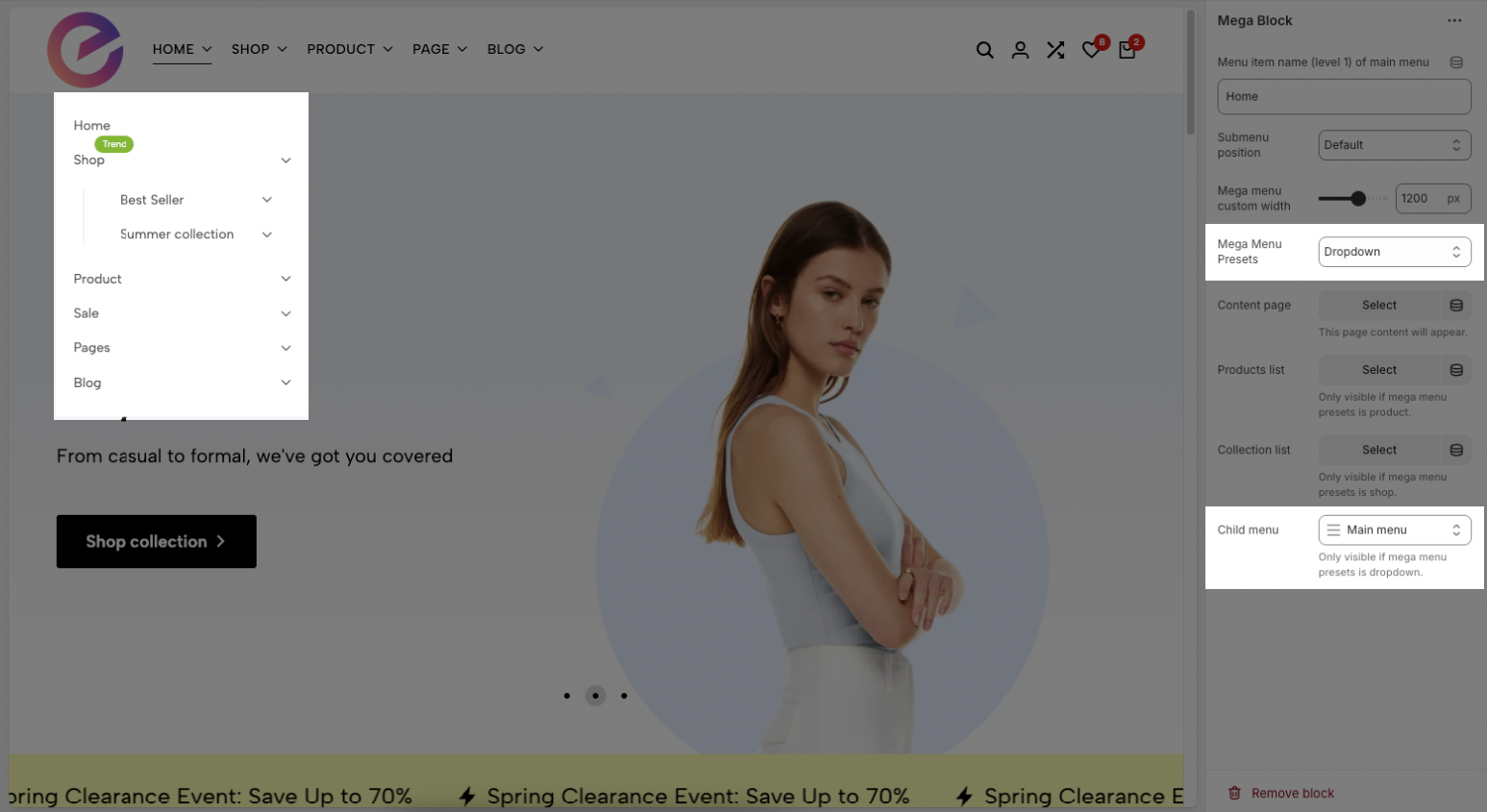
Dropdown
Child Menu (often referred to as a submenu, dropdown menu, or nested menu) is a hierarchical navigation element that appears when a user interacts with a parent menu item. It serves to organize website content into logical, manageable groups,
Page
2.3. Config Mega Block Column (10)
To add a Mega Block Column (10) to the Header inline (New) section, click the Add block button (plus icon ➕) under the Header inline (New) section.
After adding the Mega Block Column (10), you can adjust its settings using the sidebar—located on the right or left side of your screen depending on your device
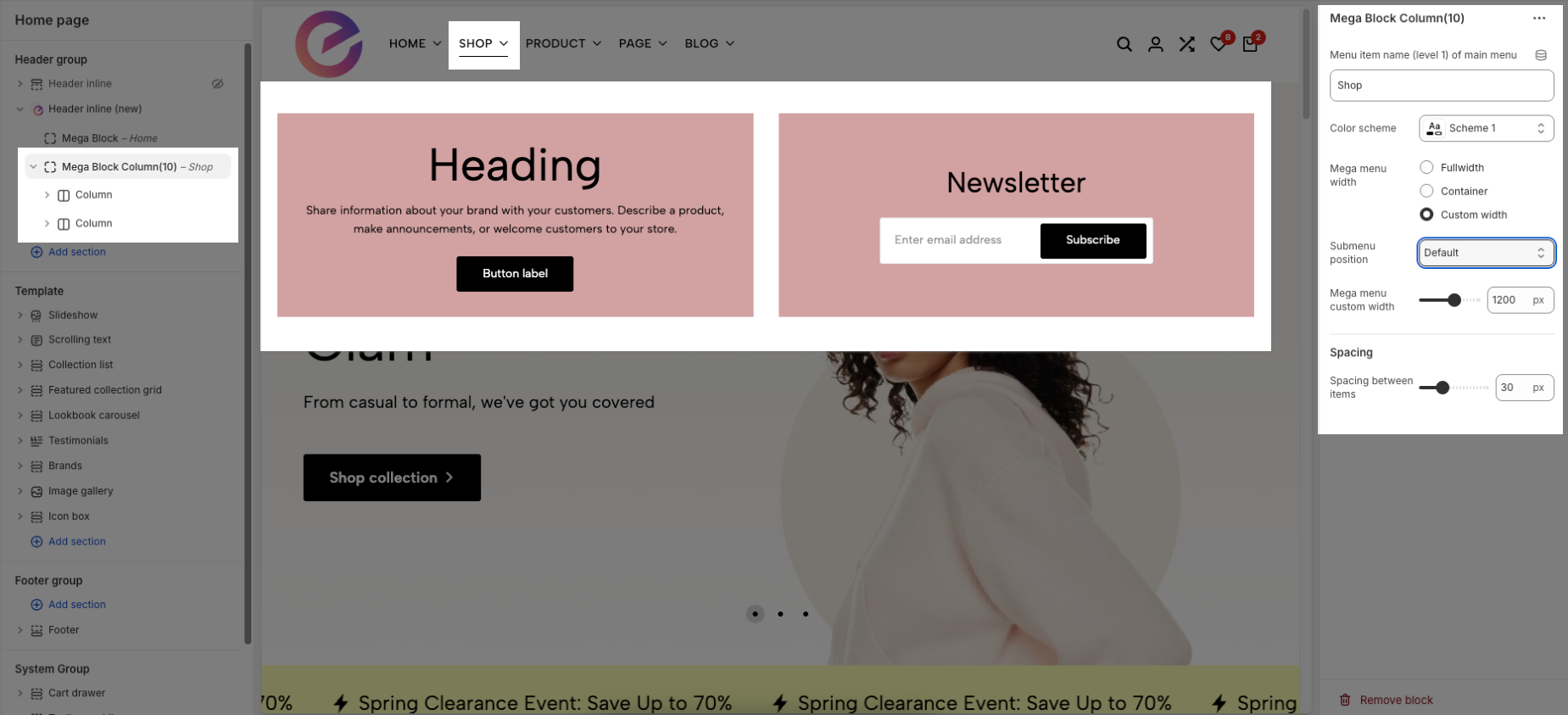
Menu item name (level 1) of main menu: Add title to connect menu item
Make sure the 'Menu item name (level 1) of main menu' is the same as 'menu title' in Navigation, including upper and lower case characters, spaces, etc...
Colors schema: Select the color schema to be applied to the background and text of the Mega Menu. A color schema defines color variables such as background color, text color, button colors, and more
Mega menu width: Select the width of the Mega Menu.
Full width: The menu stretches across the entire screen.
Container: The menu follows the site’s content container width.
Custom width: Allows you to set a specific width manually using the input below.
Submenu position: Select the position of the submenu (dropdown). This setting only applies when "Mega menu width" is set to "Custom width".
Mega menu custom width: Enter the custom width (in pixels) for the Mega Menu. This setting only applies when "Mega menu width" is set to "Custom width".
Spacing between items: Controls the horizontal spacing (padding or gap) between individual elements inside the mega menu (e.g., product blocks or collection cards).
2.3.1. Column block
Since the Header inline section only applies to desktop view, you can ignore any settings related to tablet and mobile screens (if available) within these blocks.
Layout – Columns desktop:
This defines the column's width on desktop screens. eg: "5/10-50%" means the column takes up 50% of the available width.
Padding left/right: Sets the space between the content and the left/right edges of the column.
Padding top/bottom: Sets the space between the content and the top/bottom edges of the column.
Content width: Auto / Full
Content position: This option lets you control the position of the content inside the column only when the Content width is set to Auto.
Alignment: Left / Center / Right
Aligns the content horizontally inside the column.
Background image: Allows you to choose a background image for the column.
Background color: Sets the background color of the column.
If both Background image and Background color are configured, the Background image will take priority and be displayed over the background color.
Rounded: Adjusts the curvature of element corners, creating a softer and more modern interface (Users can select from the following rounded corner options: none, extra small, small, medium, large, and full).
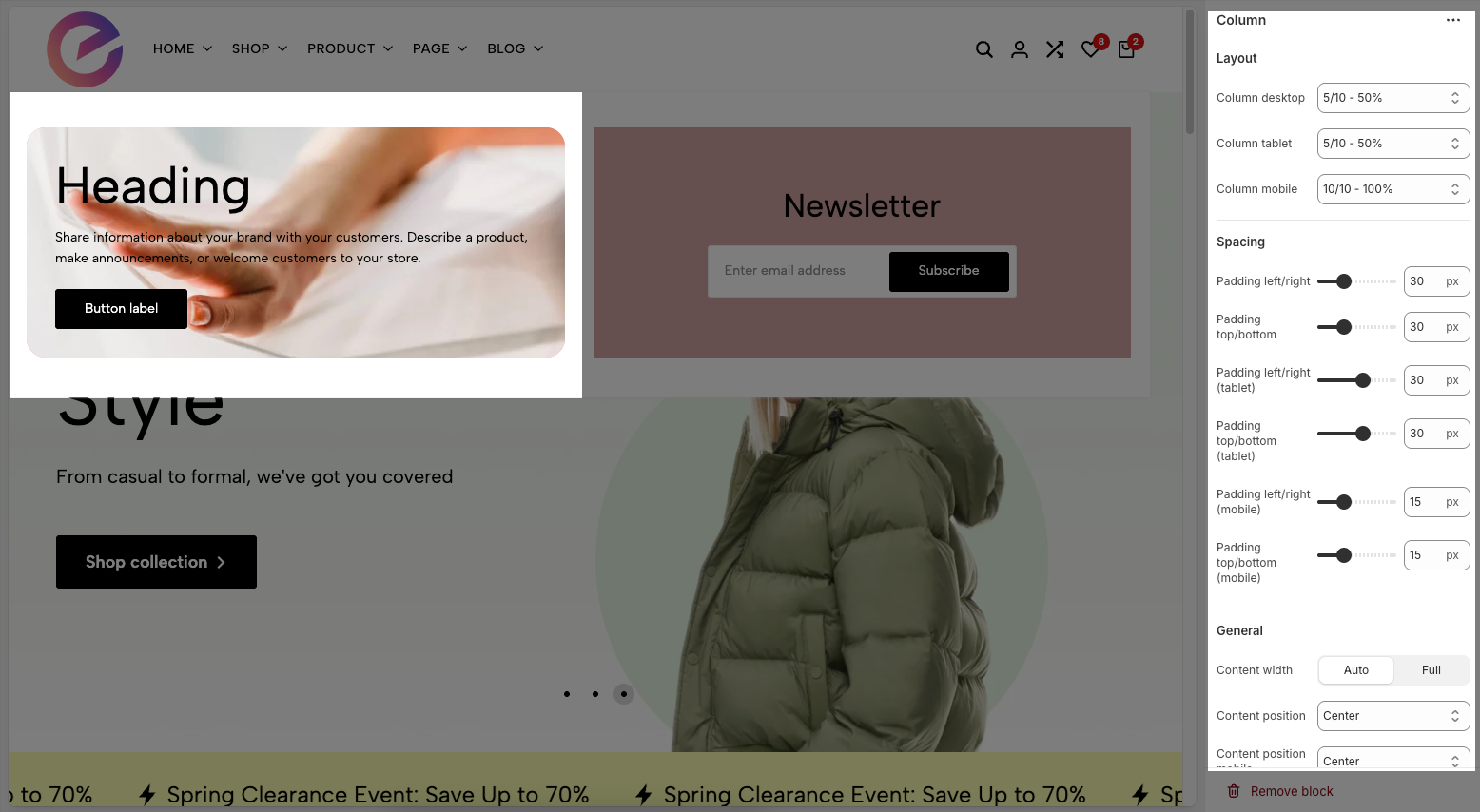
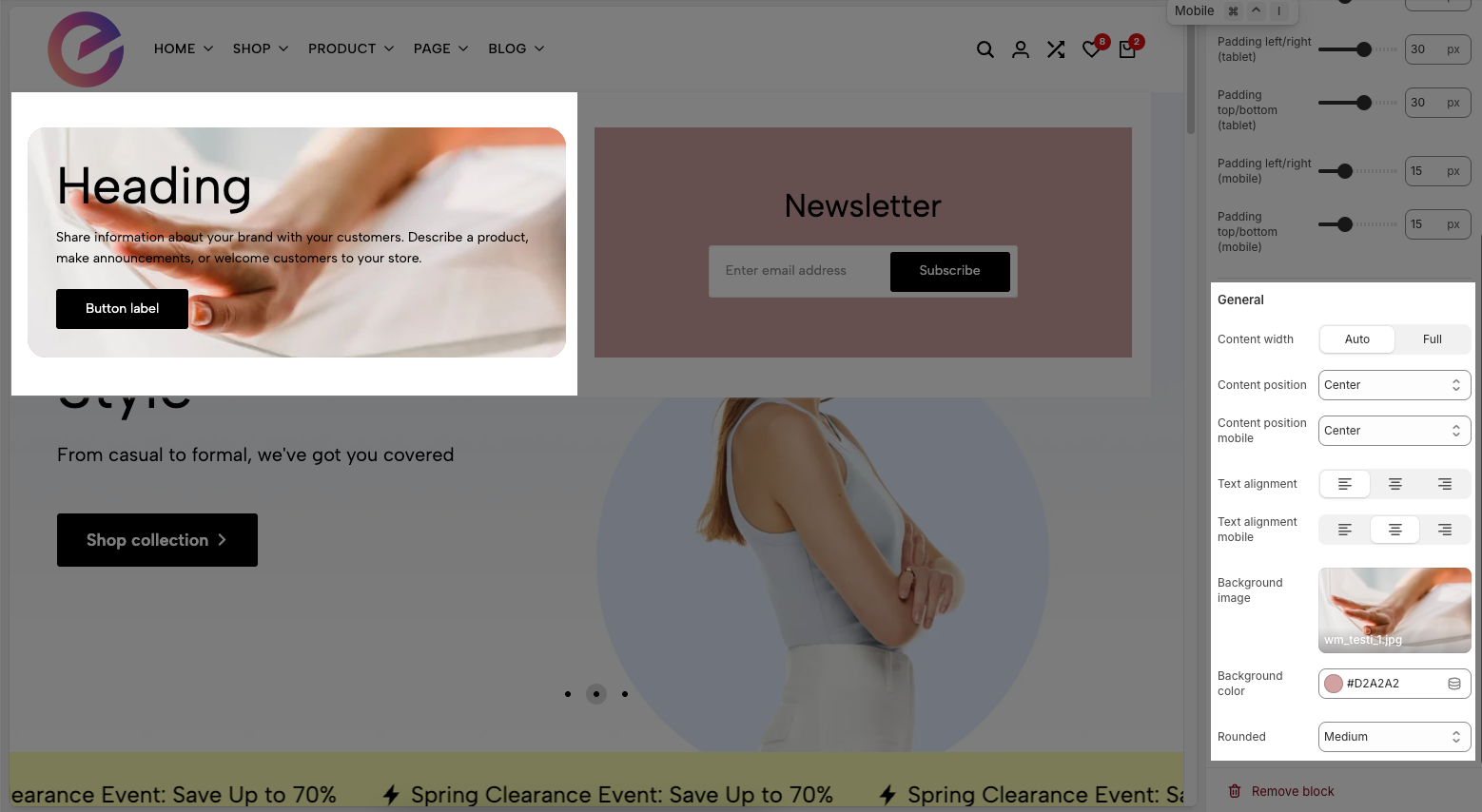
Within a Column block, you can flexibly add various child blocks such as Heading, Button, Image, Newsletter, Product carousel,... and many more to customize your layout.
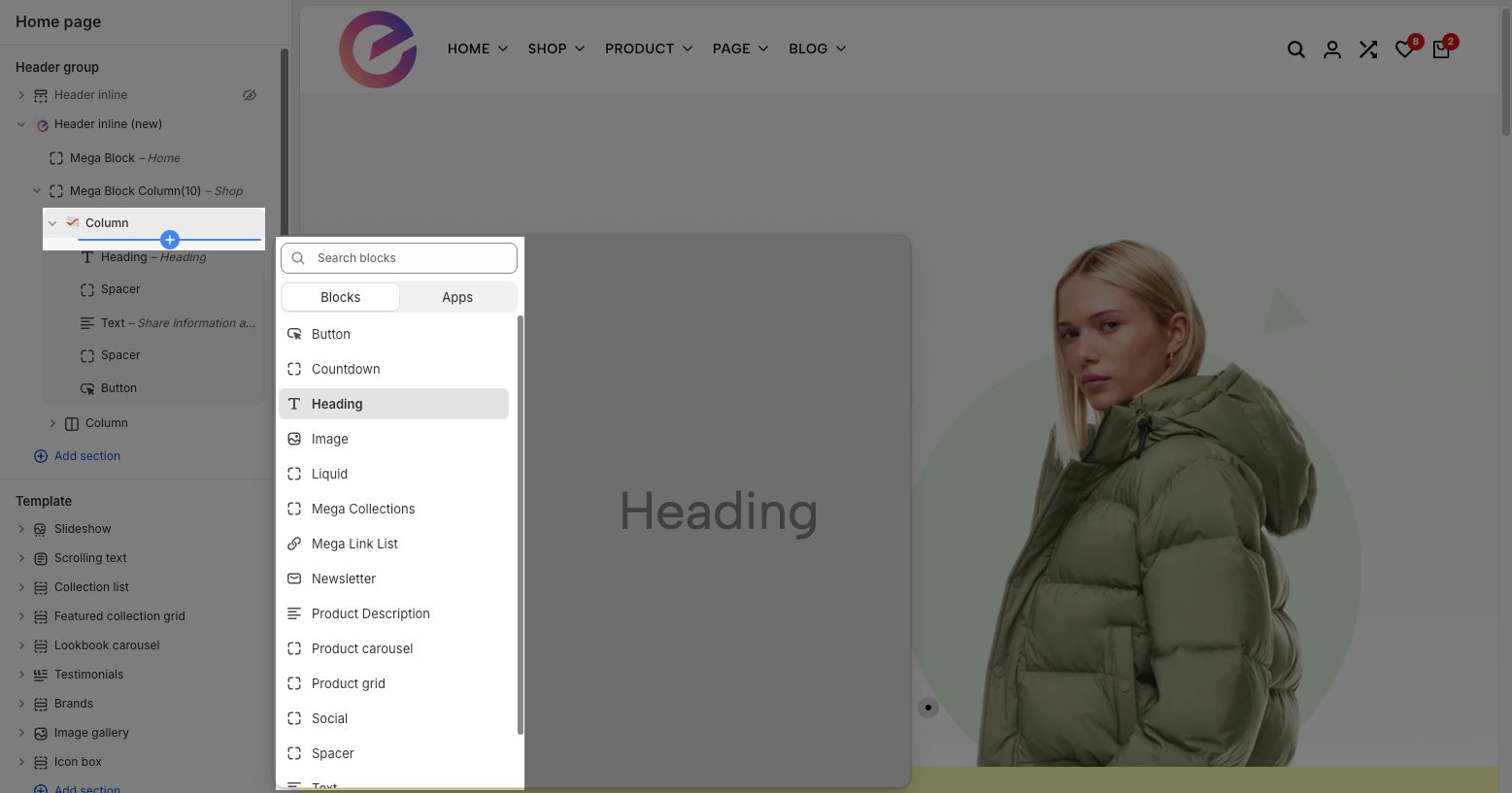
Please follow this guide to customize the blocks inside the Column block.
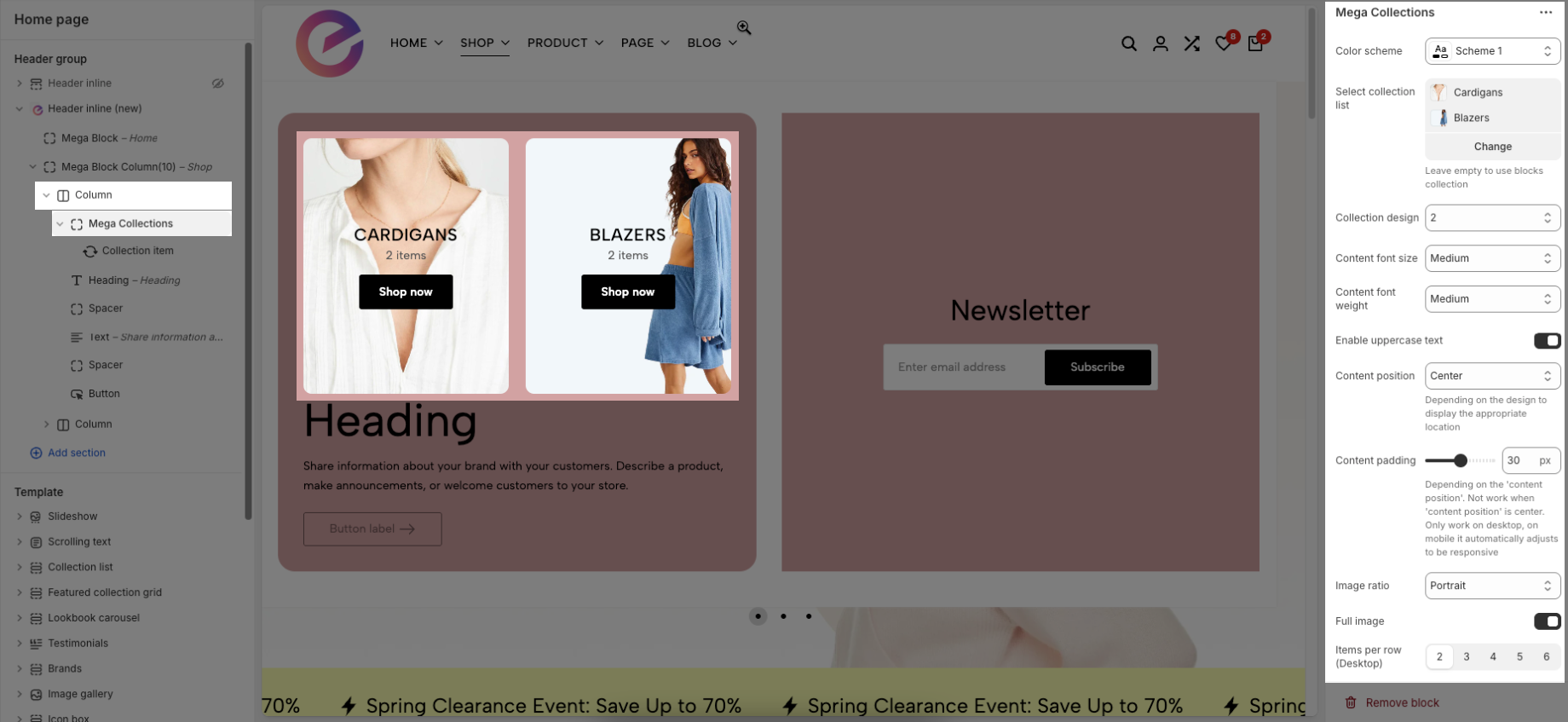
2.3.1.1. Mega Collections
Color scheme: Choose a predefined visual theme that applies to this section (controls background, text, and accent colors) to keep the collections display consistent with your site style.
Select collection list: Choose which Shopify collections to display in this block; if left empty, the block will use the collections you add as child blocks (leave empty to use blocks’ collection).
Collection design: Lets you choose the layout style for displaying collection items
Content font size: Sets the size of the text for the collection title and product count (e.g., Small, Medium, Large).
Content font weight: Controls the thickness of the text (e.g., Regular, Semibold, Bold).
Enable uppercase text: When enabled, converts all collection text to uppercase.
Content position: Defines where the text appears relative to the image — options like Center or Center bottom.
Content padding: Sets the spacing around the content. This does not apply when the content position is set to center.
Image ratio: Sets the shape of the images — for example, Portrait, Square, Landscape, etc.
Full image: When enabled, the full image will be displayed. If turned off, the image may be cropped depending on the layout.
Items per row (Desktop): Allows you to choose how many collection items are displayed in one row on desktop (from 2 to 6).
2.3.1.2. Mega Link list
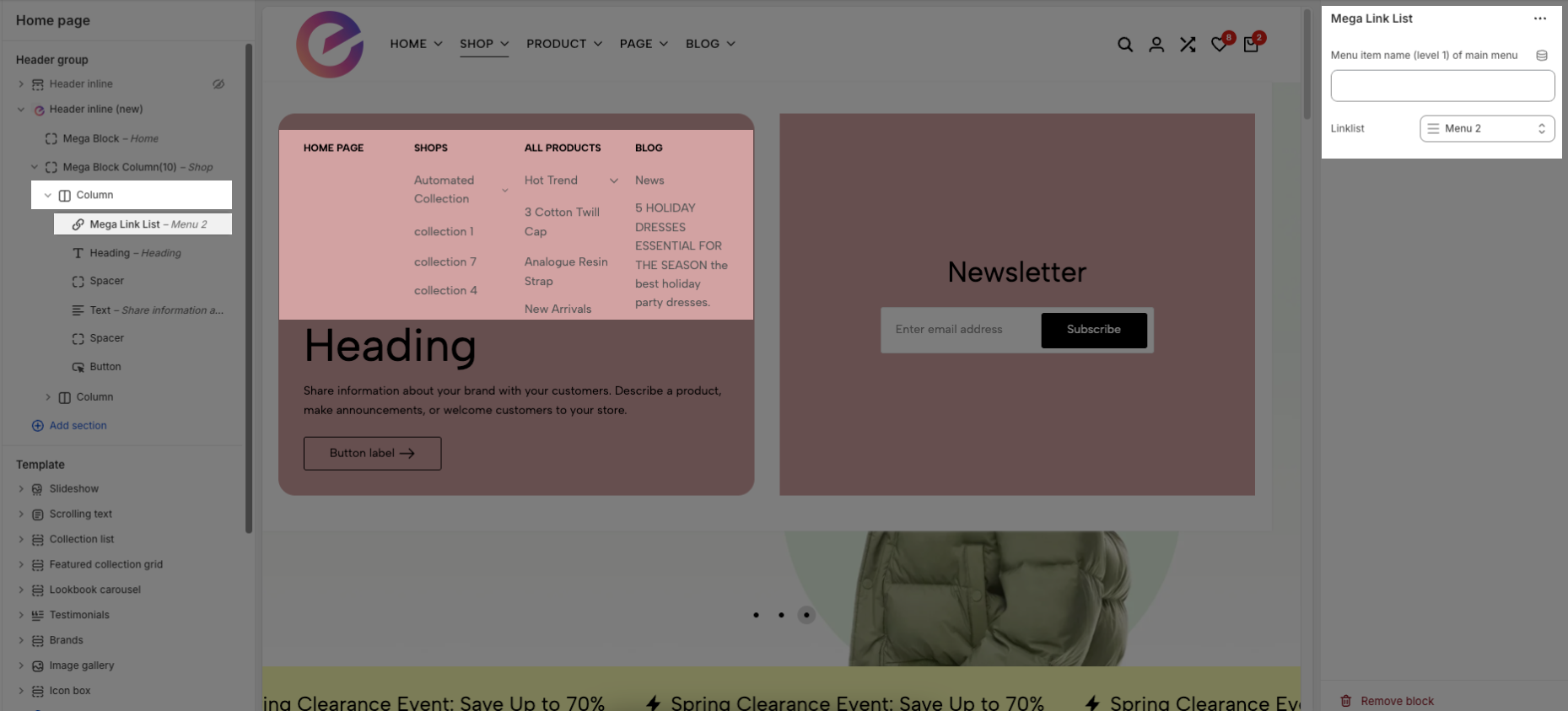
Note: You can only use one of the two options above at a time. Leave the other option blank if not in use.
2.4. Config Mega Block Column (12)
To add a Mega Block Column (12) to the Header inline (New) section, click the Add block button (plus icon ➕) under the Header inline (New) section.
After adding the Mega Block Column (12), you can adjust its settings using the sidebar—located on the right or left side of your screen depending on your device
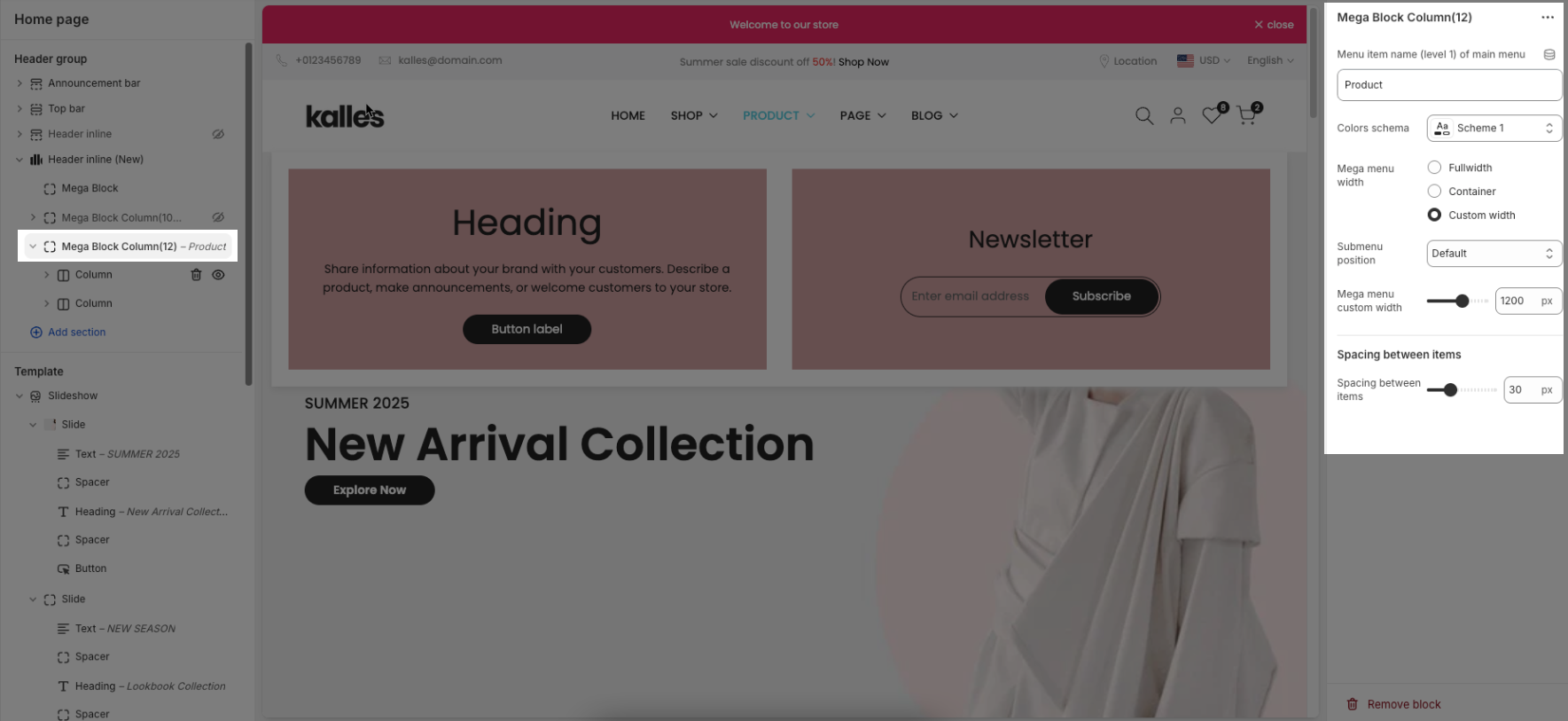
Menu item name (level 1) of main menu: Add title to connect menu item
Make sure the 'Menu item name (level 1) of main menu' is the same as 'menu title' in Navigation, including upper and lower case characters, spaces, etc...
Colors schema: Select the color schema to be applied to the background and text of the Mega Menu. A color schema defines color variables such as background color, text color, button colors, and more
Mega menu width: Select the width of the Mega Menu.
Full width: The menu stretches across the entire screen.
Container: The menu follows the site’s content container width.
Custom width: Allows you to set a specific width manually using the input below.
Submenu position: Select the position of the submenu (dropdown). This setting only applies when "Mega menu width" is set to "Custom width".
Mega menu custom width: Enter the custom width (in pixels) for the Mega Menu. This setting only applies when "Mega menu width" is set to "Custom width".
Spacing between items: Controls the horizontal spacing (padding or gap) between individual elements inside the mega menu (e.g., product blocks or collection cards).
The structure of Mega Block Column (12) is similar to Mega Block Column (10), so you can refer to the customization instructions in section 2.3 above.