There are 2 designs of Header: Header Inline and Header Menu Bottom. To know how to configure the header sections in detail, let's stick to this guideline.
You can look over some header styles in the video below:
The screenshots and videos in this document are for 'Header Inline', but you can do the same steps for 'Header Menu Bottom'.
We prioritize the top first section header to show. For example, if you want to use Header Inline, you need to remove/hide 'Header Menu Bottom'. Otherwise, the options in header section will not work properly.
From the Shopify admin > Content > Menus, you create a navigation for the main menu.
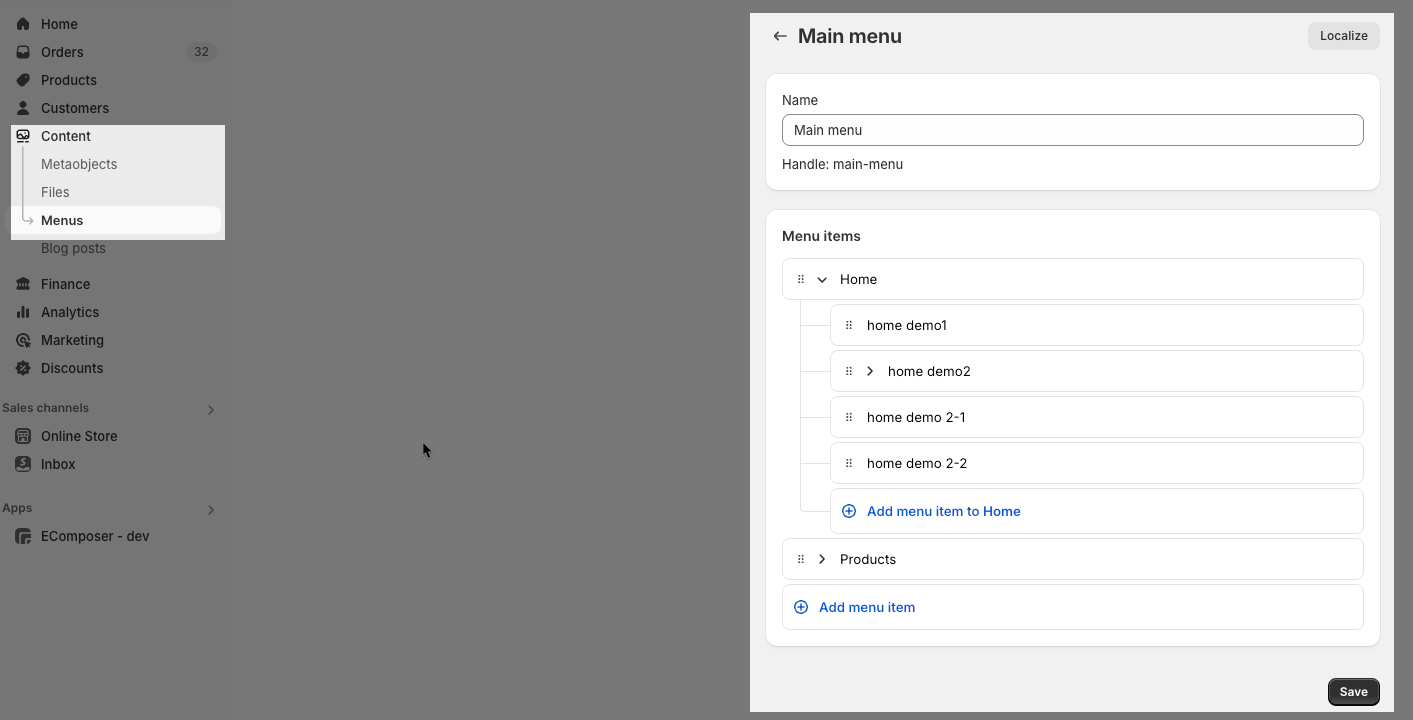
Note: Shopify allows you to create a Navigation up to 3 levels, so the maximum level for a dropdown is 3.
If you want to show a simple header with links and dropdowns, you can remove/hide all blocks in Header inline section.
Please check this video to know more:
If you want to show a Base item menu (only a link when clicking, no dropdown) => you hide the mega block in Header Inline. Follow this video:
There are 4 blocks for mega menu: Mega menu shop, Mega menu product, Mega menu pages, Mega menu HTML. You can look over this video:
Step 1: Add 'Mega menu' blocks
Make sure the 'Menu item title' is the same as 'menu title' in Navigation, including upper and lower case characters, spaces, etc... Otherwise, it will show the default dropdown menu from Navigation.
Please follow this video guide:
Step 2: Navigation for mega menu
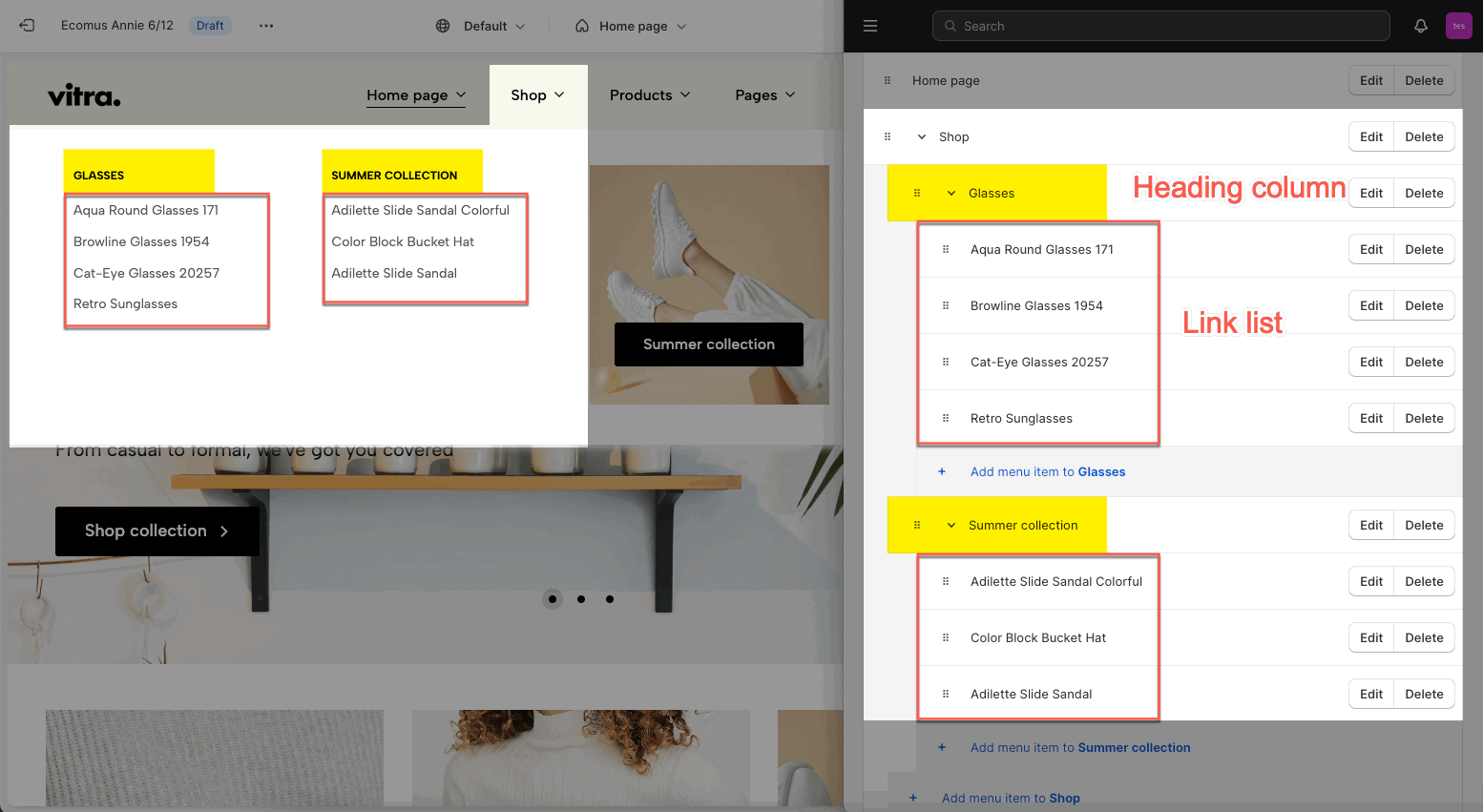
In mega menu:
The second-level items become the column heading
The third-level items become the link list under heading
Step 3: Customize mega menu
There are some general options: Color scheme, Submenu position, Mega menu width
Please check this video to configure them:
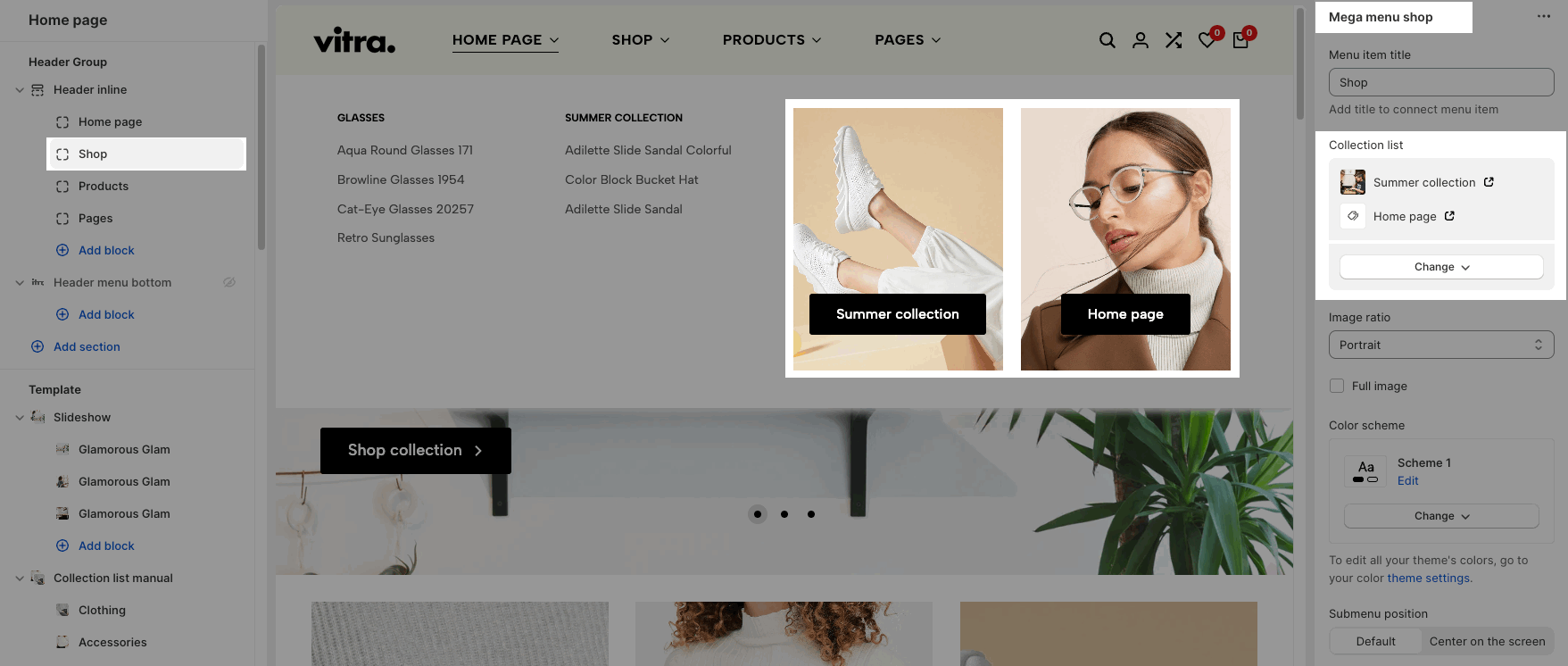
In different blocks of mega menu, you can add a Collection list/ Product list/ HTML/ Content page. Please follow this video guide:
To add an image collection of Mega menu collection, you add the feature image from collection.
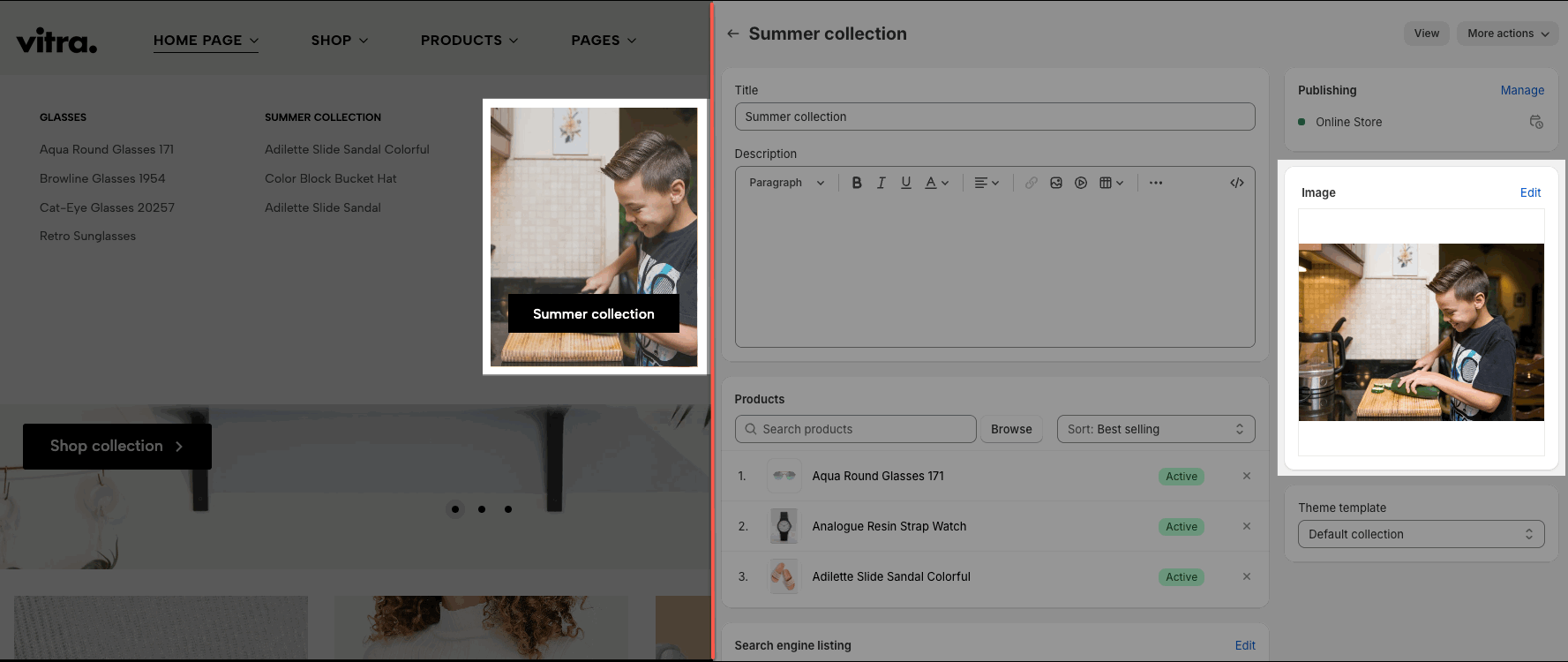
If you want to choose another image for collection, you go to Settings > Custom data > Collection > create a 'collection metafield' with the key 'theme.featured_image_collection'. Please follow this video:
The result:
You can create the label menu as the image below.
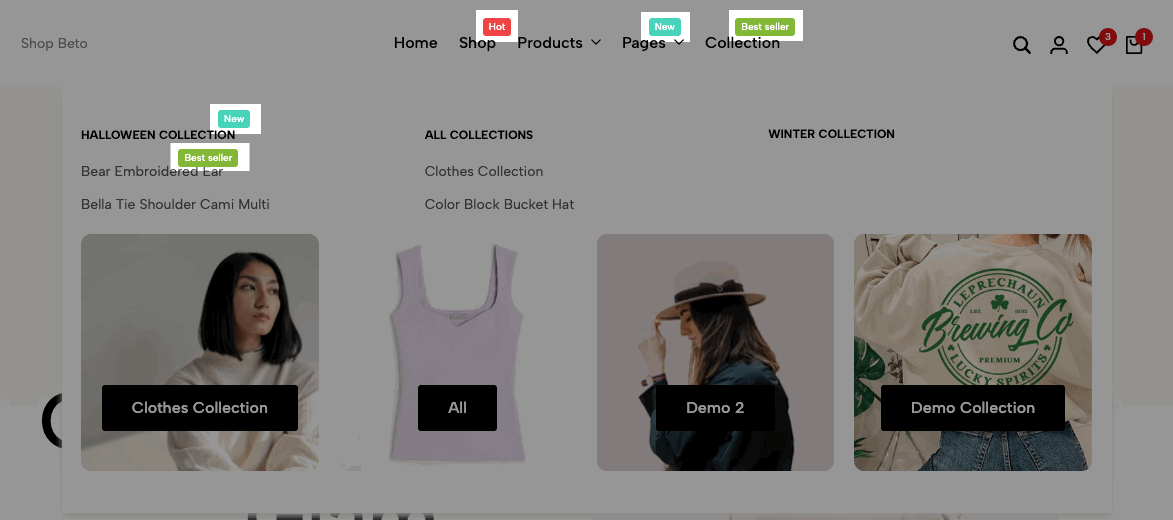
You just need to add the [Label_name] next to Menu item you want.
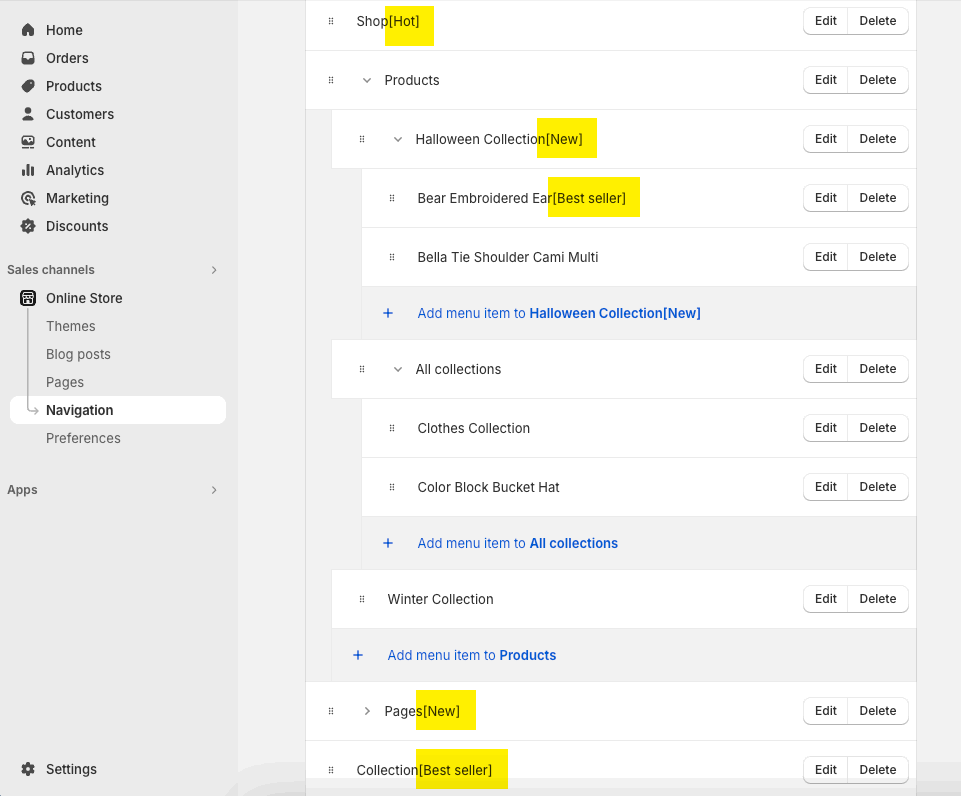
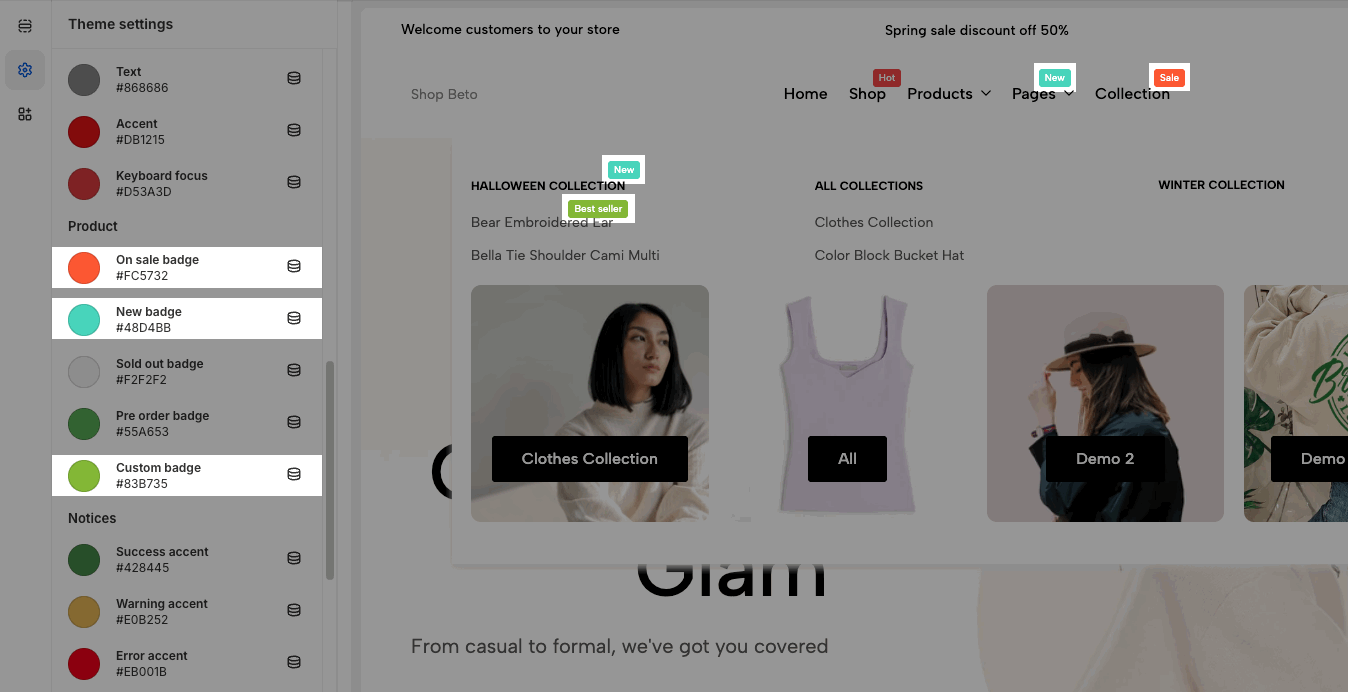
The colors are from Theme settings > Colors > Product
Header layout and logo
Navigation options: you choose a main menu, position, size, font weight, etc...
Group icons options: Enable the icons you want
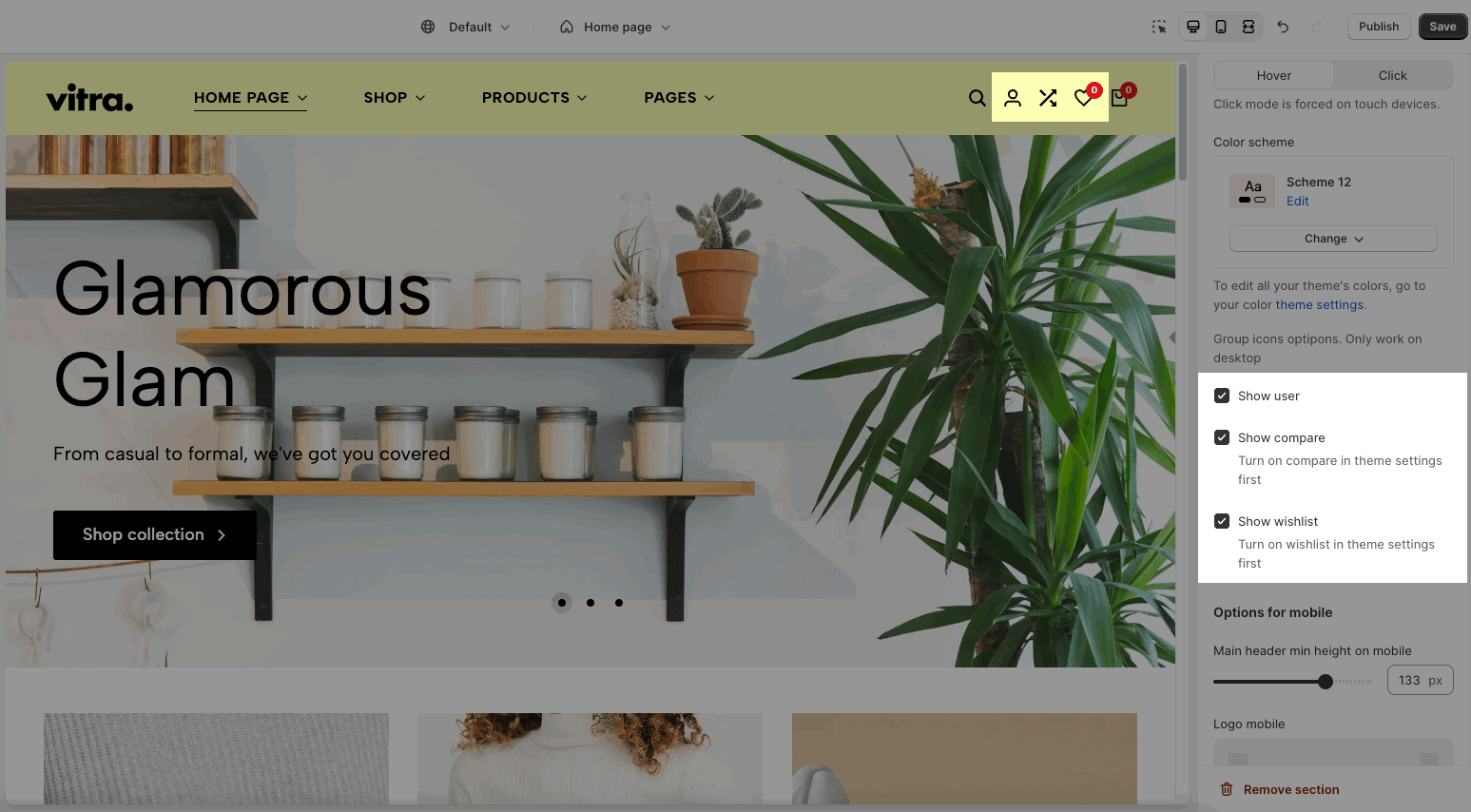
You need to go to Theme settings > Products > enable wishlist and compare first.
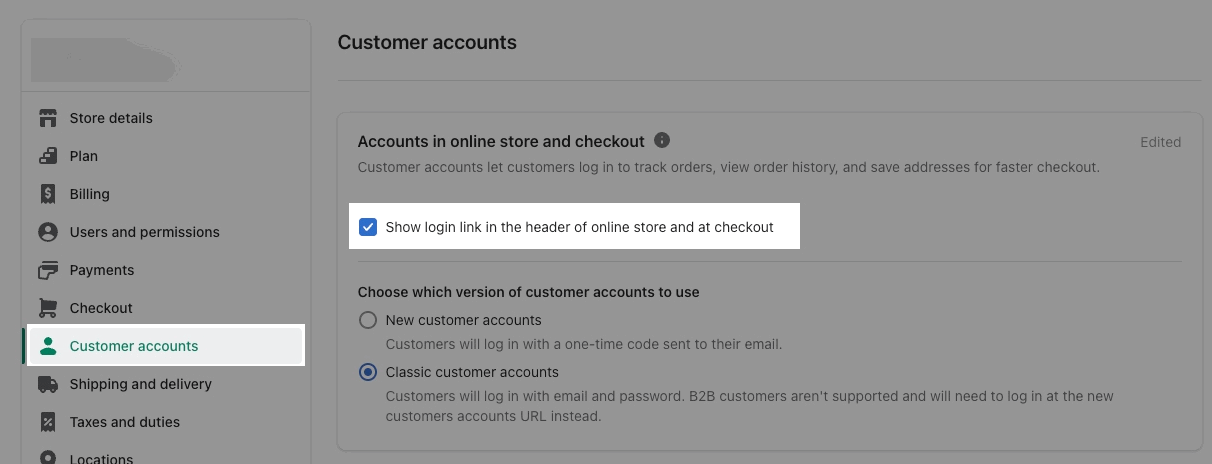
If you tick "Show user" but the icon still does not show, please go to Shopify Settings > Customer accounts > enable “Show login link in the header of online store and at checkout”:
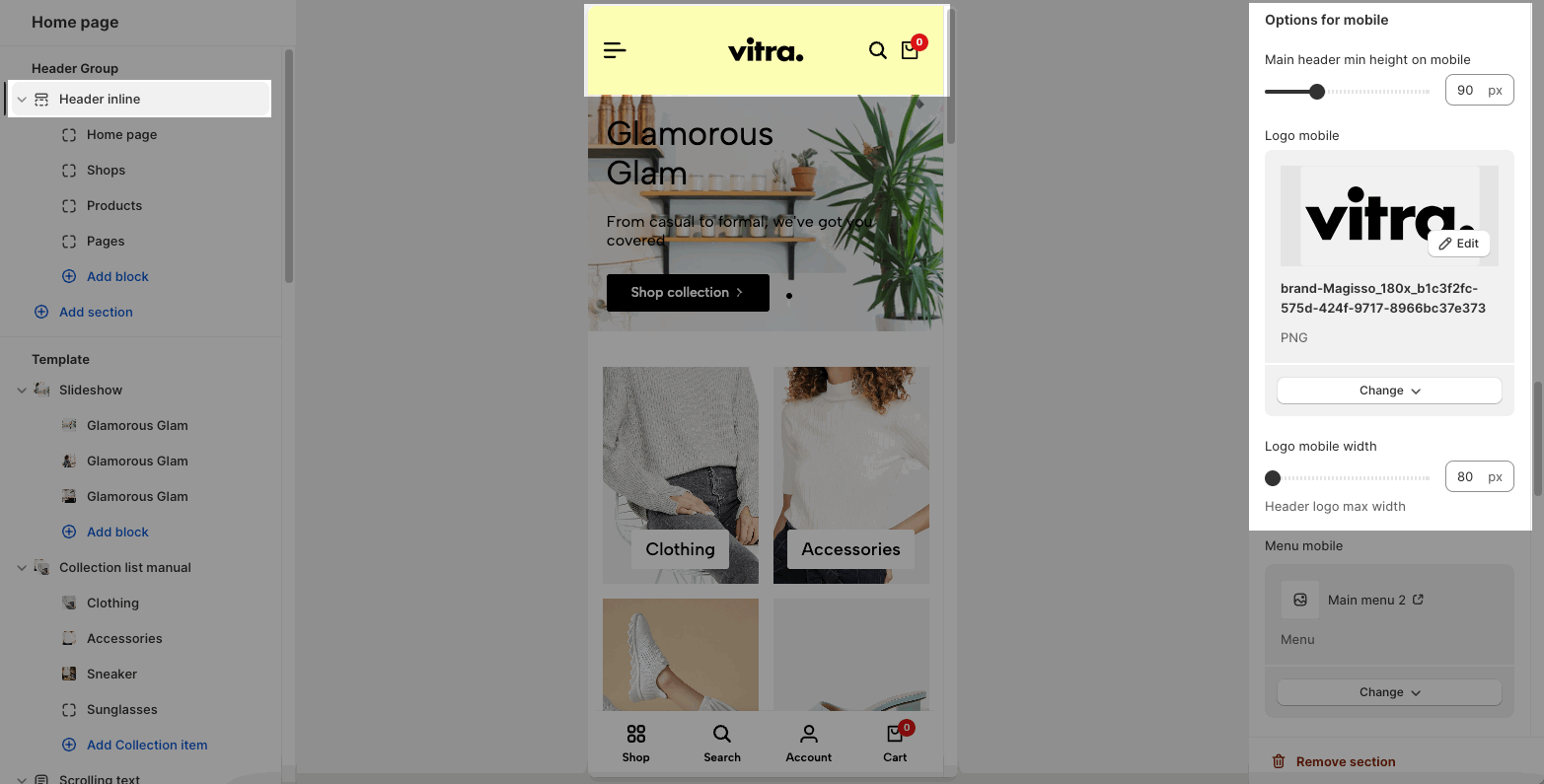
Still in the Header Inline/Header Menu Bottom section, you can configure mobile header.
Header layout and logo: you can change header min-height, logo and logo min-width.
Menu mobile: you choose navigation to show in the menu. Please check this video to configure it:
Only click icon:
If you check on this option, you can only click icon to open the submenu.
Uncheck this option to click on both the menu heading and icon to open the submenu.
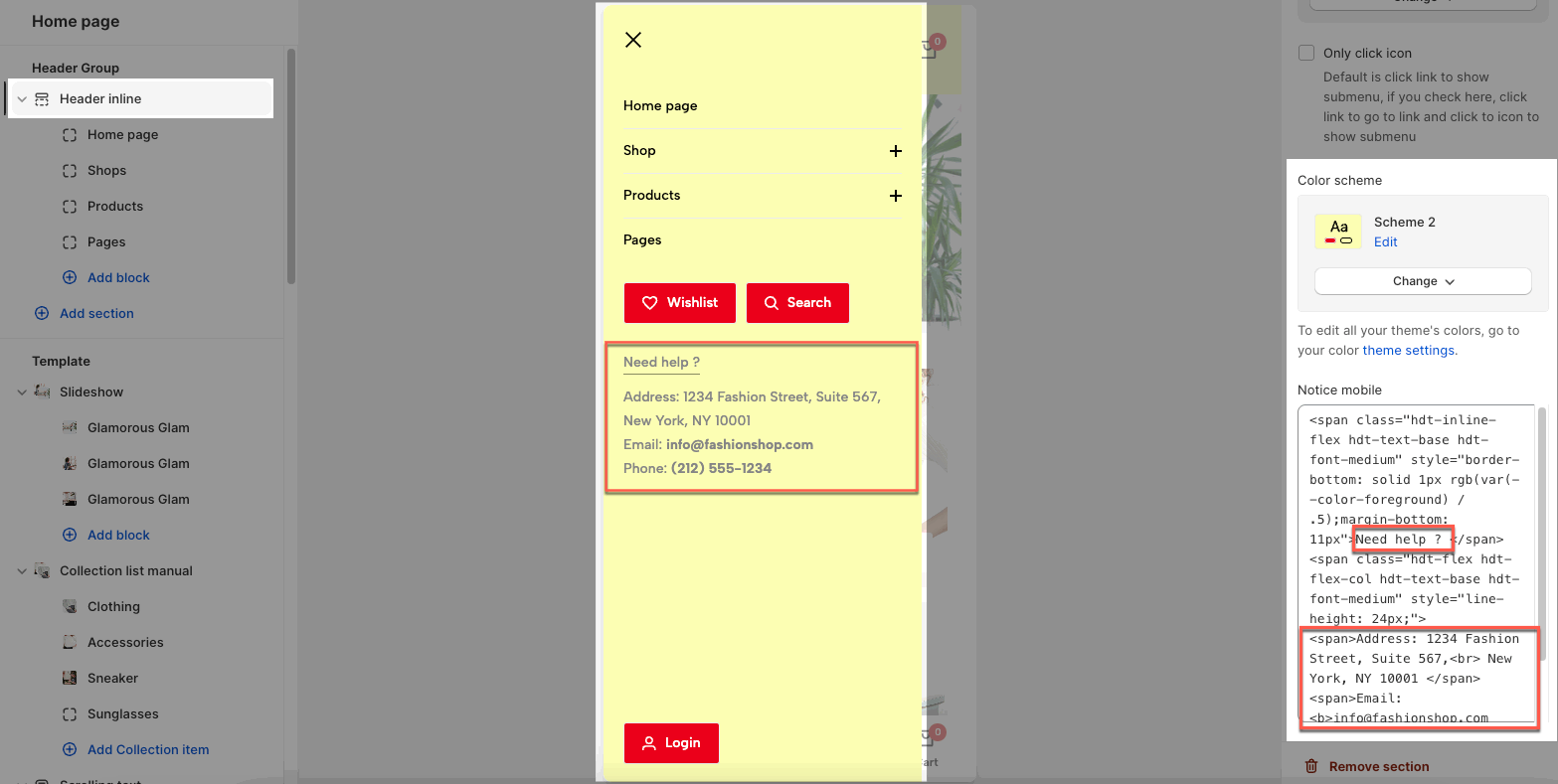
Color scheme, notice mobile: you choose a color scheme for mobile menu and edit the content in notice field.
Only Header Menu Bottom has the categories header.
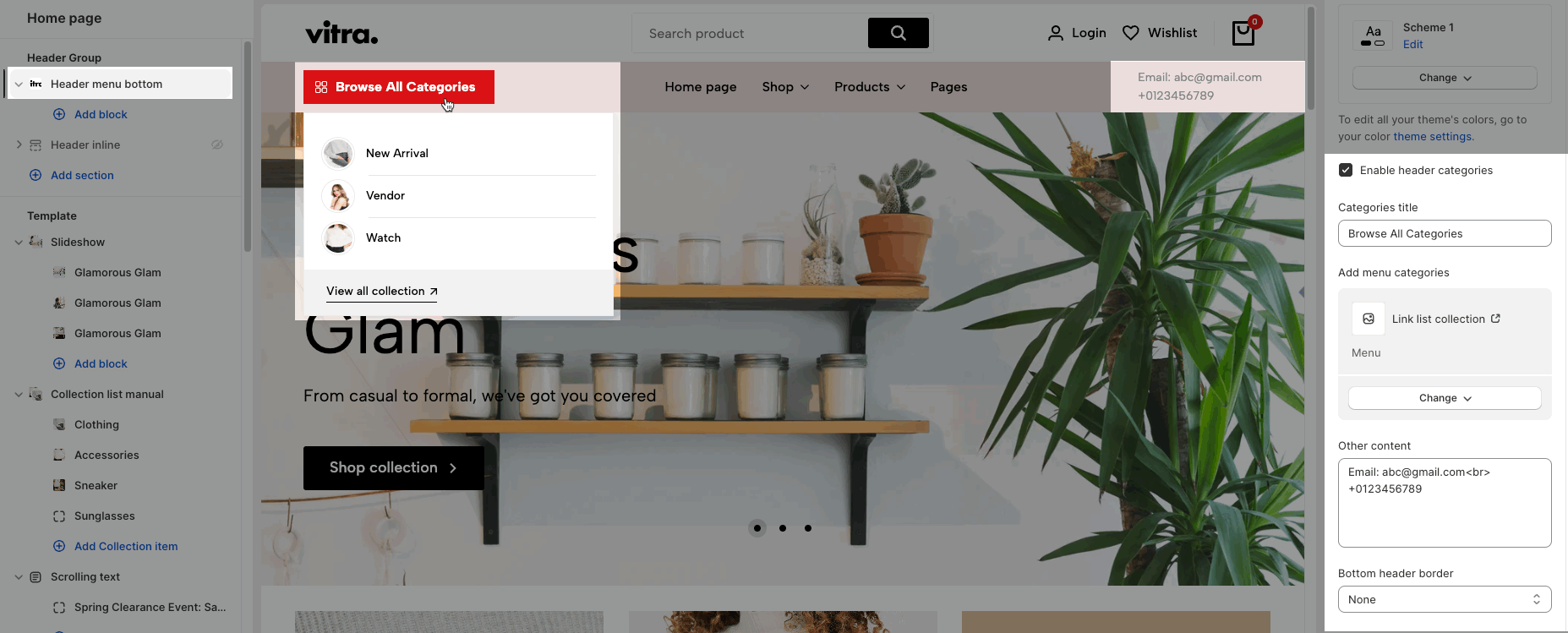
You need to create a navigation for the categories. If the menu item is collection page, it will have the thumbnail image next to the collection items.
Please follow this video to set up it:
Transparent header is only available in Header Inline and works if the first section of your page is slideshow, hero image, banner or video section. If the first section is another section, it shows the normal header instead of transparent.
There are 2 designs of Header: Header Inline and Header Menu Bottom. To know how to configure the header sections in detail, let's stick to this guideline.
You can look over some header styles in the video below:
The screenshots and videos in this document are for 'Header Inline', but you can do the same steps for 'Header Menu Bottom'.
We prioritize the top first section header to show. For example, if you want to use Header Inline, you need to remove/hide 'Header Menu Bottom'. Otherwise, the options in header section will not work properly.