Mega Menu allows you to create multi-column menus with support for links, collections, products, and promotional images, helping customers navigate your store more efficiently.
For simple navigation needs, a standard dropdown menu is usually sufficient.

Before setting up a Mega Menu, make sure your navigation menu is created in Online Store → Content → Menus.
Mega Menus work best with a three-level menu structure, for example:
Shop → All products → Best sellers.
Important: Use one single main menu for the header.

Open the Header section
In Navigation, make sure the Menu is set to the menu you created in Navigation (for example: Main menu)
Mega Menus only work on the menu that is assigned to the Header

Inside the Header, click Add block
Select one of the Mega Menu blocks:

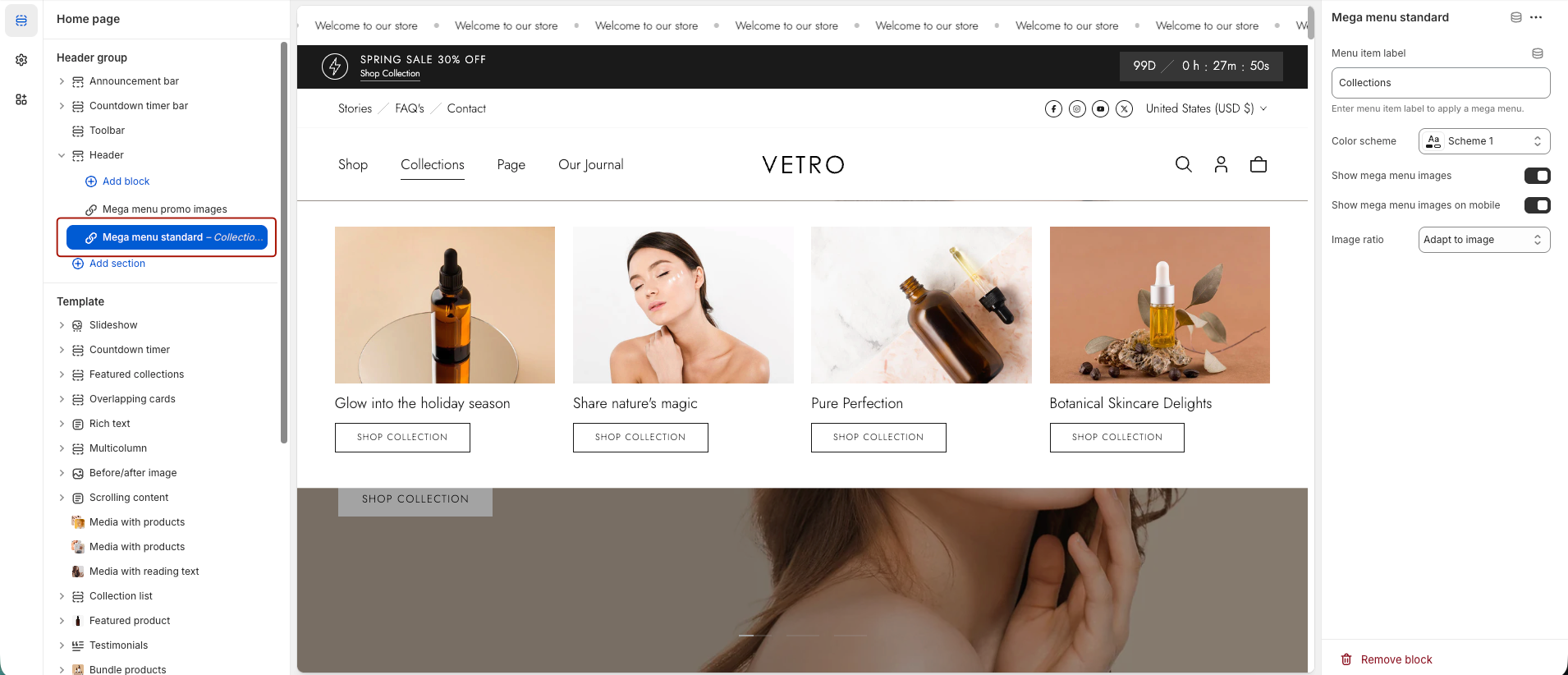
After adding the block, configure it by entering the Menu item label and adjusting the available display options depending on the Mega Menu type.
The Mega Menu will be attached to a first-level menu item that matches the Menu item label.

The most common reason is that the menu item label does not exactly match the Level 1 menu name please double-check spelling, capitalization, and any extra spaces.
This type is designed to display promotional or campaign images directly inside the menu.
You can show up to two promo images, each with a heading, short text, and button link, and control mobile visibility, color scheme, and first-item highlighting.

This type displays collections in a carousel layout inside the menu.
You can choose which menu item it applies to, enable mobile display, highlight the first collection, select a color scheme, choose collections, and control the style of Collection Images.

This type allows you to showcase specific products (such as best sellers or featured products and maximum 6 products) directly in the menu.
You can select the products to display, adjust image behavior to match product images, and optionally show the product vendor.

The Standard Mega Menu shows navigation links in multiple columns, with optional collection images.

When Show mega menu images are enabled, it automatically uses each collection’s default image, so no manual upload is needed.

This option is ideal if you want a simple, clean menu with visual support, without using promo images or products.
If you don’t want to display the mega menu image from the collection’s default image, you can use a metafield to add a different image. Please follow this document.
No => If your menu does not require a complex structure, simply create a standard menu in Navigation. It will automatically appear as a simple dropdown submenu under the header without adding any Mega Menu blocks.

Go to Admin → Content → Menus → Main menu
Edit the Label of the menu item using this format:
Collection name | Button textApplies to Standard Mega Menu

Yes, but additional setup is required.
How to localize a Mega Menu:
Install the Shopify Translate & Adapt app
Translate your navigation menu

If you would like our team to check your setup, please contact us on Live chat.